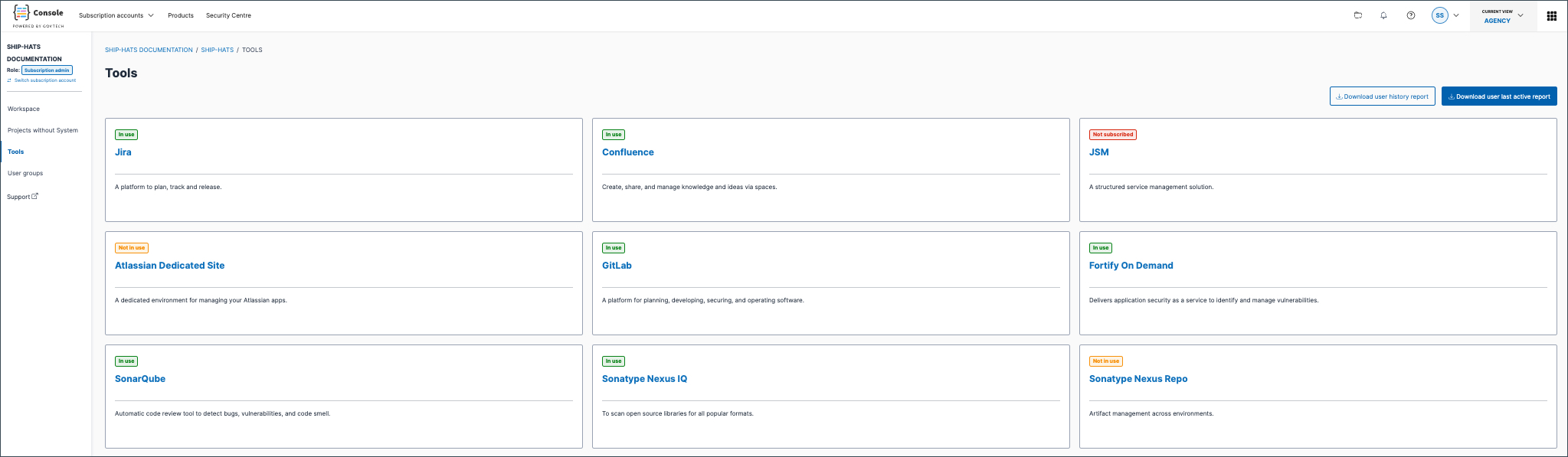
View SHIP-HATS consumption
Subscription Admins (SA) and Project Admins (PA) can use the SHIP-HATS Consumption widget in Console to monitor subscription consumption across subscribed tools.
Use this topic to
- Monitor subscription consumption at a glance.
- Identify tools approaching their allocated quota.
- Access detailed tool information.
- Manage tool access for users (SAs only).
Prerequisites
- Active TechPass account
- A non-SE GSIB, COMET, or GMD (SEED) device.
- You must be a Subscription Admin or Project Admin.
- If the SHIP-HATS Consumption widget is not displayed on your Dashboard, add it first. See Manage widgets on Console.
All users can add the SHIP-HATS Consumption widget to their Dashboard. However, only Subscription Admins and Project Admins can view consumption information. Users without the required permissions will see an empty widget.
Steps
Log in to Console.
On the Dashboard, locate the SHIP-HATS Consumption widget.
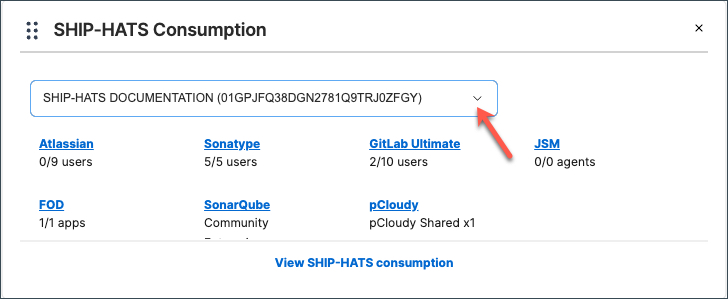
Select the subscription you want to view.
Review the consumption information displayed for the subscribed tools.
If you are a Subscription Admin, click a tool name to view detailed information and manage user access. From the tool details page, you can:
- View users who have been assigned access to the tool.
- Search for assigned users
- Provision access to additional users.
- Provision access to multiple users using batch upload.
- Remove access from users who no longer require it
- Access related tool resources and links.
For example, clicking GitLab opens the GitLab details page, where you can view current users and manage GitLab access for the subscription.
To view more details about consumption, click View SHIP-HATS consumption.
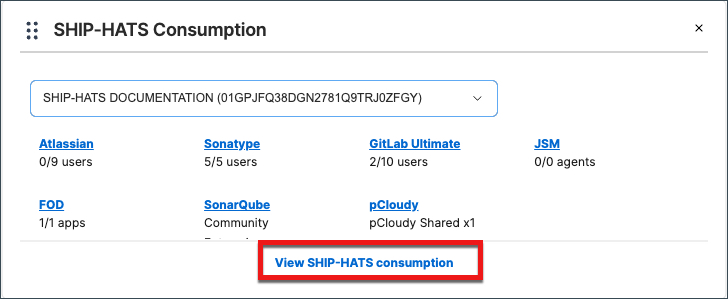 You are redirected to the Tools page, where you can view detailed information about subscribed tools and their consumption.