Create user groups
Subscription Admins (SAs) and Project Admins (PAs) can create user groups for a SHIP-HATS subscription.
User groups are used to efficiently manage user access and permissions for the following tools:
- Confluence
- Jira
- Nexus Repo
- Nexus IQ
- Fortify on Demand
- SonarQube
Before you begin
You can create up to five user groups for a SHIP-HATS subscription.
If you already have five user groups, you cannot create new user groups via Console. To add more user groups, create a service request.
Prerequisites
Ensure the following:
- You are a Subscription Admin (SA) for the subscription, or a Project Admin (PA) for a SHIP-HATS project within the subscription.
- Users have an active TechPass account.
Steps
In Console, go to Products > SHIP-HATS.
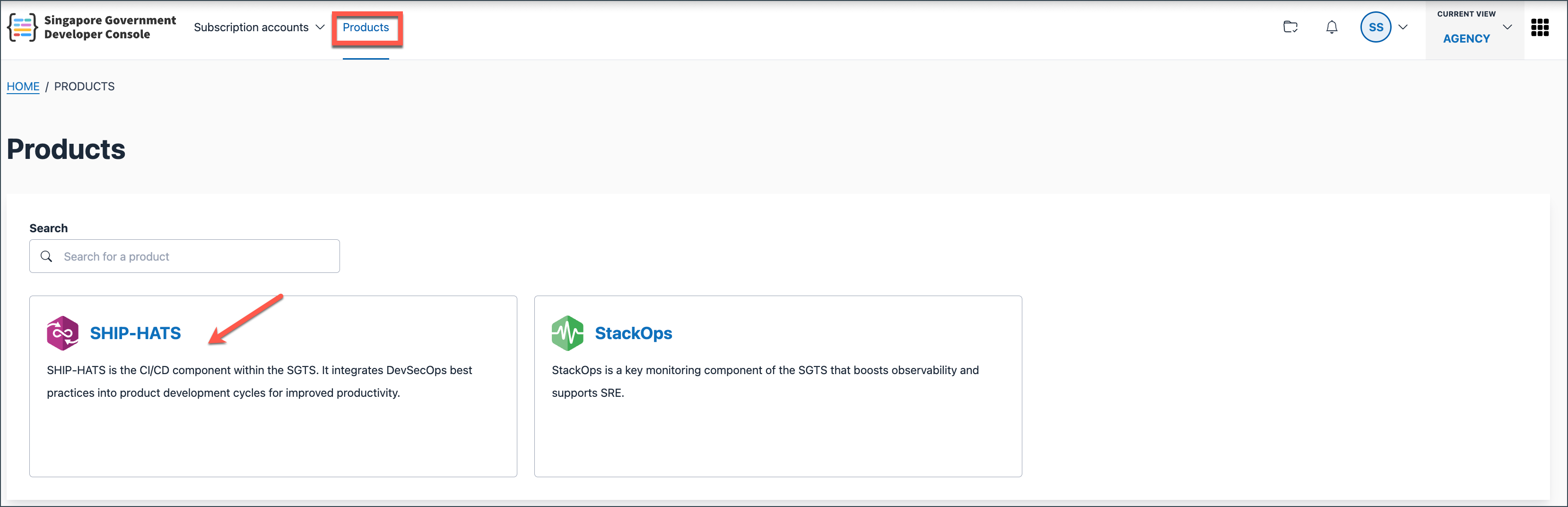
Select the subscription for which you want to create the User group.

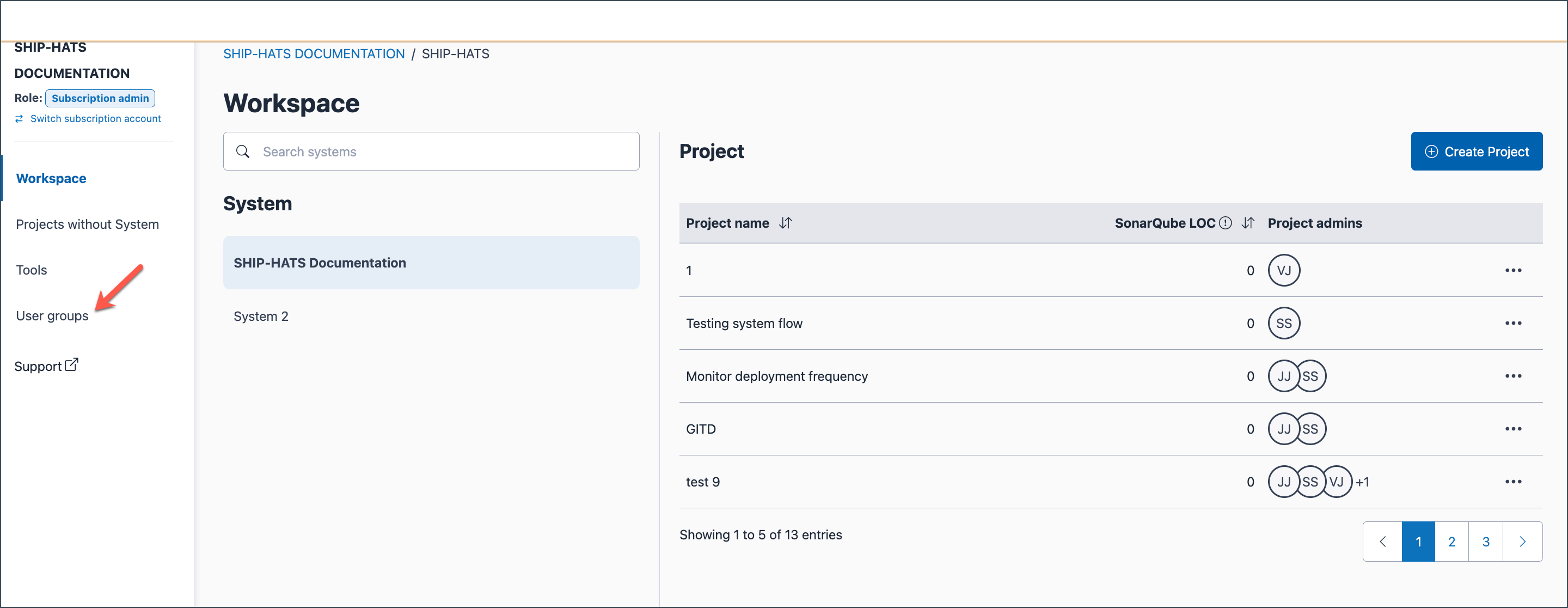
You will be directed to your Workspace.
In the left navigation, click User groups.
Click Create user group.
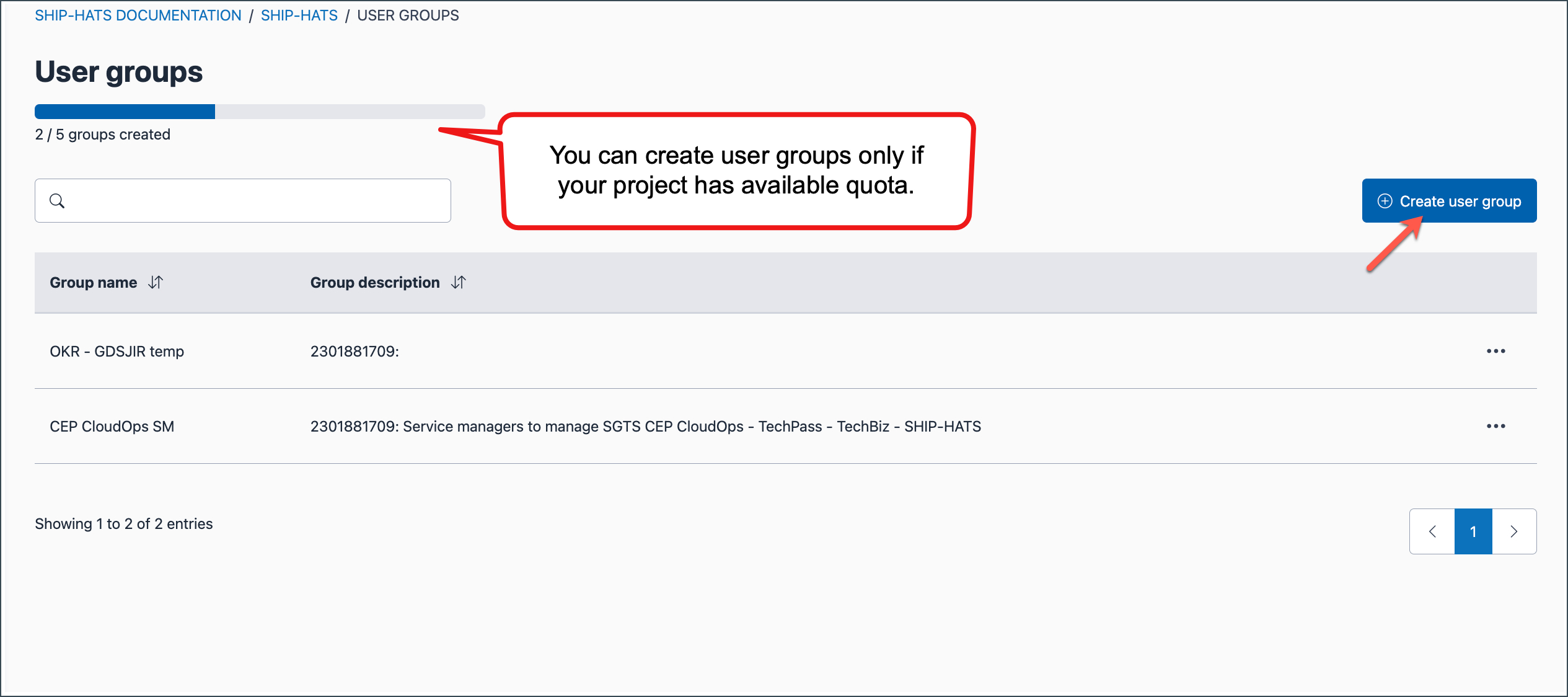
If you have consumed the quota available for user groups, the Create user group option is disabled. To add more user groups, create a service request.
Provide the required details:
Field Description Group name - Must be alphanumeric
- Less than 40 characters
- Can contain only hyphens (-) and underscores (_)Group description - Up to 255 characters Group members - Search for and select required users from the drop-down list
- Inactive TechPass users appear in search results but cannot be added.
- You can add or remove users from a user group anytime.Tip: If the user group is for a tool that requires a licence, ensure the SA or TA has provisioned the required licences to all users in the group. See Provision licences to users.
Click Submit.
The new user group is created and displayed under the User groups section.
