Reassign system for SHIP-HATS projects
This topic explains how Subscription Admins (SAs) or Project Admins (PAs) can reassign a SHIP-HATS project to a different system within the same subscription.
Use this topic to
- Change the system linked to an existing SHIP-HATS project.
Prerequisites
- You must be a Primary or Secondary Subscription Admin (SA), or a Project Admin (PA) for the SHIP-HATS project.
- The target system must already exist in your subscription.
For detailed steps, see Create systems.
Steps
In Console, go to Products and select SHIP-HATS.
Select the required subscription account.
Select required System to view the SHIP-HATS projects linked to it.
For detailed steps, see View your SHIP-HATS projects.
💡 Tip: If you cannot see the SHIP-HATS project, ensure that you are in the correct system and subscription.
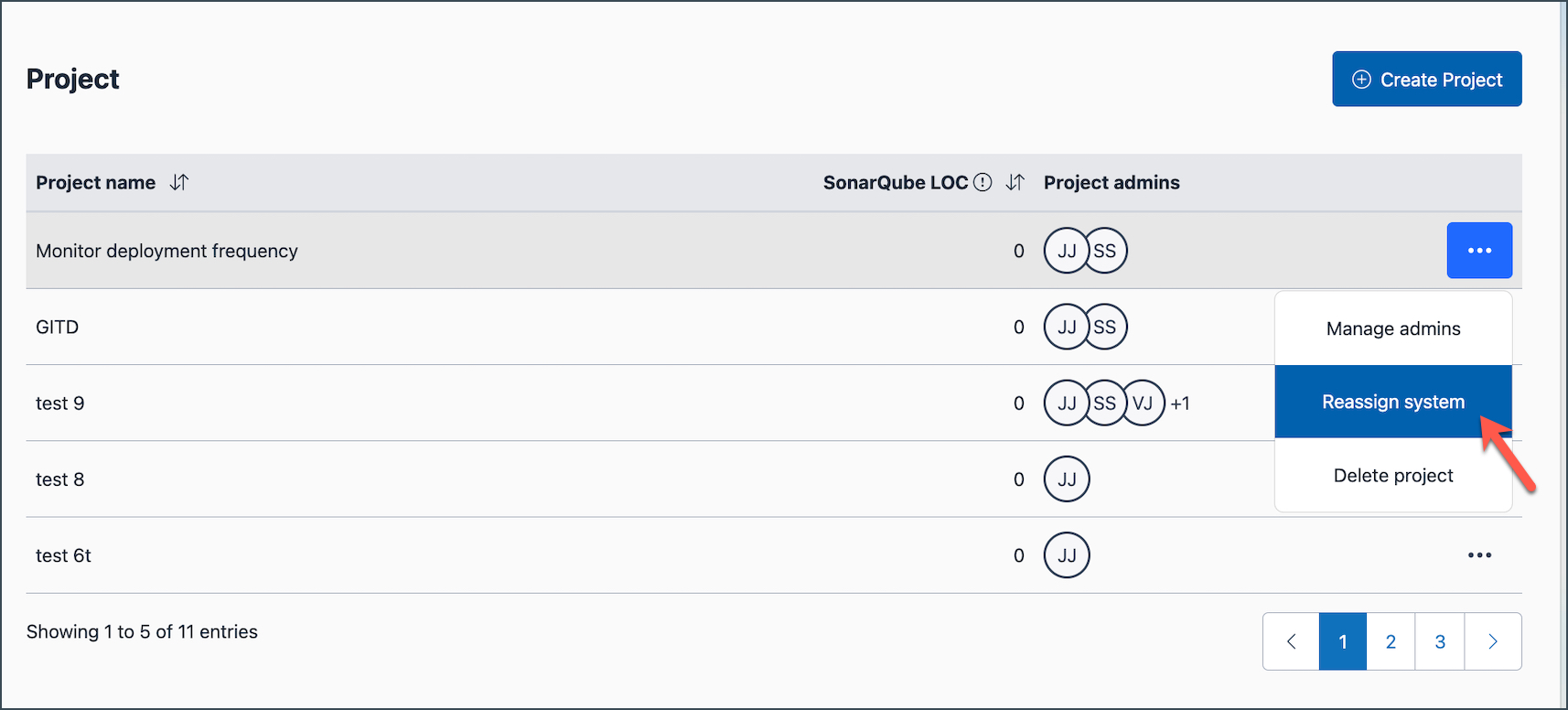
Click the horizontal three dots (⋯) and select Reassign system.
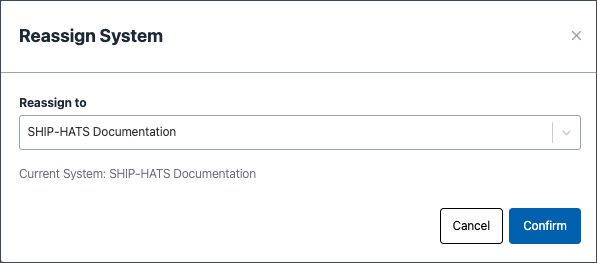
Choose the required system from the dropdown list and click Confirm.
Result
- The SHIP-HATS project is now linked to the new system.
