Manage unused licences
Subscription Admins (SAs) and Technical Admins (TAs) can assign licences to users.
Only Subscription Admins (SAs) can reduce or remove unused licences from a subscription.
This topic helps you identify unused licences and take action to optimise costs.
Use this topic to
- Identify unused (unassigned) licences
- Assign available licences to users
- Remove unused licences to reduce subscription cost
Before you begin
- You must be a Subscription Admin (SA) or Technical Admin (TA)
- Only SAs can remove licences from a subscription
- The tool must be included in your subscription
💡 Licences are chargeable once provisioned, regardless of usage.
See Pricing and billing model.
Identify unused licences
In Console, go to Subscription accounts > View subscription accounts.
Select the required subscription.
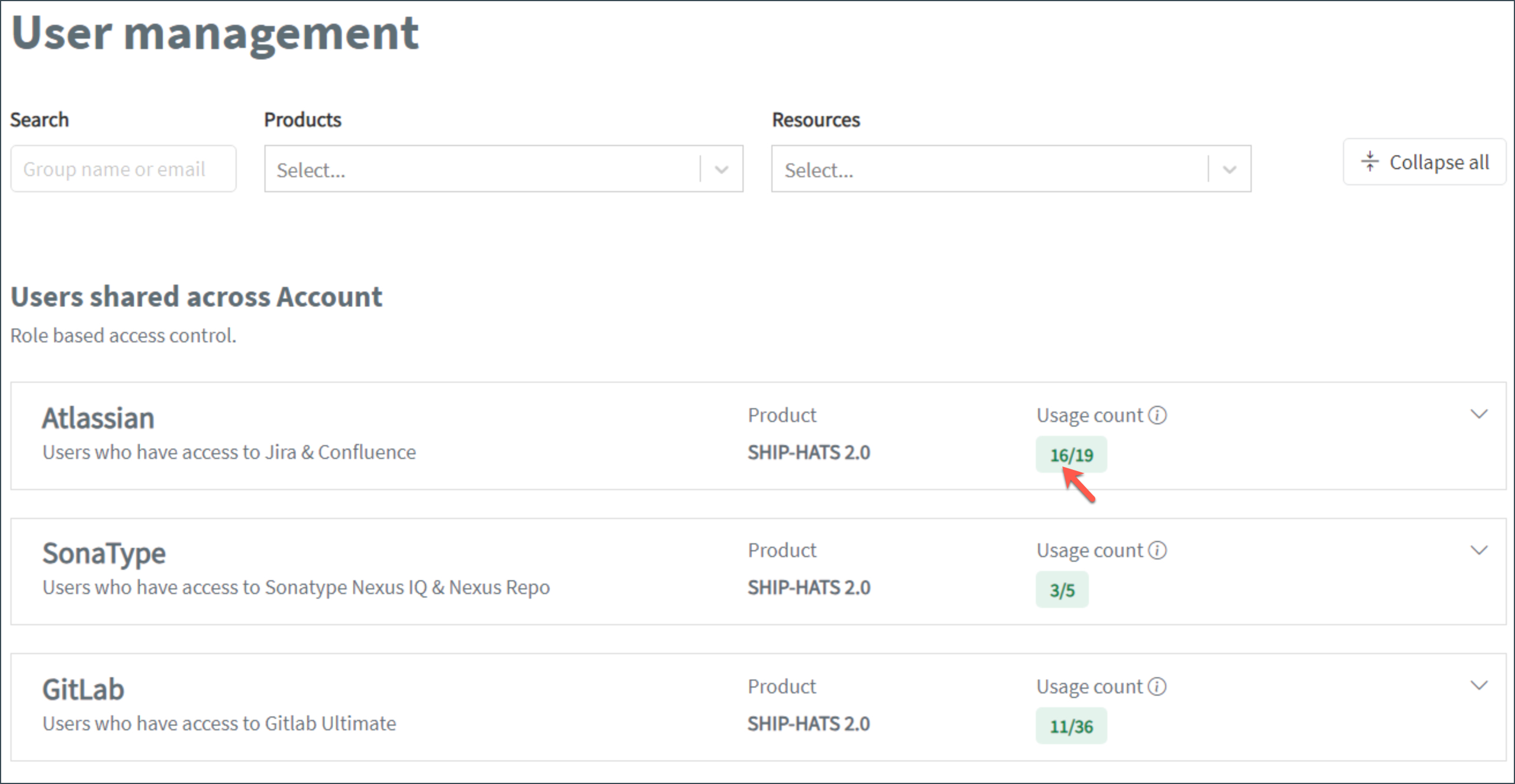
Go to the USER MANAGEMENT tab.
Check the Usage count shown as x/y:
- x = licences assigned to users
- y = licences provisioned
If x < y, there are unused licences (y − x).
Example:
- 3/10 → 7 unused licences
- 10/10 → no unused licences
Assign available licences
You cannot assign a licence if the user already has the same licence in another subscription.
- In Console, go to the required subscription.
- Go to the USER MANAGEMENT tab.
- Check that licences are available (for example, 3/11 means 8 available).
- Click the down arrow next to the tool.
- Click Manage.
- Click Add users and search by name or email.
- Click Submit.
Remove unused licences
Only Subscription Admins (SAs) can perform this action.
Go to the SUBSCRIBED PRODUCTS tab.
Click the ⋮ (three dots) next to the tool and select Manage subscription.
Click Edit subscription.
Reduce the licence count using –.

Click Next → Submit.
Confirm the changes.
