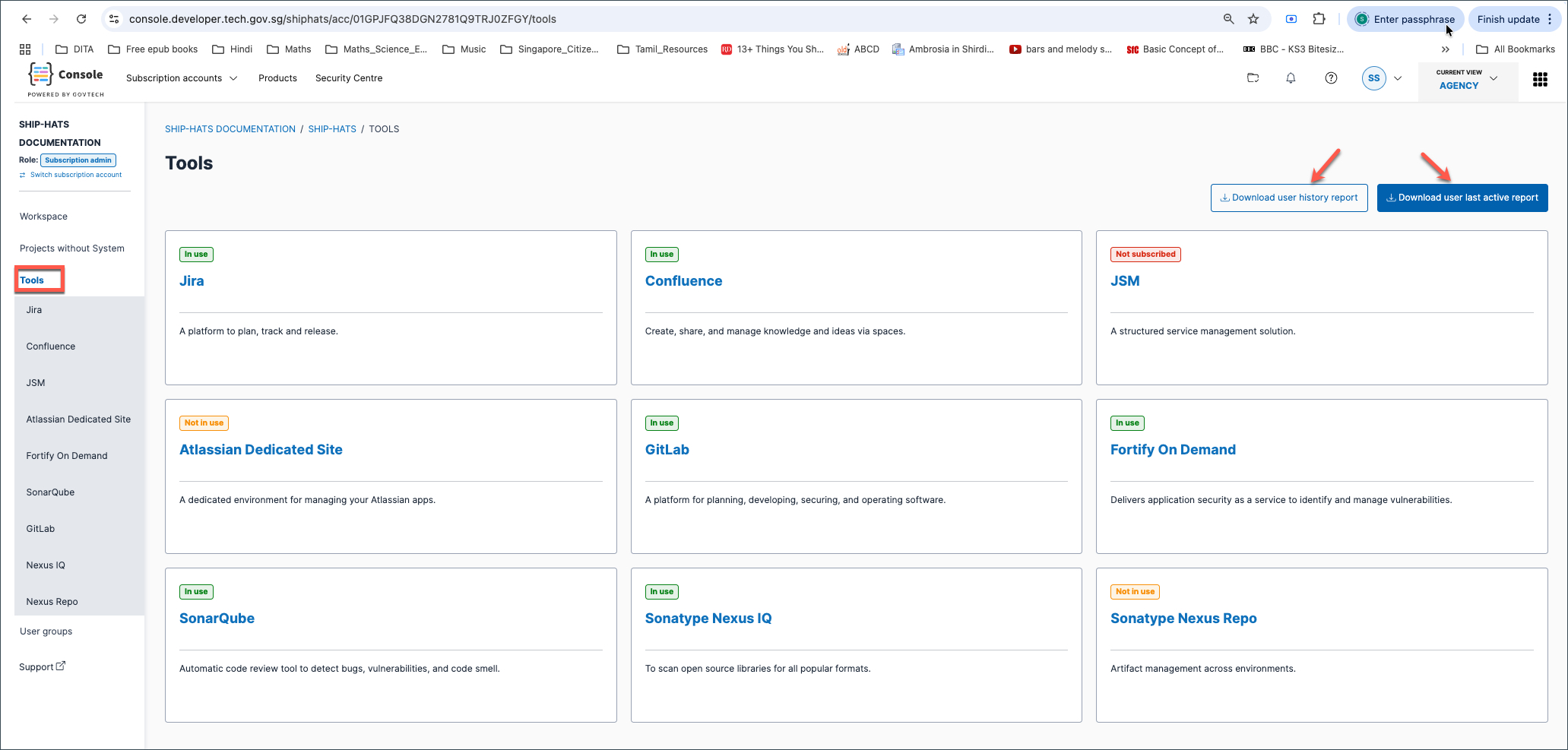
Download user reports
Subscription admins and project admins can download user reports to monitor activity, licence usage, and user lifecycle across tools.
What reports can I download?
- User last active report – Most recent user activity across tools (GitLab, Jira, Confluence, JSM).
- User history report – User lifecycle details (approvals, removals, roles, quota usage).
When should I use each report?
| Report | Use when | Focus |
|---|---|---|
| User last active report | Identify inactive users and optimise licence usage | Activity across tools |
| User history report | Audit user changes and lifecycle events | Lifecycle and administration |
User last active report
Shows the most recent activity of users across supported tools.
Fields
| Field | Description |
|---|---|
| Username | Users with a licence for at least one supported tool |
| Name | User’s full name |
| User’s email address | |
| In subscription | Whether the licence cost is covered by this subscription |
| Jira Last Active Timestamp | Last activity in Jira (SGT); blank if none or no licence |
| Confluence Last Active Timestamp | Last activity in Confluence (SGT); blank if none or no licence |
| JSM Last Active Timestamp | Last activity in JSM (SGT); blank if none or no licence |
| GitLab Last Active Timestamp | Last activity in GitLab (SGT); blank if none or no licence |
User history report
Shows lifecycle and administrative details for users in the subscription.
Fields
| Field | Description |
|---|---|
| Username | Users added via the subscription |
| Name | User’s full name |
| User’s email address | |
| Subscription Admin | Whether the user is a Subscription Admin |
| Project Role | Whether the user is a Project Admin |
| Quota consumed | Whether the user consumes subscription quota |
| CI Quota Consumed | CI tools quota usage |
| Sonatype Quota Consumed | Sonatype tools quota usage |
| GitLab Quota Consumed | GitLab quota usage |
| Last Login | Most recent login timestamp |
| Status | Active or removed |
| Approved Date | When the user was approved |
| Approved By | Approver |
| Removed Date | When the user was removed |
| Removed By | Who removed the user |
| Removal Reason | Reason for removal (if provided) |
Steps
Log in to Console.
Go to Products > SHIP-HATS and select the subscription to open the Workspace.
See Access Workspace.In the left navigation, go to Tools.
Click:
- Download user history report, or
- Download user last active report