Manage subscription admins
Each subscription must have:
- One Primary Subscription Admin
- At least one Secondary Subscription Admin
- Up to four Secondary Subscription Admins
Only Subscription Admins (SAs) can manage subscription admins.
Before you begin
- You must be a Subscription Admin (SA).
- The subscription must exist.
Steps
In Console, go to the required subscription account using the Subscription account(s) widget.
For detailed steps, see View subscription accounts.
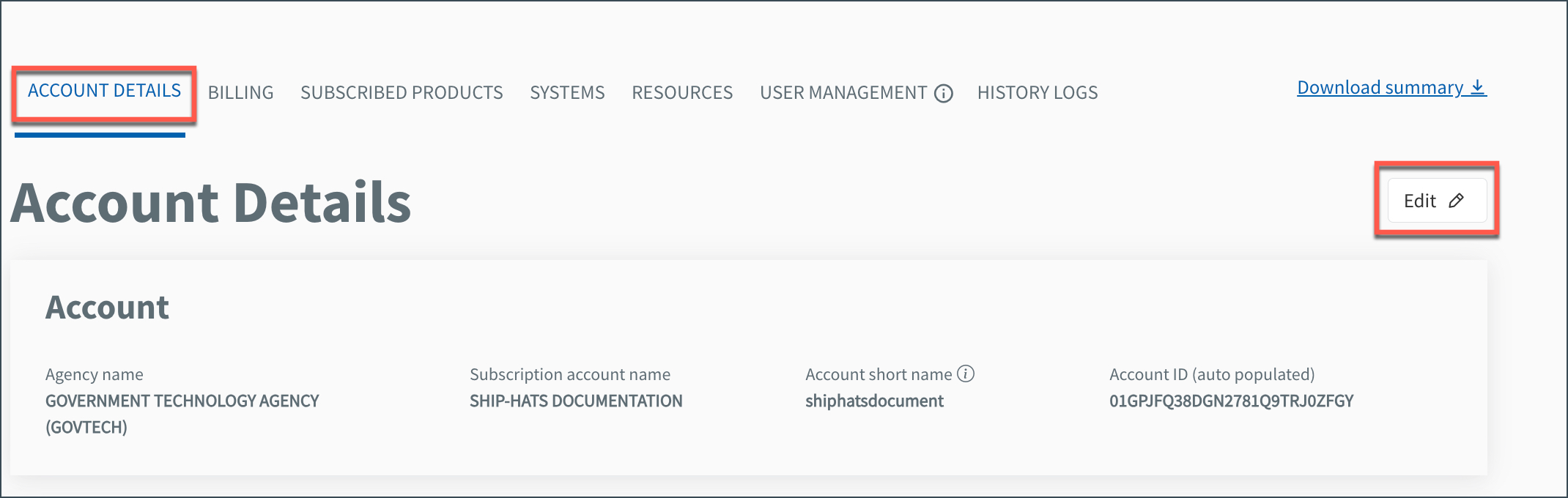
In ACCOUNT DETAILS tab, click Edit.
Go to the Subscription admins section.
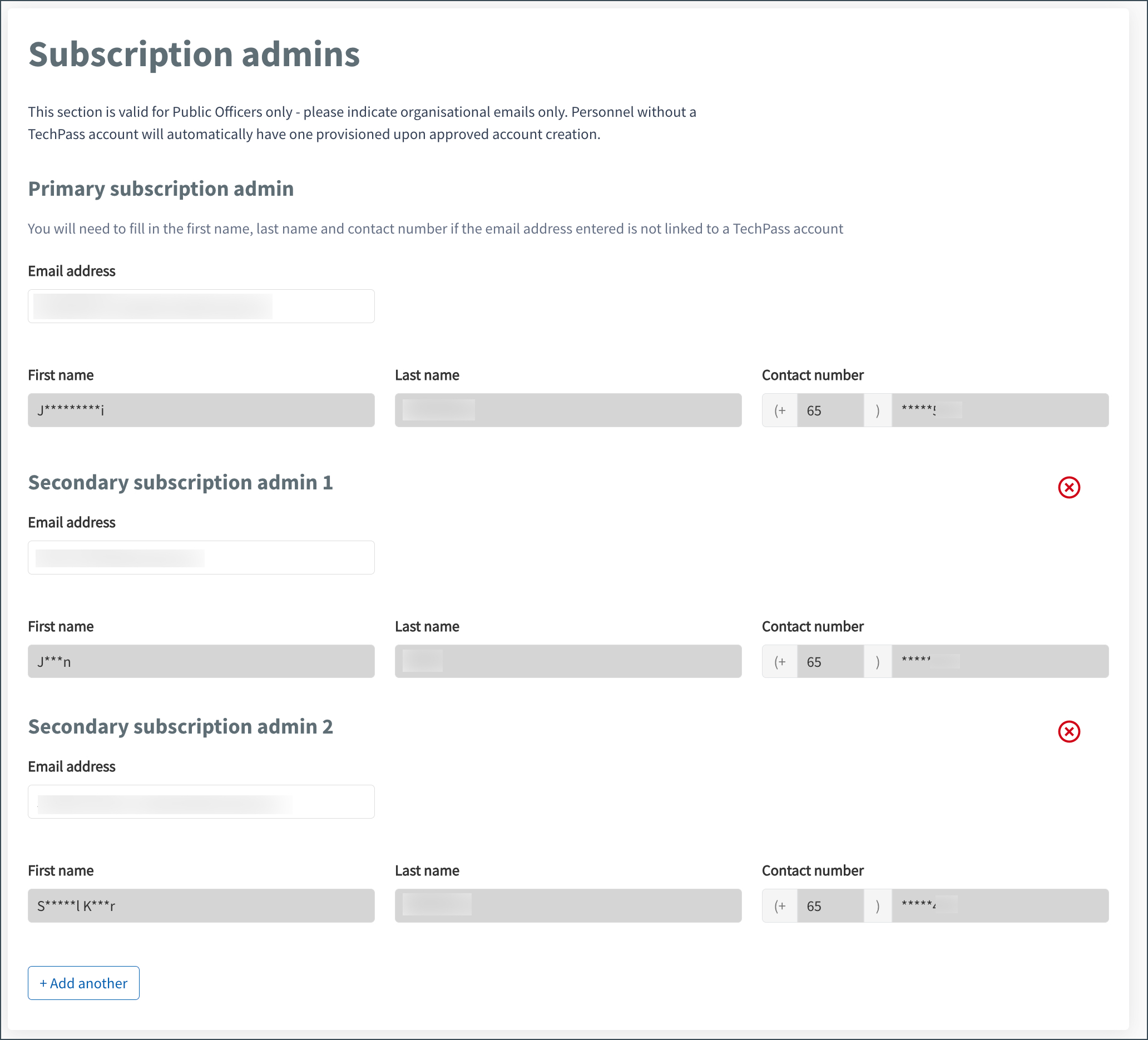
Complete the relevant action:
- Enter the organisational email address of the required public officer.
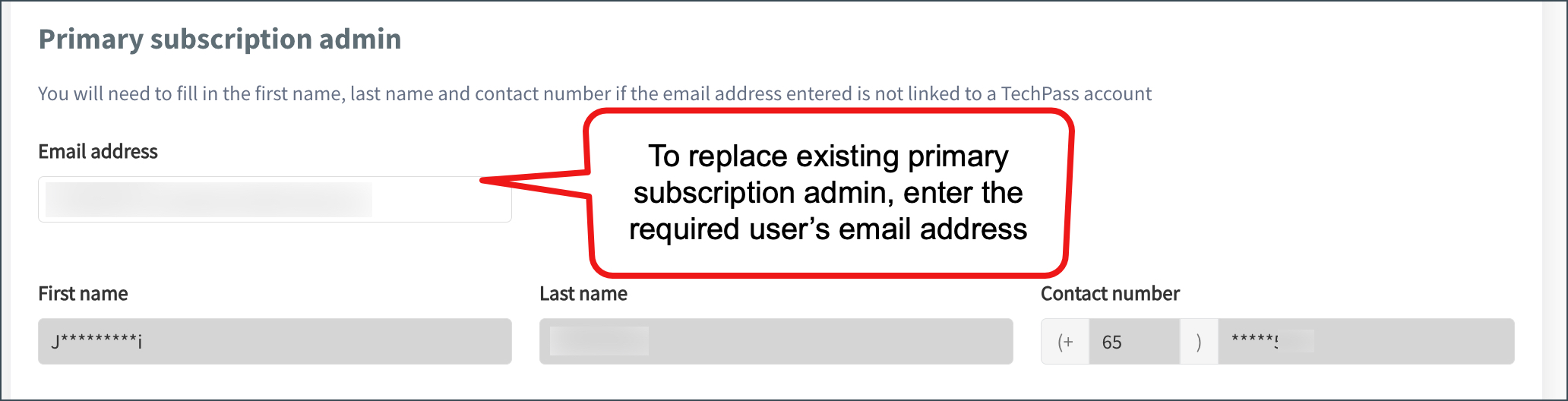
- If the email address is valid, the first name, last name, and contact number (if available) are automatically displayed and masked.
- Click Add another.
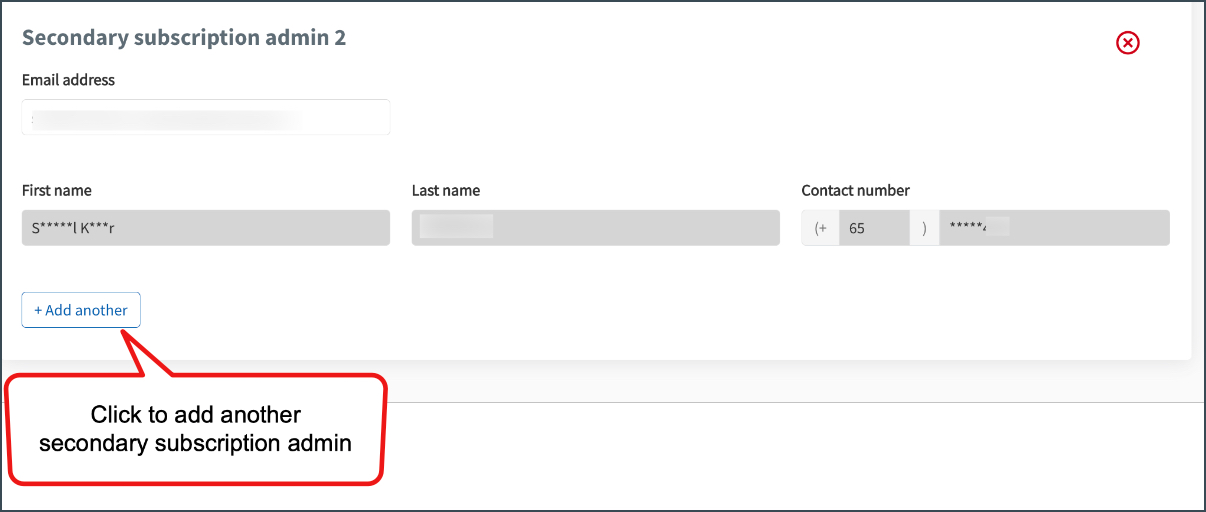
- Enter the organisational email address of the required user.
⚠️ You can add up to four secondary subscription admins.
- Click the Remove icon next to the secondary subscription admin you want to remove.
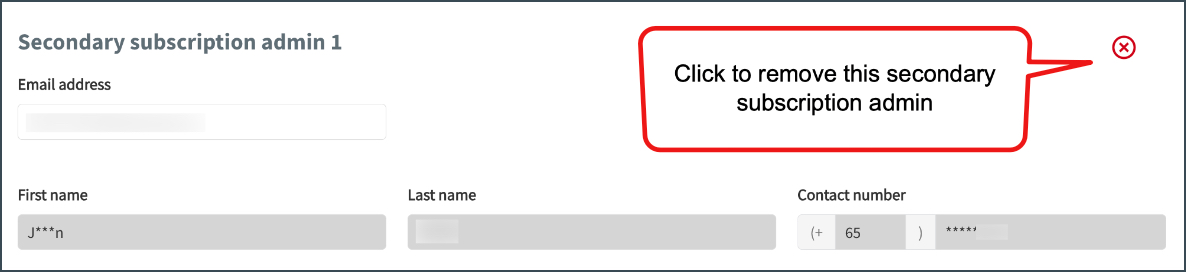
⚠️ At least one secondary subscription admin must always remain.
- Click Submit to save your changes.
The subscription admins are updated. The new primary or secondary subscription admins can now manage the subscription based on their assigned roles.
