Create SHIP-HATS projects
Only Subscription Admins (SAs) can create SHIP-HATS projects and assign Project Admins (PAs) to manage them.
Project Admins can be public officers or vendors, and must have an active TechPass account.
You must create a SHIP-HATS project before creating tool-specific projects such as Jira or GitLab projects.
Before you begin
- You must be a Primary or Secondary Subscription Admin (SA)
- A system must exist under the subscription. See Create systems.
- Project Admins (PAs) must have an active TechPass account.
Steps
Log in to Console.
Go to Products > SHIP-HATS and select the required subscription account.
Select the required System.
For detailed steps, see View your SHIP-HATS projects.
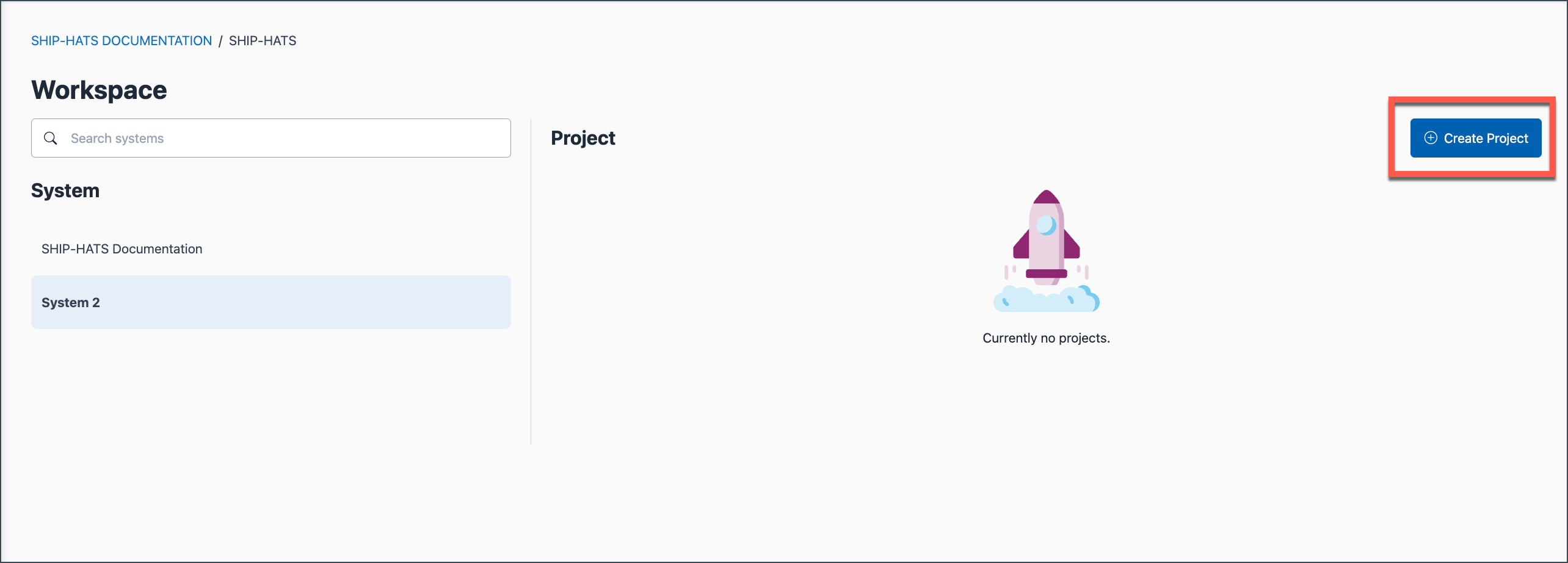
Click Create Project.
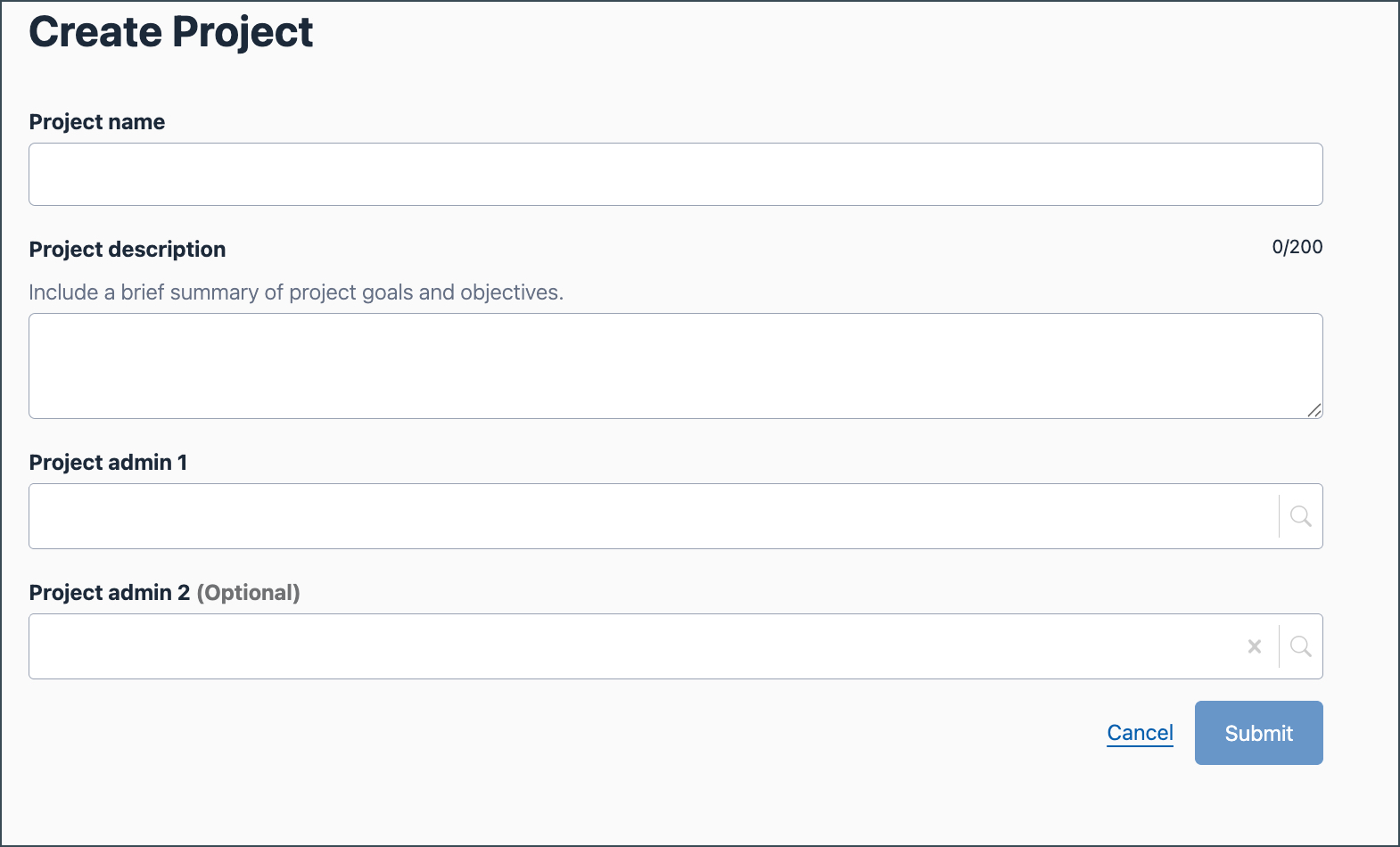
Enter the required details:
Field Description Project name Enter a meaningful name for the SHIP-HATS project. Project description Enter a short description of the project (optional). Project admin 1 Enter the name or organisational email of the Project Admin. The user must have a TechPass account. Project admin 2 (Optional) Enter a second Project Admin. Matching users are listed automatically. Select the required user.
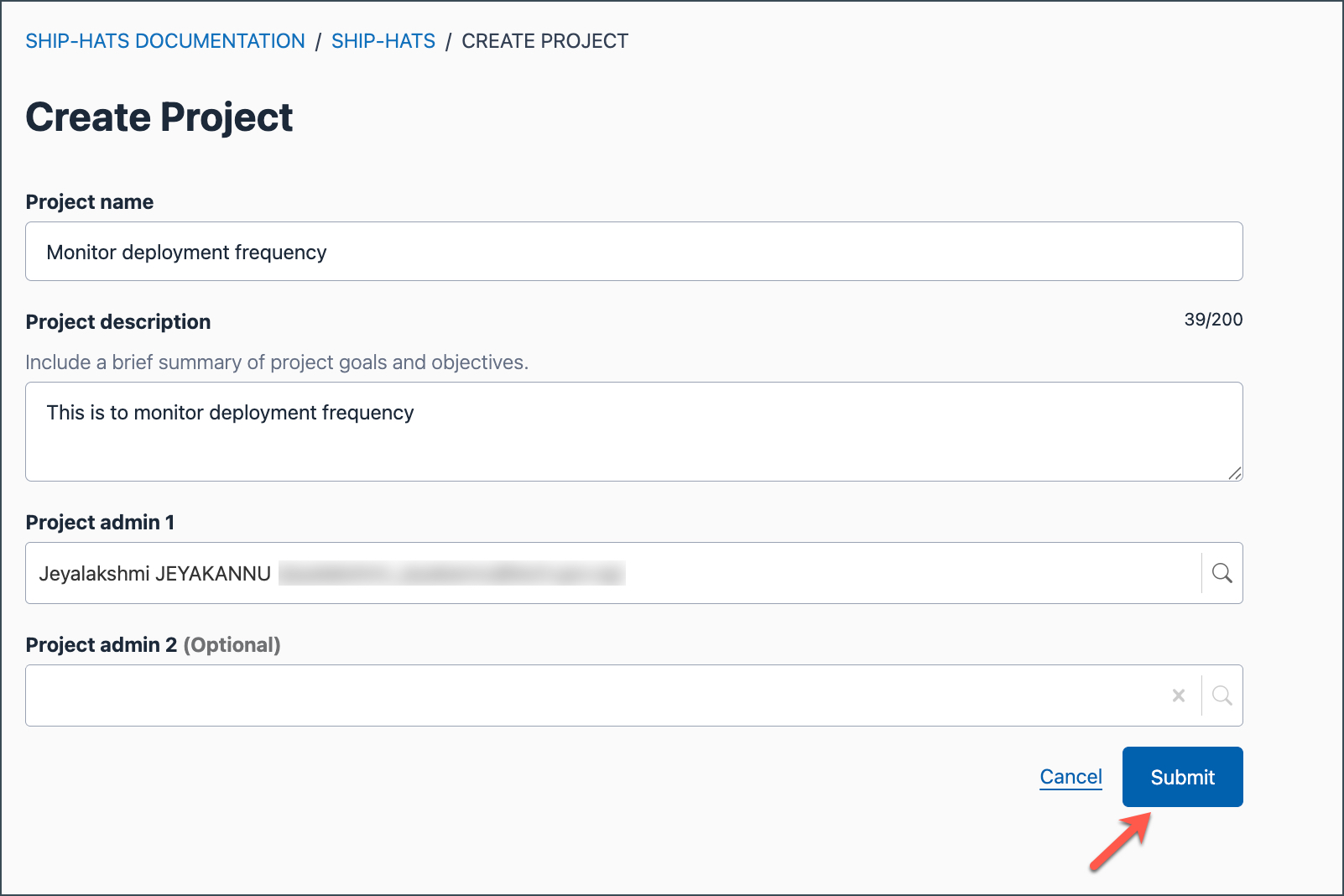
Click Submit.
A confirmation message appears, and the project is listed on the Projects page.
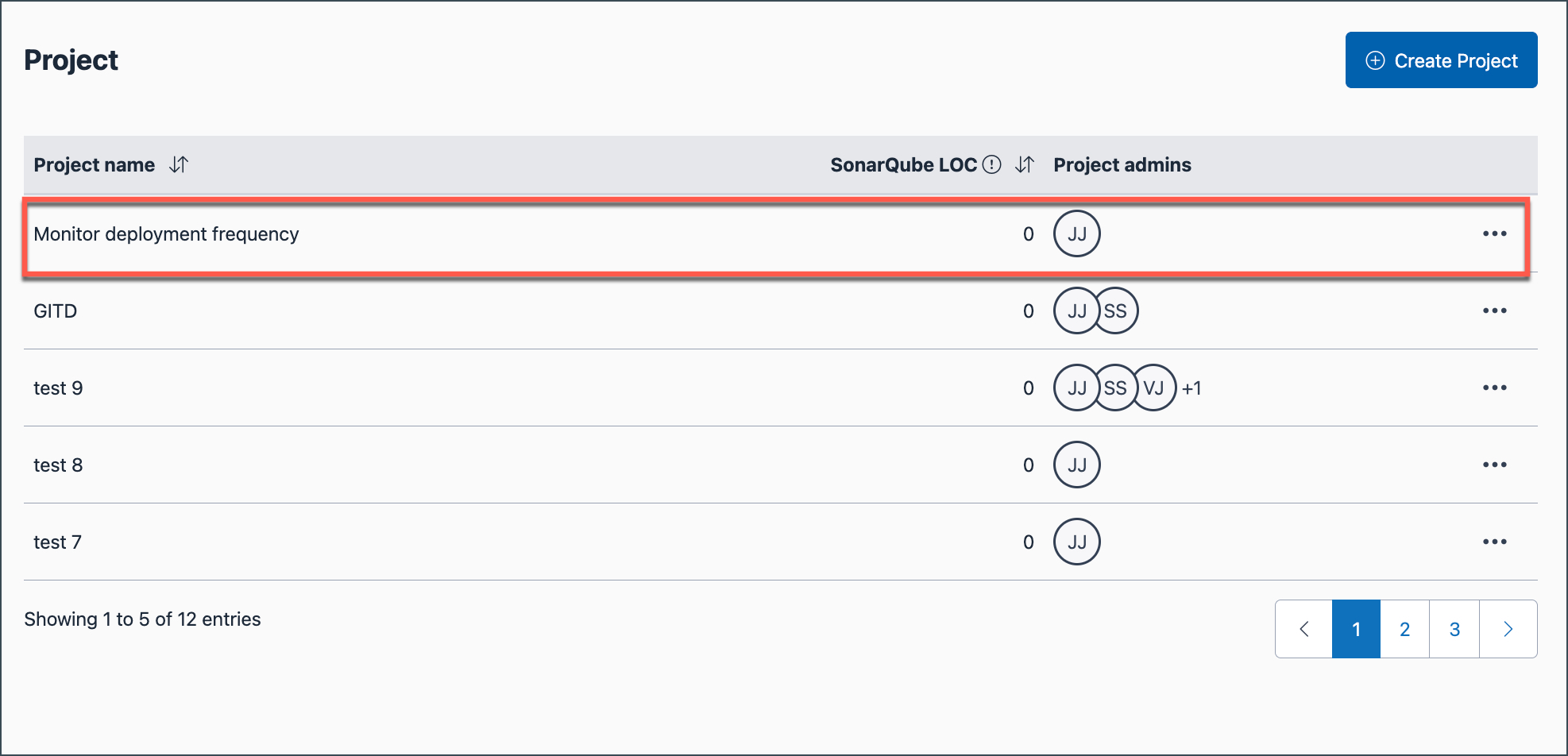
The SHIP-HATS project is created successfully. The project is listed on the Projects page
Being a Project Admin (PA) or Subscription Admin (SA) does not automatically grant admin access to tool-specific projects. Relevant tool licences and permissions may still be required.
Next steps
- Configure tool projects (for example, create Jira space or GitLab group)
