View activity logs
Activity logs (previously known as Audit logs) provide a history of changes made to a subscription, such as user actions, resource updates, and billing changes.
Use activity logs to:
- Investigate issues or unexpected changes
- Track user activity for audit or compliance purposes
- Review recent updates to resources and configurations
Subscription admins can view activity logs for various events related to accounts, resources, and access management, such as:
- Account creation and updates
- Subscription and billing changes
- Resource provisioning and lifecycle events
- User and group membership changes
Note: This list includes common activity types. Other activity types may also be available.
Before you begin
- You must have the Subscription Admin role.
Subscription Admins can:
Steps
In Console, go to Subscription accounts > View activity logs.
The Activity logs page appears.
By default, logs for all your SHIP-HATS subscriptions are shown for the past 30 days
(for example: 17/10/2025 – 17/11/2025).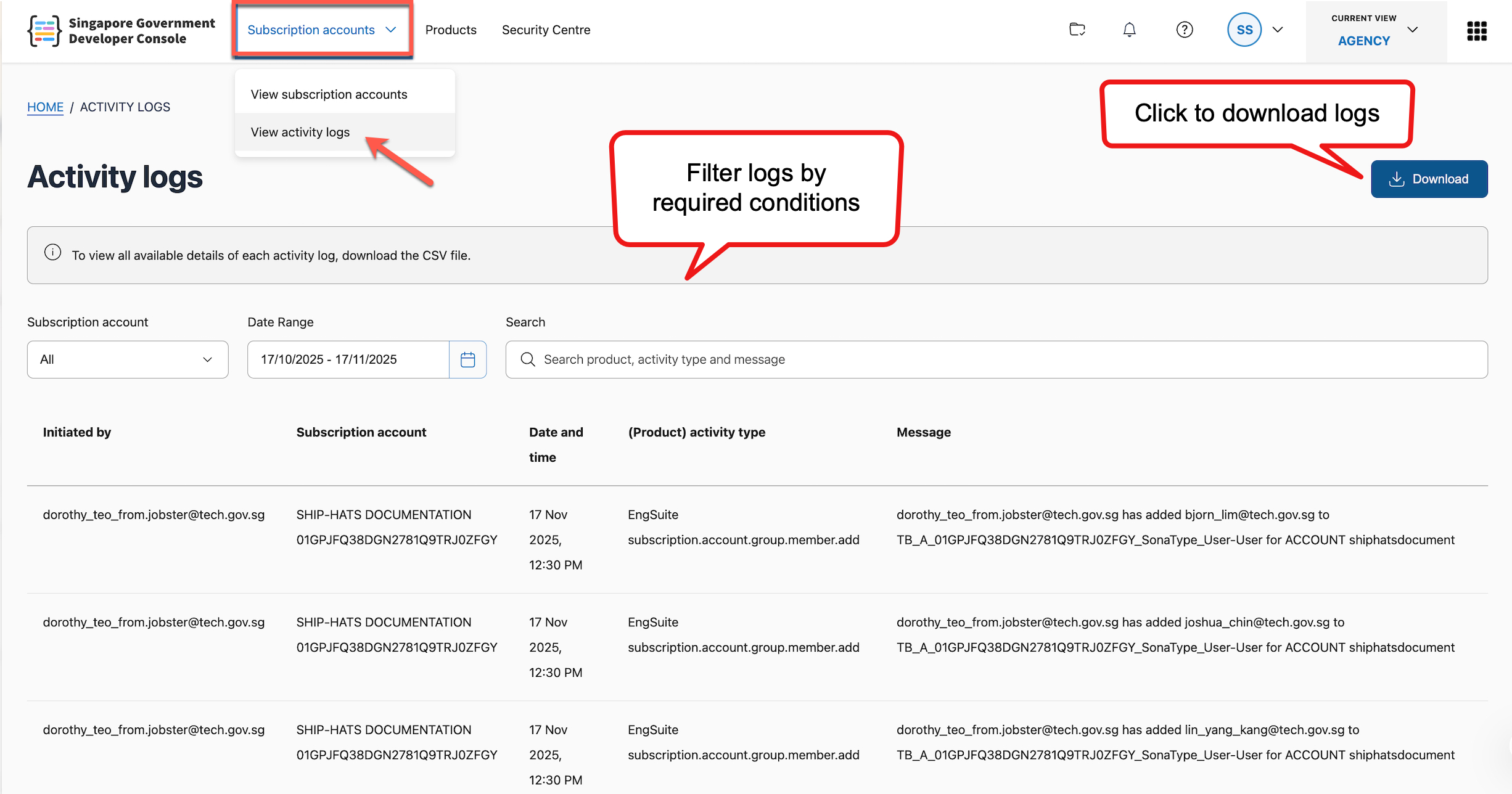
The following details are displayed for each log entry:
| Field | Description |
|---|---|
| Initiated by | User who performed the action. Example: jane_doe@tech.gov.sg. |
| Subscription account | Subscription account name and ID. |
| Date and time | Timestamp of the action. |
| (Product) activity type | Type of activity performed. |
| Message | Example: jane_doe@tech.gov.sg has added john_doe@tech.gov.sg to TB_A_01GPJFQ38DGN2781Q9TRJ0ZFGY_SonaType_User-User for ACCOUNT shiphatsdocument. |
Filter activity logs
You can refine the activity logs to find specific information.
Steps
- View the activity logs.
- Use the filters to narrow down the logs displayed.
| Field | Description |
|---|---|
| Subscription account | Select the account whose activity logs you want to view. |
| Date range | Specify the date range. The start date must be within one year of the current date. The past one month is selected by default. |
| Search | Enter keywords to filter logs by product, activity type, or message. |
💡 Tip: Logs update automatically when you apply filter conditions.
Download activity logs
You can download activity logs as a CSV file for offline review or record-keeping.
Steps
In the Activity logs page, click Download.
In the Download pop-up, specify the required details:
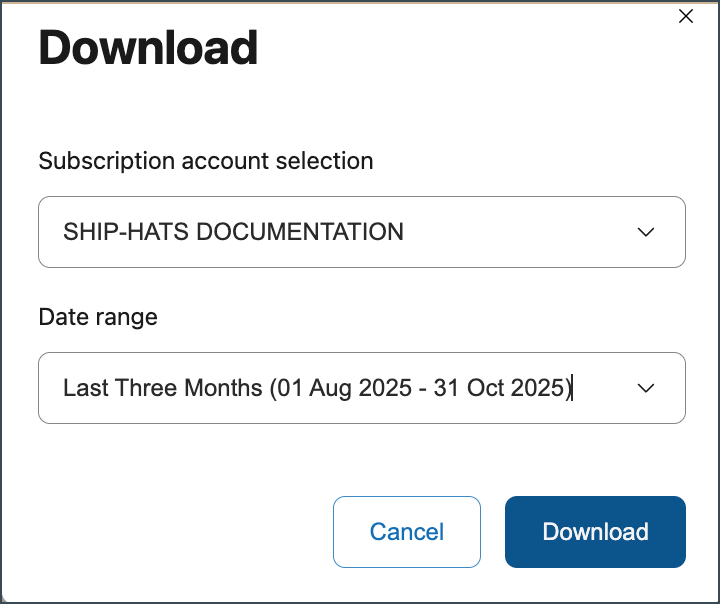
Field Description Subscription account selection Select the subscription account whose logs you want to download. Date range Choose a predefined date range. Examples:
• Month to Date (01 Nov 2025 – 17 Nov 2025)
• Last Full Month (01 Oct 2025 – 31 Oct 2025)
• Last Three Months (01 Aug 2025 – 31 Oct 2025)Click Download.
The CSV file is saved to your device.
Result
You can now view, filter, and download activity logs for your SHIP-HATS subscriptions.
