Set up LLMs for AI capabilities
To use AI capabilities in StackOps Elastic, you must set up an LLM connector. There are several options for connecting to an LLM:
- Elastic Managed LLMs—Use built-in LLMs directly, without setting up your own LLM or managing external API keys. Using these LLMs will incur additional costs.
- Third-party LLMs—Use your own API keys to integrate with third-party model providers.
- Self-managed LLMs—Bring your own self-managed LLMs.
Using Elastic Managed LLMs
In StackOps Elastic, the underlying model for the Elastic Managed LLM is Anthropic Claude Sonnet 4.6. The model supports Text, Image, File inputs.
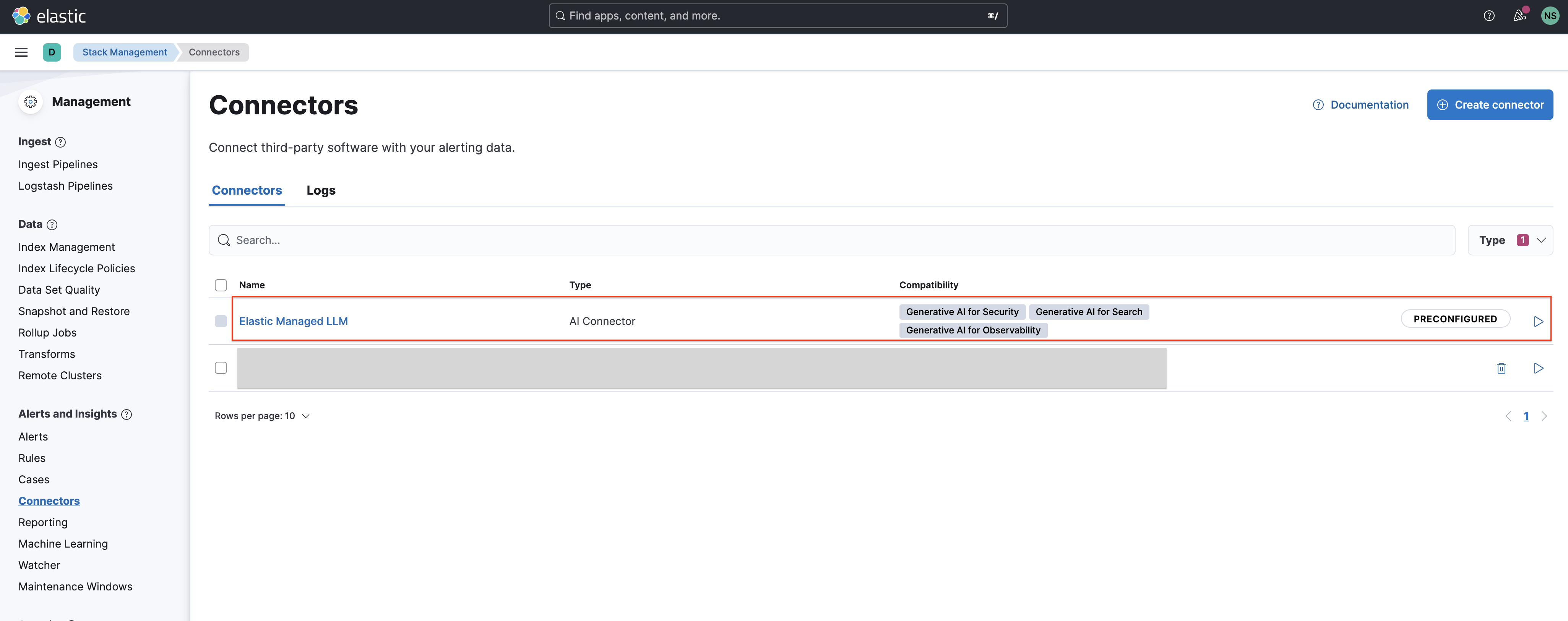
The Elastic Managed LLM is preconfigured for all StackOps Elastic deployments and available for agencies to use. You can view it as a connector in Stack Management > Connectors.
In AI Assistant
The Elastic Managed LLM is the default LLM connector provided in the AI Assistant. If needed, you can configure the settings for the AI Assistant in Stack Management > AI Assistant.
To use the Elastic Managed LLM for your AI Assistant, you can simply start by chatting with it. For more information, refer to Using the AI Assistant.
In inference tasks
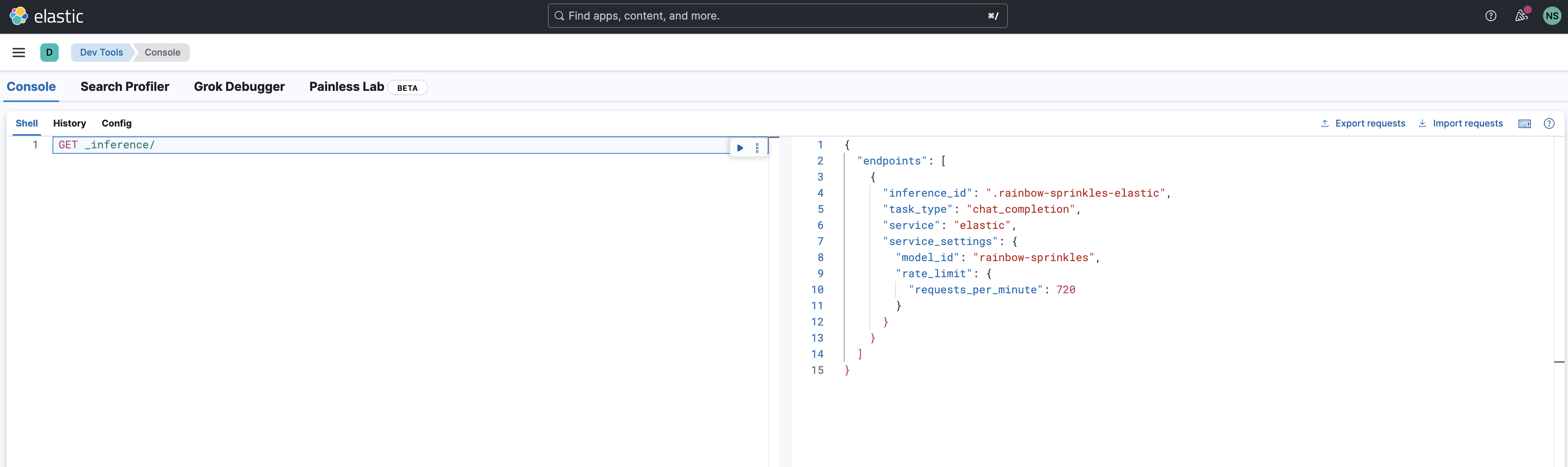
StackOps Elastic supports inference tasks in ingest pipelines using the inference processor, or via the API (for tasks such as text embedding, reranking, or chat completion). When working with the Elastic Managed LLM for inference tasks, use the inference endpoint .rainbow-sprinkles-elastic with the model ID rainbow-sprinkles.
Using third-party LLMs
To use third-party LLMs, you must bring your own LLM credentials and set up the LLM connector in Kibana.
Supported third-party LLM providers
In StackOps Elastic, you can connect to the following supported third-party LLM providers.
| Provider | Configuration link | Authentication link |
|---|---|---|
| OpenAI | Configure connector | Get API key |
| Azure OpenAI | Configure connector | Get API key |
| Amazon Bedrock | Configure connector | Get authentication keys |
| Google Gemini | Configure connector | Get service account key |
Adding LLM connectors
Prerequisites:
- Authentication credentials for your chosen LLM. Refer to the links in the Supported LLM Providers table.
To add an LLM connector:
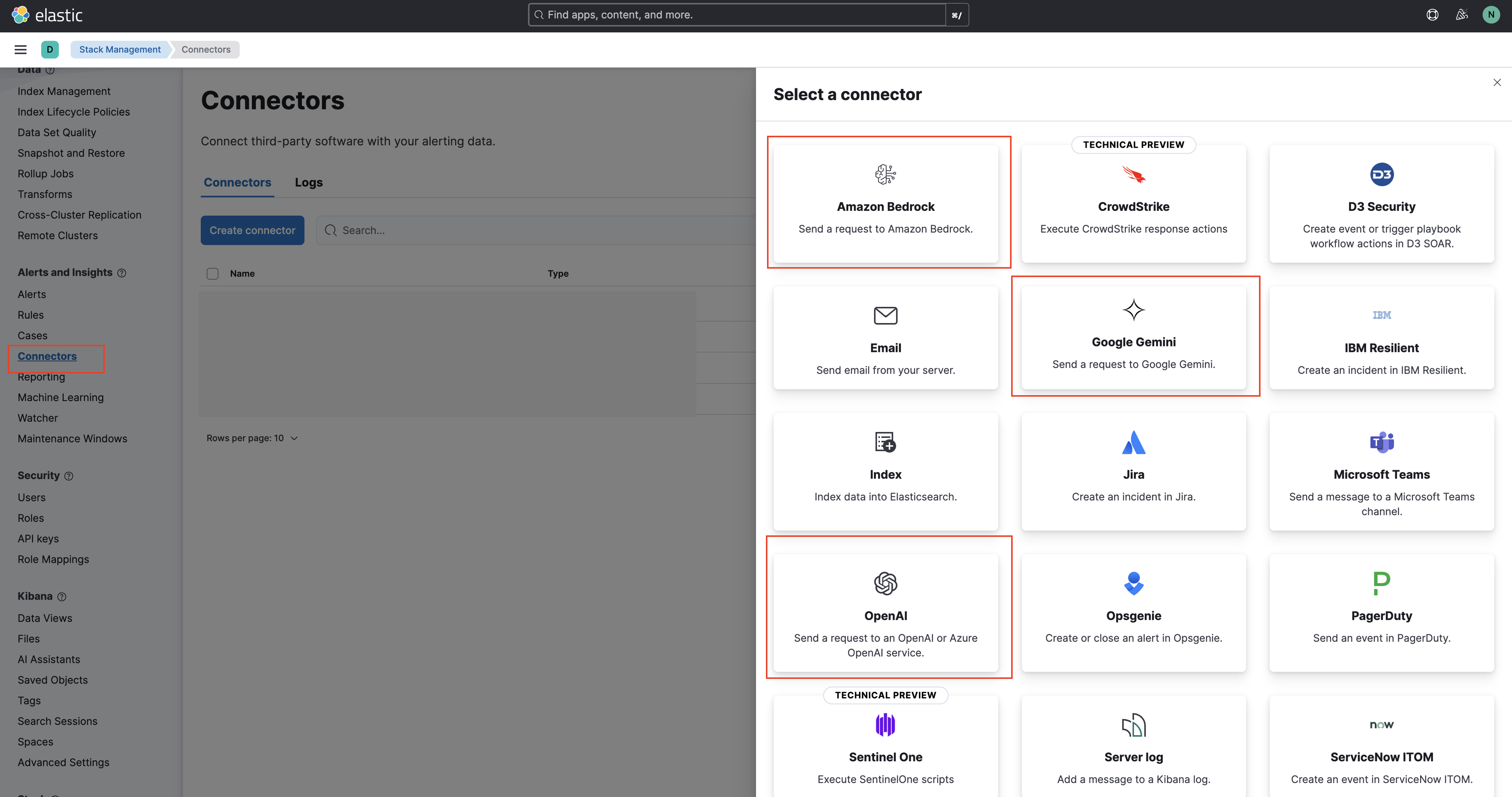
- In Kibana, go to Management > Stack Management.
- Go to Alerts and Insights > Connectors.
- Select + Create connector.
- Select a connector of your choice:
- Amazon Bedrock
- Google Gemini
- OpenAI (supports OpenAI and Azure OpenAI)
- Enter the following details:
- Connector name
- URL—The LLM provider’s API endpoint URL.
- Default model
- Authentication—Authentication credentials for your chosen LLM.
- Select Save to create the connector.
To use the custom LLM connector for the AI Assistant, you must configure the settings for the AI Assistant in Stack Management > AI Assistant.
Using self-managed LLMs
Elastic supports setting up a connector to an LLM of your choice using LM Studio. This allows you to use your chosen model within the Elastic AI Assistant for Observability and Search. For more information, efer to Elastic documentation
