AI Assistant knowledge base
Once the AI Assistant is connected to an LLM, you can enrich it with a knowledge base.
The AI Assistant uses ELSER, Elastic’s semantic search engine, to recall data from its internal knowledge base index and create Retrieval‑Augmented Generation (RAG) responses.
The AI Assistant uses one of the following text embedding models to run a semantic search against the internal knowledge base index. The top results are passed to the LLM as context (retrieval‑augmented generation), producing more accurate and grounded responses:
ELSER: Recommended for English-only use cases.
E5: StackPlanned. Recommended for non-English use cases.
Add data to the knowledge base
Add data to the knowledge base using the following methods:
Note: You can also add information to the knowledge base by asking the AI Assistant to remember something while chatting (for example, “remember this for next time”). The assistant will create a summary of the information and add it to the knowledge base.
Option 1: Use Knowledge base UI
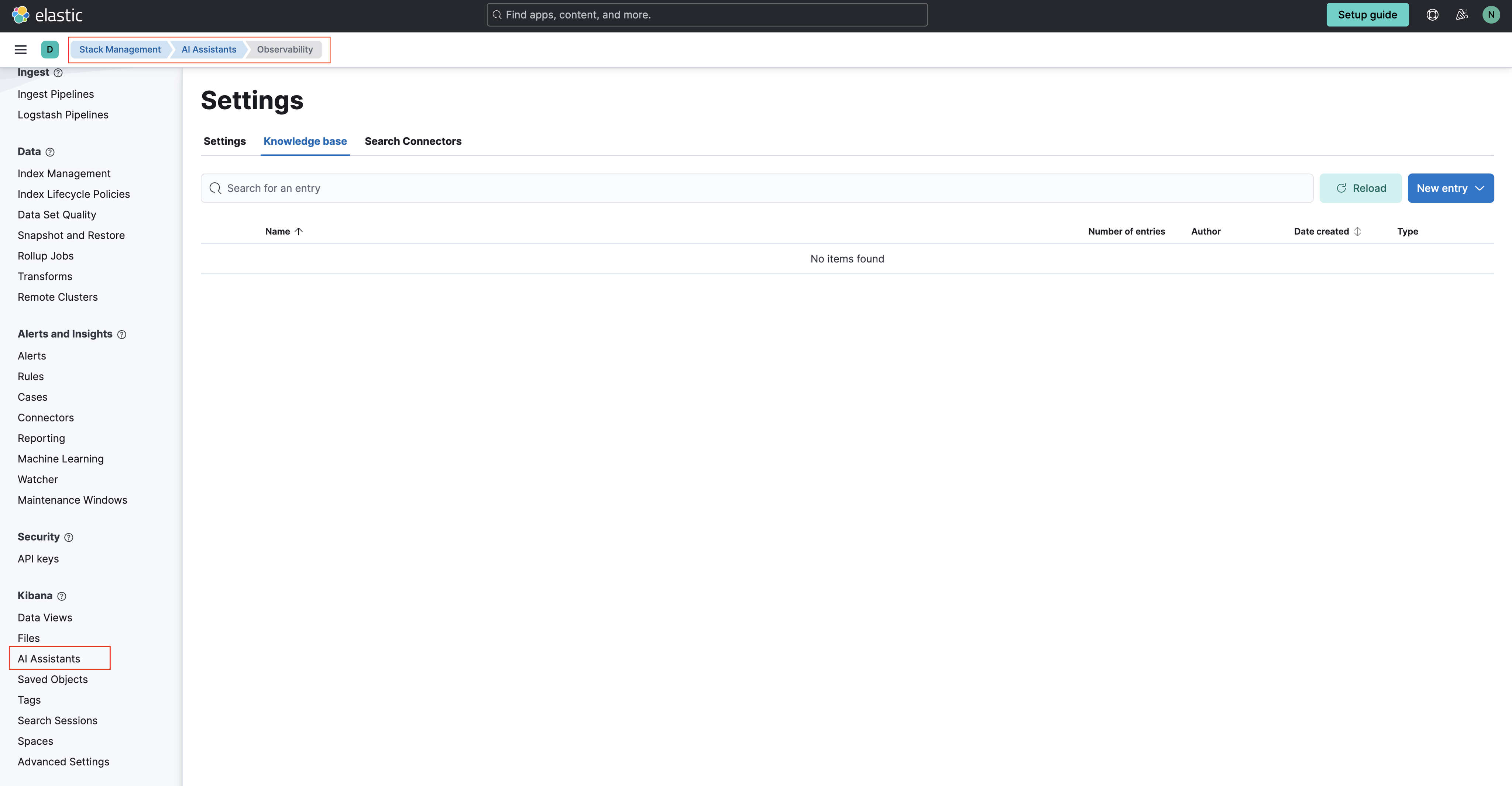
To add external data to the knowledge base in Kibana, follow these steps:
Go to Stack Management → AI Assistant (or find
AI Assistantsin the global search field)Choose Elastic AI Assistant for Observability or Elastic AI Assistant for Security based on your requirement and select Manage Settings.
Click the New entry button, and choose either:
Single entry: Write content for a single entry in the UI.
Bulk import: Upload a newline delimited JSON (
ndjson) file containing a list of entries to add to the knowledge base. Each object should conform to the following format:
For more information, refer to Elastic documentation.
Option 2: Use search connectors
Connectors allow you to index content from external sources thereby making it available for the AI Assistant. This can greatly improve the relevance of the AI Assistant’s responses. Data can be integrated from sources such as GitHub, Confluence, Google Drive, Jira, AWS S3, Microsoft Teams, Slack, and more.
By default, the AI Assistant queries all search connector indices. To override this behavior and customise which indices are queried, adjust the Search connector index pattern setting on the AI Assistant settings page. This allows precise control over which data sources are included in AI Assistant knowledge base.
Note: The search connectors described in this section differ from the Stack management → Connectors configured during the AI Assistant setup. Search connectors are only needed when importing external data into the Knowledge base of the AI Assistant, while the stack connector to the LLM is required for the AI Assistant to work.
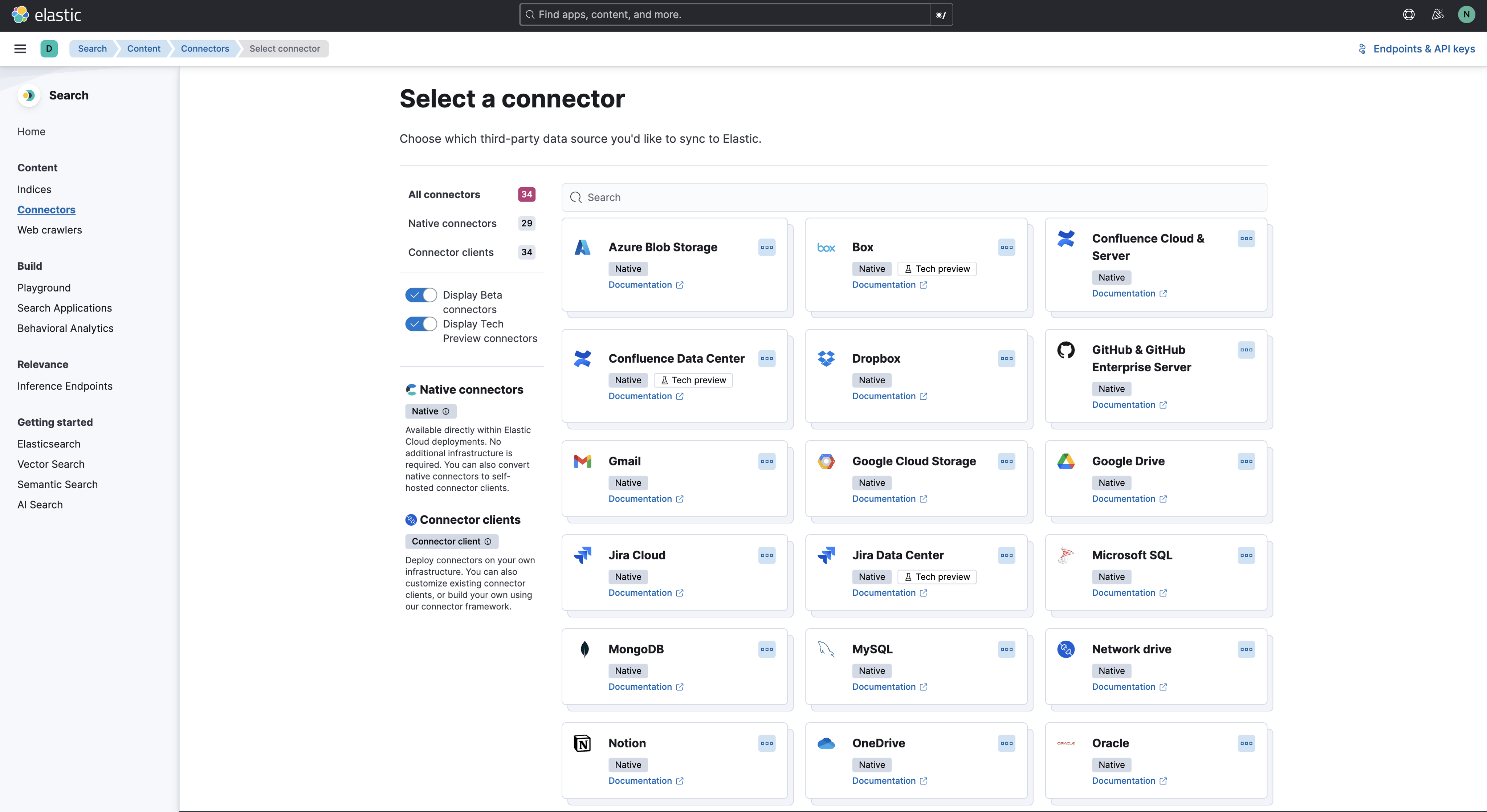
To create a connector in the Kibana UI and make its content available to the AI Assistant knowledge base, follow these steps:
Open Connectors by finding
Content/Connectorsin the global search field or Navigate to Search → Content → Connectors.Follow the instructions to create a new connector.
For example, if you create a GitHub native connector you have to set a
name, attach it to a new or existingindex, add yourpersonal access tokenand include thelist of repositoriesto synchronise.
Learn more about configuring and using connectors in the Elastic docs.
After creating your connector, create the embeddings needed by the AI Assistant. You can do this using either by:
Use a semantic_text field type
To create the embeddings needed by the AI Assistant using a semantic_text field type, follow these steps:
Open the previously created connector, and select the Mappings tab.
Select Add field.
Under Field type, select Semantic text.
Under Reference field, select the field you want to use for model inference.
Under Select an inference endpoint, select the model you want to use to add the embeddings to the data.
Add the field to your mapping by selecting Add field.
Sync the data by selecting Full Content from the Sync menu.
The AI Assistant will now query the connector you’ve set up using the model you’ve selected. Check that the AI Assistant is using the index by asking it something related to the indexed data. For more information, refer to Elastic documentation.
Use machine learning pipelines
To create the embeddings needed by the AI Assistant (weights and tokens into a sparse vector field) using an ML Inference Pipeline:
Open the previously created connector, and select the Pipelines tab.
Select Copy and customize under
Unlock your custom pipelines.Select Add Inference Pipeline under
Machine Learning Inference Pipelines.Select the ELSER (Elastic Learned Sparse EncodeR) ML model to add the necessary embeddings to the data.
Select the fields that need to be evaluated as part of the inference pipeline.
Test and save the inference pipeline and the overall pipeline.
For more information, refer to Elastic documentation.
