Creating StackOps Elastic deployments
Who can do this?
- Subscription Admins of an approved StackOps subscription.
Use Console to create StackOps Elastic deployments. You can choose the deployment size based on your use case.
Grouping StackOps Elastic deployments
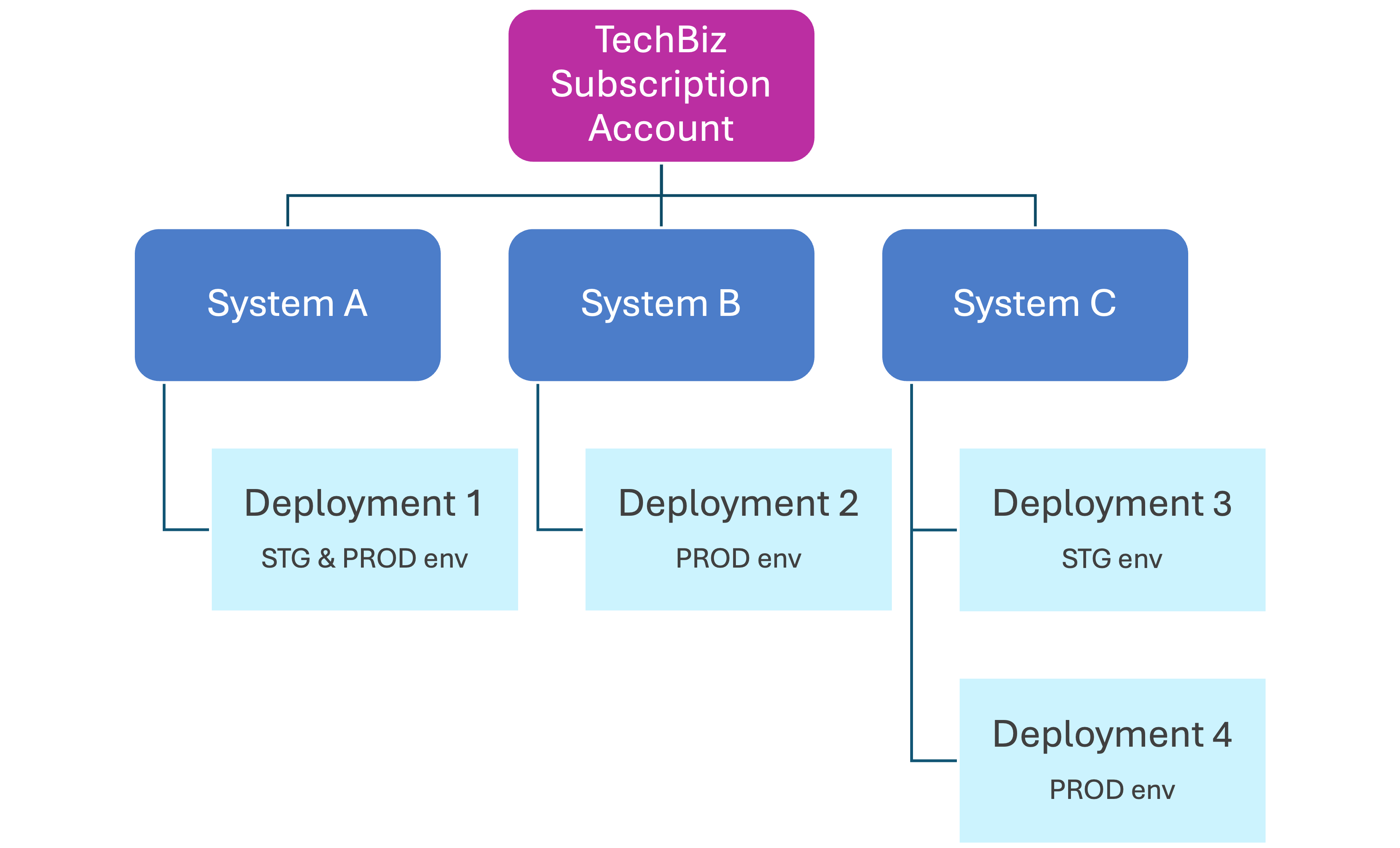
When creating a StackOps Elastic deployment, you must tag it to a TechBiz system. Systems are a way of organising and grouping together various related resources (e.g. a StackOps Elastic deployment, a JSM subscription).
One system can have multiple Elastic deployments. For example, in the diagram below, System C has two deployments (3 and 4) to keep separate staging and production environments.
Before you begin
Make sure you have the following:
- An existing system in Console. Refer to Console documentation for more details on how to create a system.
Step 1: Provision a StackOps Elastic deployment
Who can do this?
- Subscription Admins
Create a StackOps Elastic deployment in Console and associate it with a system.
To create a deployment:
Log in to Console with your TechPass account.
Select Subscription accounts > View subscription accounts > your subscription account.
From your subscription account, select Resources > Create Resource.
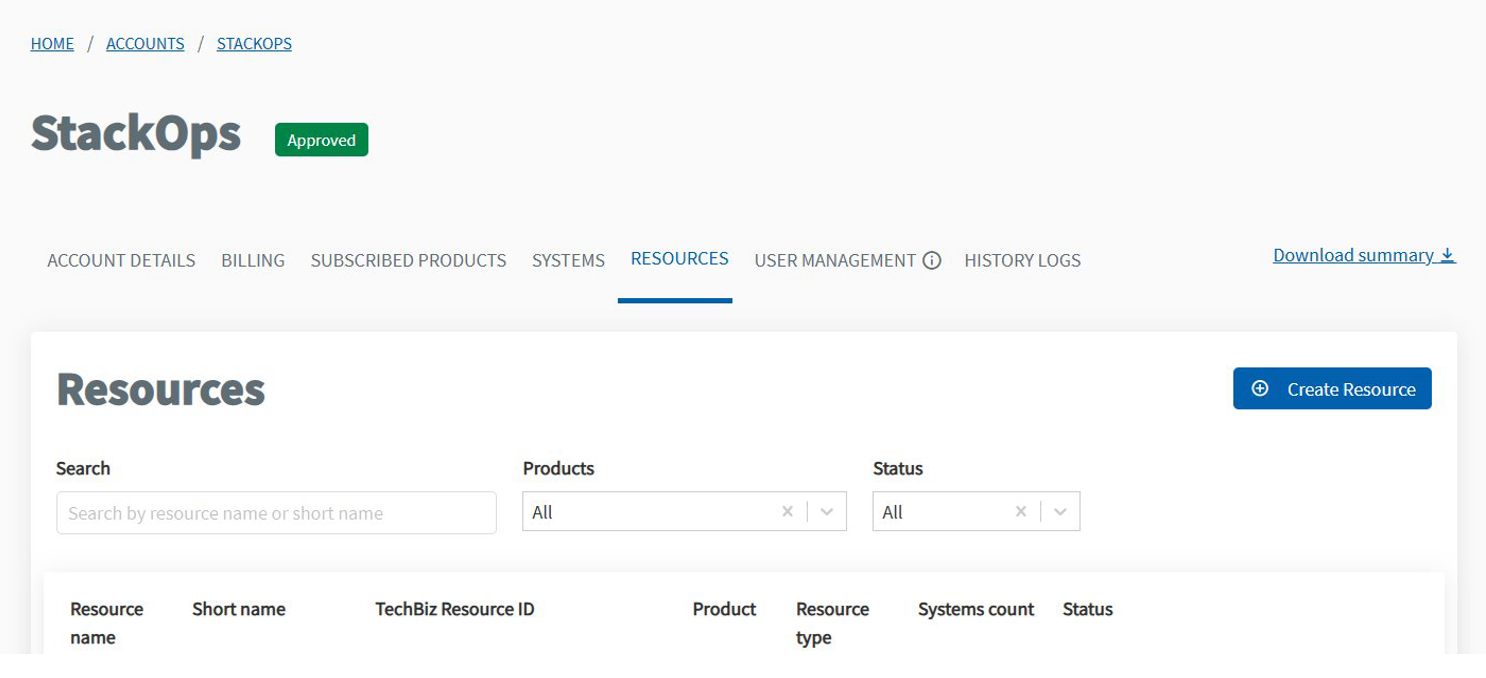
Enter the following Resource details:
- Product—Select
StackOps. - Resource type—Select
Resource-StackOps. - Enter the Resource name and Resource short name for your StackOps Elastic deployment.
- Enter a Resource description for your StackOps Elastic deployment.
- Select a System to tag your StackOps Elastic deployment to.
- Product—Select
Enter the following Resource configuration details:
Environment—Select either
ProductionorNon-Production.Cloud Service Provider—Select either
AzureorAWS.Elastic Version Number—The recommended version is v8.19.x.
Deployment Size—Select
Small,Medium, orLarge.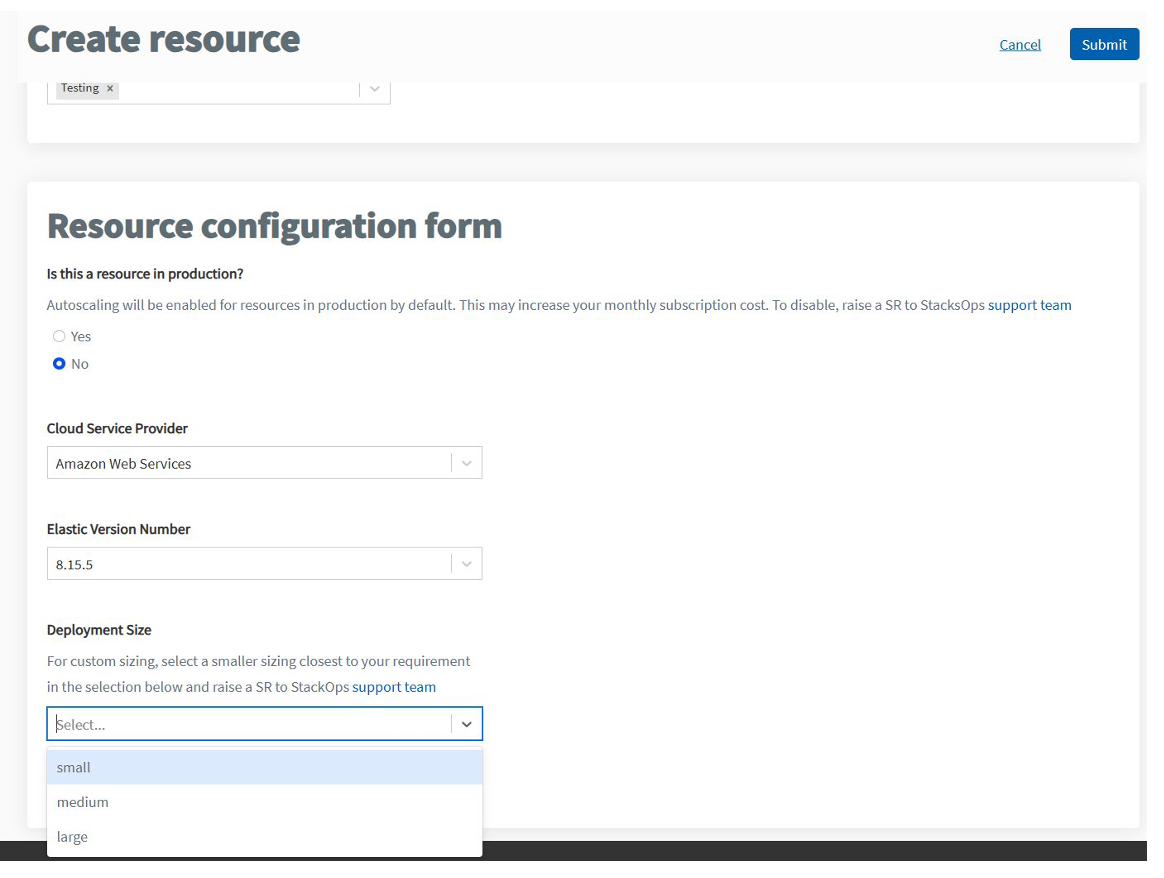
Click Submit.
You can view the status of your resource under the Resources tab. Once the Elastic deployment is successfully provisioned, the Subscription Admins and Billing Admin will be notified via email. Note that only system admins can access the deployment details.
Step 2: Verify Kibana URL
Who can do this?
- Subscription Admins
- Billing Admins
- System Admins
Kibana is the user interface (UI) for your StackOps Elastic deployment, acting as a real-time window to manage your data. Once your Elastic deployment is successfully provisioned, you will see a Kibana URL on the Console portal. The Kibana URL will currently be in the format:
https://<ALIAS>.kb.<REGION>.<CLOUD_SERVICE_PROVIDER>.found.io
Verify that you can access the Kibana URL.
To verify your Kibana access:
- Log in to Console with your TechPass account.
- Select Subscription accounts > View subscription accounts > your subscription account.
- From your subscription account, select Resources.
- In your Provisioned StackOps Elastic deployment, select Manage.
- Under Product provisioned details, you should see the Kibana URL for your deployment.
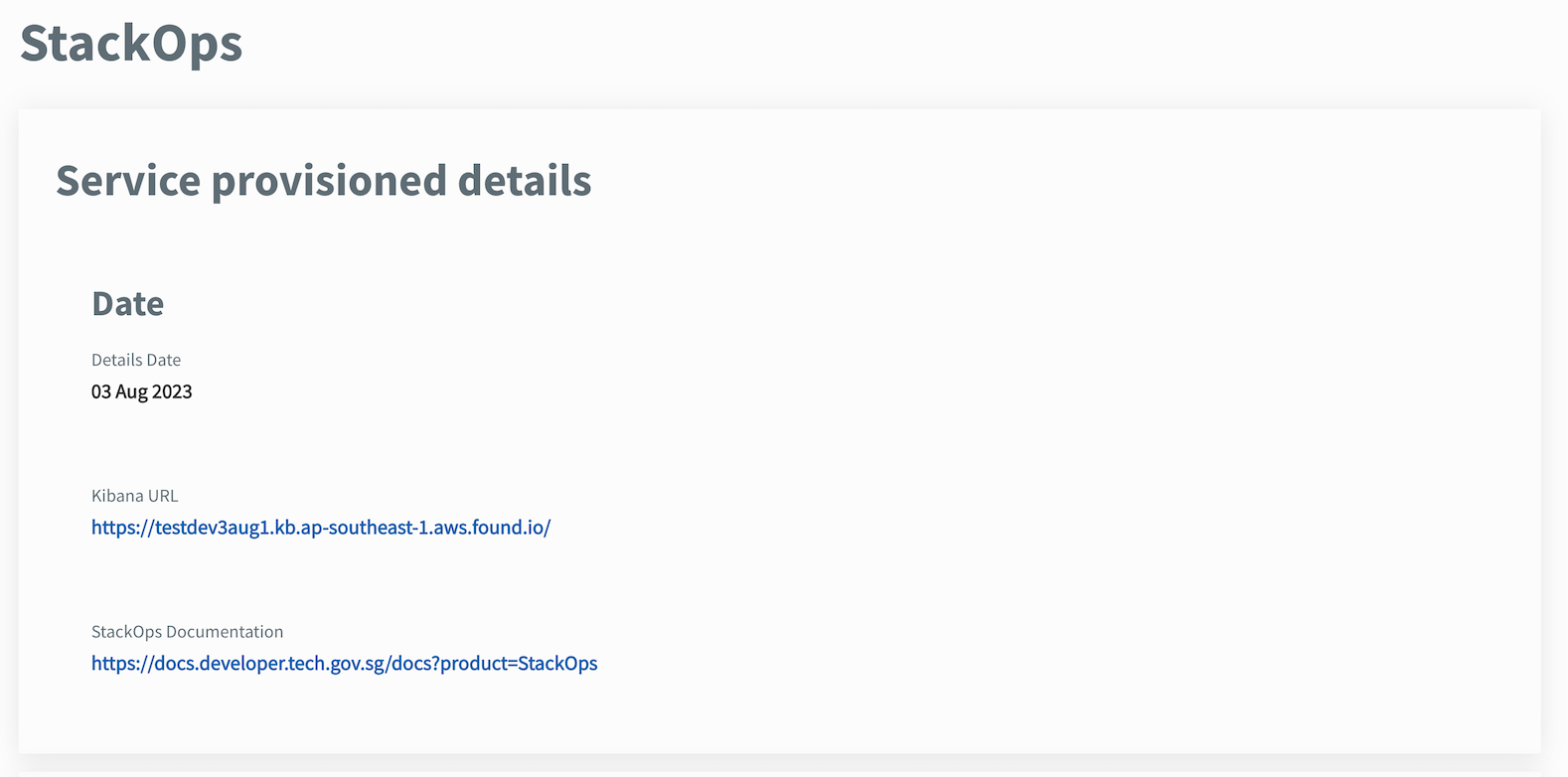 If you are unable to view the URL, raise a support request.
 - Double-click the displayed Kibana URL to access Kibana.
Next steps
Now that your StackOps Elastic deployment is created, you can proceed to configure a secure connection for it.
