View deployments
This comprehensive view allows you to monitor the healthy status, performance and resource utilization effectively.
Prerequisites
- Login to the Console Portal with TechPass. From the Products page, click StackOps.
- Click Deployments. Your existing deployments are displayed.
Understand your deployment details
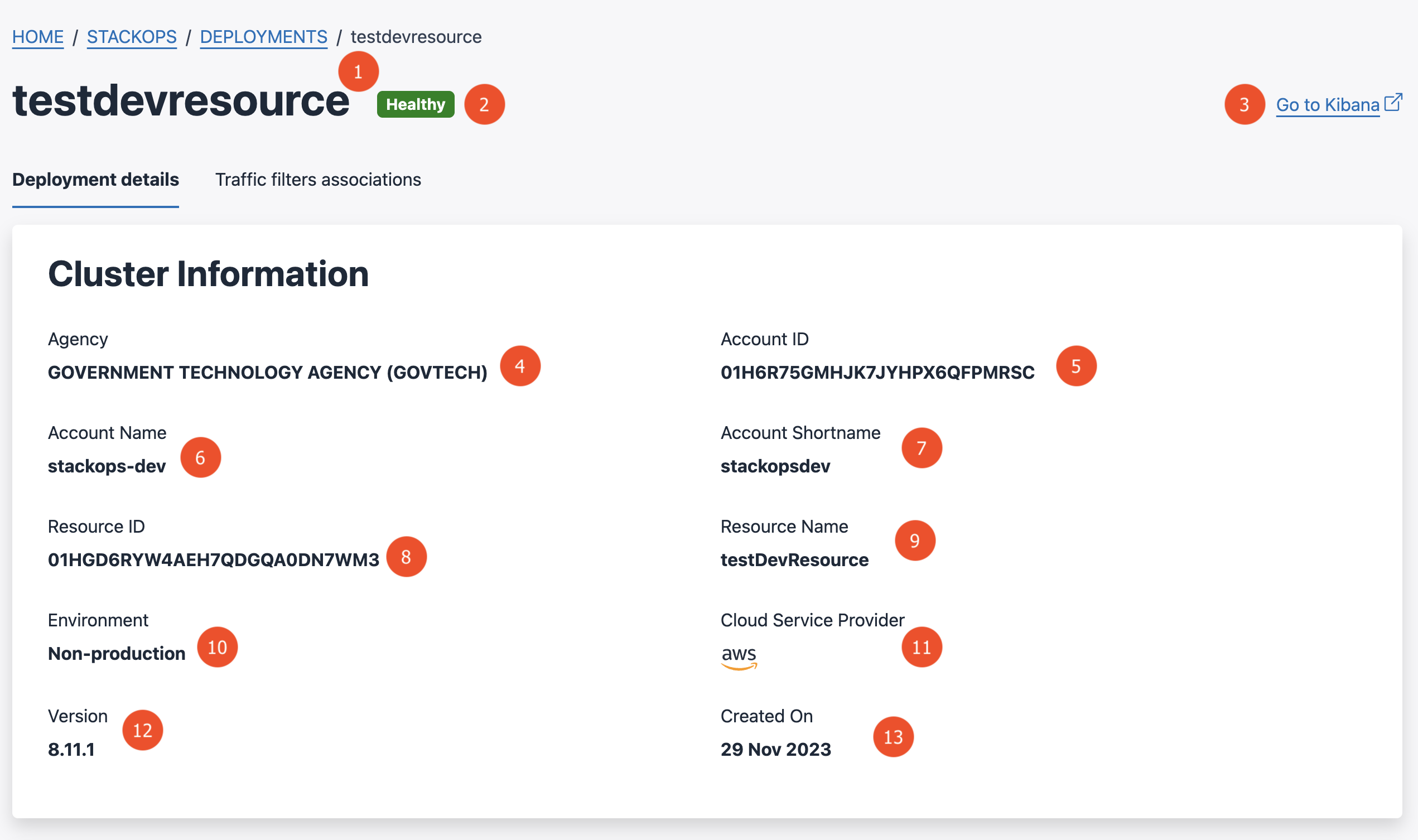
The following table explains what you can see on this page.
| S.no | Information | Description |
|---|---|---|
| 1 | Deployment Shortname | This unique identifier is the shortname of your deployment. The example shown in the image is for illustrative purposes only; the actual shortname will vary for your deployment. Note: When you submit any support request (SR) for a deployment, you may need to specify its shortname. |
| 2 | Health status | Displays the current health status of the deployment (e.g., Healthy). |
| 3 | Open Kibana | Click this to access your Kibana. |
| 4 | Agency | Asscociated agency name. |
| 5 | Account ID | Subscription account ID. |
| 6 | Account Name | Subscription account name. |
| 7 | Account Shortname | Shortname of the subscription account. |
| 8 | Resource ID | Resource ID. |
| 9 | Resource Name | Resource name. |
| 10 | Environment | The deployment environment (e.g., Production, Non-Prod). |
| 11 | CSP | Indicates the cloud service provider associated with the deployment. |
| 12 | Version | Elasticsearch version used by this deployment. |
| 13 | Created on | Date when the deployment was created. |
View cluster, usage and scaling information
Login to the Console Portal with TechPass. From the Products page, click StackOps.
Click Deployments. Existing deployments are listed here.
Click the shortname of the deployment.
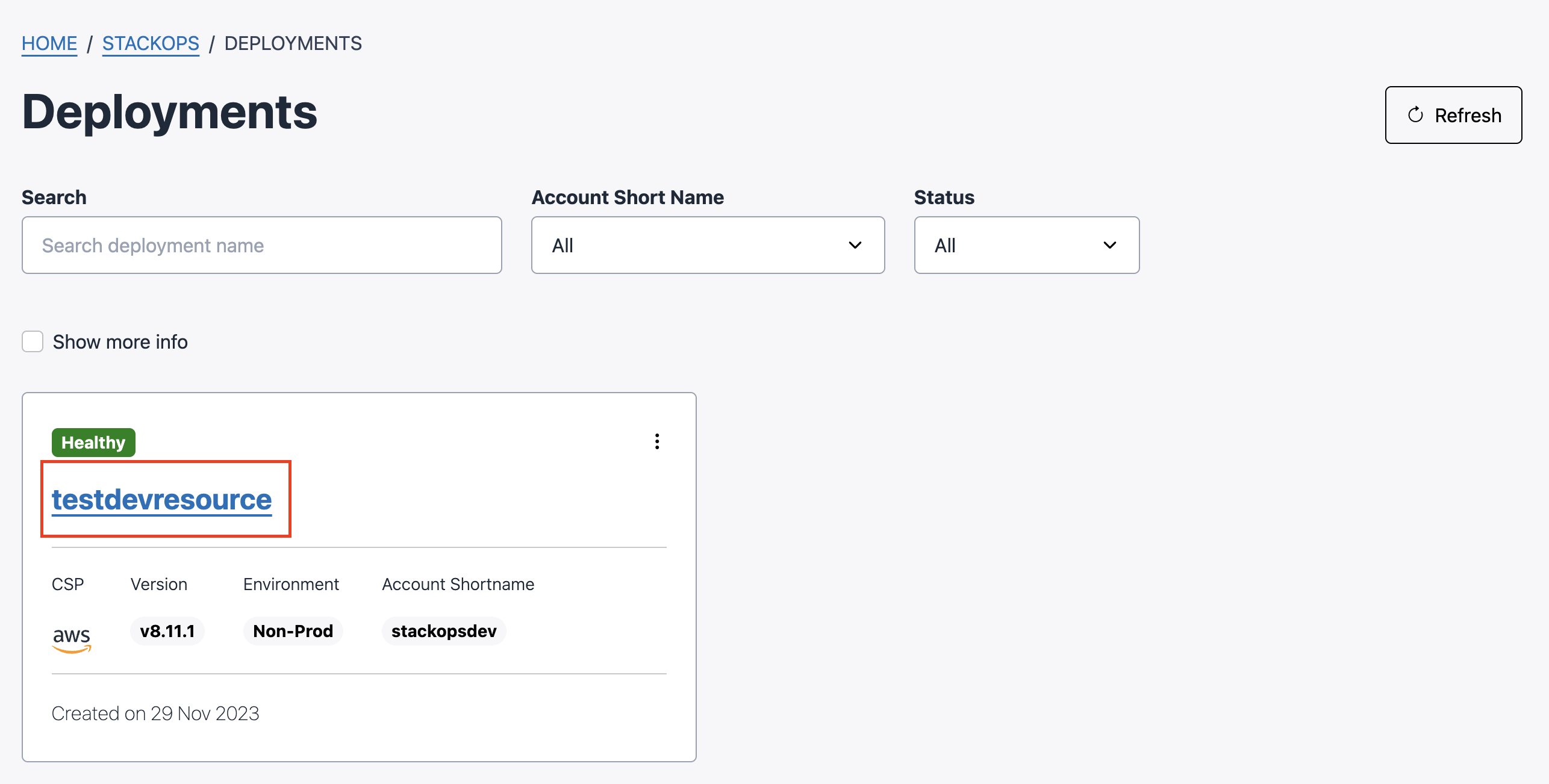
Go to the required section as shown below:
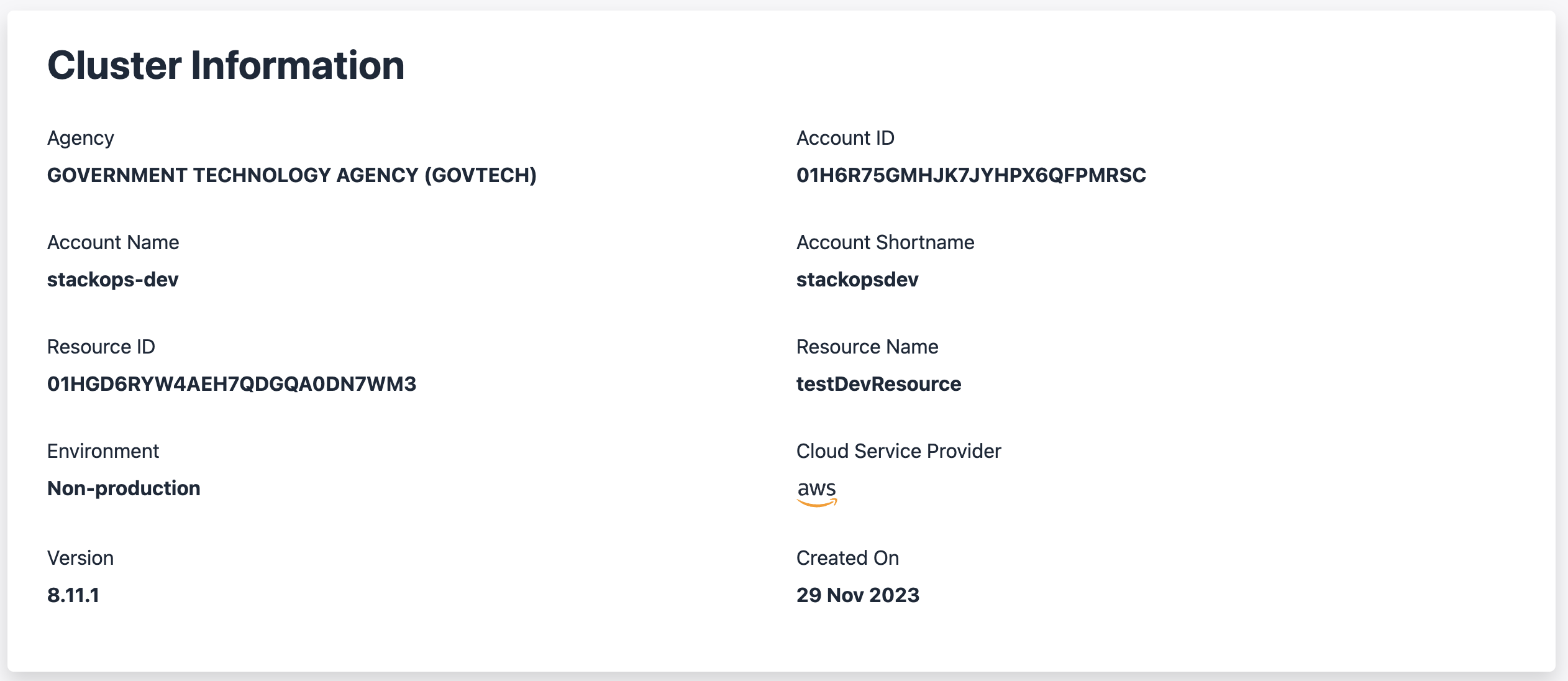
To view the cluster information, go to the Cluster Information section.
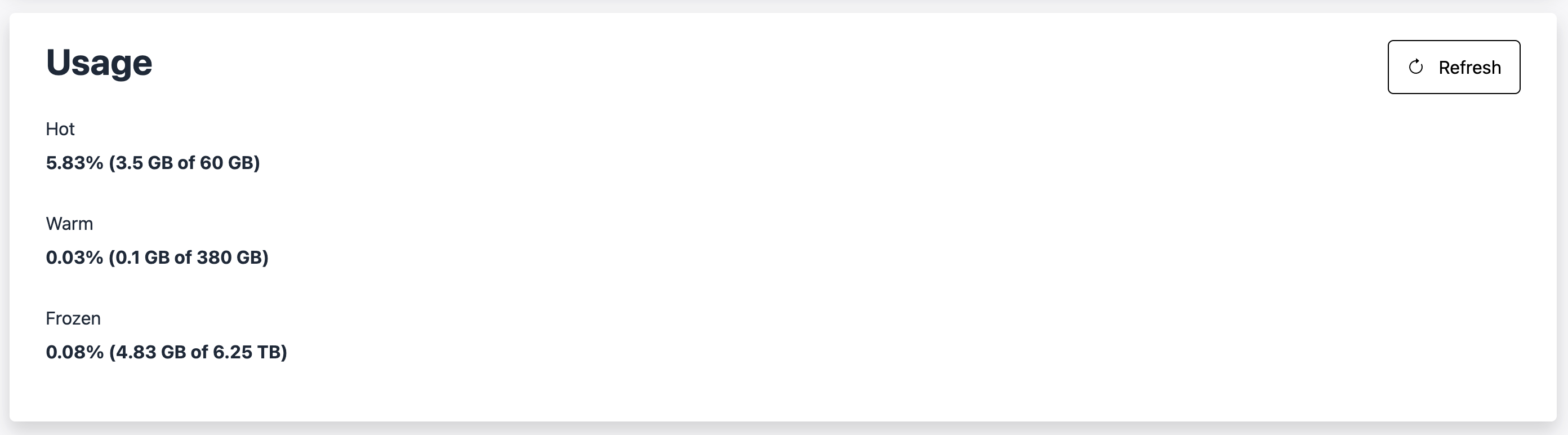
To view the usage information, go to the Usage section.
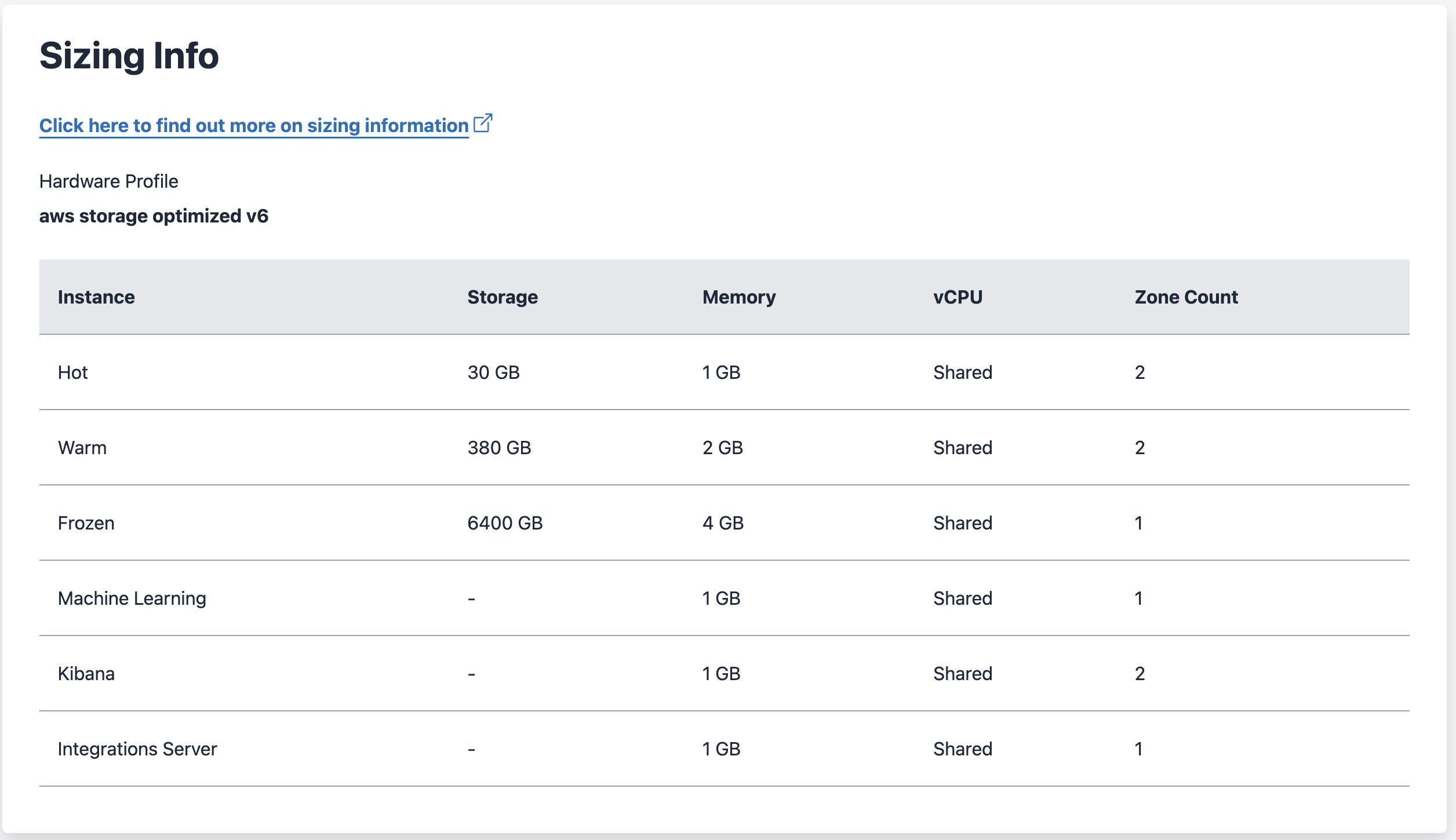
To view the scaling information, go to the Sizing section. Note that autoscaling is enabled for all new production deployments to optimise resource management. This enables your infrastructure to adjust according to demand by scaling data tiers (maximum to 10th tier) and machine learning nodes.
Note that higher data tiers might incur more costs. If you’d like to enable this feature for existing deployments or disable this feature, raise a service request.
