Get a trial StackOps Elastic subscription
New users without an existing StackOps subscription can get a 14-day free trial of StackOps Elastic (non-production deployment).
The trial subscription is suitable for agencies that intend to use StackOps Elastic as a proof-of-concept (POC) for some use case. For personal testing and sandboxing, use the Elastic Cloud trial directly instead.
Note: Trial deployments are designated as non-production and will remain so during the conversion process. Provisioning of production resources is only supported after transitioning to a paid subscription.
Before you begin
Before submitting a StackOps Elastic trial request, make sure that you meet the following requirements:
- You have never had a StackOps Elastic trial subscription before.
- You do not have an existing StackOps subscription.
- You have a TechPass account to access Console, which is where you can manage the StackOps subscription. If not, your TechPass account will be automatically created when you submit a trial request.
Submitting a trial request
Get a StackOps Elastic deployment (non-production) for 14 days.
To sign up for a trial:
Fill out the StackOps Elastic Trial Onboarding Form with the following information:
- Subscription Account Name *
- Agency Name
- Your personal information:
- Primary Subscription Admin Email (this email should be the same as your TechPass account email)
- Primary Subscription Admin First Name
- Primary Subscription Admin Last Name
- Primary Subscription Admin Mobile Number
- StackOps Elastic Deployment name *
- Cloud Service Provider
*: The information cannot be changed after the trial is created, or even after converting to a standard subscription. Make sure to consider the names carefully because they may be switched to a live resource eventually.
After submitting, you will receive an email notification of the trial provisioning status. Users who had a trial subscription before or have an existing StackOps subscription will not be allowed to create a new trial deployment.
Next steps
Once the StackOps Elastic deployment is provisioned, you can begin using it to monitor your applications. There are two main user interfaces:
- Console—The interface for managing your StackOps subscription and deployment.
- Kibana—The Elastic-provided interface for visualising, analysing, managing, and monitoring data. The Kibana URL is unique to each deployment.
Here are some next steps:
- Manage and add users via Console.
- Get the Kibana URL from Console.
- Get started with monitoring by following our quickstart tutorial.
Note:
- Users cannot delete or add new deployments while on a trial subscription.
- During trial, the deployment will be open to all traffic.
End of trial
After 14 days, the StackOps Elastic trial will automatically end. Your subscription account and trial deployment will be terminated. Within the 14 days, you can convert to a paid subscription in order to keep using StackOps Elastic. The existing deployment will remain as non-production, but you can create a new production deployment on a paid subscription.
Converting to a paid subscription
Before the trial expires, you can convert to a paid subscription to keep using StackOps Elastic. Approval from your agency’s CIO or an authorised delegate is required to subscribe to StackOps.
If you already have an existing subscription account in Console, you can merge the paid StackOps subscription into it. Otherwise, you will also be creating a subscription account when you subscribe to StackOps.
To convert to a paid subscription:
- Log in to Console with your TechPass account.
- Select Subscription accounts > View subscription accounts > your subscription account.
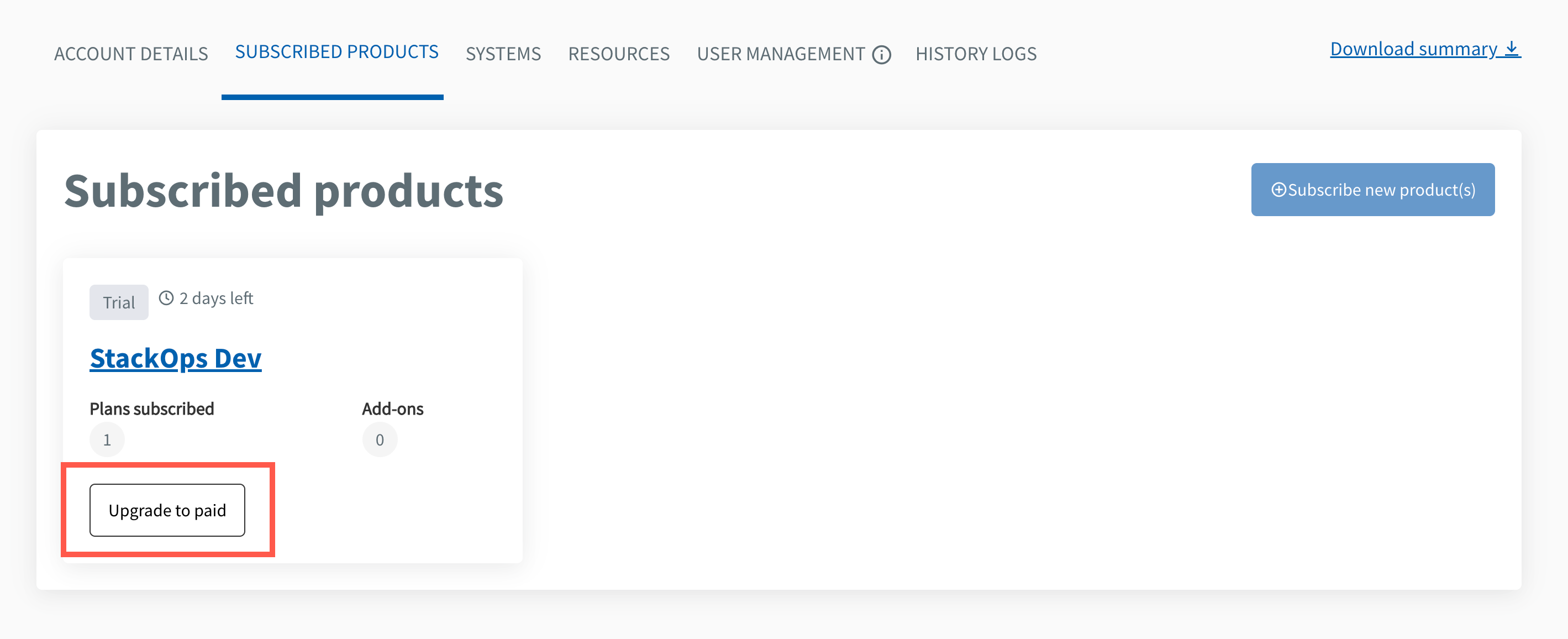
- From your subscription account, select Subscribed Products.
- In your StackOps Elastic trial deployment, select Upgrade to paid.
- Select whether you want to merge the StackOps subscription to an existing account.
Select the Subscription account name to merge with.
Click Next.
Enter the approver’s details and other relevant information:
Field Description Approver full name Enter the approver’s full name. Approver email Enter approver’s organisational email address. Designation Specify the approver’s designation or role. Upload documents (Optional) Upload any supporting documents for approval. Remarks to Approver Enter any remarks to provide context for the approver. Click Next.
Review all details in the Summary page.
- If needed, select Edit in the respective sections to modify the information provided.
Click Submit.
Select the checkboxes to confirm that you have reviewed and agree to the product agreement(s).
- If needed, download the product agreement.
Click Submit to confirm.
- Follow the Subscription guide from Step 2: Provide the account and billing details onwards.
Note: There is no need to log in to Console again.
Upon conversion, users must configure a secure connection to their deployment and set up traffic filters, because all traffic will be blocked by default. If not done so, any existing integrations may fail.
