Monitoring SaaS services using synthetics
In your application ecosystem, your upstream or downstream services might include cloud-hosted or off-the-shelf Software as a Service (SaaS) applications. You may need to monitor the SaaS products in your ecosystem to determine their system health and capture SaaS statuses for processing or reporting.
There are 2 methods of monitoring SaaS services by leveraging StackOps’ Elasticsearch synthetic monitors:
- HTTP Ping synthetic monitor
- Advanced multi-step synthetic monitor with Playwright script - Use this if HTTP Ping is not feasible, i.e. response format is not JSON or you need more complex operations to check status.
Prerequisites
You will need:
- The health page of the SaaS service to identify the health data of the SaaS service.
- An Elasticsearch cluster.
- An Elastic Agent hosted in your own environment. Refer to Synthetic monitoring for more details.
Identify the health data of the SaaS service
In this example, we will be using Elastic as the SaaS service we want to monitor. For this example, the health page for Elastic is
https://status.elastic.co/.
Access the health page of the SaaS service and ensure that there are API endpoints to retrieve data from. For Elastic, the API endpoint is
https://status.elastic.co/api/v2/summary.json, which returns a JSON object containing all statuses of Elasticsearch services components and their respective regions.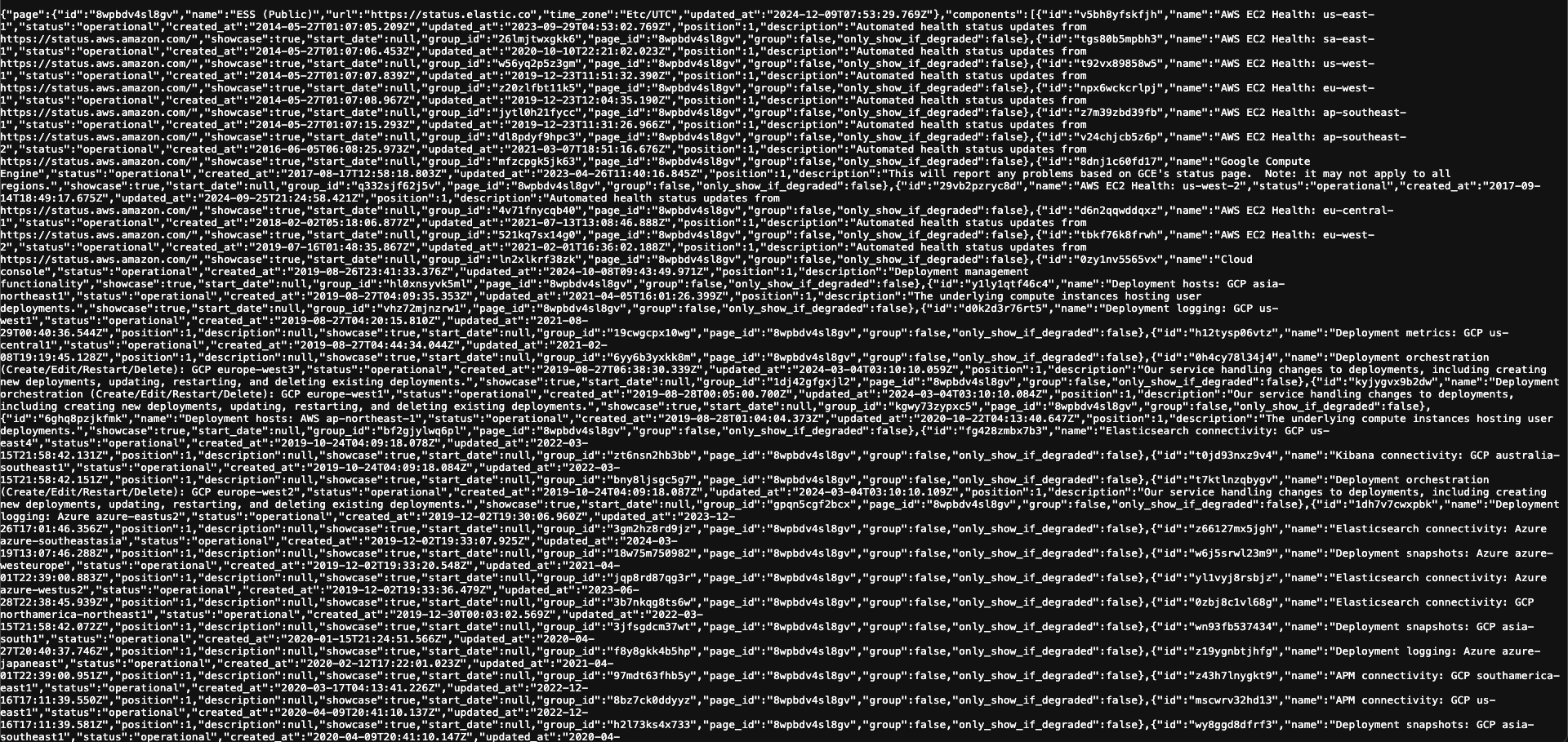
Identify the data you wish to monitor for this SaaS service. In this example, we are interested in all the components related to
AWS Singapore (ap-southeast-1).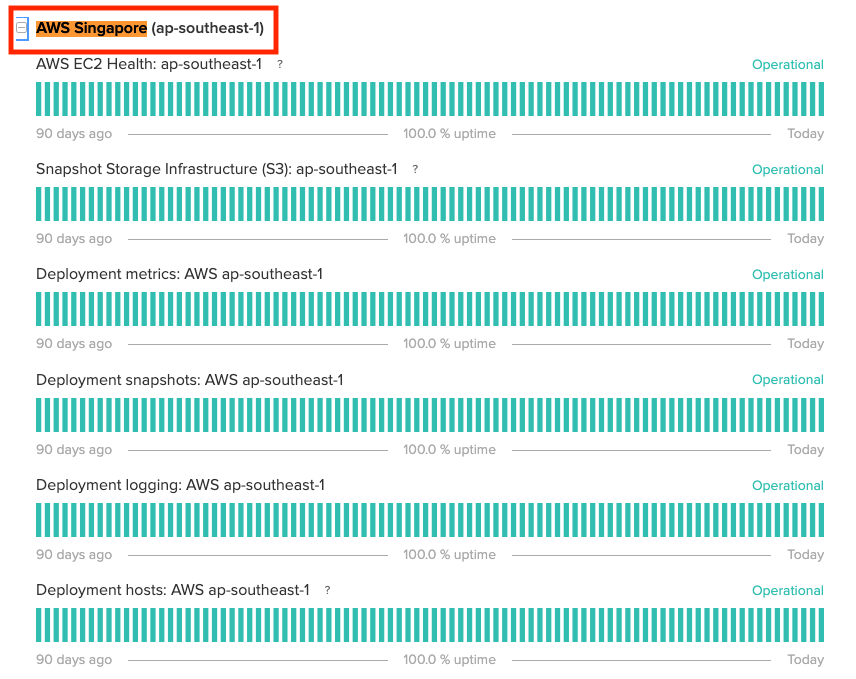
In JSON format, the data related to
AWS Singapore (ap-southeast-1)will look like:
{"id":"spy7rch22kg0","name":"Elasticsearch connectivity: AWS ap-southeast-1","status":"operational","created_at":"2013-12-18T10:24:59.729Z","updated_at":"2023-07-22T22:59:12.783Z","position":11,"description":null,"showcase":true,"start_date":null,"group_id":"dl8pdyf9hpc3","page_id":"8wpbdv4sl8gv","group":false,"only_show_if_degraded":false}Look for keywords within the data that will help you identify the relevant component and status. In this example, our keywords are
Elasticsearch connectivity: AWS ap-southeast-1and"status":"operational". Using these keywords, we can create a unique search to easily filter and find the data we need.
Set up HTTP Ping synthetic monitor
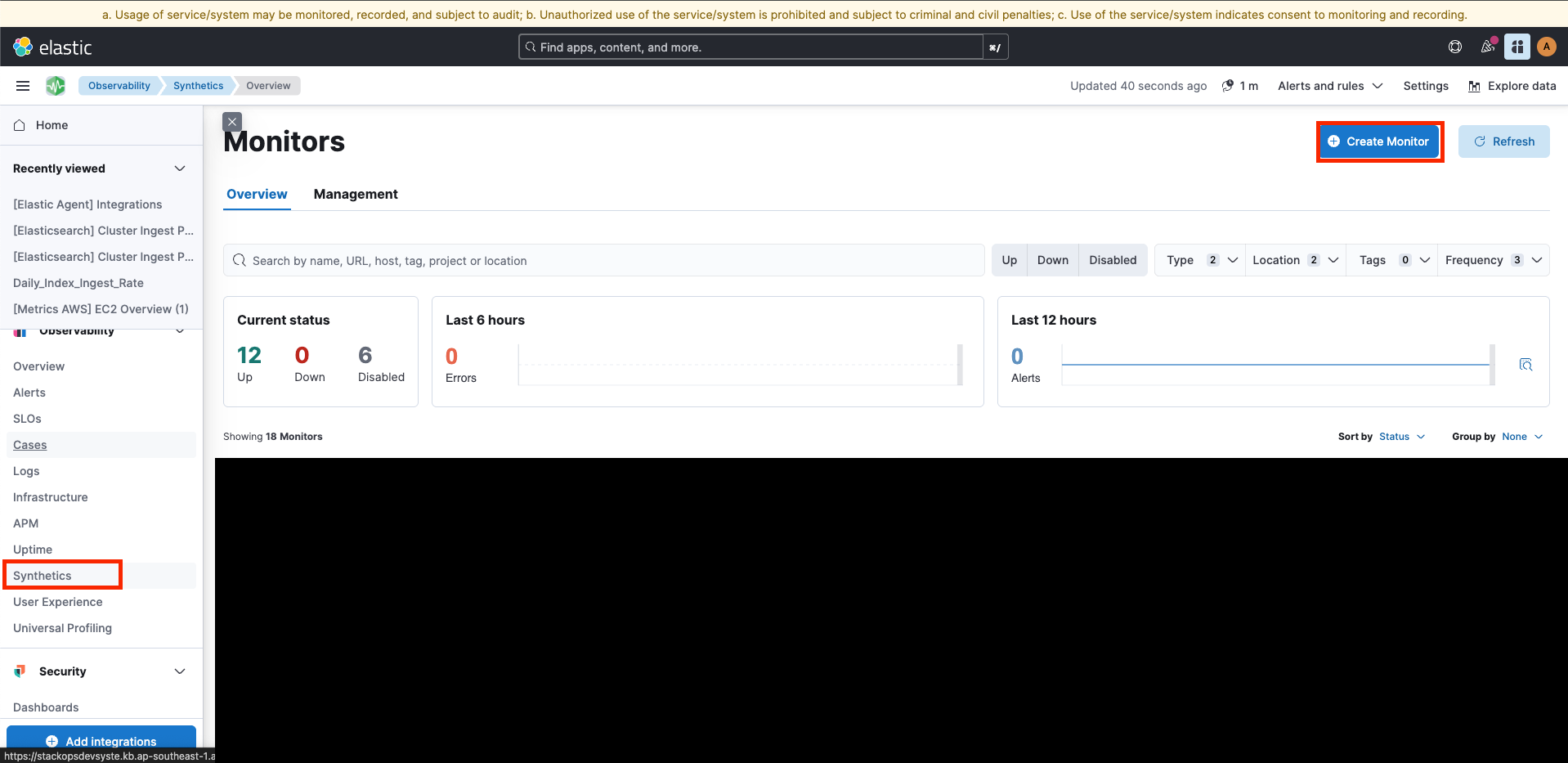
- From the Kibana of the Elasticsearch cluster with the deployed Elastic Agent (see Prerequisites), go to Observability > Synthetics. Click Create Monitor.
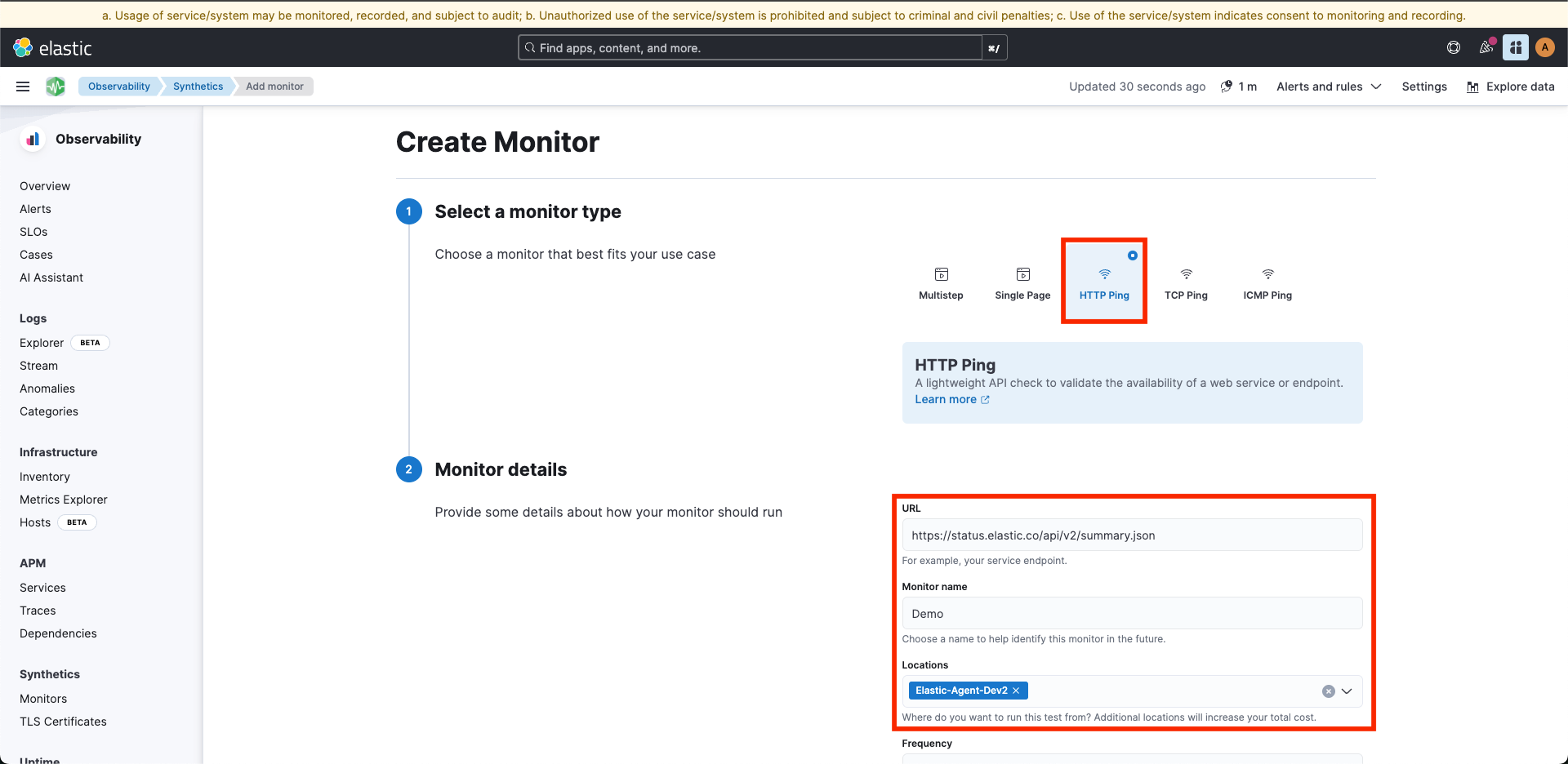
- Select HTTP Ping and fill in the details accordingly, i.e. URL, monitor name, and select the private Elastic Agent stated in the prerequisites.
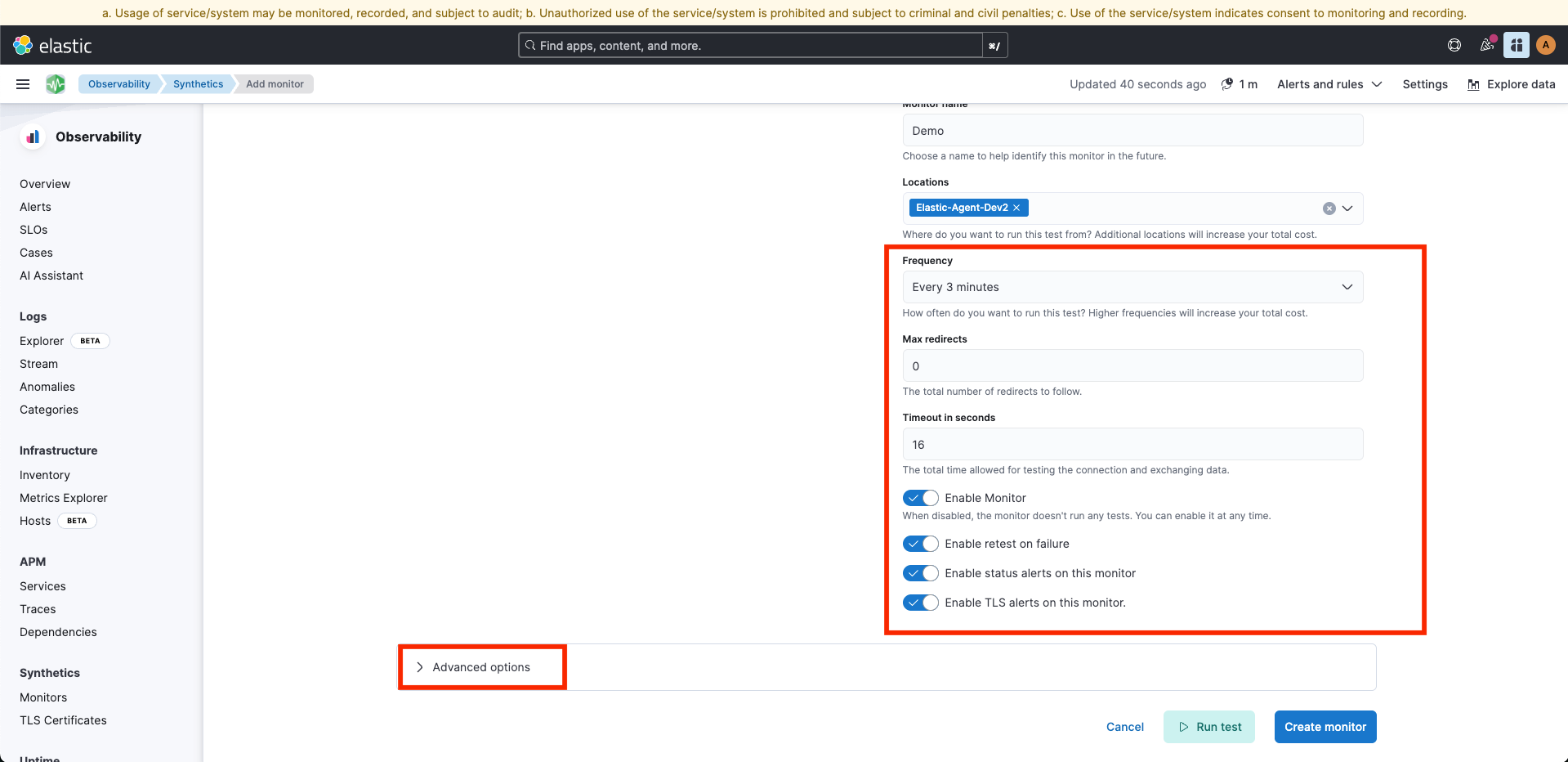
- Specify additional details like frequency of running the test, timeout in seconds, enable retest on failure, enable TLS alerts etc. Select Advanced options to view more settings.
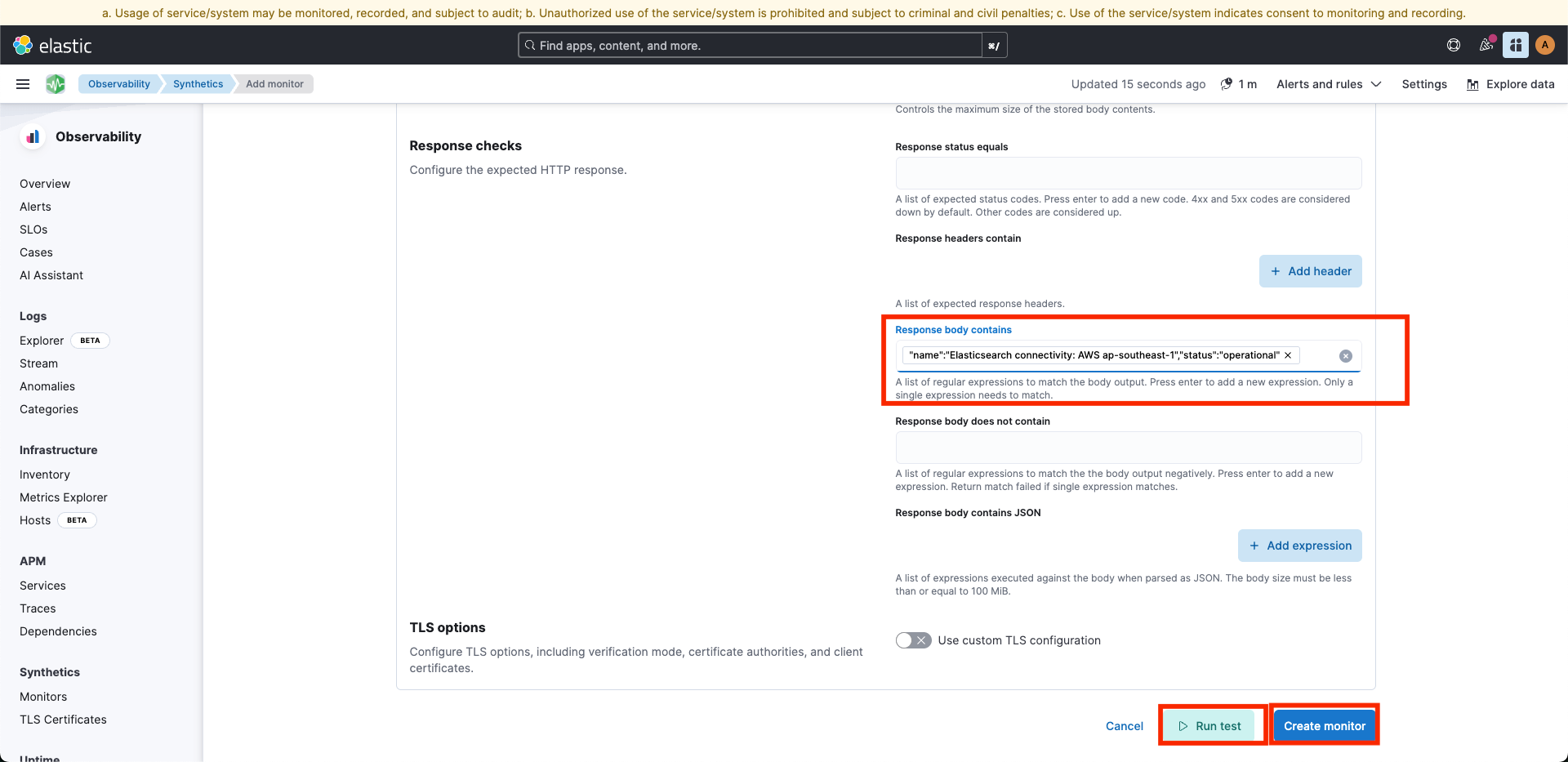
- In the Response checks section, locate the Response body contains field and enter the previously mentioned unique keywords:
"name":"Elasticsearch connectivity: AWS ap-southeast-1","status":"operational" - Select Run test to test the synthetic monitor. If there are no issues, proceed to Create monitor.
Advanced multi-step synthetic monitor with Playwright script
If HTTP Ping is not feasible (i.e. response format is not JSON or you need more complex operations to check status), you can create a multi-step synthetic monitor to do health check on your SaaS service.
- From the Kibana of the Elasticsearch cluster with the deployed Elastic Agent (see Prerequisites), go to Observability > Synthetics. Click Create Monitor.
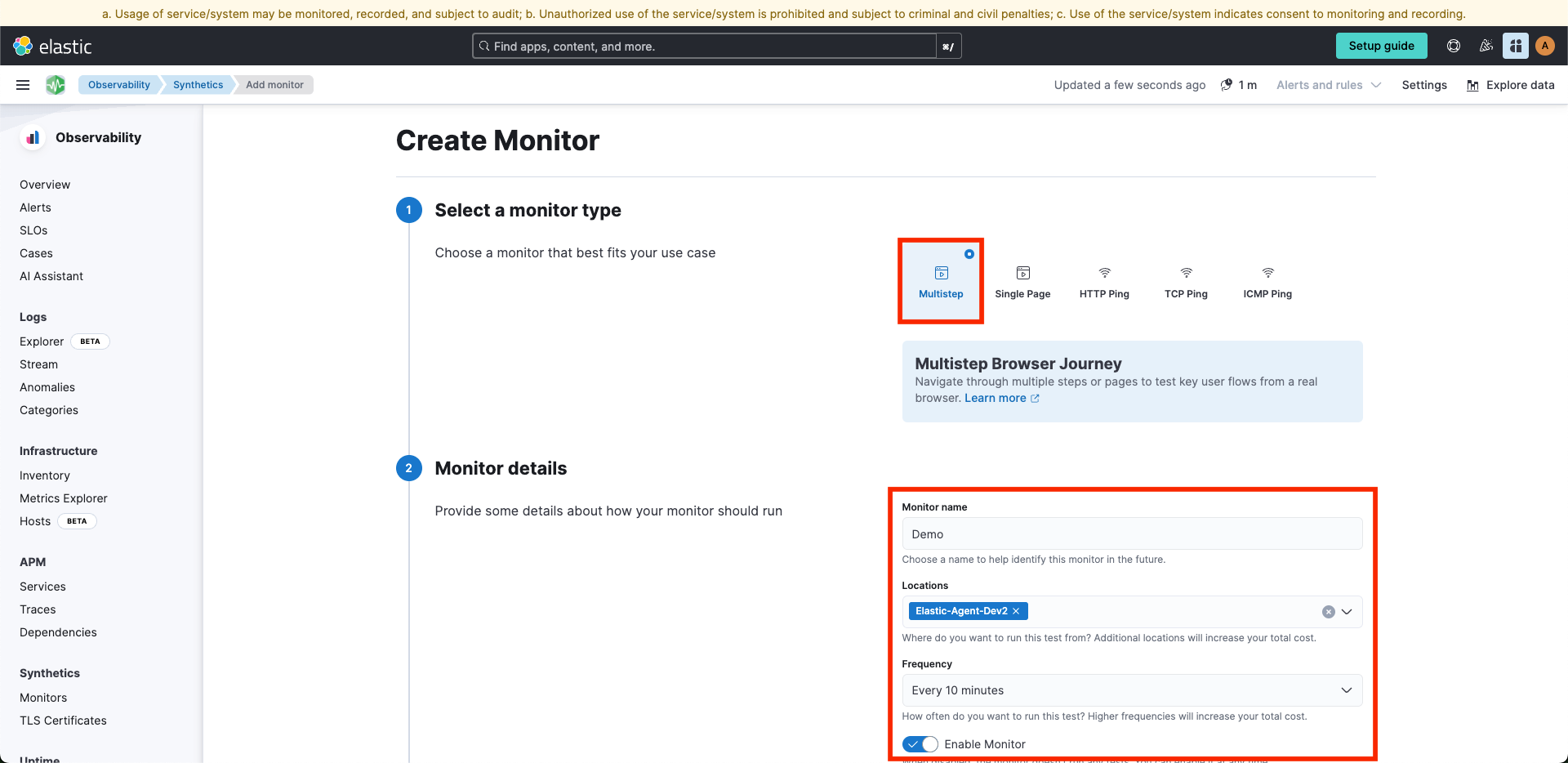
- Select Multistep and fill in the details accordingly, i.e. monitor name, select the private Elastic Agent stated in the prerequisites, and frequency of running the test.
- In the Add a script section, you can either use the Elastic Synthetics Recorder to generate and upload a script or create your own Playwright script with the Script editor. Assertions can be helpful if you need to verify that your statuses contain a specific text or status. Refer to the Playwright documentation on assertions for more details.
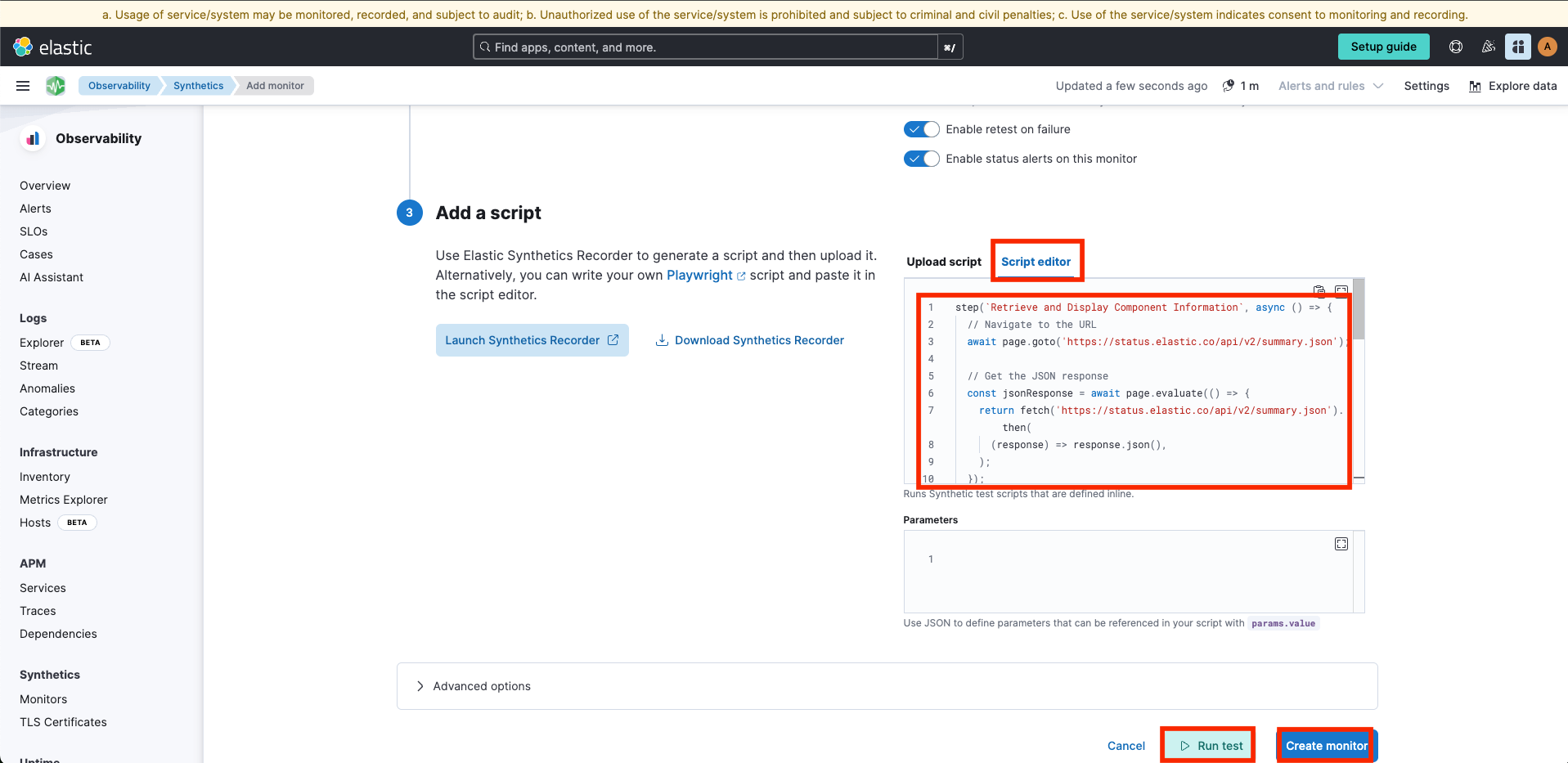
- Select Run test to test the synthetic monitor. If there are no issues, proceed to Create monitor.
