Verify your endpoints
There are two primary access domains for StackOps Elastic:
- aws.found.io—The Internet-facing domain, blocked by default unless StackOps whitelists it. This whitelisting occurs automatically when you access the URL via Cloudflare through your web browser.
- A private domain—Set up within your infrastructure (AWS or Azure). Access is granted only after it has been whitelisted via a traffic filter.
- vpce.ap-southeast-1.aws.elastic-cloud.com—A R53 private domain that resolves to a VPC Endpoint, allowing your AWS resources to communicate with Elastic privately.
- privatelink.southeastasia.azure.elastic-cloud.com—An Azure Private DNS domain that resolves to a Private Endpoint, allowing your Azure resources to communicate with Elastic privately.
To confirm that your private endpoint and traffic filter has been set up correctly, you should verify that your requests can go through the private endpoint.
Verifying private endpoints
Prerequisites:
Get your deployment’s alias. You can get the alias from your Kibana URL, which can be retrieved from Console. For example:


To verify your endpoint:
Create a EC2 instance in your AWS account for testing.
Log in to virtual machine (EC2) via SSM/SSH.
Verify connectivity between the EC2 and the Elastic deployment using the following CURL command:
curl https://<alias>.es.vpce.ap-southeast-1.aws.elastic-cloud.comIf you face a cert error, use
curl -kv.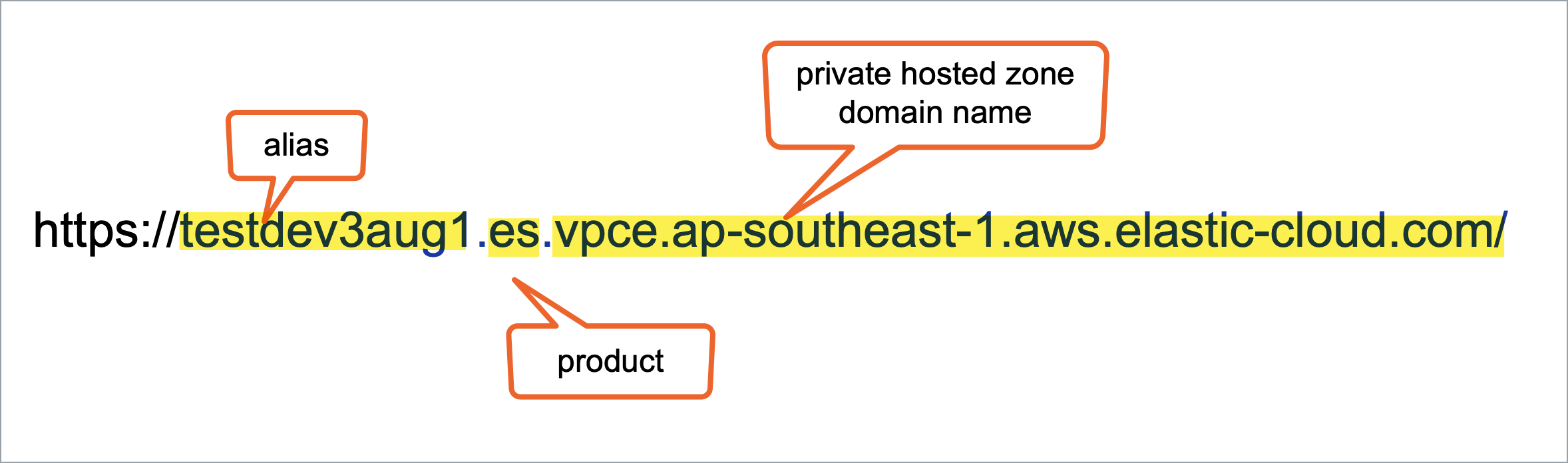
In the output message, you should see the following:
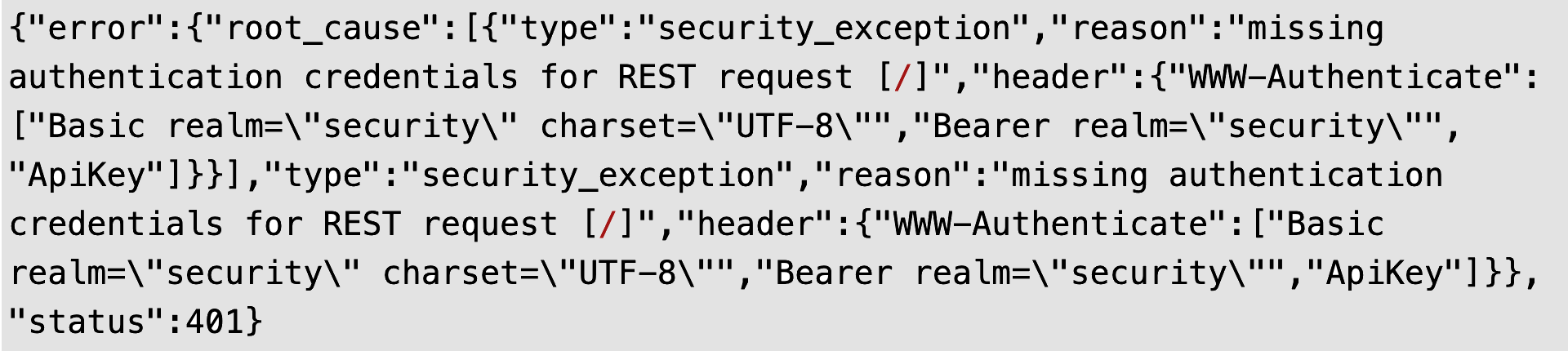
If you are seeing
{"ok":false,"message":"Forbidden"}, check that you have already created a traffic filter for this endpoint.
Create a virtual machine (VM) in your Azure account for testing.
Log in to virtual machine (VM) via SSH.
Verify connectivity between the VM and the Elastic deployment using the following CURL command:
curl -v https://<alias>.es.privatelink.southeastasia.azure.elastic-cloud.com:443If you face a cert error, use
curl -kv.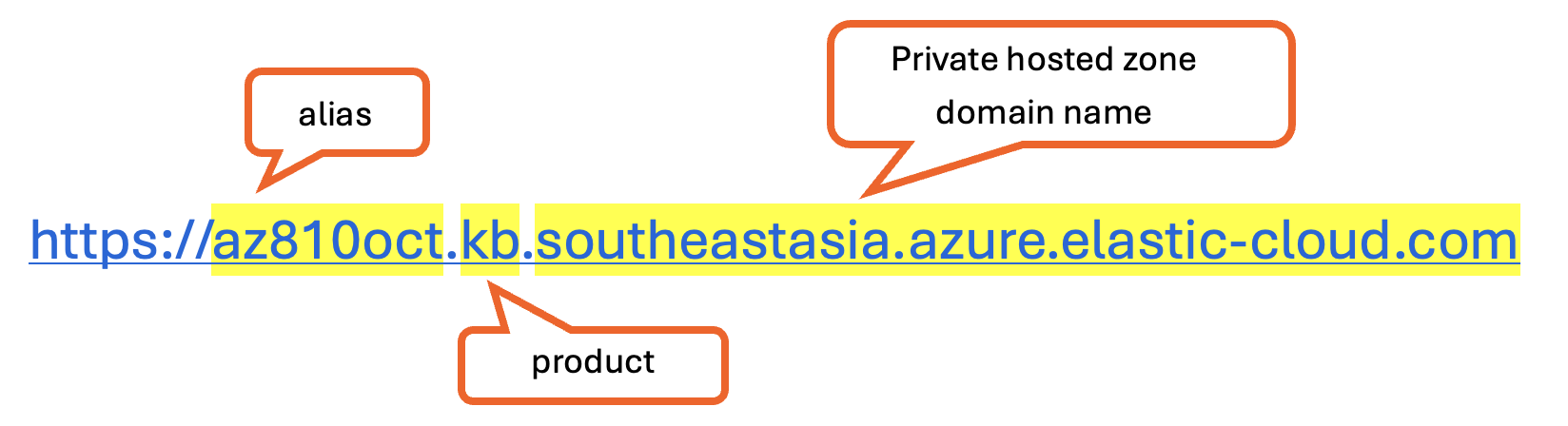
In the output message, you should see the following:
If you are seeing
{"ok":false,"message":"Forbidden"}, check that you have already created a traffic filter for this endpoint.
Troubleshooting
If you are unable to verify your private endpoint, check that you have completed the following items:
- Ensure that you have followed Elastic’s documentation.
- The VPC Endpoint security group should minimally allow inbound traffic for ports 443 and 9243.
- Wherever your Elastic Agent resides (e.g., EC2), the security group should minimally allow outbound traffic for ports 443 and 9243.
- Ensure all VPC subnets (where the Elastic Agent resides) are associated to the private hosted zone.
- Ensure all VPC subnets (where the VPC Endpoint resides) are the same as all VPC subnets where the Elastic Agent resides.
- Define a private hosted zone domain name with the convention:
- Ensure the DNS CNAME record has a wildcard (*) under the private hosted zone created:
*.<Private Hosted Zone Domain Name>. - Ensure you whitelist the domain name/DNS CNAME Record in any additional Squid Proxy/ACL configured within your infrastructure.
- Ensure Fleet settings URL in your Kibana is updated as per Elastic’s documentation. Under Fleet server hosts, check that the host URL contains
.fleet. - Ensure that Traffic filter entries do not contain leading or trailing spaces.
Next steps
Done! You have successfully configured your StackOps Elastic deployment.
- To add and manage users, refer to Manage users.
- To start monitoring your applications, begin by setting up data ingestion sources or by managing SIEM rules.
