Create traffic filters
Before Elastic can ingest data from the private endpoint, you need to whitelist the endpoint. In Elastic, this whitelisting process is known as Traffic Filtering. Refer to Elastic documentation for more information on traffic filtering.
Here is the overall flow for creating traffic filters in StackOps Elastic:
- Submit a request—Users must use Console to create a traffic filter request.
- Review and approve—The assigned approver reviews and approves the request on Console. Once approved, the traffic filter will be created.
Important limits and scope
Take note of the following limits and scope for traffic filters:
- By default, each tenant can have a maximum of five traffic filters. Delete any unused filters before creating a new one. If you need more than five filters, raise a service request to StackOps to increase the limit.
- The traffic filters created will be account-specific, and not Global traffic filters.
Request and approval authorisation
The table below shows who can request and approve traffic filter creation requests. The requester and approver cannot be the same person.
| Role | Requester | Approver | Notes |
|---|---|---|---|
| Technical Admins (also known as Tenant Admins) | ✓ | ✗ | NA. |
| Subscription Admins (also known as Tenant Managers) | ✓ | ✓ | Subscription Admins cannot approve their own requests. |
Submitting a creation request
Who can do this?
- Technical Admins / Tenant Admins
- Subscription Admins / Tenant Managers
To submit a creation request:
Log in to Console using TechPass.
Go to Products and select StackOps.
Go to Traffic Filters and select Create.
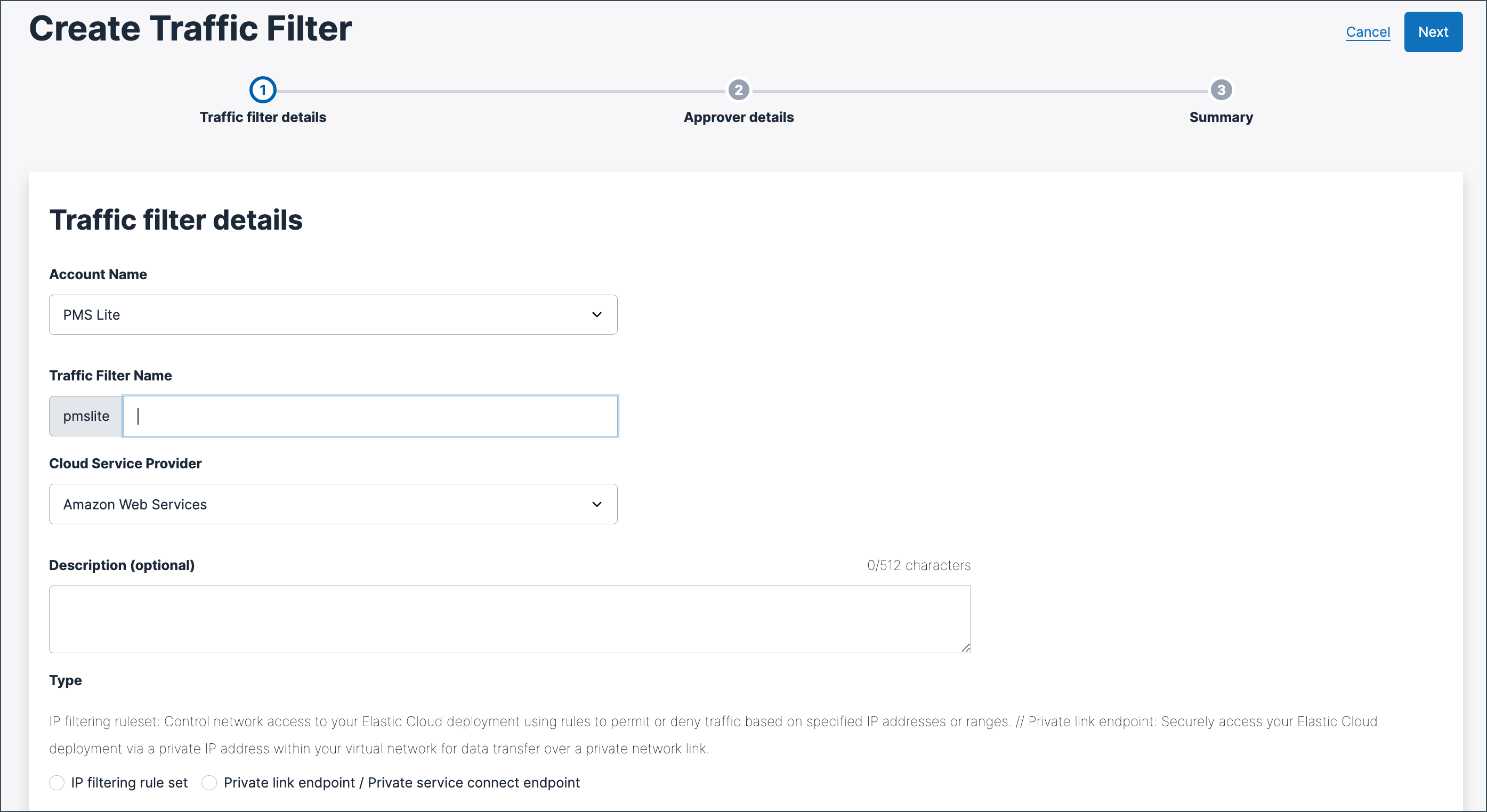
Provide the following information to create the traffic filter:
Field Description Account Name Select the required account name. Traffic Filter Name Specify a name for your traffic filter.
Note: The Account Name is automatically assigned as a prefix to the traffic filter name.Cloud Service Provider Select the service provider for your cloud environment. Description (Optional) Enter a brief description to help you identify the filter later. Type Select the required filter type: - IP filtering rule set—Allows traffic from specific IP addresses.
- Private link endpoint/Private service connect endpoint—Allows traffic from a specific endpoint.
Based on the selected Type, specify the following details:
- In Sources, enter the IP address in CIDR notation. For example,
54.169.236.101/32.- The IP address cannot be
0.0.0.0/0. - The IP address needs the subnet mask. For example, it cannot be
54.169.236.101. - You can specify a maximum of 100 CIDRs/subnet masks per filter.
- The IP address cannot be
- (Optional) Select Add New to add another IP address. You can specify a maximum of 100 CIDRs/subnet masks per filter.
- For AWS, enter your VPC Endpoint ID as the Endpoint ID. To learn how to find your VPC Endpoint ID, refer to Elastic documentation.
- For Azure, enter your Resource ID and Resource name. To learn how to find your Resource ID and name, refer to Elastic documentation.
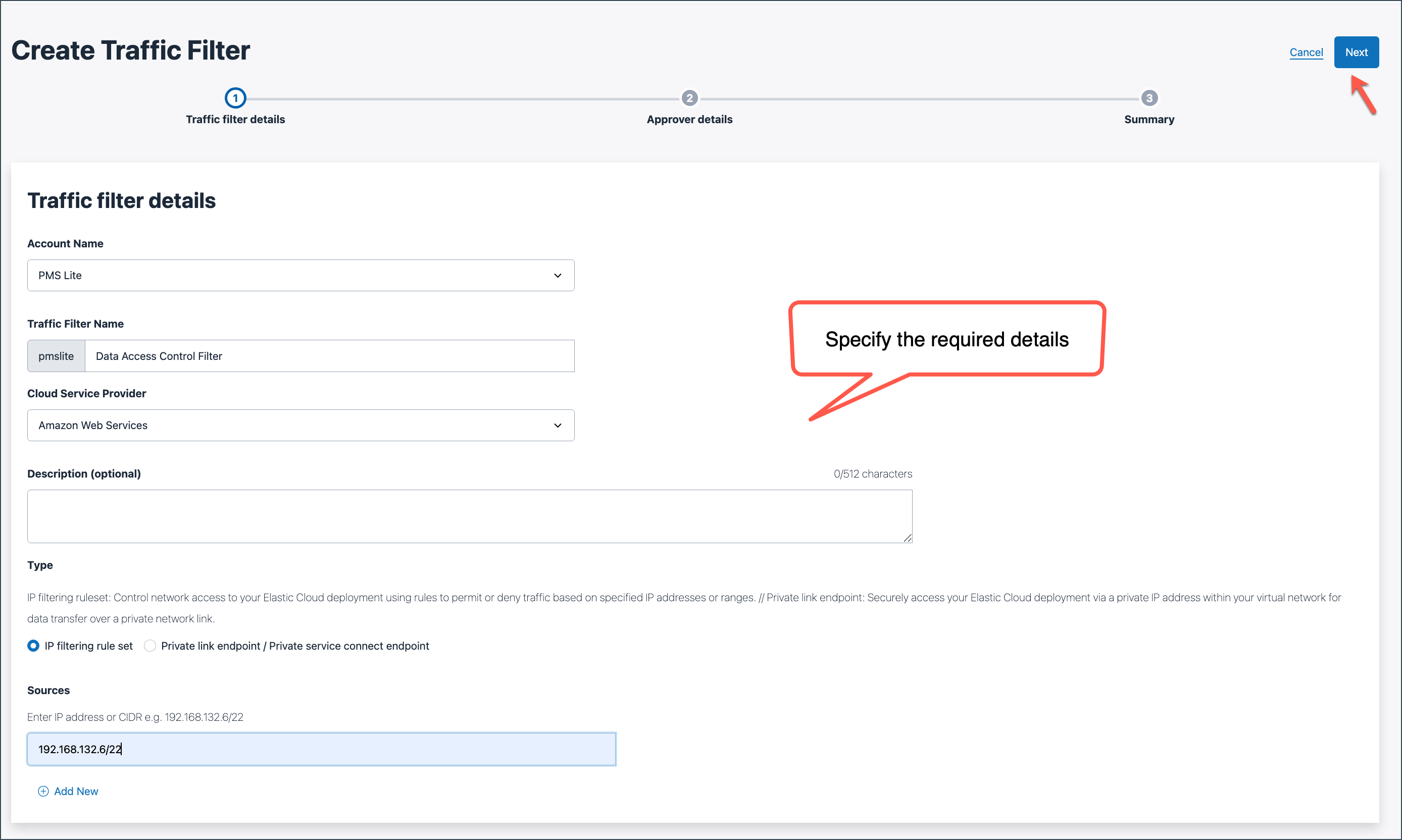
- In Sources, enter the IP address in CIDR notation. For example,
Click Next to assign approvers.
Under Approver details, select the required approvers.
(Optional) Enter any additional information in Remarks.
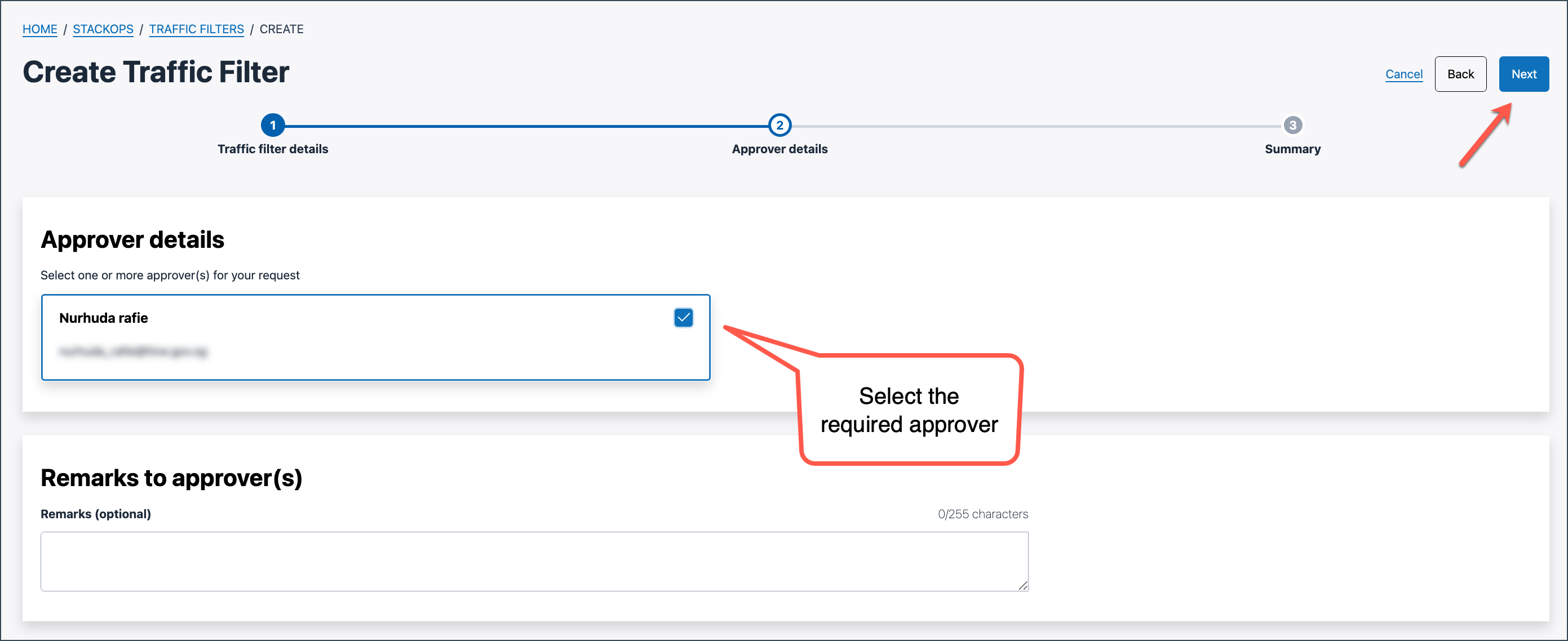
Click Next to review the summary of your traffic filter details and approvers. Ensure the details are correct.
- To modify the details before submitting, click Edit and make the required changes.
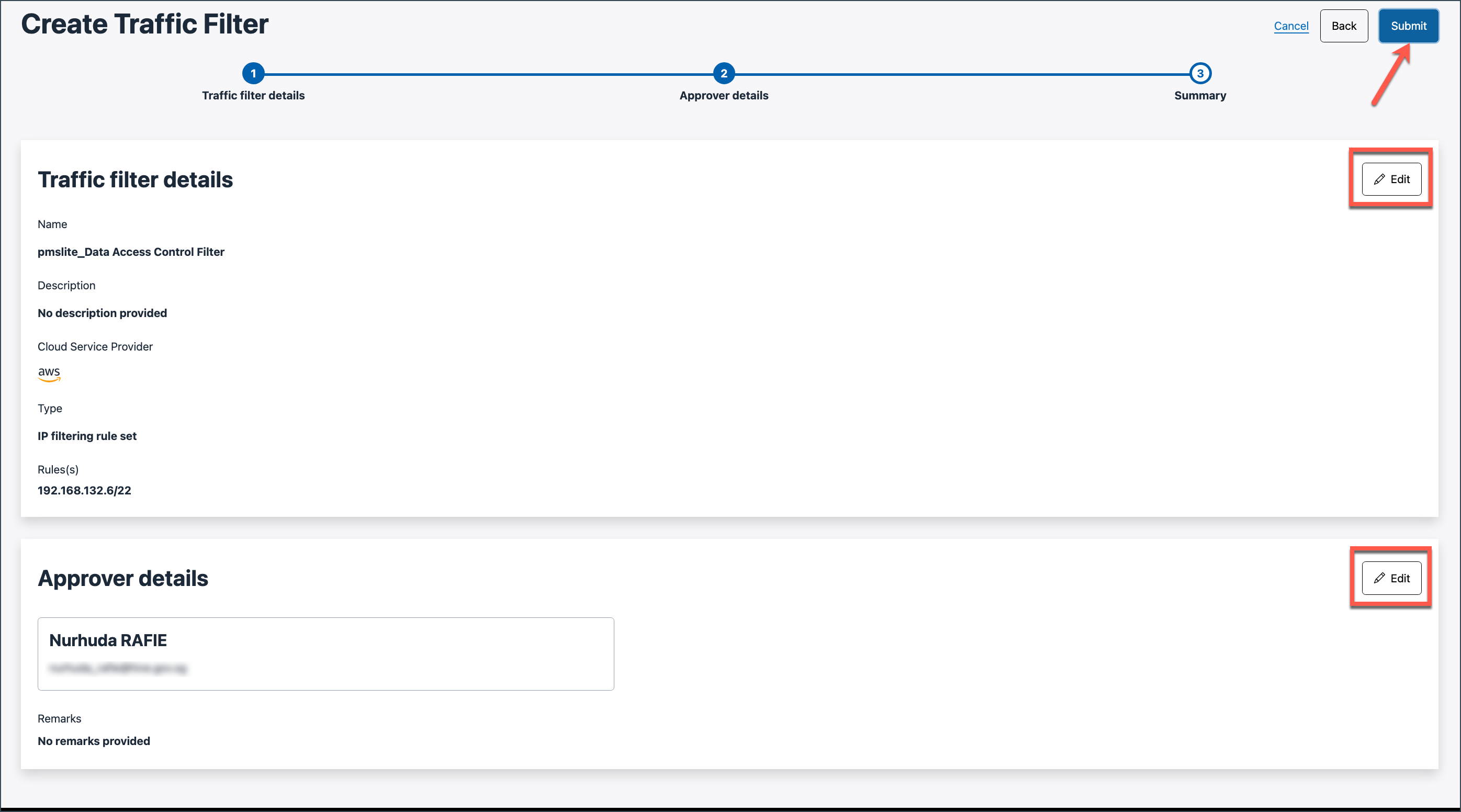
Click Submit.
The request is now Pending approval.
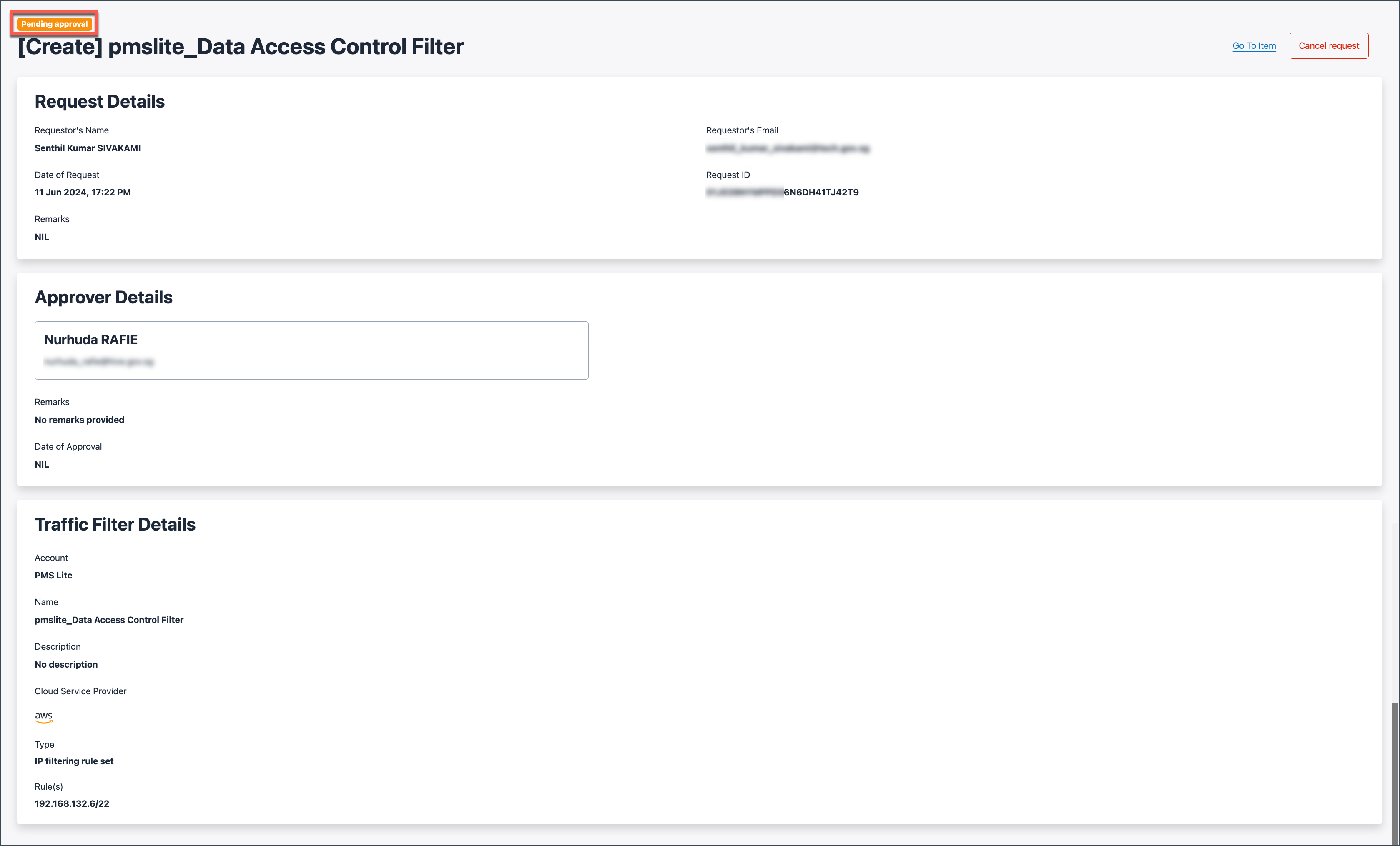
When at least one of the assigned approver approves the request, the traffic filter becomes Active.
Managing traffic filter requests
Use Console to approve / reject or cancel requests.
Approve / reject requests
Who can do this?
- Appointed Subscription Admins / Tenant Managers
Appointed approvers can log in to Console to approve or reject requests. The requester will be notified via email once the request is approved or rejected. Refer to Console documentation for more information about approvals.
Cancel requests
The requester can cancel a pending request in Console if needed. Approved/rejected requests cannot be cancelled.
Next steps
Once the traffic filter is created, you need to associate the traffic filter to your deployment.
