Derive optimisation insights with Universal Profiling
It is important to continuously monitor your application and identify issues before they impact your users. This enables you to ensure that your application is performing as expected and investigate root causes of any potential issues. However, continuous monitoring 24/7 can be quite resource-intensive.
Universal Profiling is an unobtrusive monitoring solution that profiles every line of code in your application, kernel, and third-party libraries and captures only the necessary data. This makes it a lightweight alternative, utilising less than 1% CPU overhead.
Other benefits of Universal Profiling include:
- Flexible and frictionless deployments: Requires zero-instrumentation, code changes, or application restarts to get started. Just deploy the agent and you will start receiving profiling data after a few minutes.
- Complete system visibility: Universal Profiling enables you to get visibility into your entire ecosystem, from the kernel to third-party libraries, across multi-cloud workspaces and programming languages.
- Performance optimisation insights: Effectively measure your application’s efficiency by diving into the costs and CO2 estimates behind each line of code. Use responsive flame-graphs to understand your system performance, identify the most resource-intensive code, and reduce your overall environmental impact.
Observability with Universal Profiling
Example: You have a legacy service that comprises several third-party libraries and upstream/downstream services where your data is retrieved and stored. This service has inconsistent performance and you want to optimise but are not sure where to start.
You decide to leverage Universal Profiling to identify any performance or lag issues within this service.
Use KQL to filter Universal Profiling data and find data for specific projects, services, hosts, and more. Refer to the Elastic documentation for more details.
Universal Profiling can help to:
- Identify running processes and resource consumptions of processes in an instance
- Investigate dependencies and stacktraces of running processes
- Calculate cost of your functions
- Compare performance between changes or timeframe
To learn how to set up Universal Profiling in StackOps Elastic, refer to this guide.
Identify running processes and resource consumption
If the CPU or memory utilisation for your service is abnormally high, you should look into the resource consumption of all processes in an instance. Use Stacktraces to get insights like CPU usage of each process, third-party library, or resource in your service.
Go to Kibana > Observability > Universal Profiling.
Select Stacktraces to view data grouped by:
- Threads: Stacktraces grouped by the process’ thread name
- Traces: Un-grouped stacktraces
- Hosts: Stacktraces grouped by machine hostname or IP address
- Deployments: Stacktraces grouped by deployment name set by the container orchestration (e.g. Kubernetes
ReplicaSet,DaemonSet, orStatefulSetname) - Containers: Stacktraces grouped by container name discovered by the host-agent
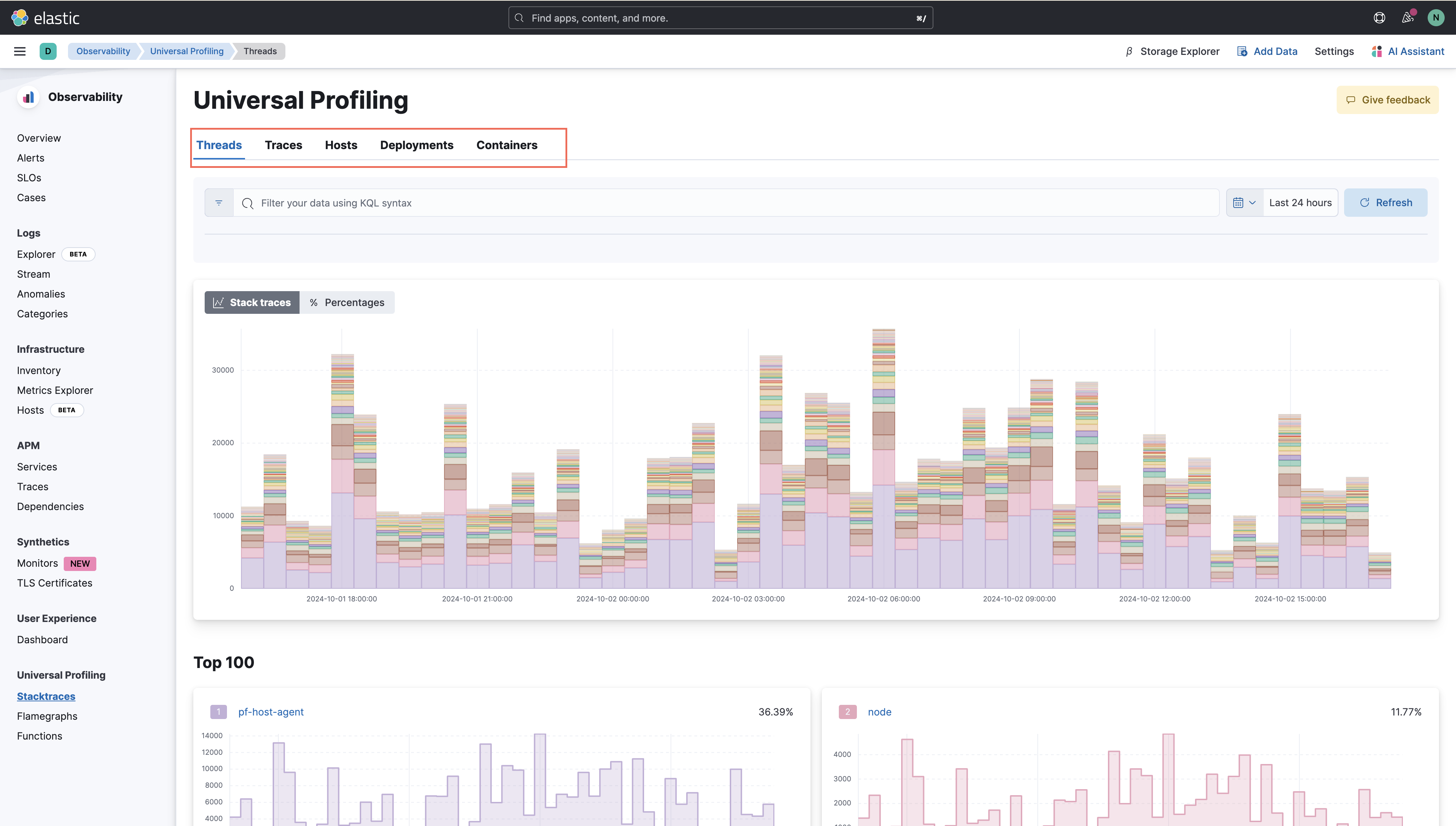
Hover to view detailed information like CPU usage of each stacktrace at a specific time. This view allows you to identify the most CPU-intensive resources, which third-party library causes the most overhead, and even detect unexpected CPU spikes across threads.
For more details on Stacktraces, refer to the Elastic documentation.
Investigate dependencies/stacktraces of running processes
If your service takes longer than expected, you might need to drill into each running process and see if there are any indirections, dependencies, or excessive calls that are causing delays. Use Flamegraphs to get a high-level view of all running processes so you can look into the dependencies and stacktraces.
Go to Kibana > Observability > Universal Profiling.
Select Flamegraphs to view hierarchical data, the relative weight of each stacktrace compared to its parent, and any stacktraces with ‘deep’ call stacks.
You can view flamegraphs in two ways:
View Image (Click to expand) Horizontal: Each process sampled has at least one rectangle under the rootframe. This view helps you detect any processes that you do not control, but are consuming a portion of your CPU resources.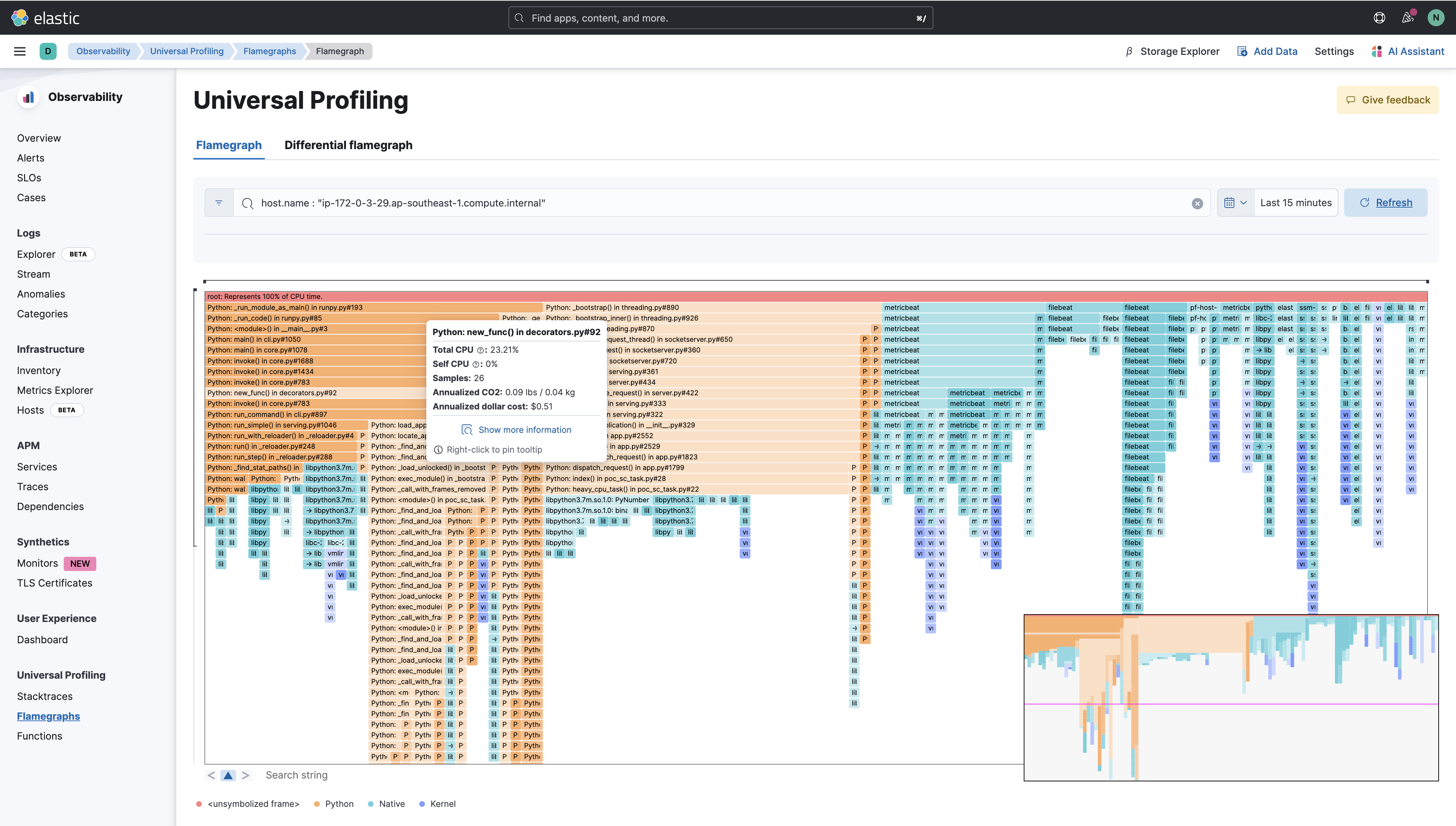
Vertical: The call stack of each process sampled is shown as rectangles under the rootframe. This view helps you identify the most frequently executed processes and highlights any functions or methods that should be negligible, but instead contribute to a big portion of your call sites.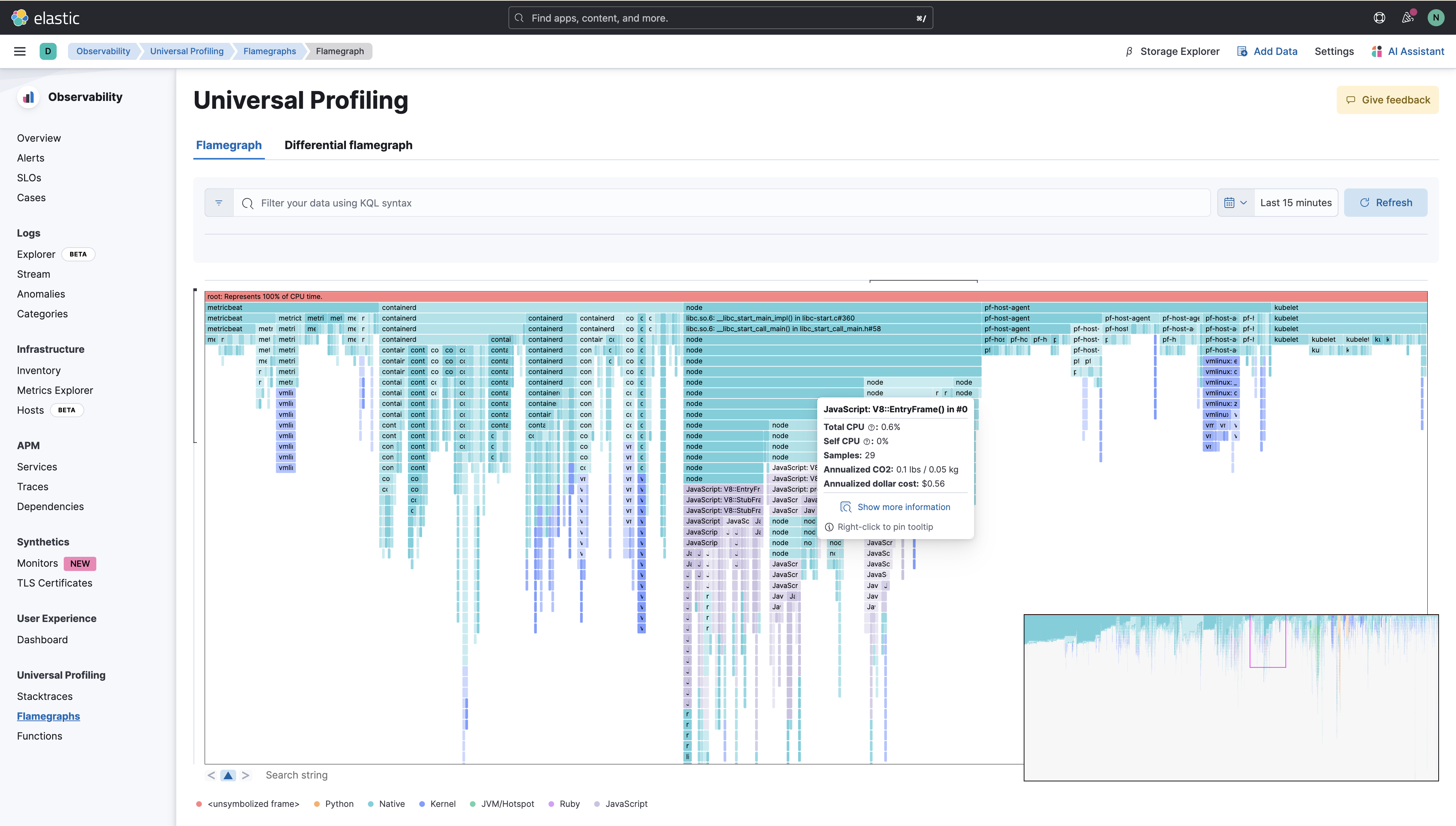
Hover over each rectangle to view details like samples (number of occurrences), CPU consumption, and costs incurred (dollar and CO2). This view allows you to pinpoint the area with many indirections (causing the ‘deep’ call stack), and identify the areas within your system that can be optimised.
For more details on Flamegraphs, refer to the Elastic documentation.
Calculate cost of your functions
To optimise costs for your service, you need to understand how each function and process incurs cost as well as which area(s) are incurring the highest costs. Use Functions to view all costs incurred by each function ranked from highest to lowest. You can configure cost settings at /app/profiling/settings.
For more information on how Universal Profiling helps reduce costs, refer to this Elastic article.
Note: The Universal Profiling host agent can detect if your machine is running on AWS, Azure, or Google Cloud Platform.
For machines running on AWS, Universal Profiling applies the appropriate regional carbon intensity for your instance’s AWS region and the current AWS data center PUE. For all other configurations, Universal Profiling uses the default configurations on the config page.
Go to Kibana > Observability > Universal Profiling.
Select Functions and you can see the most resource-intensive functions and most expensive functions (in CO2 and dollar costs) across your entire infrastructure.
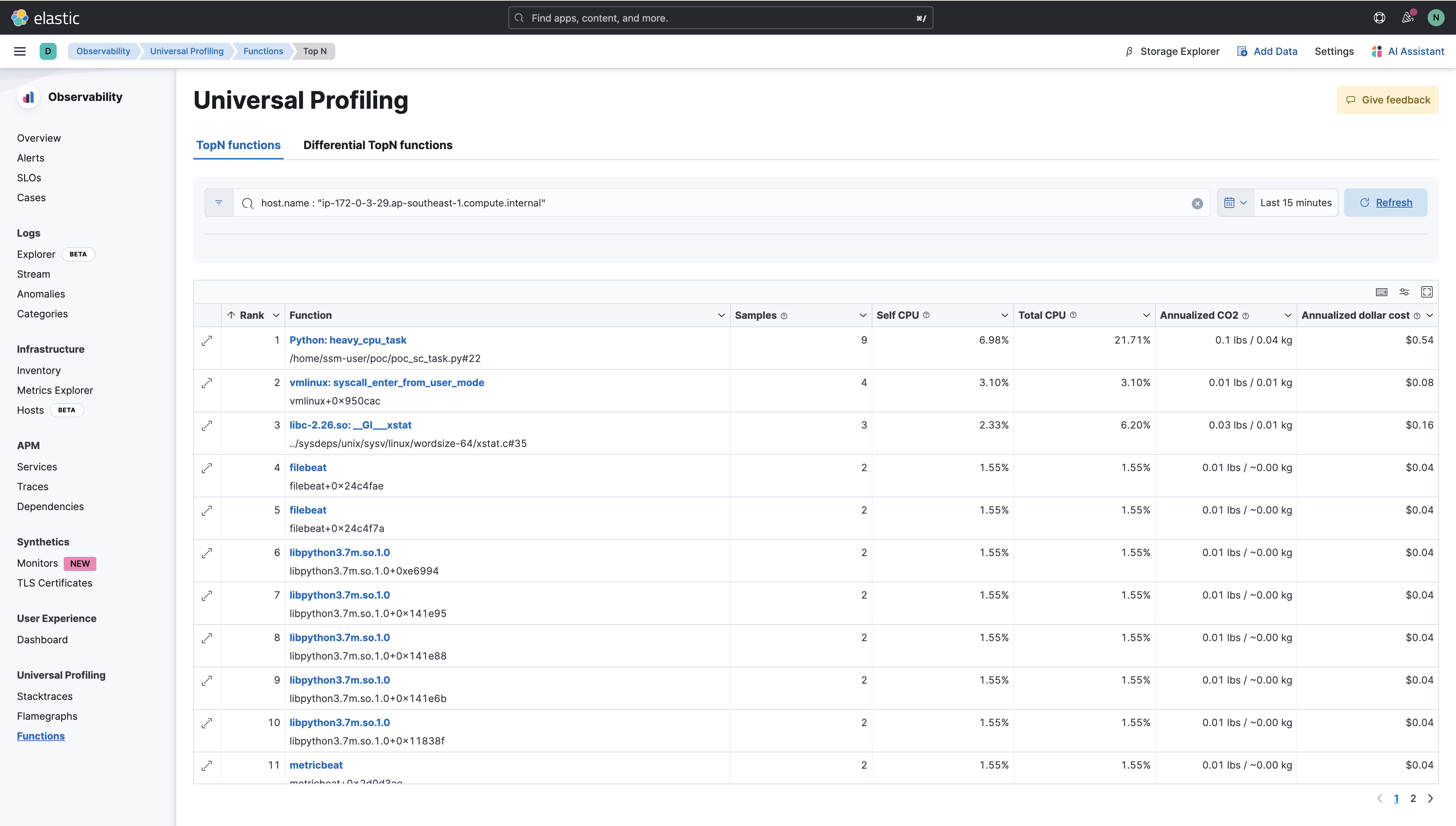
Use KQL filters to drill down to specific components. This view helps you identify the most costly functions in your service, so you know which functions to optimise.
For more details on Functions, refer to the Elastic documentation.
Compare performance between changes or timeframe
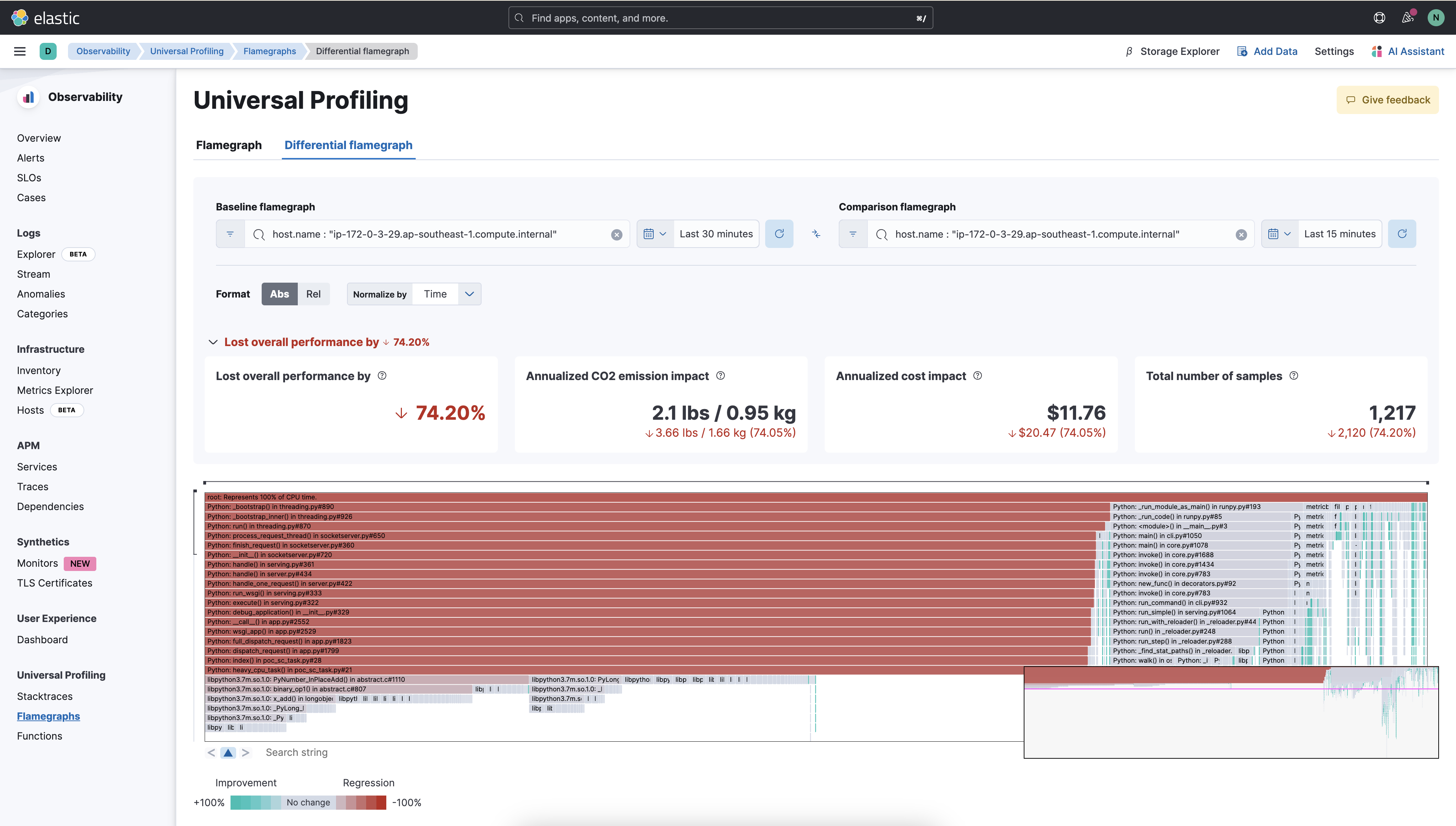
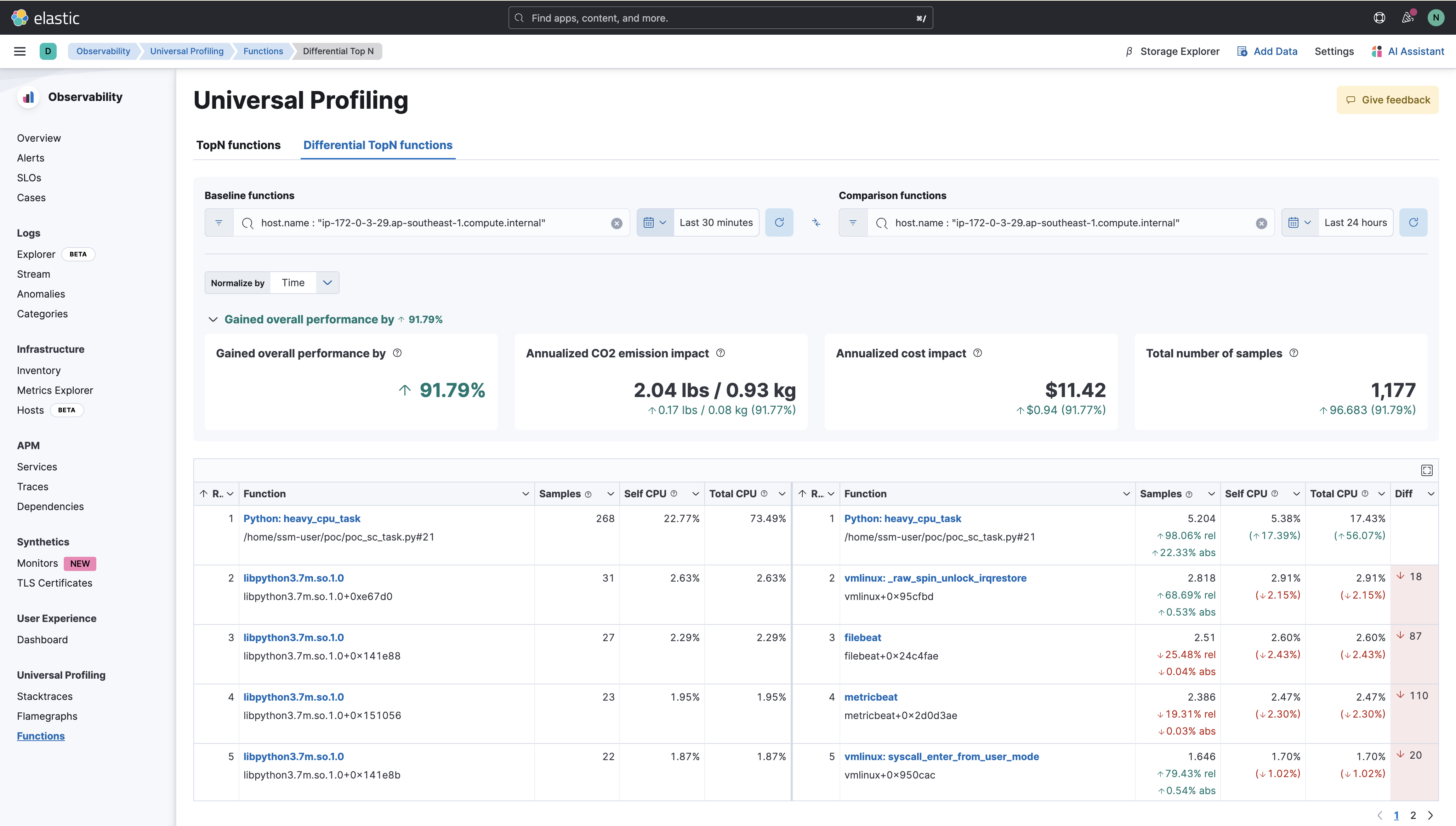
Once you’ve made changes, you might want to evaluate if your applied changes improve the overall performance of your service. Use Differential flamegraphs or functions to compare service performance before and after the changes.
- Go to Kibana > Observability > Universal Profiling.
- Go to Flamegraphs > Differential flamegraph to view and compare flamegraphs from distinct time ranges. Hover over each rectangle to view how CPU consumption and call stacks have changed before and after you’ve made changes.
- Go to Functions > Differential TopN functions to compare functions across specified time ranges or multiple dimensions. This allows you to glean any improvements in costs, CPU usage, and overall performance.
For more details on differential views, refer to the Elastic documentation.
To learn how to set up Universal Profiling in StackOps Elastic, refer to this guide.
