Data enrichment using Stackops Schema
This page is applicable only if you are using Elastic Agents.
The Stackops Schema is an enhanced Elastic Common Schema (ECS) that improves data identity and data profiling for WoG contexts. The schema provides a standardised way of storing your logs and metrics in Elasticsearch, making it easier to search, analyse, and visualise data across different sources or deployments.
How it works
The Stackops Schema is defined in a component template in Elastic. To enforce the schema for a given data source, its component template must be attached to the index template of the integration.
Once added, the schema will be enforced during the mapping phase when data is being stored in the index. New data fields will be automatically added and typed based on the schema, providing identifying information such as the project name, subscription account name, or agency name. The values of these fields can be overwritten if required. Learn more about the added fields in Stackops Schema fields.
Applying the Stackops Schema
During initial onboarding, the Stackops Schema is enabled for commonly-used indices by default.
However, when new data sources and integrations are added to your StackOps Elastic deployment, you must manually apply the Stackops Schema by attaching its component template to the integration’s index template. You must clone the existing index template and attach the component template to the cloned index template. This will prevent the index template from removing the component template when the integration is upgraded.
Once applied, the Stackops Schema will take effect only for new incoming data for the given integration.
Prerequisites: Ensure that the integration is already installed before applying the Stackops Schema.
To apply the Stackops Schema:
In Kibana, go to Management > Stack Management.
Go to Data > Index Management.
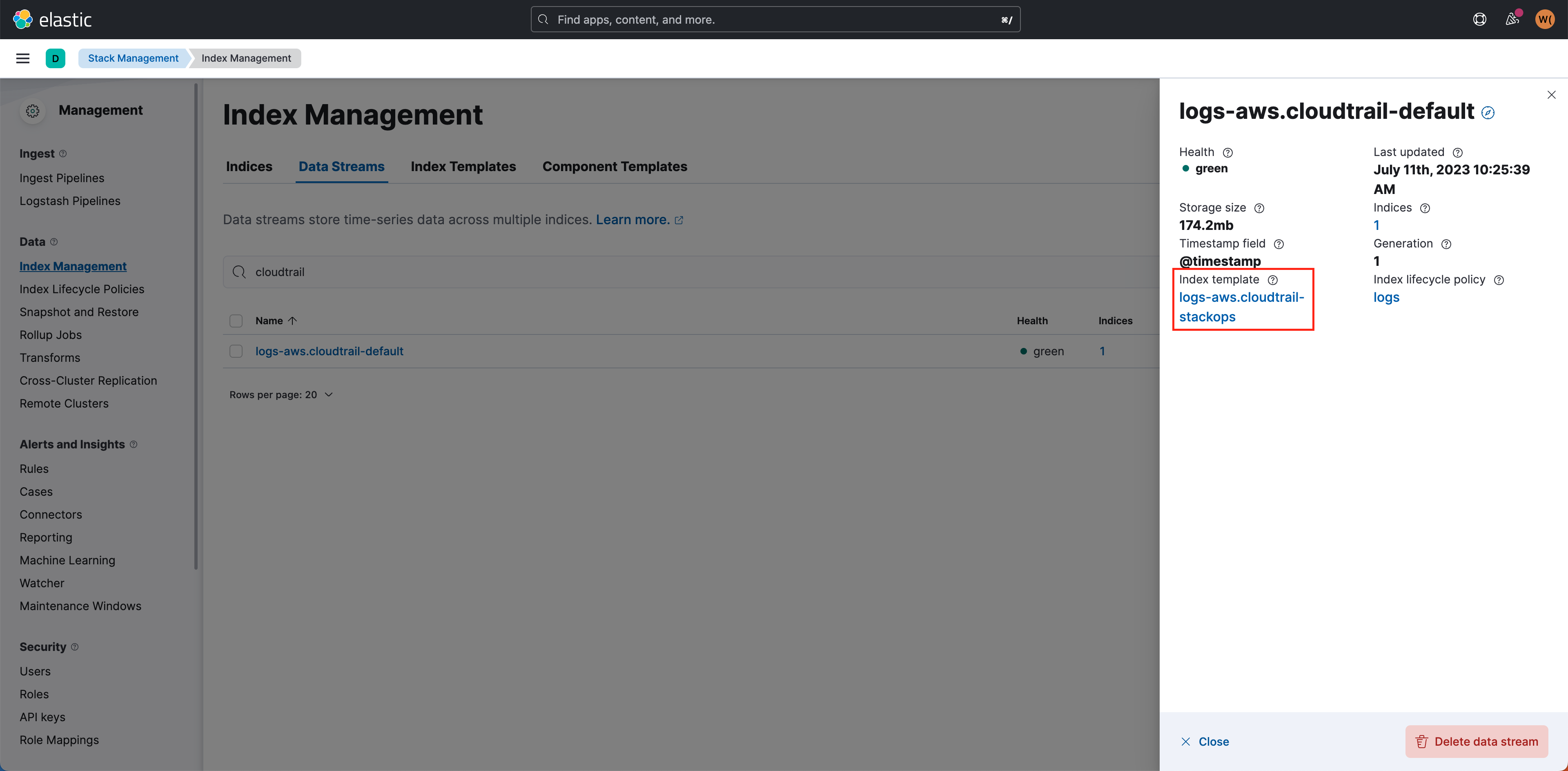
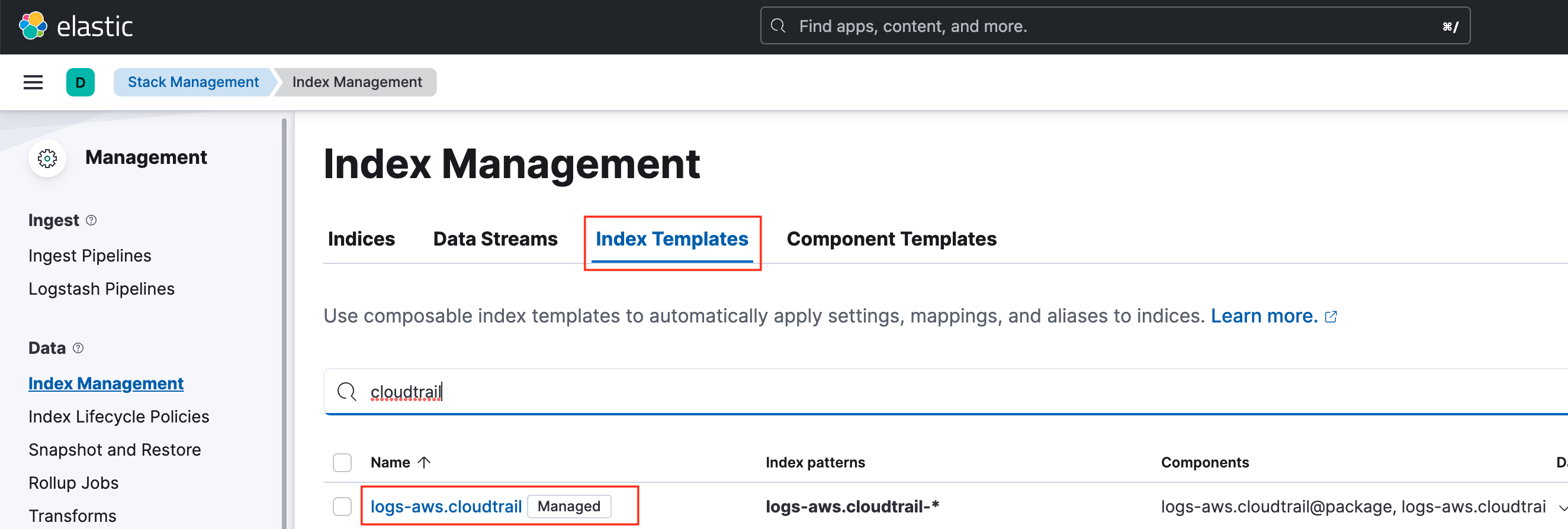
Select Data Streams and find the index template based on your integration’s data stream. In this example, we will use CloudTrail.
- If you have an existing data stream, select it to view the index template, like in the screenshot below:
- If there is no existing data stream, you can search for the index template from the Index Templates tab.
- If you have an existing data stream, select it to view the index template, like in the screenshot below:
Select the index template, then select Manage > Clone.
!> Note: Do not edit existing index templates as they will be overwritten when integrations are upgraded.
In Logistics, provide the following details:
- Name—Use a meaningful name for the cloned index template
- Priority—Enter a value higher than the original index template so that it will be applied. For example, use
250if the original template uses200.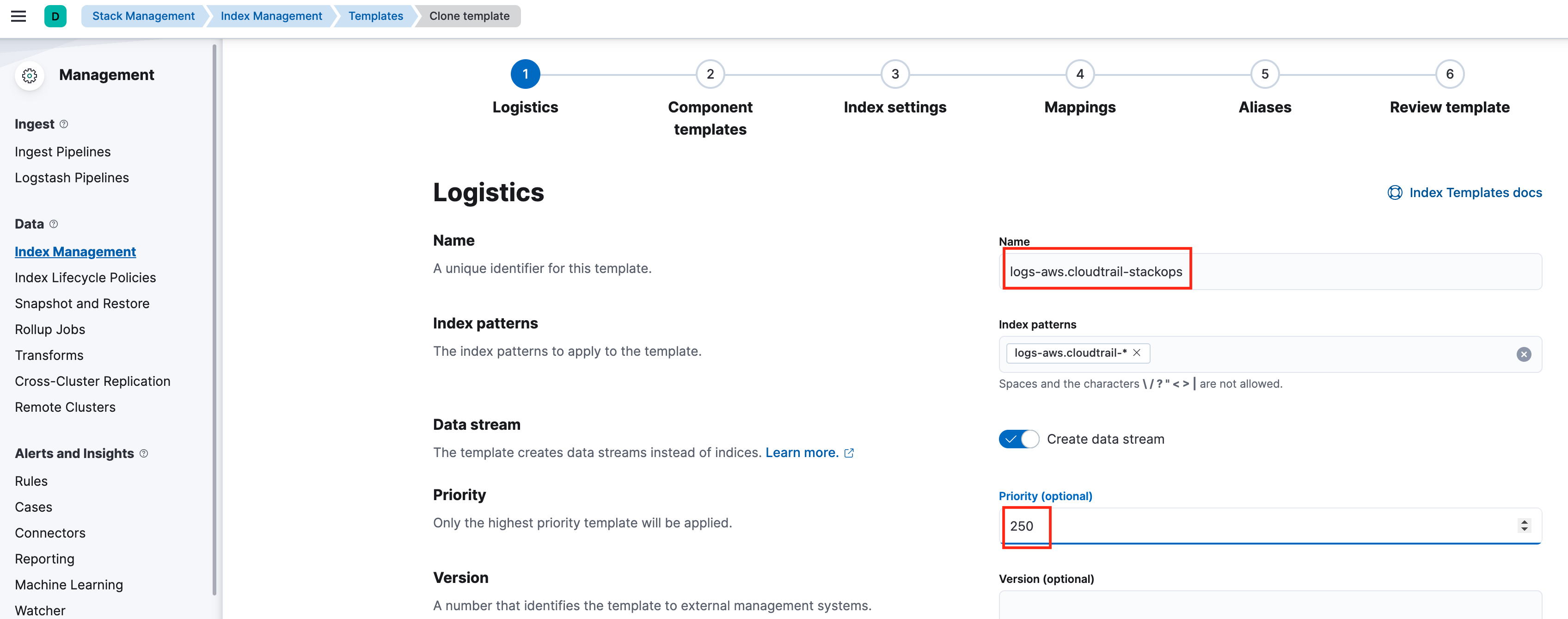
- Select Next.
In Component templates, search for and select
stackops-schema@custom.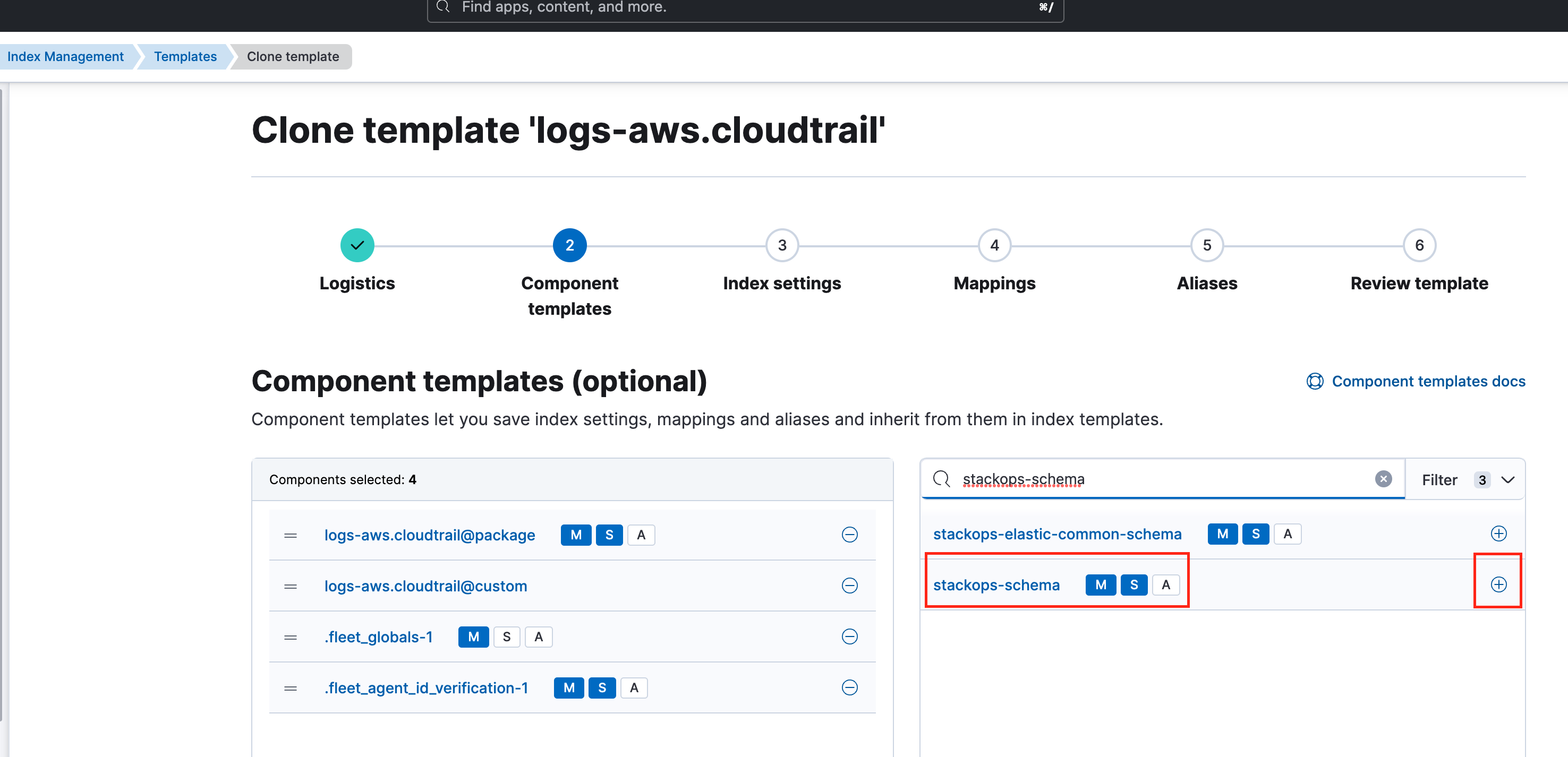
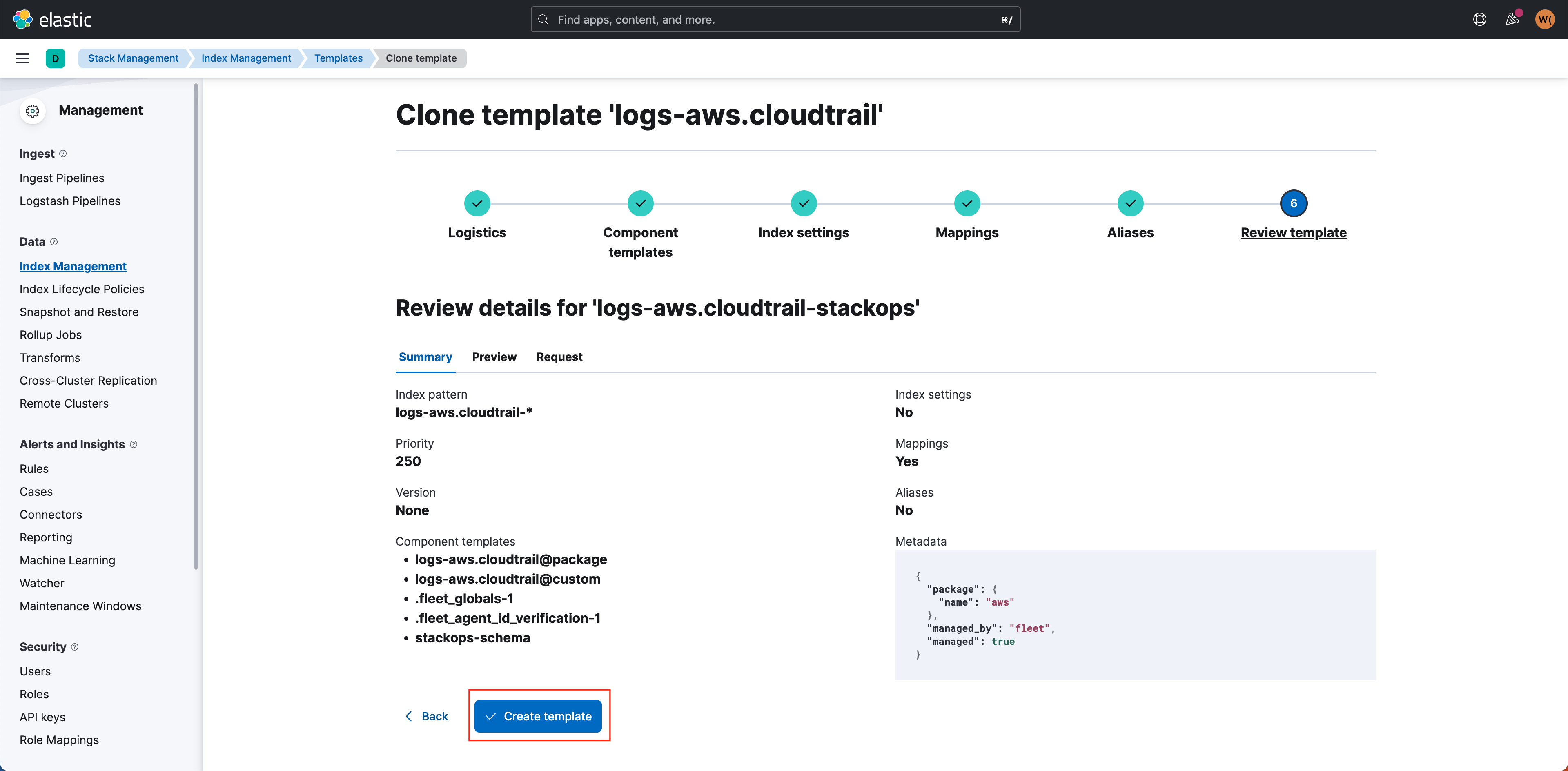
Proceed to the Review template section and review the details for your cloned index template.
Select Create template to finalise.
Once created, only new indices for the integration will use the cloned template. For changes to take effect for existing indices, you may need to delete and recreate the data stream.
