Role mapping
Use Console to create, update, or delete deployment-level role mappings. Role mappings let you assign roles to groups of users, enabling tailored permissions beyond the StackOps default roles.
The following roles are available for role mapping:
- Elastic default roles — Built-in Elasticsearch and Elastic Enterprise Search roles provided by Elastic.
- StackOps-managed roles — StackOps-created roles with the
somr_prefix for specific use cases, such as stack monitoring. - Custom roles — User-defined roles with the
socr_prefix for tailored permissions. You must create a custom role before assigning it. - Remote cluster roles — Roles with the
rcr_prefix that enable cross-cluster search and replication between deployments.
Create role mappings
Use Console to create a role mapping for an existing role and one or more users.
To create a role mapping:
Log in to Console with TechPass.
Go to Products > StackOps Portal.
Select the deployment where you want to create a role mapping.
Go to the Role mappings tab and select Create.

Enter a unique role mapping name, which will be prefixed with
sorm_. The role mapping name cannot be edited after creation.Select one or more roles for the role mapping.
Enter the users’ TechPass email addresses to map the role to.
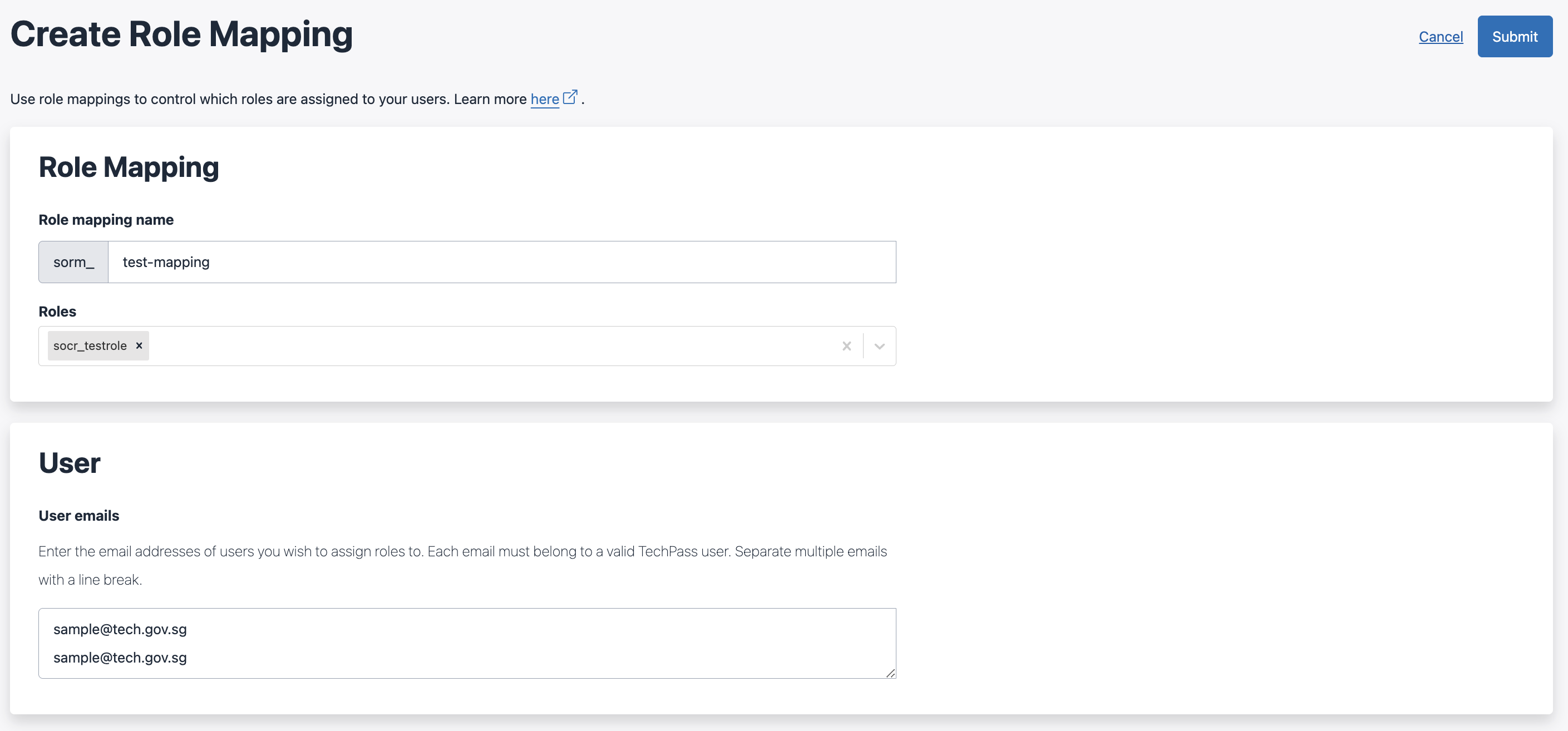
Select Submit.
Update role mappings
You can update the roles and user email addresses in an existing role mapping.
To update a role mapping:
Log in to Console with TechPass.
Go to Products > StackOps Portal.
Select the deployment that contains the role mapping.
Go to the Role mappings tab.
For the role mapping you want to update, select the ⋮ icon > Update.
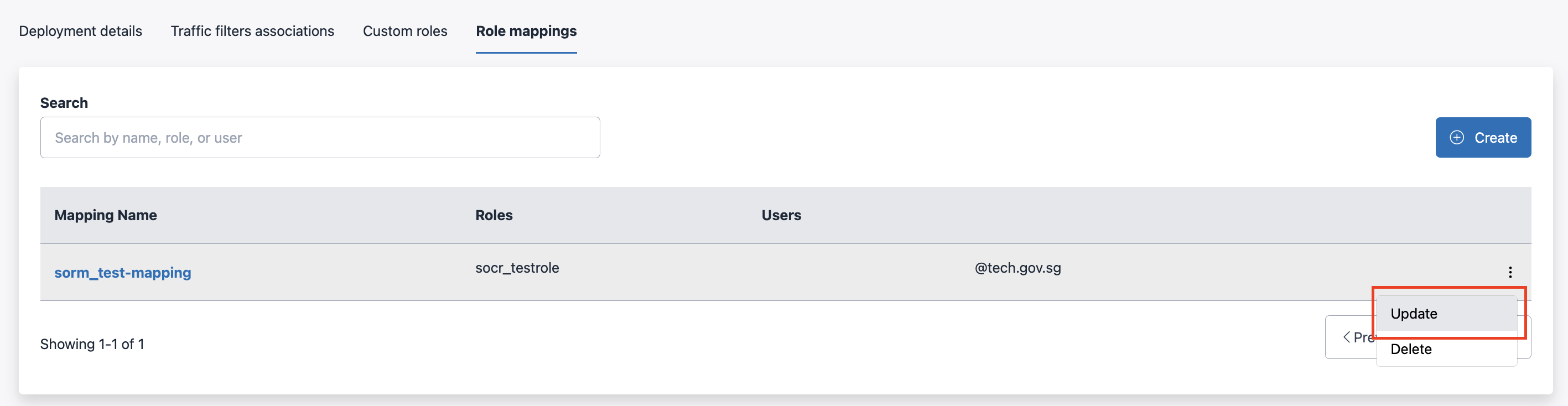
Update the Roles and User emails as you need.
Select Submit.
Delete role mappings
To delete a role mapping:
Log in to Console with TechPass.
Go to Products > StackOps Portal.
Select the deployment that contains the role mapping.
Go to the Role mappings tab.
For the role mapping you want to delete, select the ⋮ icon > Delete.
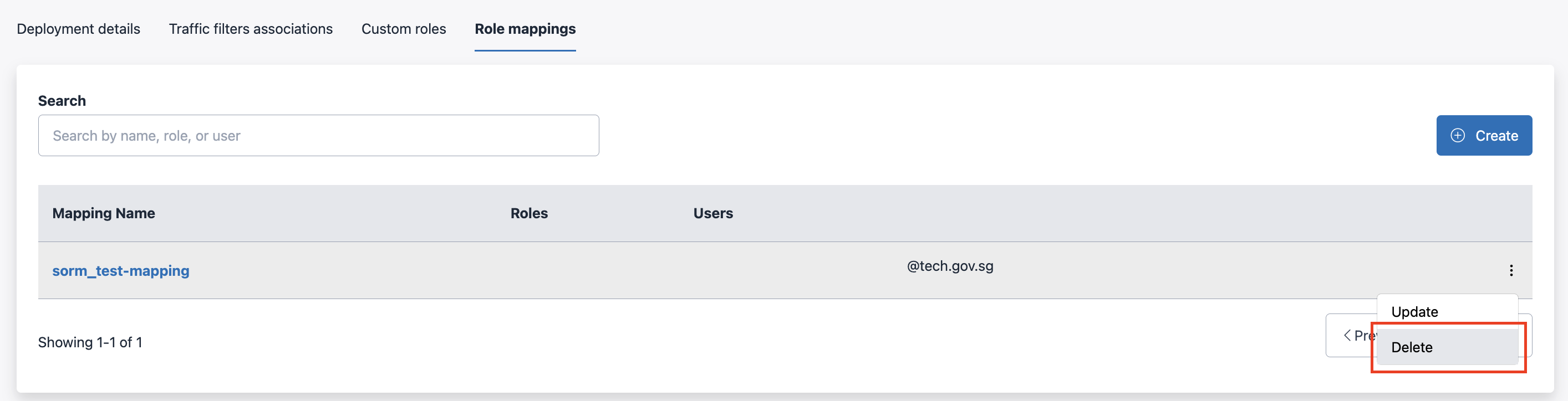
Select Confirm.
Use cases
Restrict access to dashboards
Kibana spaces allow you to customise the saved objects, navigation, and even features that can be accessed. This provides more flexibility and security, especially if you need different access permissions for different user groups.
Additionally, Kibana dashboards are space-dependent, meaning if you create Dashboard A in Space A, it will only be accessible in Space A. In order to limit access to certain dashboards for a group of users, you can create a Kibana space with only Dashboard access and assign a custom role to that space.
From Kibana > Your spaces > Manage spaces, select Create space.
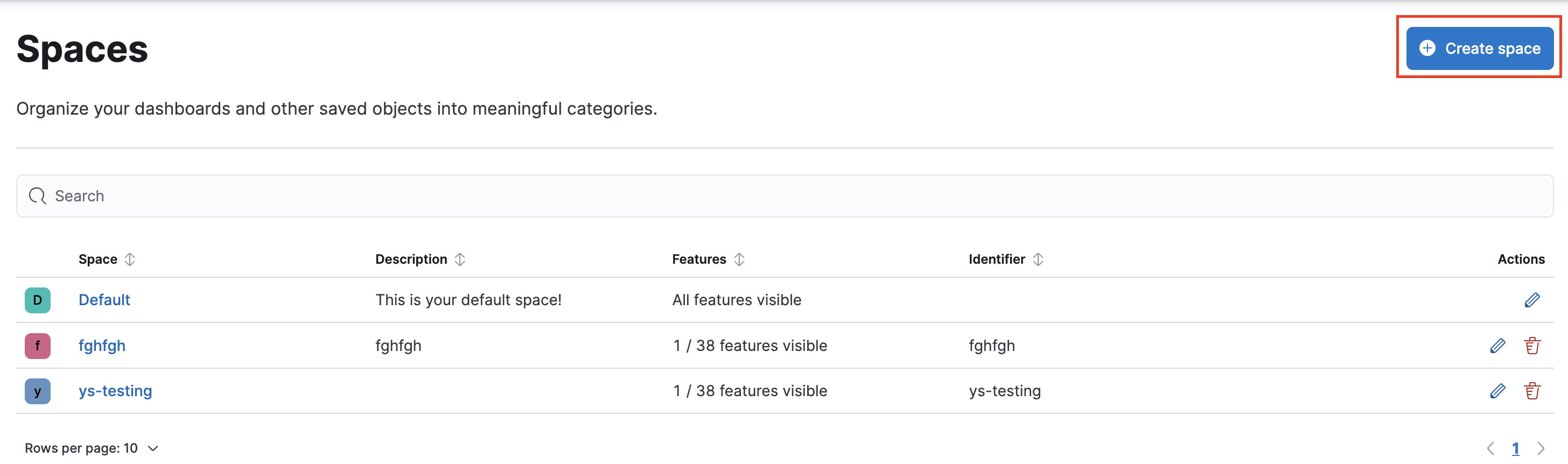
In the General section, provide the space name and description. You can also customise the initials, avatar, and colour for the space.
Select Hide all to remove all existing permissions, open the Analytics tab, and check the Dashboard option. This ensures that this new space only has access to the Dashboard feature.
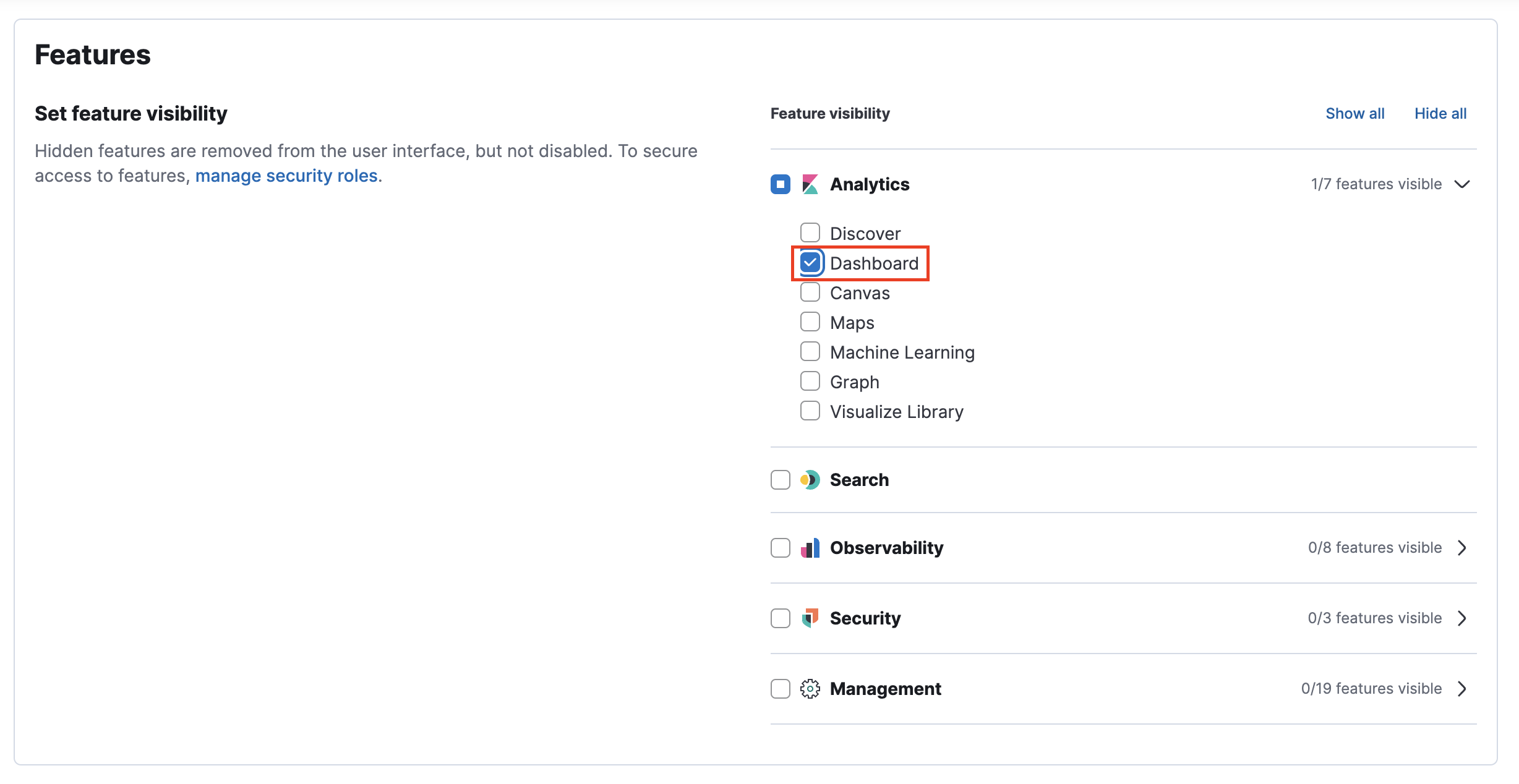
Select Create space and proceed to create dashboards in this new space.
From the Custom roles tab in Console, create or update a custom role.
From the Kibana permissions section, select Add Kibana privileges. Specify the space you created with only dashboard access.
Go to Analytics, select the necessary permissions for Dashboard depending on your needs.
All: Users can view and create the dashboards in this space.
Read: Users can only view the dashboards.
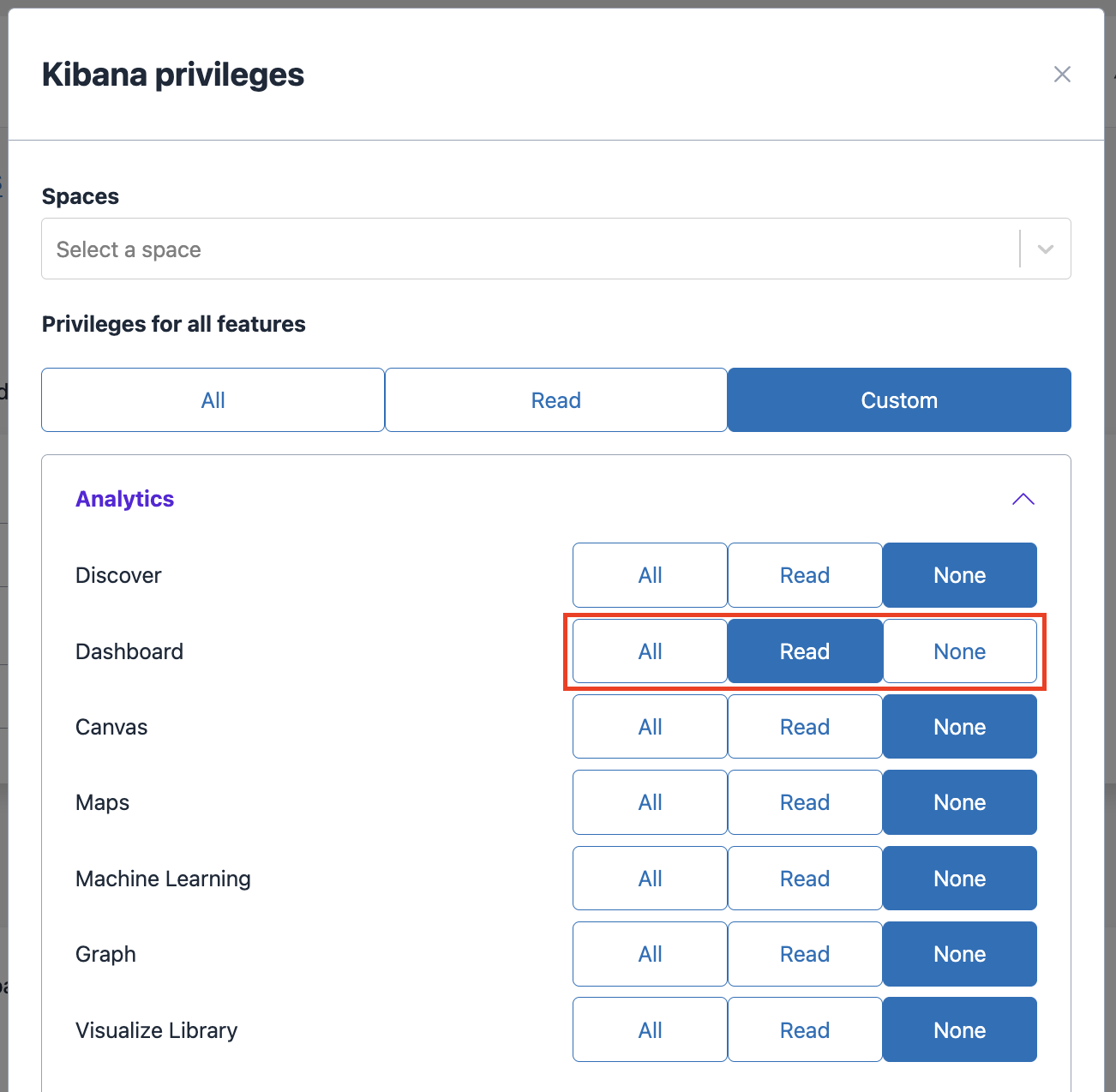
Limit access to certain data
If you need to restrict access to specific fields within your Kibana space, you can create a custom role and use data filters to control access to specific fields.
From the Custom roles tab in Console, create or update a custom role.
From the Index permissions section, select Add Index privileges.
Toggle Grant access to specific fields to enable this feature. Refer to the Elastic documentation for more details on indices privileges.
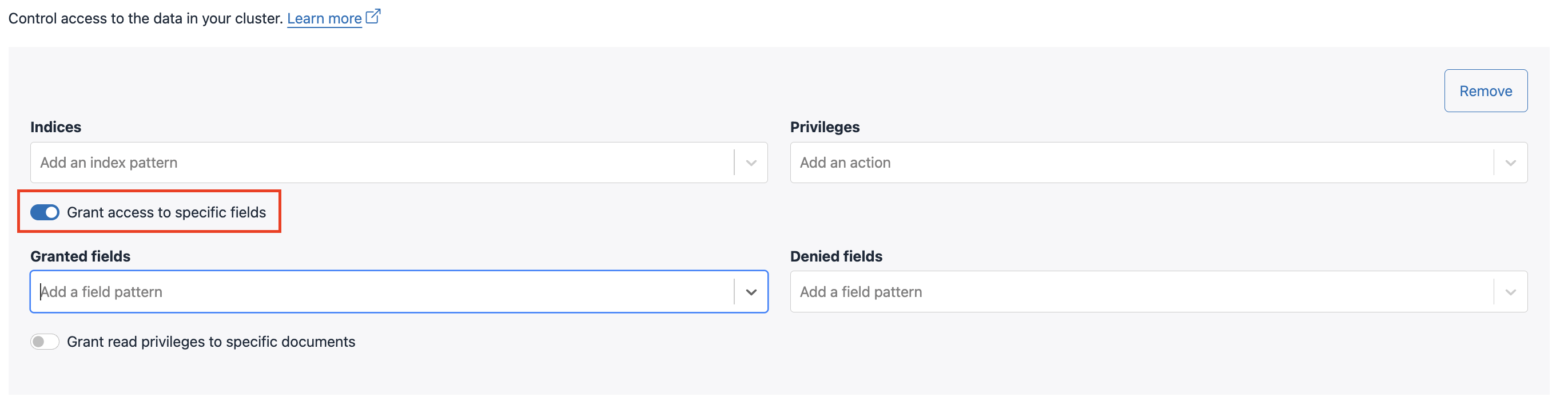
Specify the field pattern(s) to grant or deny access for this user. In this example, this custom role will have Read access to all logs (
logs-*), access to thecloud.account.idfield, and no access to thehost.ipfield.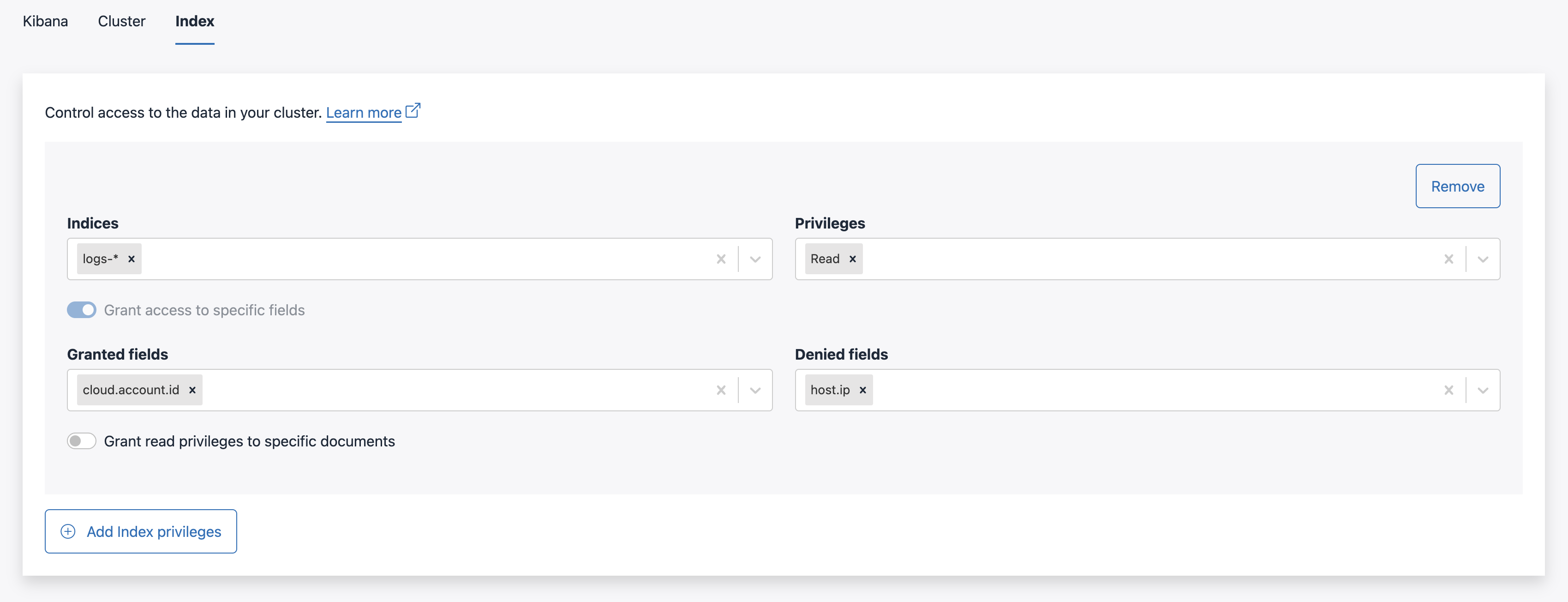
Restrict access to specific documents
If you need to provide only read access to specific documents, you can create a custom role and use queries to control access to specific documents.
From the Custom roles tab in Console, create or update a custom role.
From the Index permissions section, select Add Index privileges.
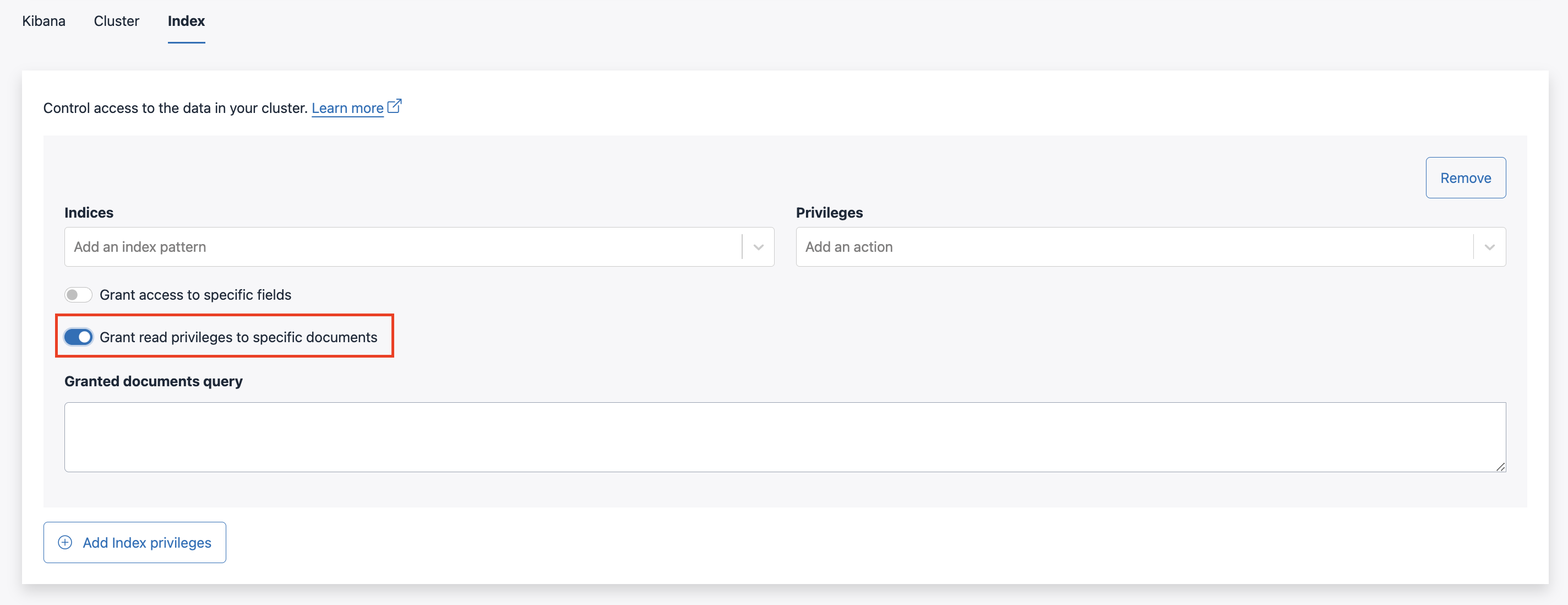
Toggle Grant read privileges to specific documents to enable this feature. Refer to the Elastic documentation for more query examples on document-level security.
Specify the document query to grant access for this user. In this example, this custom role will have Read access to all documents that have a
http.response.status_codeof 500.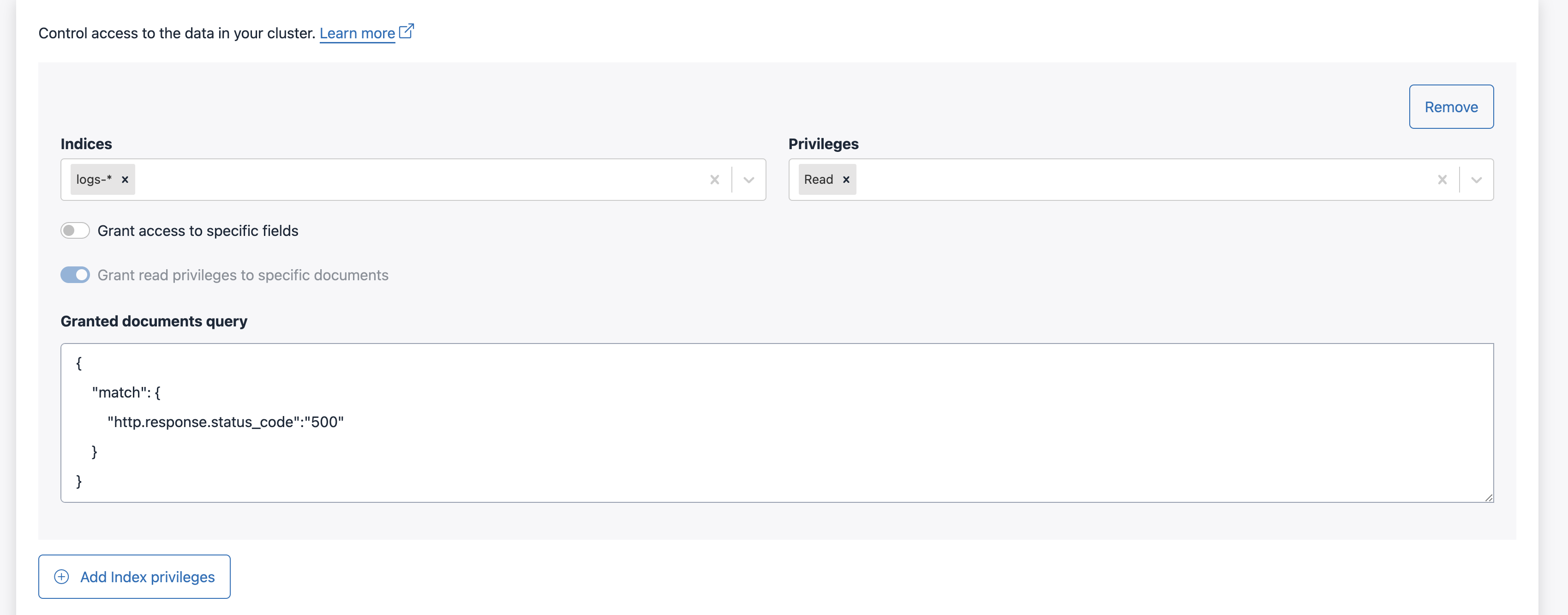
API access
You can also manage custom roles and role mappings programmatically using the StackOps API. The API provides endpoints to:
- Create, read, update, and delete custom roles
- Create, read, update, and delete role mappings
For the detailed API specification, refer to the StackOps API documentation.
