Hardware profiles
Deployment hardware profiles deploy the Elastic Stack on virtual hardware. Each hardware profile has a different blend of storage, RAM, and vCPU, optimised for specific workloads.
You can change the hardware profile of your StackOps Elastic deployments in Console. When you choose a hardware profile, you are choosing the underlying architecture of your deployment.
Available hardware profiles
Here are the available options for hardware profiles in StackOps Elastic. Select the optimum hardware that best fits your use case and cost-efficiency needs. The exact resources deployed for a certain hardware profile, such as the CPU, will be shown in Console when changing the hardware profile.
| Hardware profile | Description | Ideal use case |
|---|---|---|
Storage optimized |
This profile optimises Elasticsearch data nodes for high I/O throughput. | Good for most ingestion use cases with 7-10 days of data available for fast access. Also good for light search use cases without heavy indexing or CPU needs. Use this profile if you are new to StackOps Elastic or do not need to run a more specialised workload. |
CPU optimized |
This profile runs CPU-intensive workloads faster. It provides the most CPU resources per unit of RAM. | Suitable for ingestion use cases with 1-4 days of data available for fast access and for search use cases with indexing and querying workloads. |
Vector Search optimized |
This profile is suited for Vector search, Generative AI and Semantic search optimised workloads. | Optimised for applications that leverage Vector Search and/or Generative AI. Also the optimal choice for utilising ELSER for semantic search applications. Broadly suitable for all semantic search, text embedding, image search, and other Vector Search use cases. |
General purpose |
This profile runs CPU-intensive workloads faster. It provides a balance of storage, memory, and CPU. | Suitable for ingestion use cases with 5-7 days of data available for fast access. Also good for search workloads with less-frequent indexing and medium to high querying loads. |
Changing hardware profile
Here is the overall flow for changing the hardware profile for your StackOps Elastic deployment:
- Submit a request—Users must use Console to create a change request.
- Review and approve—The assigned approver reviews and approves the request on Console. Once approved, the hardware profile will be updated.
Request and approval authorisation
The table below shows who can submit and approve requests. The requester and approver cannot be the same person.
| Role | Requester | Approver | Notes |
|---|---|---|---|
| Technical Admins (also known as Tenant Admins) | ✓ | ✗ | NA. |
| Subscription Admins (also known as Tenant Managers) | ✓ | ✓ | Subscription Admins cannot approve their own requests. |
Submitting a hardware profile request
Who can submit a request?
- Technical Admins / Tenant Admins
- Subscription Admins / Tenant Managers
Refer to Request and approval authorisation.
You cannot submit a hardware profile change request in the following circumstances:
- A deployment configuration update (upsizing or hardware profile) is pending or in progress.
- The deployment has a failed upgrade or update.
- The deployment is unhealthy.
To change a deployment’s hardware profile:
- Log in to Console using TechPass.
- Go to Products and select StackOps.
- Select the required deployment.
- Under Deployment details > Sizing Info, select the ⋮ icon > Change hardware profile.
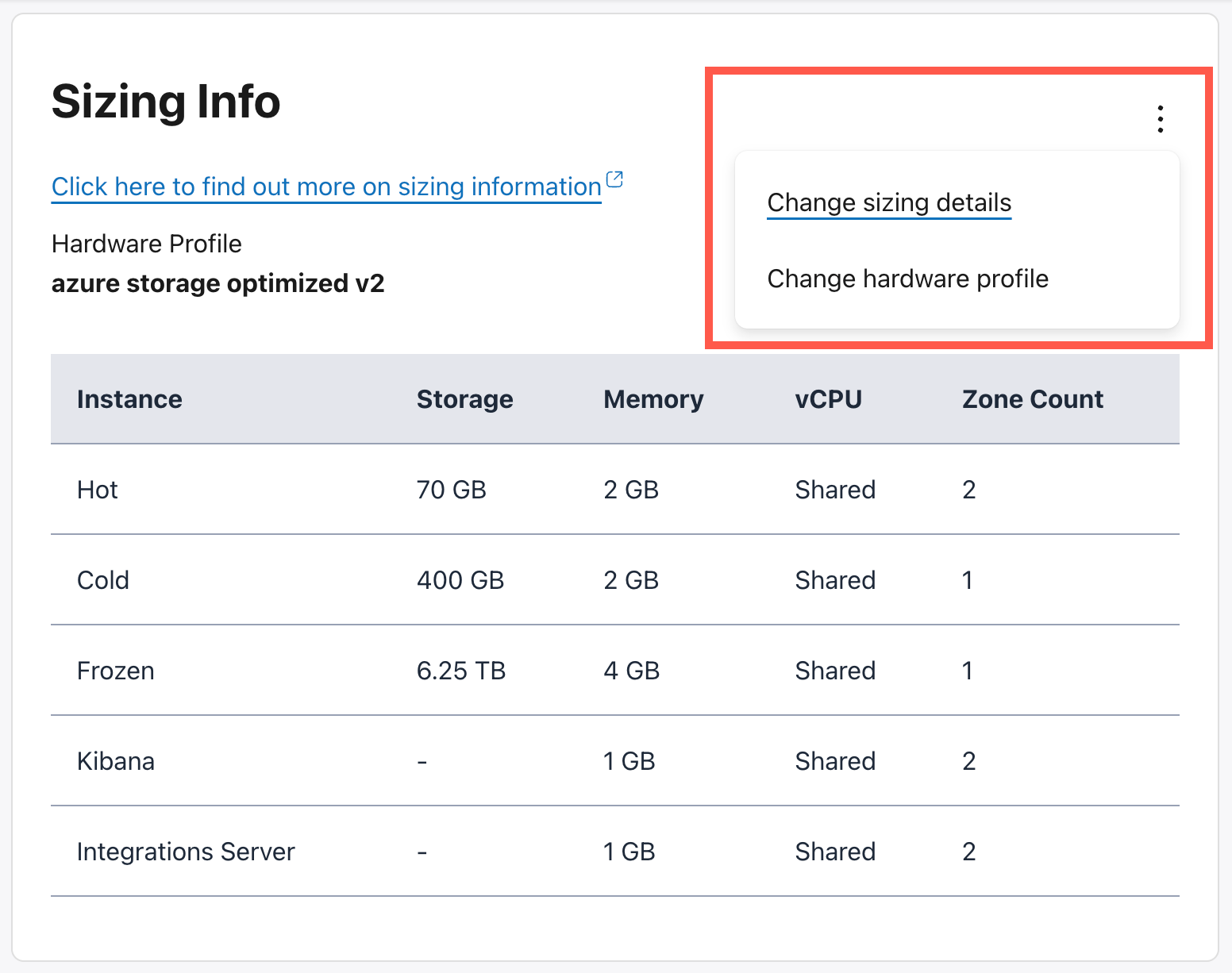
Select the appropriate Hardware profile:
Storage optimizedCPU optimizedVector Search optimizedGeneral purpose
Preview the selected resource configuration.
Select the required Approver(s).
(Optional) Enter any additional information in Remarks.
Select Submit.
The request is now Pending approval. The approvers will receive a notification email for the change request.
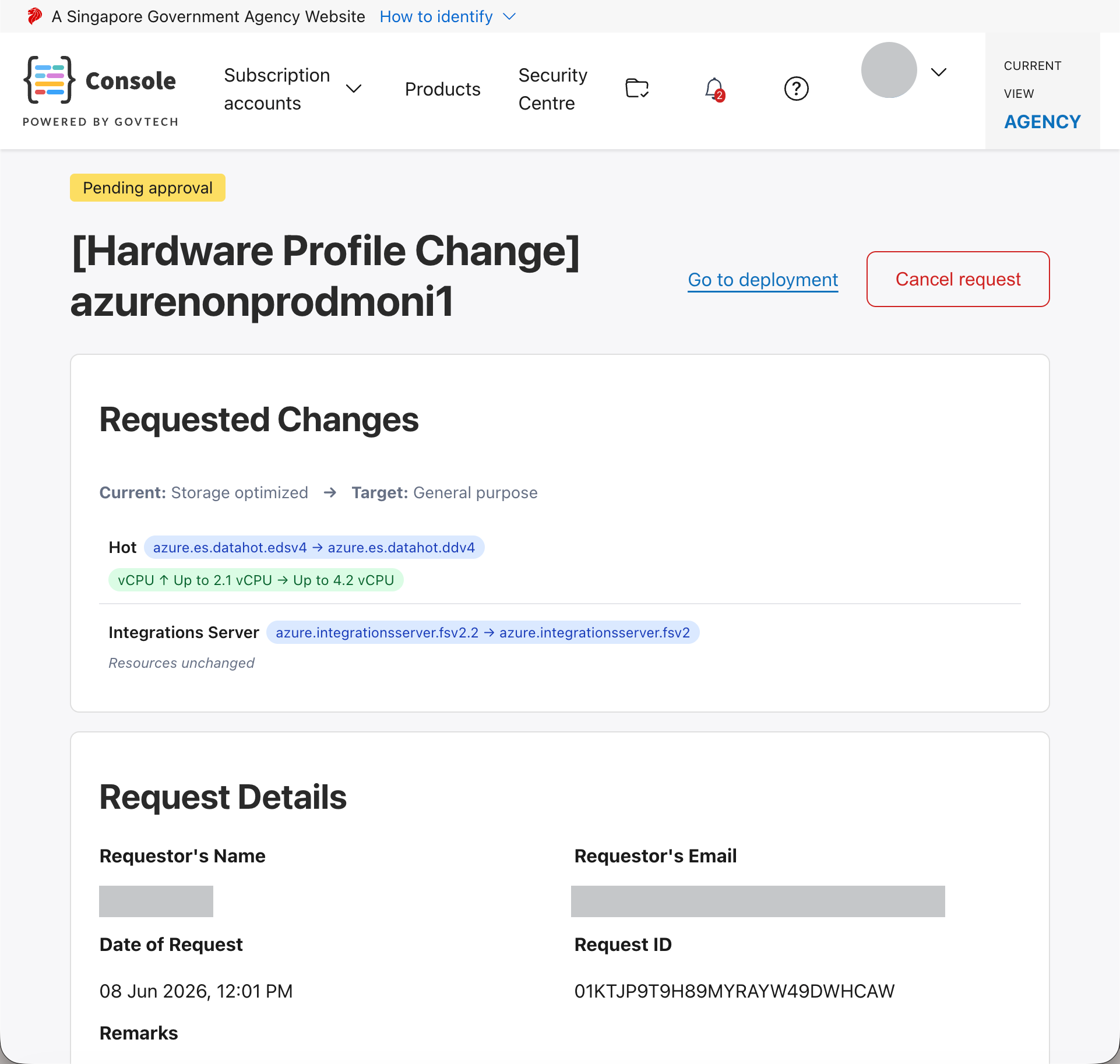
Approved hardware profile requests
Once approved, the configuration change will take some time to update, depending on cluster size and the selected hardware profile. Usage and sizing information is temporarily hidden until the update completes. If successful, the requester will receive an email as well as a push notification in Console. If the update fails, a support ticket will be automatically raised and the requester will be notified by email.
While the update is in progress or failed, the following actions are unavailable:
- Change sizing details
- Change hardware profile
- Version upgrade
Managing hardware profile requests
Use Console to approve / reject or cancel requests.
Approve / reject requests
Who can do this?
- Appointed Subscription Admins / Tenant Managers
Appointed approvers can log in to Console to approve or reject requests. The requester will be notified via email once the request is approved or rejected. Refer to Console documentation for more information about approvals.
Cancel requests
The requester can cancel a pending request in Console if needed. Approved/rejected requests cannot be cancelled.
