Data profiling using aggregations
Data profiling refers to the process of examining and analysing data, so you can assess its quality, structure, and content. Through this process, you can:
- Understand your data structure and identify areas for enrichment or identity resolution.
- Identify and fix issues like inconsistencies or missing values within your data, improving overall data quality.
Using aggregations
In Elastic, you can use aggregations to summarise your data, perform calculations, and even group data into buckets. Here are some example scenarios where you can use an aggregration query to profile your data:
- To categorise different types of logs based on certain fields and the frequency of the logs.
- To identify the provider and action of CloudTrail logs and determine the occurrence of certain events.
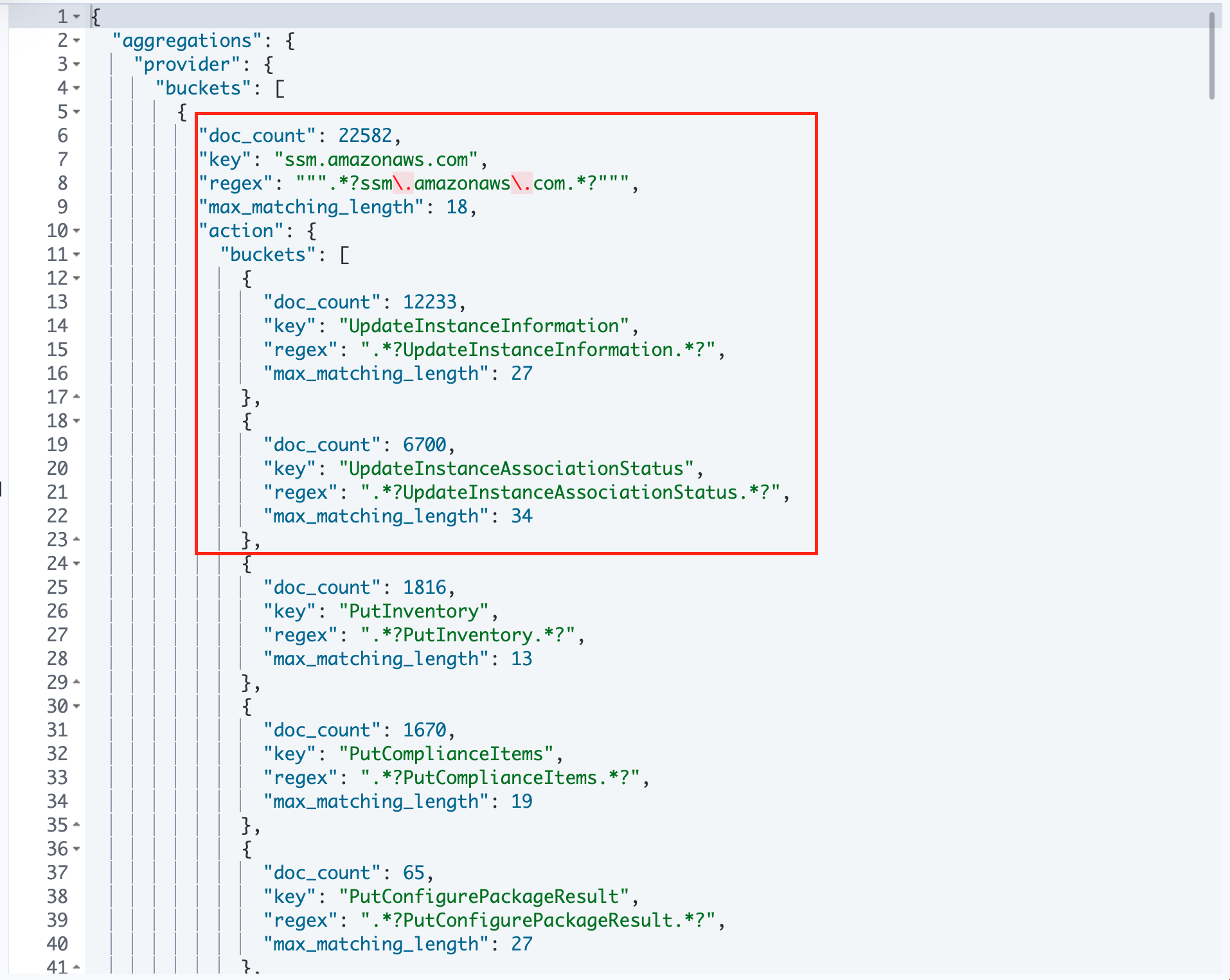
In StackOps Elastic, aggregations can only go to a maximum depth of 2 buckets, like in the screenshot above. For example, you can create 1 main aggregation and 1 sub-aggregation, but cannot create another sub-aggregation for the sub-aggregation. For more information on aggregations, refer to Elastic documentation.
Before you begin
To conduct data profiling using aggregations, make sure you have the following:
- Logs piped to your Elasticsearch deployment
- Access to Dev Tools in Kibana.
Creating an aggregation query
Use Query DSL to create an aggregation query. You can query from any index as required to get your aggregation result.
To create an aggregation query:
- In Kibana, go to Management > Dev Tools.
- In Console > Shell, construct a Query DSL query.
- Select the ▶ button to run the query. This may take some time depending on the volume of data.
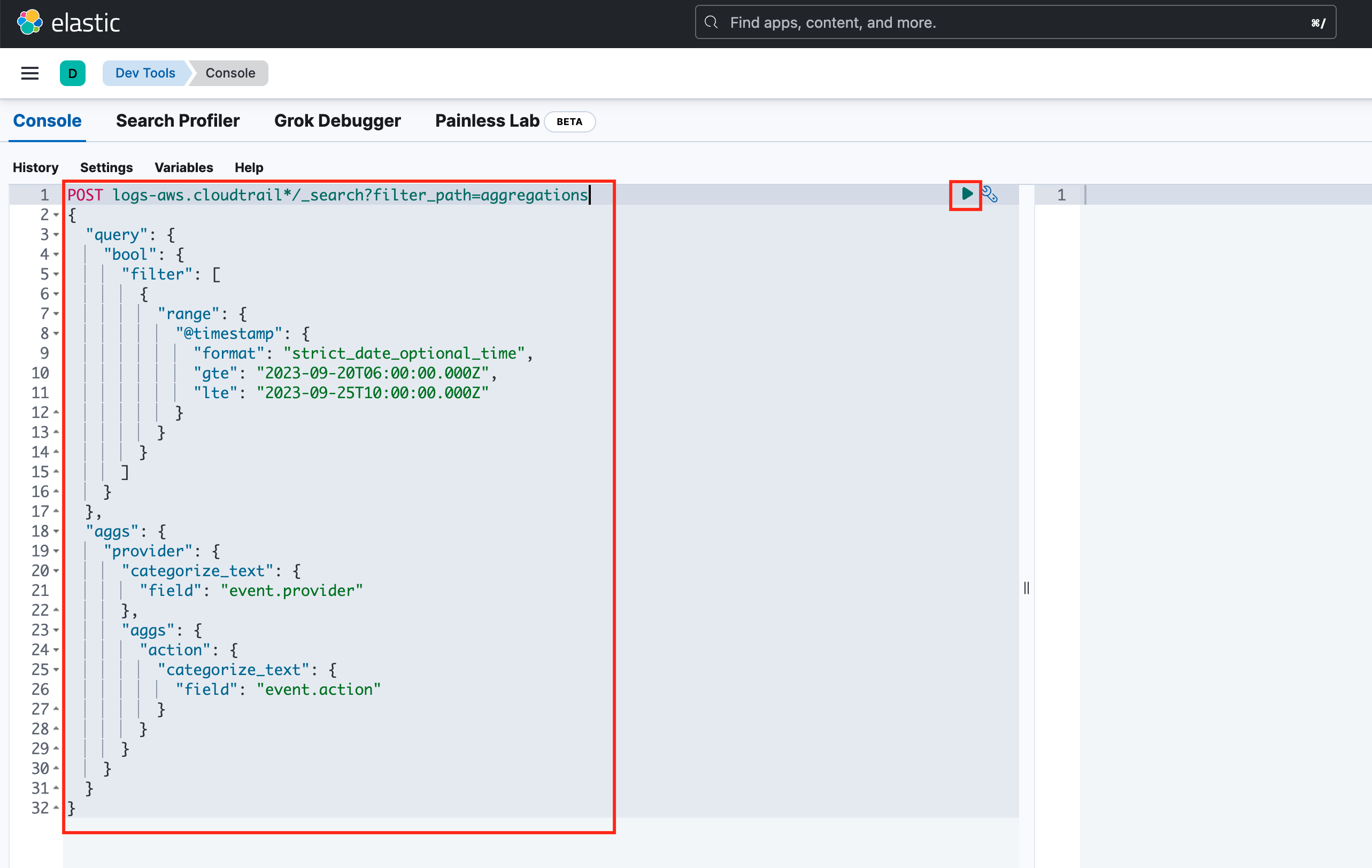
Based on the aggregation result, you can easily profile your data for further action, such as creating custom ingest pipelines or overwriting values in your data.
Example:
In this example, we will query from CloudTrail logs (logs-aws.cloudtrail*).
Here is an example query that uses all log data from the logs-aws.cloudtrail* indices with the event.provider field as the main aggregation and the event.action field as the sub-aggregation.
``` json
POST logs-aws.cloudtrail*/_search?filter_path=aggregations
{
"query": {
"bool": {
"filter": [
{
"range": {
"@timestamp": {
"format": "strict_date_optional_time",
"gte": "2023-09-20T06:00:00.000Z",
"lte": "2023-09-25T10:00:00.000Z"
}
}
}
]
}
},
"aggs": {
"provider": {
"categorize_text": {
"field": "event.provider"
},
"aggs": {
"action": {
"categorize_text": {
"field": "event.action"
}
}
}
}
}
}
```The query will return a dataset that shows all possible event.provider values and its count. With the sub-aggregation, each event.provider value is further broken down to show the possible values and count for event.action.
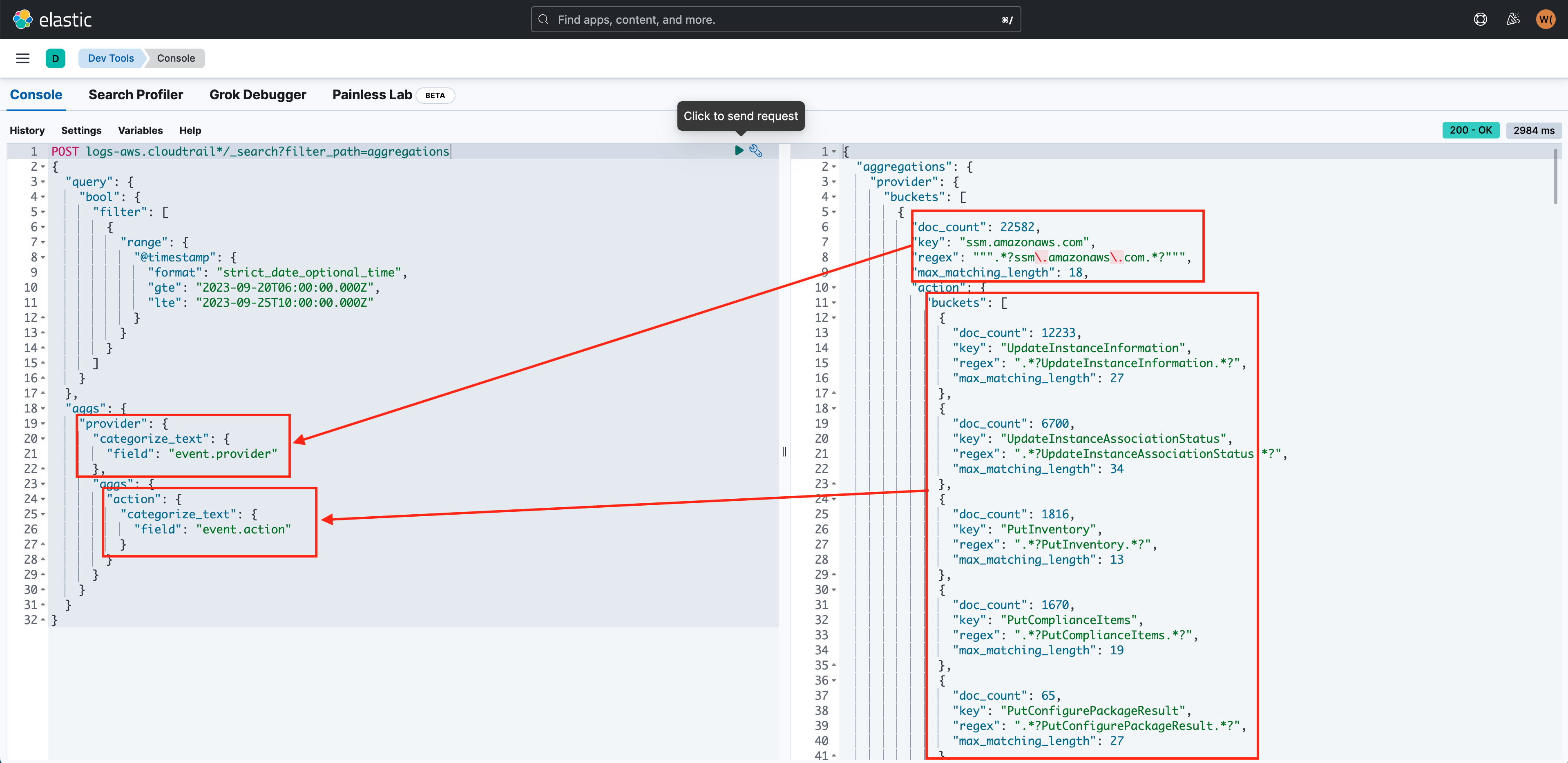
Note: The results are returned in arrays and each array contains objects. Each object corresponds to a corresponding aggregation query.
In the image above, ssm.amazonaws.com corresponds to the aggregation done on event.provider and UpdateInstanceInformation corresponds to the sub aggregation using the event.action field.
