Webhook
The Webhook Node enables workflows to pause and wait for external systems to send data before continuing execution. When a workflow reaches a webhook node, it can be configured to make an outbound HTTP request to an external API endpoint. The workflow then pauses until the external system responds by calling the webhook trigger API endpoint with the required payload data. The node receives the incoming payload (without headers and query parameters) and makes it available to subsequent nodes for processing. Authentication is enforced through access tokens and signature verification (x-opus-signature) to ensure secure data exchange.
Note: Some external URLs may require whitelisting before they can be accessed from the platform. Refer to the Network Requirements documentation for information on whitelisting URLs.
Maximum Wait Time: This node has a maximum wait time of 7 days. If no callback is received within 7 days, the workflow will be considered as failed.
How Does It Work?
Setup Steps:
- Build your workflow using Graph Edit Mode (minimum setup: input node → webhook node → output node, but you can add more nodes as needed)
- Click on the webhook node settings to open its configuration
- The webhook callback URLs for both Staging and Production environments are displayed at the top of the settings panel. Use the copy button to copy the endpoint URL for your external system configuration.
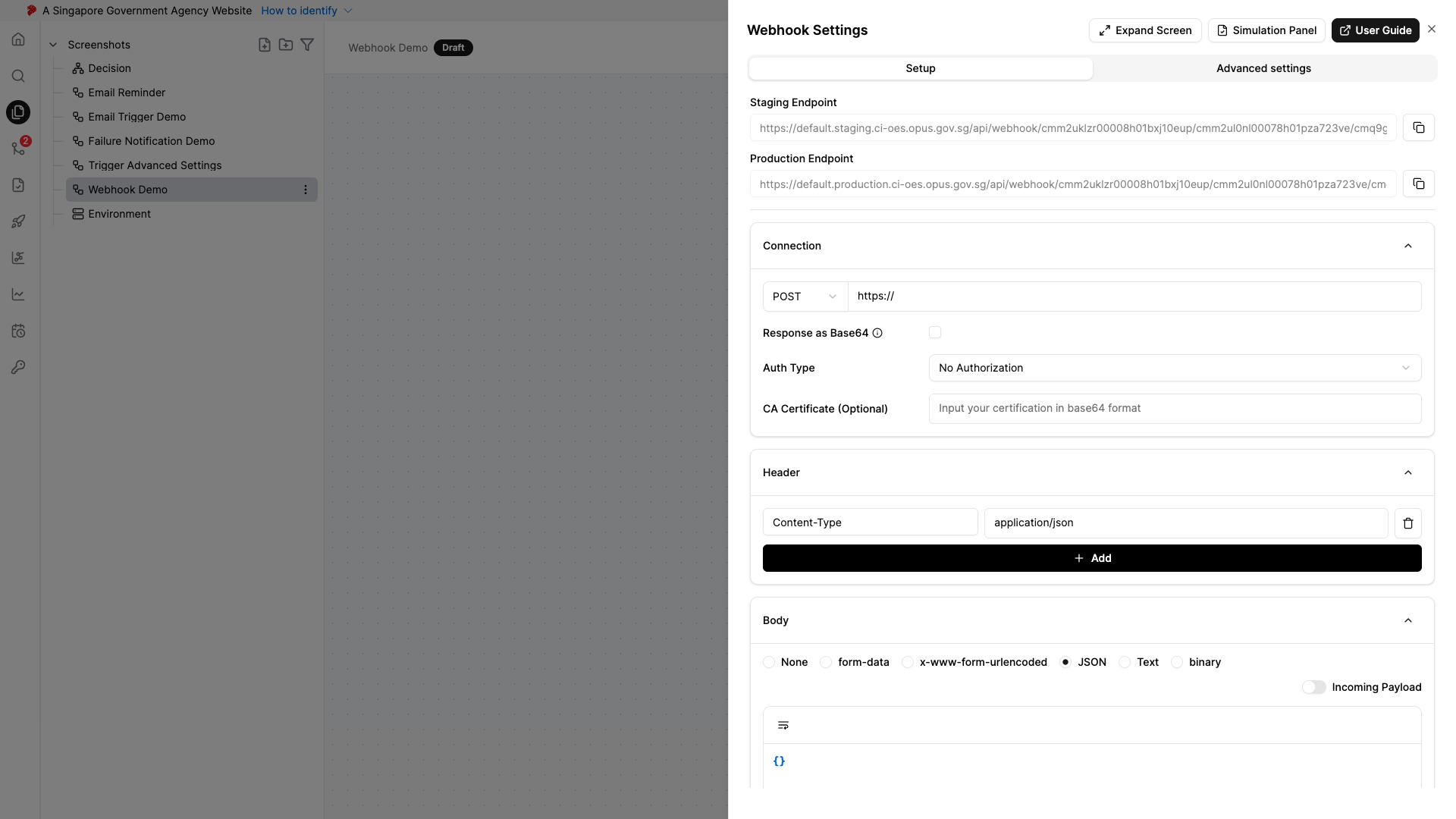
- Configure the following data:
- URL: The endpoint URL of the external API
- Authorization: Configure Authorization token for secure access to the webhook endpoint
- Headers: Add required headers (e.g.,
Authorization,Content-Type) - (Optional) Upload a client certificate in PEM format if the external API requires secure access
- Body: Add request payload if applicable (for POST, PUT, PATCH methods)
- Configure your external server to include required headers when calling the webhook to continue on the workflow. See Webhook Trigger API for detailed API specifications:
- Authorization: Include your access token for authentication. See Access Token Management for instructions on generating tokens
- x-opus-signature: This header will be included by OPUS when triggering the webhook API. Extract this value from the header to verify the request authenticity
Output:
The Webhook Node receives incoming HTTP requests from external systems and returns the payload sent by the external system without headers and query parameters. For example:
{
"name": "John Doe",
"email": "john@example.com",
"amount": 5000
}This data becomes available to subsequent nodes using variables like name, email, amount, etc., allowing the workflow to process the received information directly.
Body Configuration
The request body contains data sent to the external API when the webhook node makes its outbound HTTP request. The following body types are supported:
Body Type: None
No request body is sent.
Body Type: form-data
Sends data as multipart/form-data with text key-value pairs.
Body Type: x-www-form-urlencoded
Sends data as URL-encoded form data (key-value pairs).
Body Type: JSON
Sends data as a JSON object. You can either write the JSON manually or enable Incoming Payload to forward the entire upstream node output as the request body.
Example:
{
"caseId": "{{input.caseId}}",
"status": "pending_review"
}Body Type: Text
Sends plain text data in the request body. The Content-Type header is automatically set to text/plain unless you specify a different content type in the headers. Supports badge fields for dynamic values.
Example:
Process case {{input.caseId}} for applicant {{input.name}}.Use case:
- Sending pre-formatted content to external APIs that expect plain text
- Sending XML or CSV data where you control the content type via headers
- APIs that accept raw text input for processing
Signed Token in Body
When the webhook makes its outbound HTTP request, OPUS always includes the signed security token in the X-Opus-Signature header. Some external systems cannot read custom HTTP headers — for these, you can optionally include the same signed token inside the JSON request body as well.
Availability: This option only appears when the Body Type is set to JSON. It is off by default.
To enable: In the node settings, tick Include token in request body.
When enabled, OPUS adds the signed token to your JSON body under the key x-opus-signature (the lowercased form of the header name, so external systems can map the two consistently). For example, a body of:
{ "greeting": "hello" }is sent as:
{
"greeting": "hello",
"x-opus-signature": "<signed-token>"
}Important behaviour:
- The
X-Opus-Signatureheader is always sent regardless of this option — enabling it simply adds the token to the body as well. Existing integrations are unaffected. - The token is only injected when the body is a JSON object. It is skipped (the header is still sent) if the body is an array, a scalar, empty, or cannot be parsed as JSON.
- If your body already contains an
x-opus-signaturekey, OPUS will not overwrite it.
Webhook Trigger API
This API allows external systems to send data to continue the workflow execution.
Webhook Endpoints
Note: The endpoints below are for Lite tier reference only. Always refer to the endpoint URL shown in your node settings.
| Environment | Endpoint URL |
|---|---|
| Staging | https://lite.staging.oes.opus.gov.sg/api/webhook/<namespace-id>/<project-id>/<entity-id> |
| Production | https://lite.production.oes.opus.gov.sg/api/webhook/<namespace-id>/<project-id>/<entity-id> |
Or use the various release versions endpoints.
Request Format
HTTP Method: POST
Headers:
Authorization: Bearer <your-access-token>
Content-Type: application/json
x-opus-signature: <signature-value>URL Parameters:
| Parameter | Type | Required | Description |
|---|---|---|---|
namespaceId |
string | ✅ | Unique ID of the namespace |
projectId |
string | ✅ | Unique ID of the project |
entityId |
string | ✅ | Unique ID of the workflow with webhook |
Query Parameters:
| Parameter | Type | Required | Description | Valid Values |
|---|---|---|---|---|
branch |
string | ✅ | Branch name to execute | main, release/<version> |
Request Body:
The request body should contain the payload data in JSON format that will be processed by the webhook node and pass to the next node for further processing.
{
"name": "John Doe",
"email": "john@example.com",
"amount": 5000
}When to Use It?
Use Webhook Node when:
- You need to pause workflow execution and wait for external system responses before continuing.
- You require external validation or approval from third-party systems (e.g., payment gateways, identity verification services).
- You need to integrate third-party processing where an external API must process data and return results asynchronously.
- You want to collect data asynchronously from external sources that require time to process (e.g., document processing, background checks).
- You need to trigger external systems via outbound HTTP requests and wait for callbacks.
- You need bidirectional communication between your workflow and external APIs with secure authentication.
Tip: Configure proper error handling and timeouts for webhook responses to ensure your workflow does not wait indefinitely for external system callbacks.
