Plan and Usage
The Usage page gives namespace administrators a detailed view of execution activity across their namespace. It is accessible only to admin users.
Early adopters of Opus can enjoy the service for free while pricing is being finalised. There is no estimated timeline at this stage.
Accessing the Page
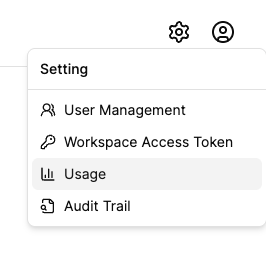
Navigate to Dashboard → [Your Namespace] → Usage from the top bar. The Usage option is found under the Settings (⚙) menu in the top-right corner.
Filters
Two filters at the top of the page control what data is displayed across all sections.

| Filter | Options | Default |
|---|---|---|
| Runtime | Staging, Production | Staging |
| Date Range | Custom date/time range picker | Last 30 days |
The current period is displayed next to the filters in MM/DD/YYYY format (e.g., Period: 3/7/2026 - 4/6/2026). Changing either filter refreshes all statistics on the page automatically.
Summary Cards
Four summary cards provide a quick snapshot of execution volume for the selected runtime and date range.

| Card | Description |
|---|---|
| Total Executions | Combined count of all execution types |
| Workflow Executions | Count of workflow executions only |
| Decision Executions | Count of decision executions only |
| Avg Daily | Average number of executions per day over the selected period |
Plan Limits
The Plan Limits section tracks your current-month usage against your plan’s limits. Unlike the other sections, this is not affected by the date range filter — it always reflects the current calendar month.
Execution Limits: Execution limits are not currently enforced while pricing is being finalised. Workflows and decisions will continue to execute without interruption.
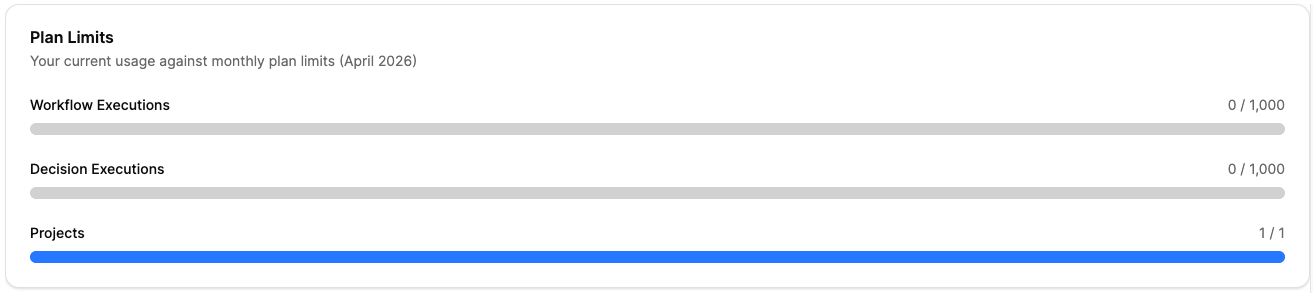
Three meters show your consumption at a glance:
- Workflow Executions — executed workflow / workflow execution limit (e.g.
200 / 1,000) - Decision Executions — executed decision / decision execution limit (e.g.
150 / 1,000) - Projects — number of projects created / project limit (e.g.
1 / 1)
Each meter’s progress bar changes color based on how close you are to the limit:
| Color | Meaning |
|---|---|
| Blue | Usage is within a healthy range |
| Yellow | Approaching the limit |
| Red | Limit has been exceeded |
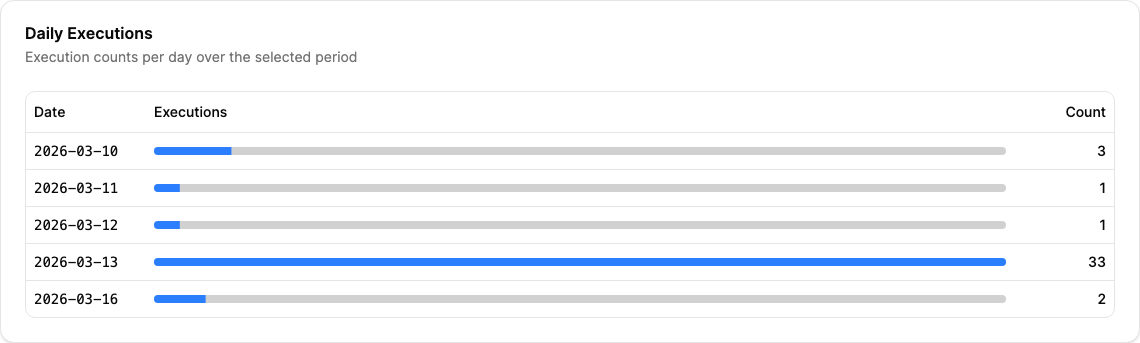
Daily Executions
A table showing the execution count for each day within the selected date range. Each row includes:
- Date — the calendar day
- Distribution bar — a horizontal bar proportional to that day’s count relative to the busiest day
- Count — the exact number of executions
By Entity Type
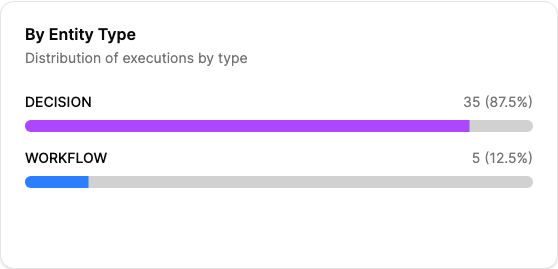
A breakdown showing how executions are split between Workflow and Decision entity types. Each type shows:
- Total execution count and percentage share
- A horizontal progress bar (blue for Workflow, purple for Decision)
By Project
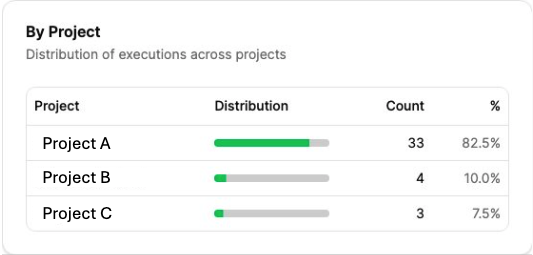
A table ranking projects by execution volume within the selected period. Each row shows:
- Project — the project name
- Distribution bar — share of total executions (green)
- Count — absolute number of executions
- % — percentage of total executions
Top Entities
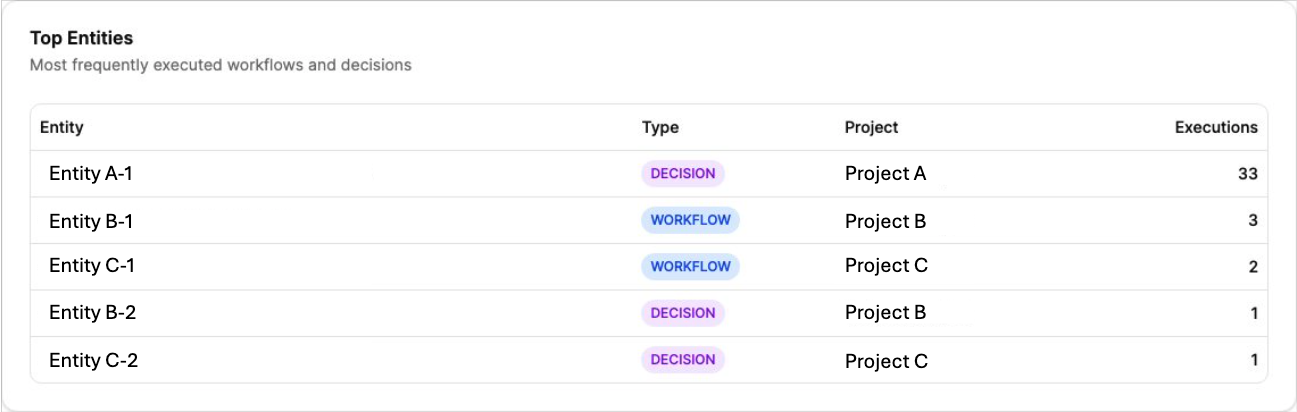
A table listing the individual workflows and decisions with the highest execution counts. Each row shows:
- Entity — the entity name
- Type — a badge indicating
WORKFLOW(blue) orDECISION(purple) - Project — the project the entity belongs to
- Executions — total execution count for the selected period
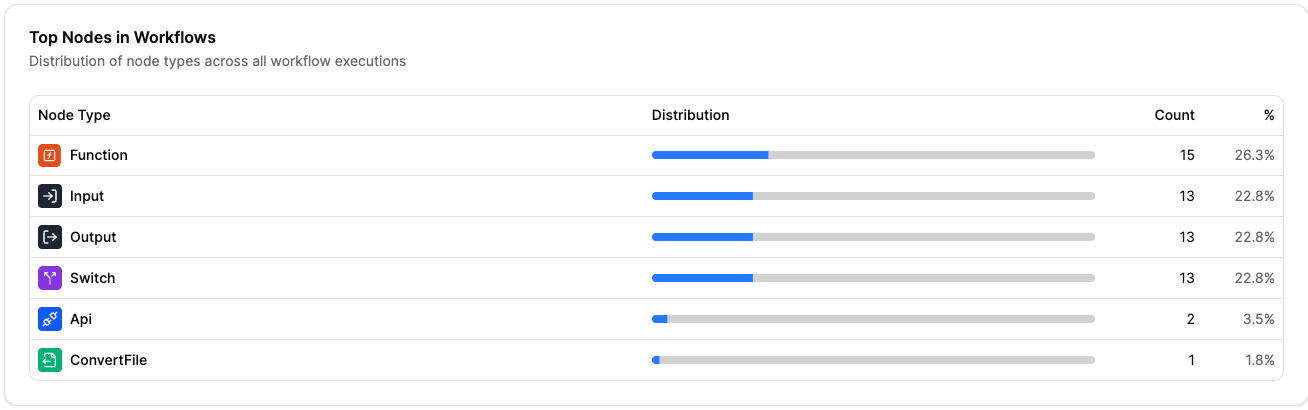
Top Nodes in Workflows
A table showing which node types were used most across all workflow executions in the selected period. Each row shows:
- Node Type — the type of workflow node (e.g., HTTP, Condition, Transform), with its icon
- Distribution bar — relative share of total node executions
- Count — total times this node type was executed
- % — percentage of all node executions