Workflow Scheduler
The Workflow Scheduler allows you to schedule workflows to run automatically on a recurring basis. You can configure schedules using cron expressions for precise timing or intervals for simple periodic execution.
Accessing the Scheduler
- Open your project from the dashboard
- Click the Scheduler icon (calendar clock) in the left sidebar
- The Scheduler page displays all configured schedules for the project
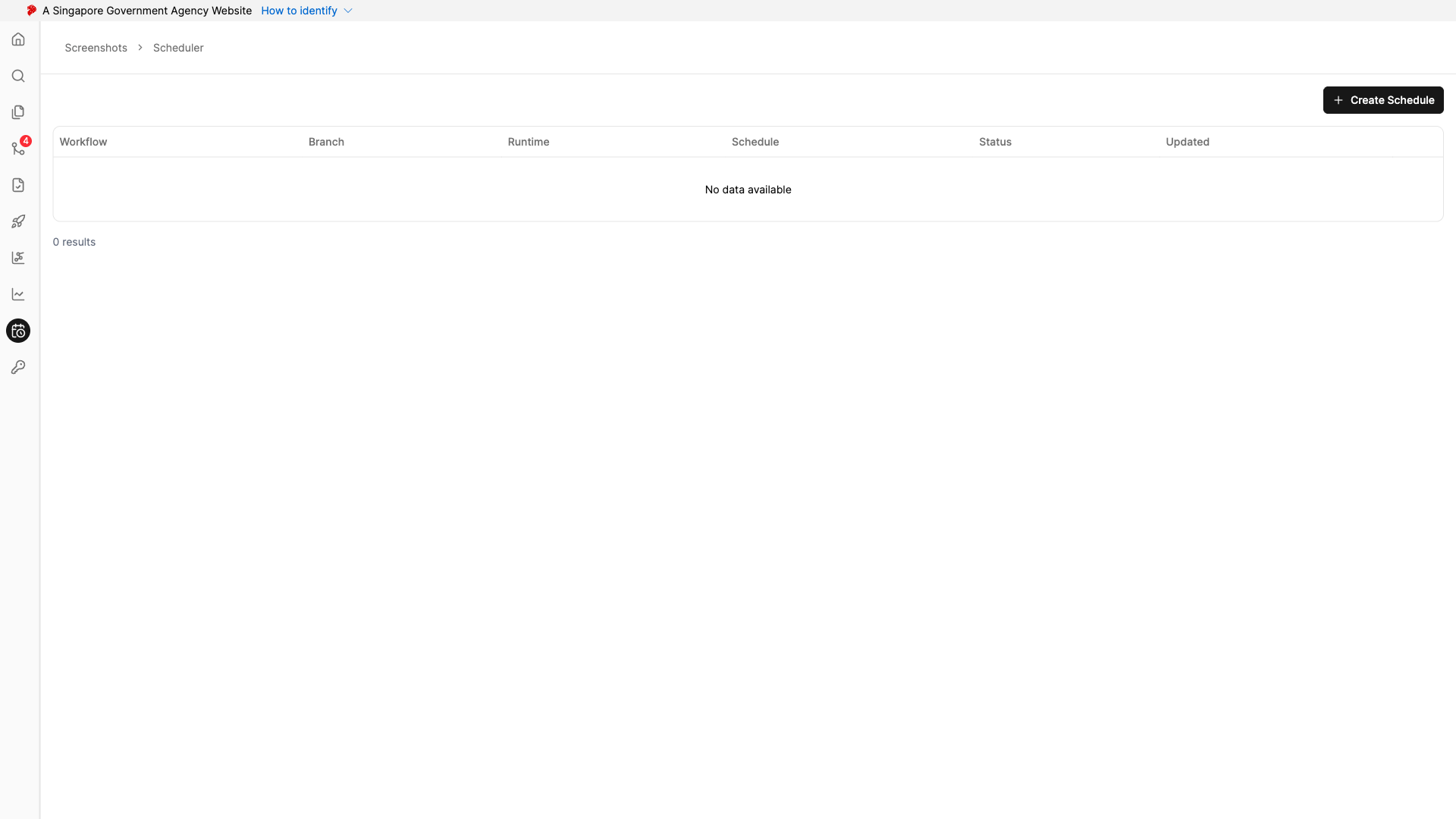
The schedule table shows the following information for each schedule:
| Column | Description |
|---|---|
| Workflow | The workflow that will be executed |
| Branch | The branch where the workflow is committed |
| Runtime | The runtime environment (Staging or Production) |
| Schedule | The cron expression or interval configuration |
| Status | Whether the schedule is Active or Paused |
| Updated | The last time the schedule was modified |
Creating a Schedule
Prerequisites:
- The workflow must be committed before it can be scheduled.
- Click the Create Schedule button
- Configure the following fields:
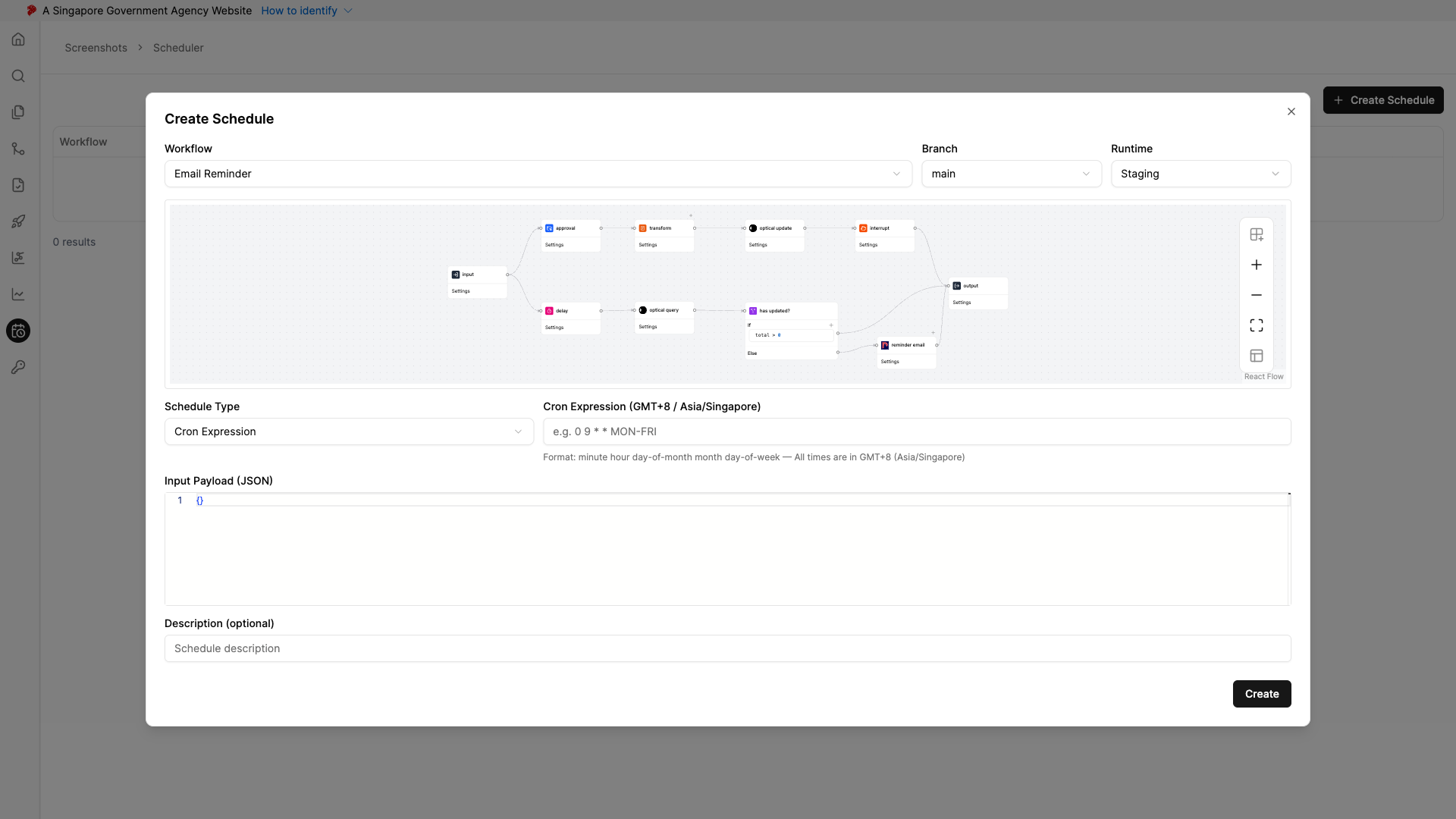
Required Fields:
| Field | Description |
|---|---|
| Workflow | Select the committed workflow to schedule |
| Branch | The branch where the workflow exists (defaults to main) |
| Runtime | Select Staging or Production as the execution environment |
| Schedule Type | Choose between Cron Expression or Interval |
Schedule Type — Cron Expression:
Use standard 5-field cron format to define precise schedules. All times are in GMT+8 (Asia/Singapore).
Format: minute hour day-of-month month day-of-week
| Field | Allowed Values |
|---|---|
| Minute | 0–59 |
| Hour | 0–23 |
| Day of Month | 1–31 |
| Month | 1–12, JAN–DEC |
| Day of Week | 0–7 (0 and 7 = Sunday), SUN–SAT |
Supported syntax: ranges (1-5), lists (1,3,5), steps (*/5), named months (JAN-DEC), named days (MON-FRI).
Examples:
| Expression | Description |
|---|---|
0 9 * * MON-FRI |
Every weekday at 9:00 AM |
*/15 * * * * |
Every 15 minutes |
0 0 1 * * |
First day of every month at midnight |
30 8 * * 1 |
Every Monday at 8:30 AM |
Schedule Type — Interval:
Set a fixed interval in seconds between each execution.
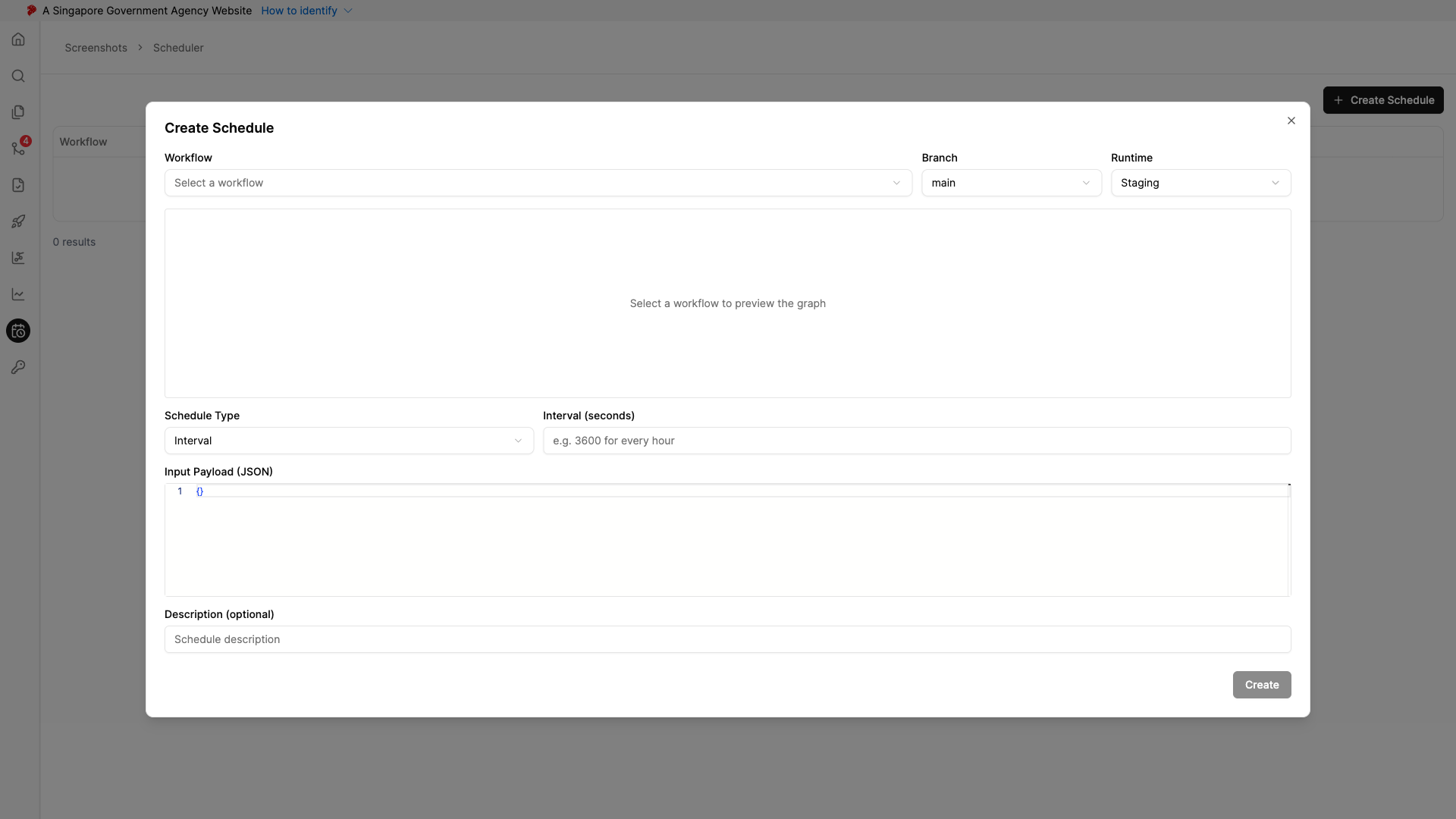
Examples:
| Seconds | Description |
|---|---|
60 |
Every minute |
3600 |
Every hour |
86400 |
Every day |
Optional Fields:
| Field | Description |
|---|---|
| Input Payload (JSON) | Default JSON input passed to the workflow on each execution. Defaults to {} |
| Description | A note describing the purpose of the schedule |
- Click Create to save the schedule
Managing Schedules
From the schedule table, use the actions menu (⋮) on each row to:
- Pause / Resume — Temporarily stop or restart a schedule without deleting it
- Edit — Update the schedule configuration (workflow, branch, runtime, timing, payload, or description)
- Delete — Permanently remove the schedule
Tip: Pausing a schedule is useful when you need to temporarily stop executions without losing the schedule configuration, such as during maintenance windows.
Constraints
- Only committed workflows can be scheduled
- Each workflow can have one schedule per branch and runtime combination
- Cron expressions must follow the standard 5-field format
- Interval values must be specified in whole seconds
