Workflow Overview
Getting Started: Before building workflows, ensure you have been onboarded to OPUS.
See Quick Start for Administrators or Quick Start for Developers to get access.
A Workflow defines a sequence of connected steps that automate processes across system. Each step is represented by a node (i.e. Trigger inputs, AI, API, Decision, Slack, Notification), and the Workflow ensures these steps are executed in the right order.
Before creating your first workflow, familiarise yourself with the Workflow Editor interface and its components. Understanding the drag-and-drop interface, node palette, and test panel will help you build workflows more efficiently.
Follow these steps to build and deploy your workflow:
Creation
- Create New Workflow - Add a new workflow to your project
- Configure Workflow Input - Set up the workflow entry point and data source
- Configure Workflow Nodes - Set up individual workflow steps
Testing
- Test Your Workflow - Test with sample data before testing in staging environment
- Run Your Workflow - Execute workflow in staging environment with real integrations
- Monitor Execution - Track and debug running workflows
Life Cycle Management
- Publish Changes - Commit and publish your workflow
- Perform Regression Test - Validate changes with all the other workflows
- Release Management - Create versioned releases
- Execution - Execute workflow via API endpoints
Workflow Editor
The Editor is a Drag and Drop interface for modeling and automating processes. Below is an overview of the main components, as annotated in the accompanying screenshot.
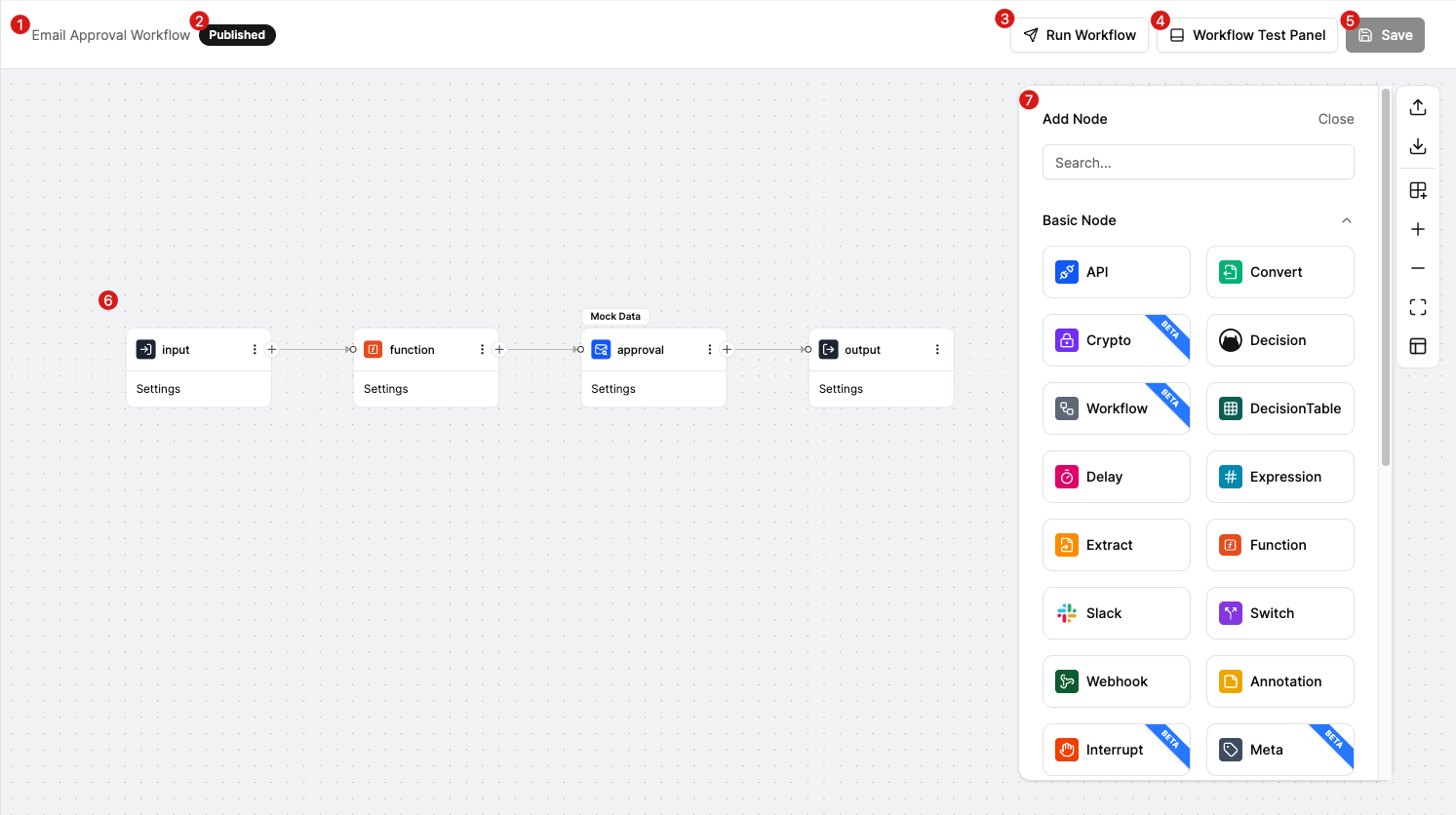
Workflow Title The title of the current Workflow being modeled.
Status of the Workflow Indicates the current status.
| Status | Description |
|---|---|
| Draft | The Workflow has not been committed, with or without new changes. |
| Published | The Workflow has been published, and no new changes have been made. |
Workflow Version and Locking:
- When created, workflows are automatically assigned a Draft version
- Any changes saved to the workflow will override the existing Draft version
- Once saved, the workflow is locked by the user who made the last update
- Only that user can continue making changes until the workflow is Published
Run Workflow Sends the current Workflow to staging for execution. Use this after your test is successful.
Workflow Test Panel Opens the test panel to test your workflow before release. See Test Workflow for details.
Save Saves the workflow as a draft, allowing users to continue working on it later.
Drag and Drop Modeling Panel This is the main canvas where you drag and drop nodes to build your workflow.
Remember to link the nodes to ensure the model functions correctly.
- Add Node Opens the node palette where you can search and select nodes to add to your workflow. Each node type serves a specific purpose. See Configure Workflow Nodes for details on all available node types.
Next Steps
Ready to start building? Begin with step 1:
Create New Workflow - Add a new workflow to your project and start building your automation with the drag-and-drop interface.
