Postman
The Postman Node is used to send one-way email notifications to specified recipients without requiring a reply or action. It is ideal for informing users, officers, or partners about key events in the workflow, such as submission acknowledgements, status updates, or results. Visit Postman (Legacy) to learn more.
Important: For security reasons, links in the email content and image links must be from domains ending with gov.sg.
Postman Support: For any enquiries or issues related to Postman, please reach out to the Postman team via go.gov.sg/postman-contact-us.
How Does It Work?
Prerequisites: You need a Postman API Key to enable email sending capabilities. See Setup and Send Acknowledgement to Citizen example for setup instructions. Or you can refer to the Postman Guide on where to generate your email API key.
Setup Steps:
- Build your workflow using Graph Edit Mode (minimum setup: input node → postman node → output node, but you can add more nodes as needed)
- Click on the postman node settings to open its configuration
- Configure the following data:
- Token: Your Postman API key to enable the connection
- From: (Optional) The sender’s email address and display name (e.g.
Postman <info@mail.postman.gov.sg>) - Recipient: Email address of the primary recipient
- Cc: (Optional) Additional recipients who will receive a copy of the email. You can specify multiple email addresses separated by commas (e.g.
alice@tech.gov.sg, john@tech.gov.sg) - Bcc: (Optional) Additional recipients who will receive a blind carbon copy of the email. You can specify multiple email addresses separated by commas (e.g.
bob@tech.gov.sg, jane@tech.gov.sg) - Subject: The title of the email
- Body: The email content (you can include dynamic values like
{{{input.name}}},{{{output.status}}})
Output:
The Postman Node sends the email and returns the response directly from the Postman API without any manipulation. The output structure depends on the Postman API response format. For more information on the response format, refer to the Postman V1 API documentation.
This output can be used by subsequent nodes to verify email delivery or for logging and tracking purposes.
Examples
Setup and Send Acknowledgement to Citizen
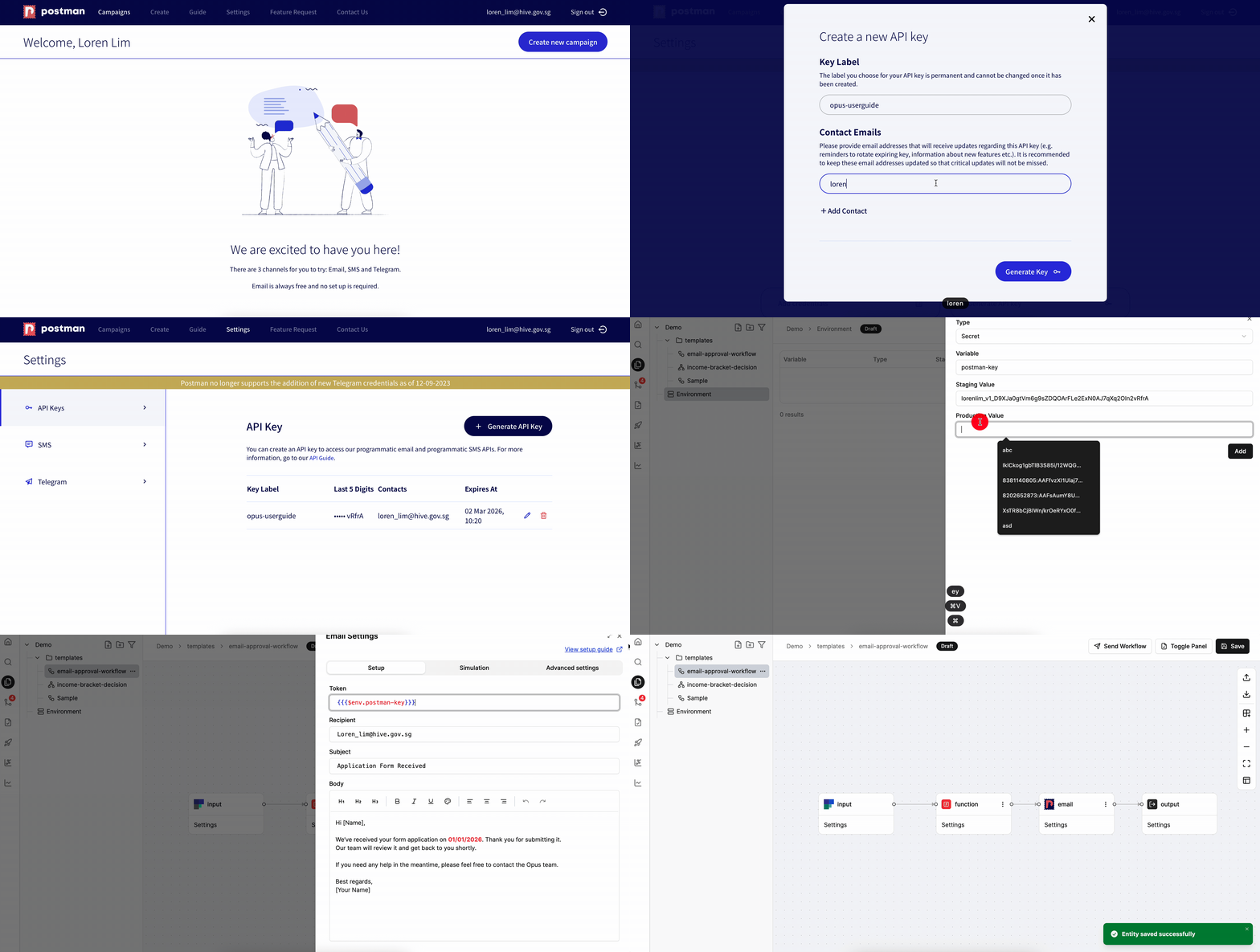
Or you can refer to the Postman Guide on where to generate your email API key.
Invisible Tracking Image in Emails
Postman embeds a 1x1 transparent GIF pixel in each email to track open rates. This image is normally invisible, but recipients on certain networks (e.g. intranet) may see it rendered as a small red cross or broken image icon. This is expected behaviour and does not affect the email content.
For more details, refer to the Postman guide on Tracking Email Status.
Recipient Blacklist Behaviour
Postman maintains a blacklist of email addresses to protect email deliverability. An address is typically blacklisted after a hard bounce (e.g. the email address does not exist). Refer to the Postman guide on Recipient Blacklist for details.
The Postman Node behaves differently depending on where the blacklisted address appears:
- Recipient (To) is blacklisted: The node fails with the error
Bad request: Recipient email is blacklisted. No email is sent. - Cc/Bcc contains a blacklisted address: The node does not fail. The email is still sent, but only the non-blacklisted Cc/Bcc recipients receive it. The blacklisted addresses are silently skipped.
Tip: If a workflow’s Postman node fails with Bad request: Recipient email is blacklisted, or an expected Cc/Bcc recipient did not receive the email, the address may be on the blacklist. If the address is valid and should receive emails, request its removal from the blacklist via go.gov.sg/postman-contact-us. See How do I remove a recipient from the blacklist? for the full process.
When to Use It?
Use Postman Node when:
- You want to inform someone, but no action is required.
- You need to confirm submission or share results.
- You are updating users, officers, or vendors throughout a workflow.
Tip: You can use variables like {{{input.name}}}, {{{output.status}}} in the body, subject, and recipient fields (including Cc and Bcc) to personalise the message.
