Test Decision
Node Testing
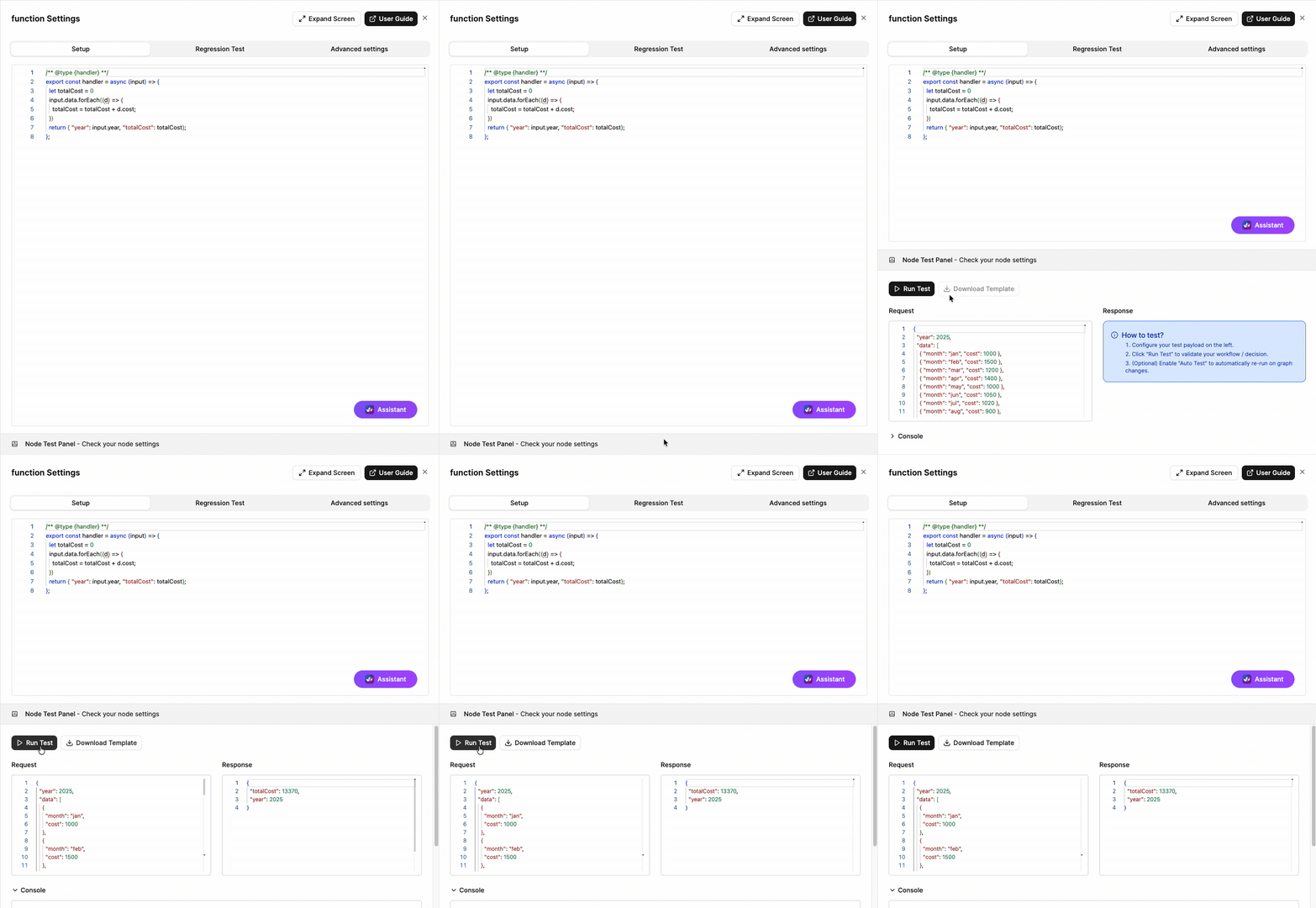
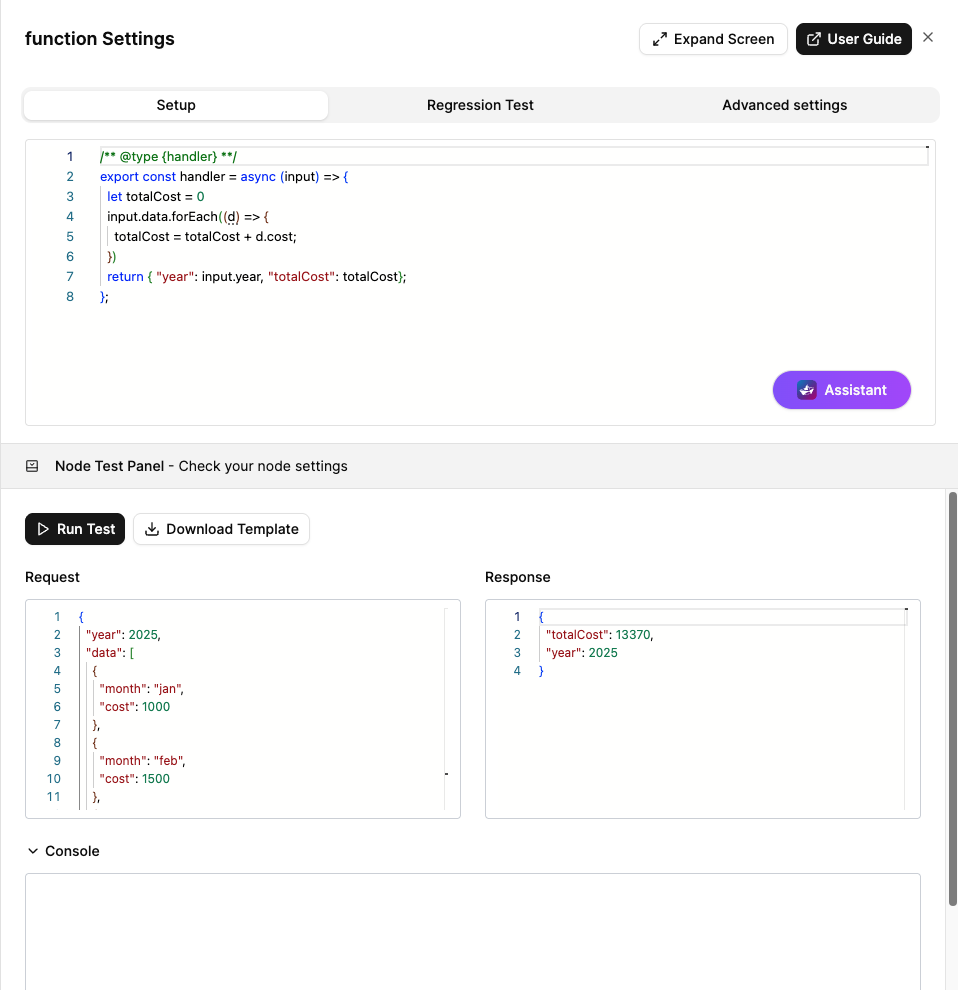
The Node Test Panel at the bottom of each node’s settings allows you to test how an individual node behaves using sample JSON input — without triggering the full decision.
- Enter your test data as a JSON object
- Click Run Test to test how the node processes the input
- The output appears immediately, showing what the node would return during a real execution
This is useful for:
- Debugging formulas or transformation logic
- Validating rule conditions before release
- Iterating quickly without needing to trigger the full flow
Decision Testing
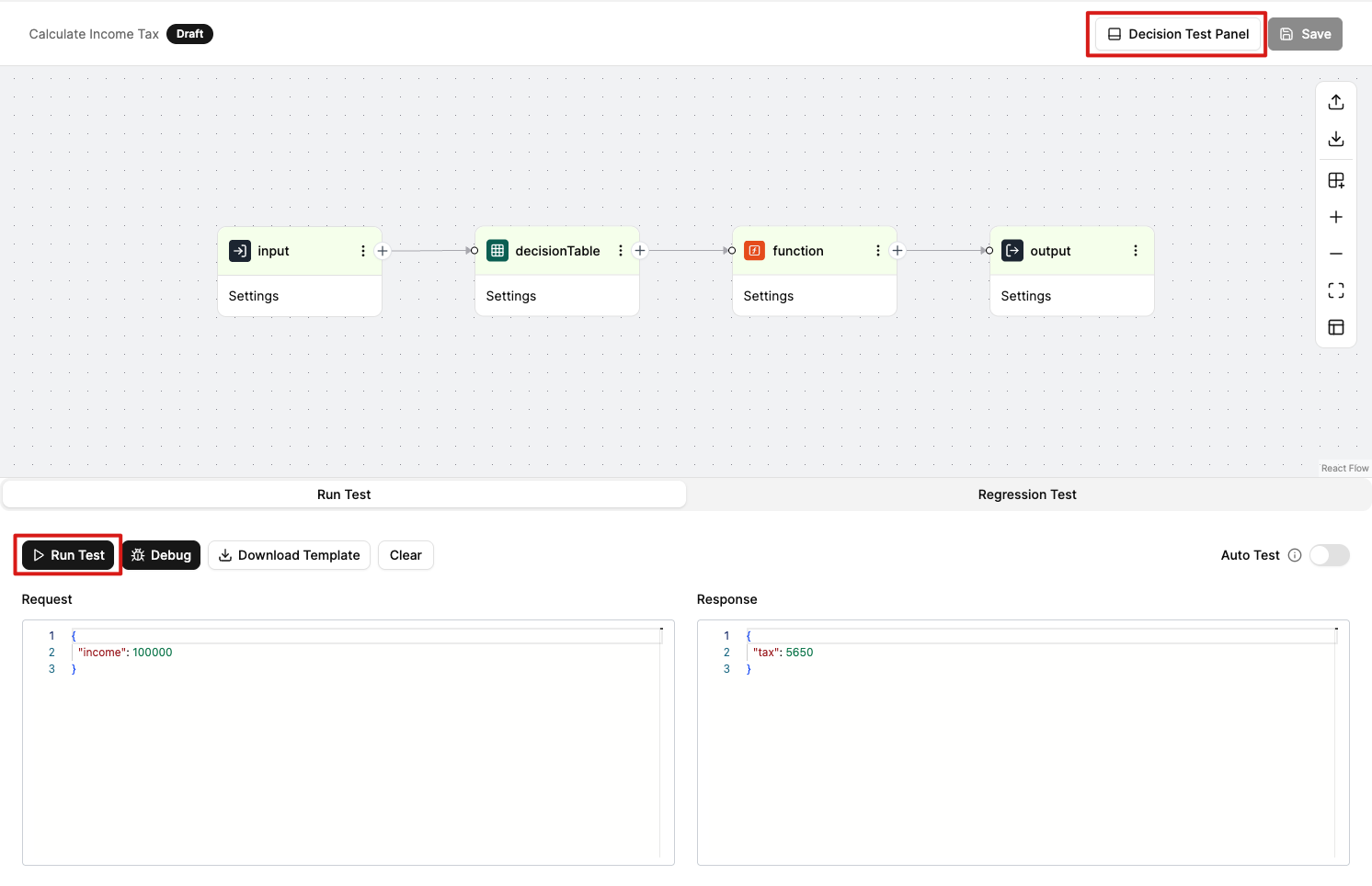
The Test panel allows you to test and evaluate your Decision as you build it. Its primary role is to support development and debugging by showing how your Decision behaves with different inputs.
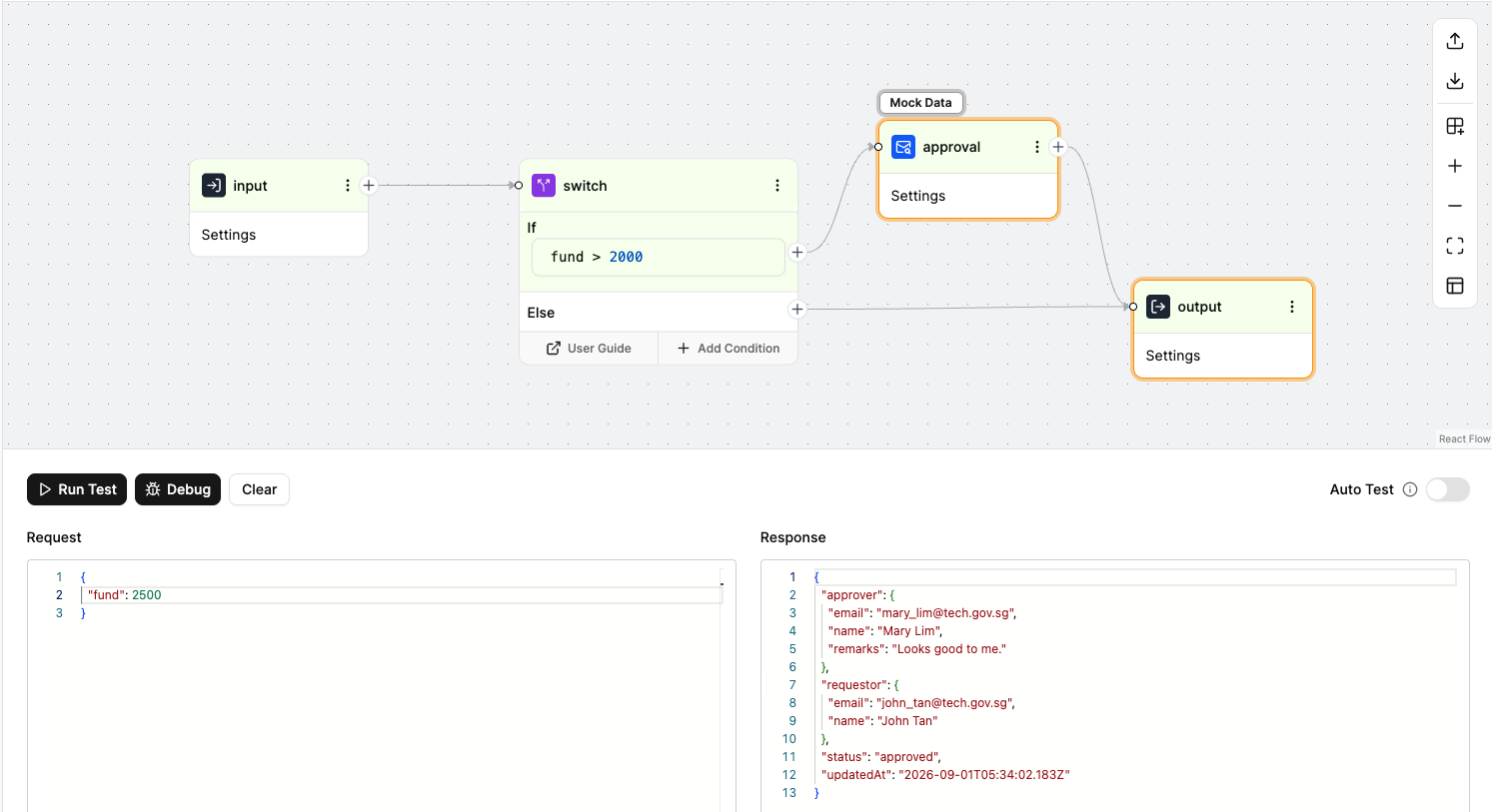
To access the test panel, click the Decision Test Panel button in the Decision Editor. This opens the panel with Run Test and Regression Test tabs. The panel provides Run Test control, along with an Auto Test toggle.
How It Works
- In the
Requestcolumn, enter your JSON input. This acts as the test request body for the Decision. - Click Run Test to execute the test.
- After running, the evaluation result appears in the
Responsecolumn. - Click Debug to see a detailed breakdown of how data flows through each node, along with timing and performance details.
Post-Test Insights
Decision Tables
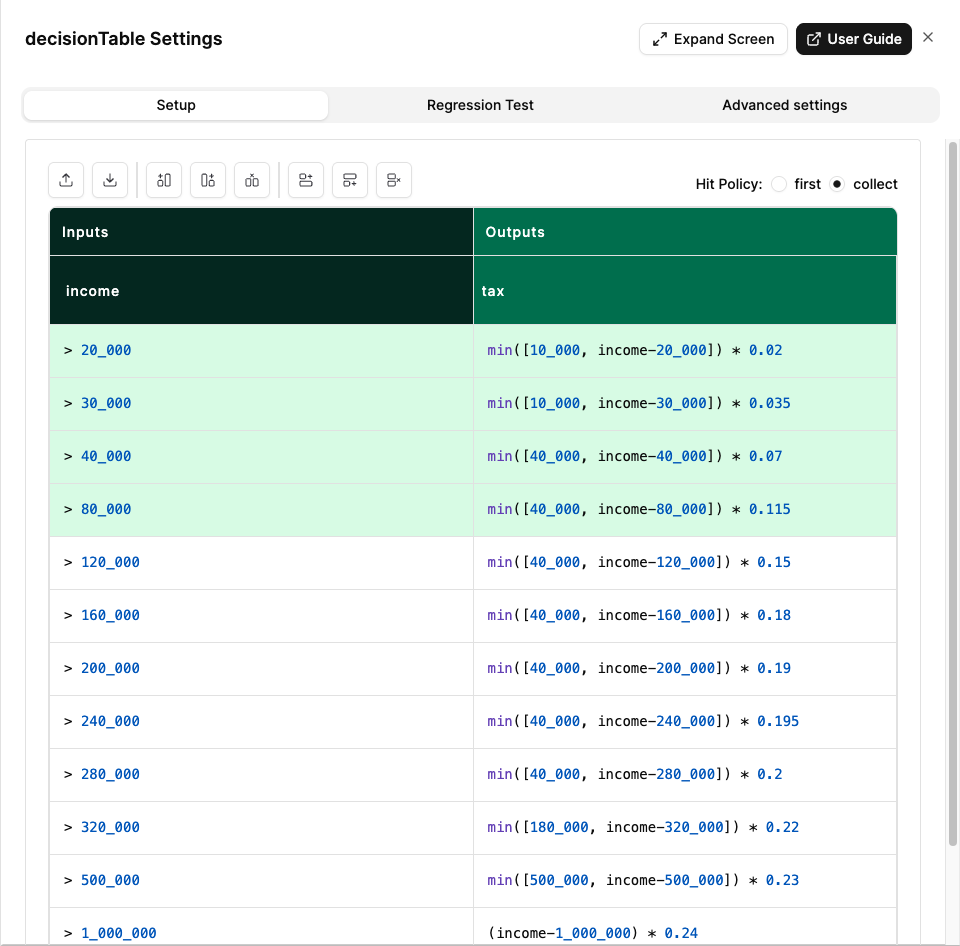
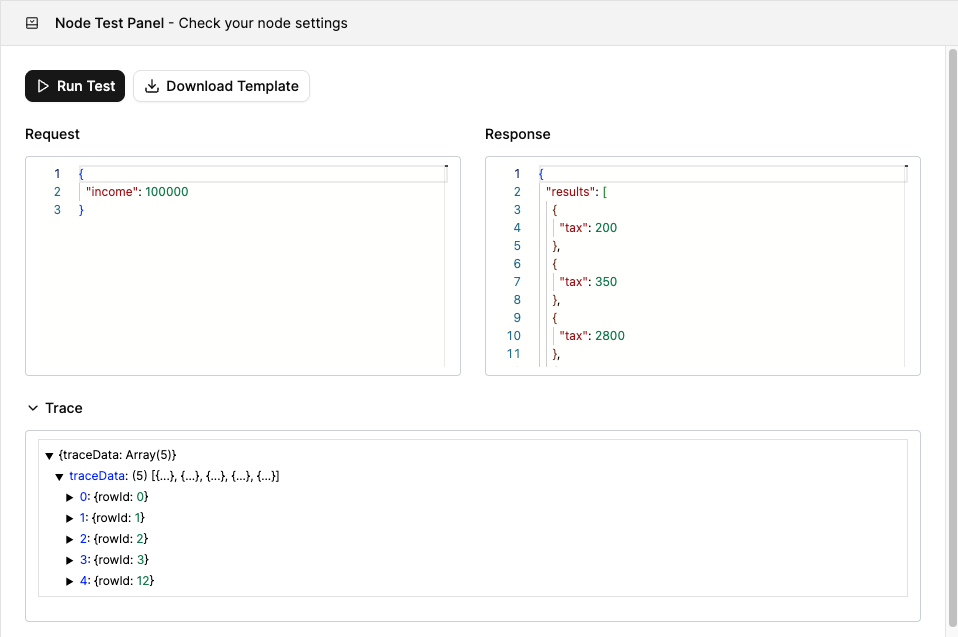
After running a test, you can view the decision table rules and inspect the test results — including the request, response, and trace data — in the Node Test Panel.
Function Nodes
Any console.log() statements in your function code will appear in the Console section of the Node Test Panel, helping you debug outputs and logic.
Switch Nodes
The test panel will visually highlight the corresponding path in the graph.
Debug
Click the Debug button in the test panel, and it will display a monitoring-like view for troubleshooting and debugging.
Next Steps
Once your test is working as expected:
Regression Test Decision - Test your decision in the staging environment with test suites. Create Excel-based test cases to validate your decision logic across multiple scenarios.
