Regression Test Decision
Recommended: Before you create regression tests, you should test your decision first to verify basic functionalities. The test panel will then provide a suggested test template for download based on the test payload.
See Test Decision for instructions on testing your decision with sample data.
Unit testing is essential, similar to any programming language. This platform provides a scenario testing feature known as Test Suite. Each Test Suite is an Excel file containing input and output columns, where each row represents a single scenario or can be permutated into multiple scenarios.
Understanding Test Panels
The platform provides two different test panels for Decisions, each serving different testing purposes:
- Node-level Testing: Tests individual workflow nodes in isolation. Available within each node’s configuration panel. Useful for testing specific node logic independently.
- Decision-level Testing: Tests the entire decision workflow end-to-end. Located in the main Decision editor’s Test tab. This is the recommended approach for comprehensive decision validation.
Both test panels support the same Excel-based Test Suite format and follow the same testing workflow.
Testing Workflow Overview
The complete testing workflow involves four main steps:
- Generate Test Template - Download Excel template from test results
- Populate Test Scenarios - Add test cases and use scenario permutation if needed
- Upload Test Suite - Upload Excel file to decision or node level
- Execute Tests - Run tests and review results
See Test Suite Structure for details on Excel format options.
Generating New Test Suite
The easiest way to create a Test Suite is to generate a template from a test result. The platform automatically creates an Excel file with the correct structure based on your decision’s input and output, pre-populated with the test data. This ensures your test template matches your decision’s schema and saves time setting up the Excel format manually.
Important: The exported template always uses the tab/reference format with separate Excel sheets for nested objects and arrays. This format organizes complex data structures in a clear, editable way. For details on how this format works, see Tab/Reference Format - Simple Nested Objects section below.
Avoid modifying the Excel format, especially the Header columns and sheet structure. While not all input/output fields may be included in the template, users are allowed to insert new input/output columns as needed. This should be in correlation with the decision modelled.
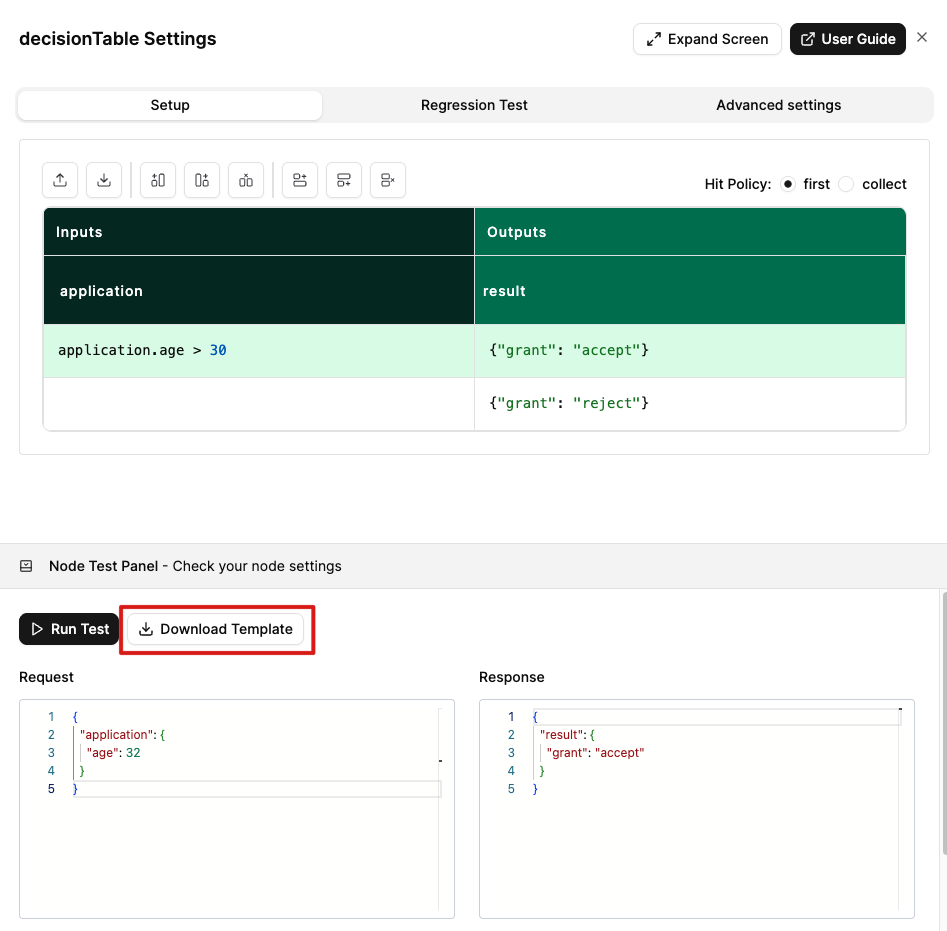
Generate from Node-Level
- Select settings on the decision node.
- In the node configuration panel, open the Node Test Panel.
- Populate a sample payload Request and click the Run Test button.
- Click on Download Template button to download a template of the Test Suite with this node’s input and output.
- Populate the template Excel file with additional scenarios for this specific node.
Note: Node-level test templates only include the input and output for that specific node, not the entire decision workflow.
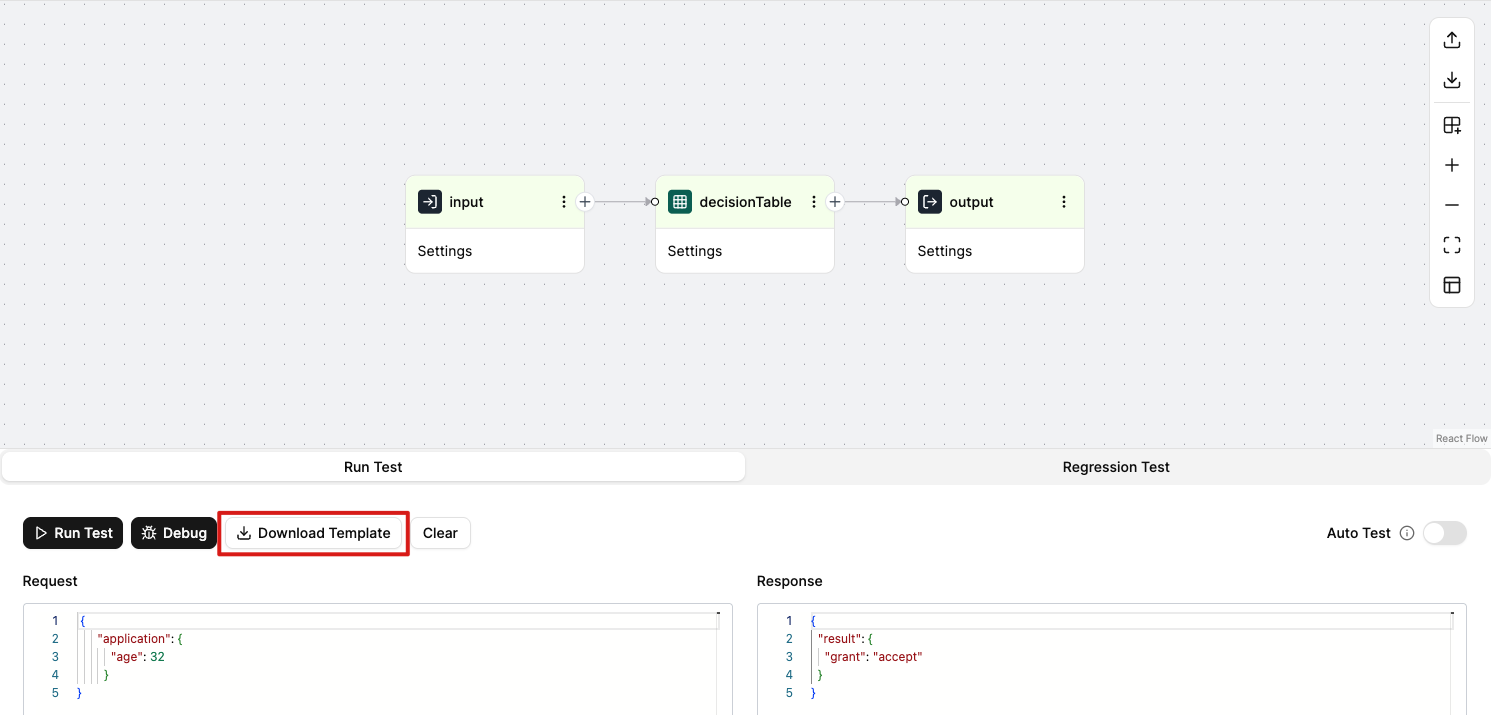
Generate from Decision-Level
- Click the Decision Test Panel button in the Editor view to open the test panel.
- Populate a sample payload Request and click the Run Test button.
- Click on Download Template button to download a template of the Test Suite with this sample payload.
- Populate the template Excel file with additional scenarios.
Upload and Execute Test Suite
After generating and populating your test template Excel file, you can upload it to the platform and execute it to validate your decision logic.
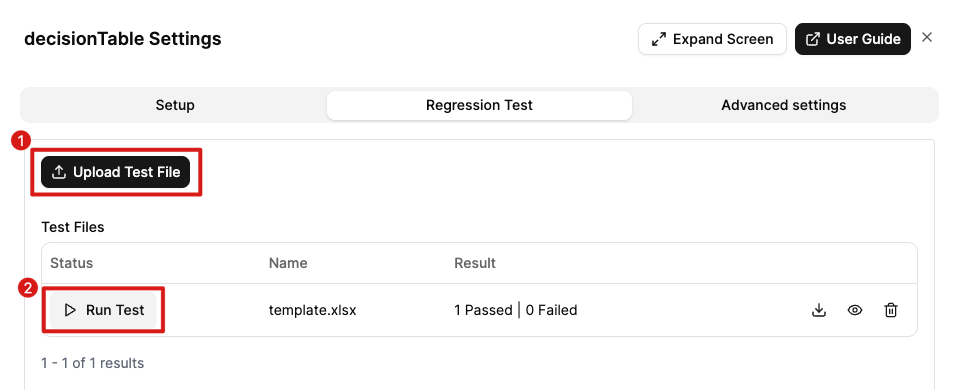
Node-Level Testing
Upload:
- Select settings on the decision node.
- In the node configuration panel, click on the Regression Test tab.
- Click on
Upload Test Filebutton. - Select your populated Excel test file.
- The test suite will appear in the list of available test suites for this node.
Execute:
- In the node’s Regression Test tab, locate the uploaded test suite in the list.
- Click on
Run Testbutton for the specific Test Suite. - Review the test results showing passed/failed scenarios for this node only.
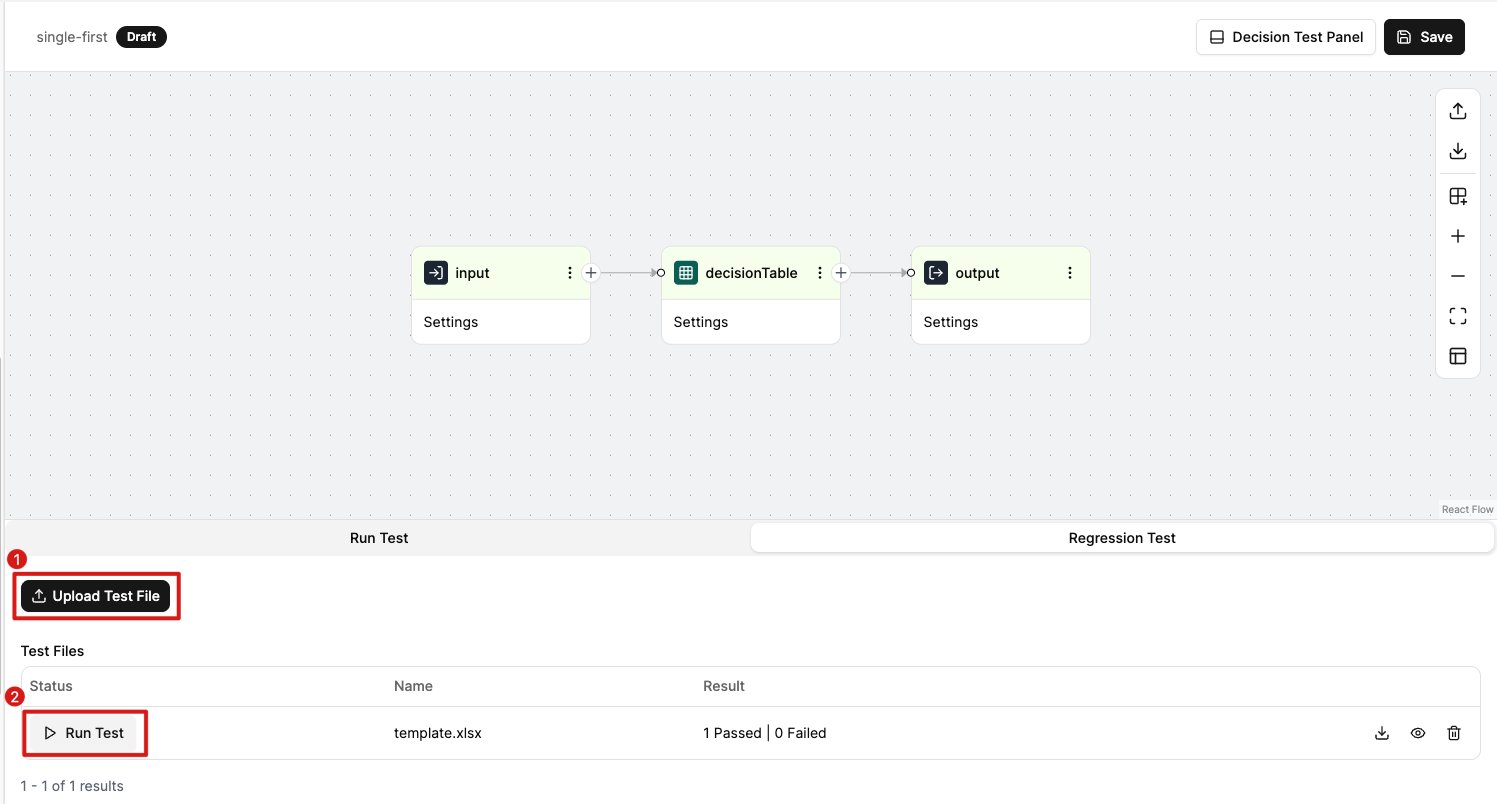
Decision-Level Testing
Upload:
- Click the Decision Test Panel button in the Editor view to open the test panel.
- Click on the Regression Test tab to navigate to the scenario testing feature.
- Click on
Upload Test Filebutton. - Select your populated Excel test file.
- The test suite will appear in the list of available test suites for this decision.
Execute:
- In the Test tab, locate the uploaded test suite in the list.
- Click on
Run Testbutton for the specific Test Suite. - Review the test results showing passed/failed scenarios.
Test Suite Structure
The platform supports two main Excel formats for Test Suites: Tab/Reference Format (multi-sheet with reference IDs) and Flattened Format (single-sheet with dot notation or direct column mapping). The system automatically detects which format is used during import and handles the conversion, ensuring backward compatibility and allowing you to choose the most convenient format for your testing needs. You can even mix different approaches in manually created files.
Format 1: Tab/Reference Format
When to use: Exported automatically when your data contains nested objects or arrays.
This format uses separate Excel sheets for complex data structures, with references linking them together. Each nested object or array element is assigned a unique reference ID and stored in dedicated sheets.
Example 1: Simple Nested Objects
Input/Output JSON:
// Inputs
{
"application": {
"age": 32
}
}
// Outputs
{
"result": "fulfilled"
}Excel Structure:
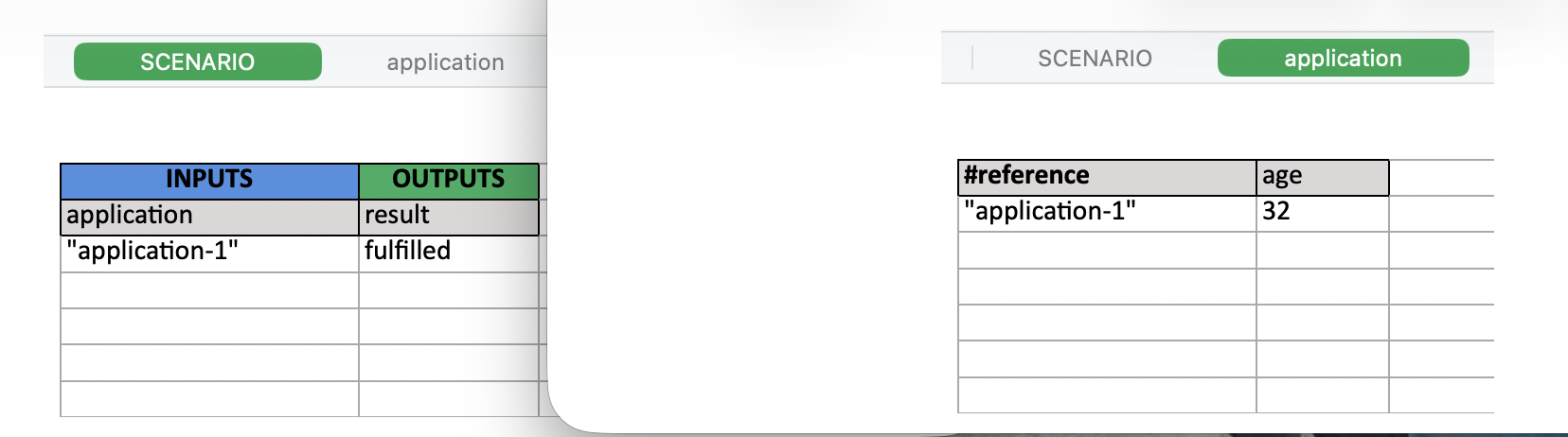
This example demonstrates how the tab/reference format handles nested input objects with simple output values.
Input Columns (Request):
- SCENARIO sheet: Column
#input.applicationwith value"application-1" - application sheet: Row with
age: 32
Output Columns (Expected):
- SCENARIO sheet: Column
#output.resultwith value"fulfilled"(primitive value, no reference needed)
Example 2: Arrays (Loops)
Input/Output JSON:
// Inputs
{
"loops": [
{
"application": {
"age": 32
}
},
{
"application": {
"age": 20
}
}
]
}
// Outputs
[
{
"result": "fulfilled"
},
{
"result": "fulfilled"
}
]Excel Structure:
Input Columns (Request):
- SCENARIO sheet: Column
#input.loopswith value["loops-1", "loops-2"] - loops sheet: Two rows with references:
loops-1:application→"application-1"loops-2:application→"application-2"
- application sheet: Two rows with actual
agevalues (32 and 20)
Output Columns (Expected):
- SCENARIO sheet: Column
#outputwith value["#result-1", "#result-2"](root-level array) - #result sheet: Two rows with actual result values:
#result-1:result→"fulfilled"#result-2:result→"fulfilled"

How Tab/Reference Format Works:
- Each nested object or array element is assigned a unique reference ID (e.g.,
"application-1","loops-1") - References are stored in separate sheets with a
#referencecolumn tracking the IDs - Arrays are represented using reference IDs in square brackets:
["ref-1", "ref-2"] - During test execution, all references are automatically resolved to reconstruct the original nested structure
- Supports unlimited nesting depth and complex data structures
Benefits:
- Clear organization of nested data across multiple sheets
- Easy to edit individual object properties and array elements
- Maintains relationships between nested structures
- Handles both nested objects and arrays of objects
- Optimal for complex data structures
Format 2: Flattened Format
When to use: For manually created Excel files, simple data structures, or backward compatibility with legacy test files.
This format uses a single Excel sheet with column headers representing the data structure. The system supports both dot notation for nested objects and direct mapping for primitive values.
Example 1: Dot Notation for Nested Objects
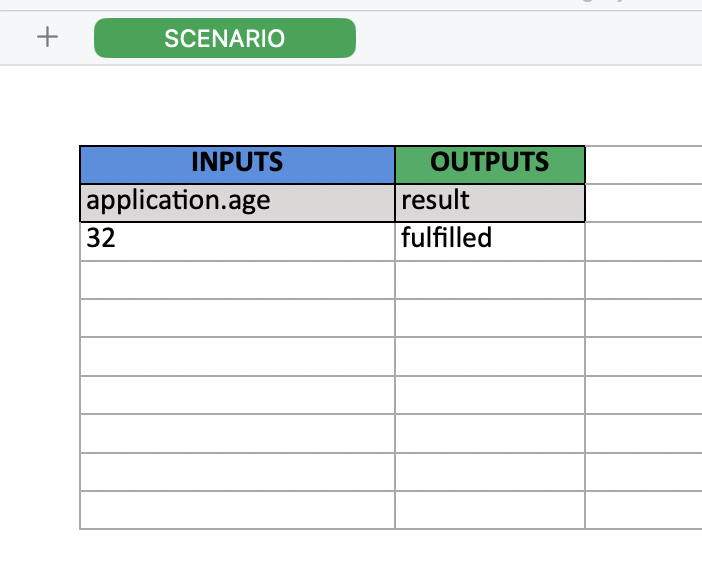
This example produces the same result as Tab/Reference Format - Example 1 but uses a single-sheet flattened format instead of multiple sheets with references.
Excel Structure:
- SCENARIO sheet: Column
#application.agewith value32 - SCENARIO sheet: Column
#resultwith value"fulfilled"
Input/Output JSON:
// Inputs
{
"application": {
"age": 32
}
}
// Outputs
{
"result": "fulfilled"
}How It Works:
- Dot notation in column headers (e.g.,
#application.age) is automatically converted to nested objects during import - No separate sheets needed - all data is in a single SCENARIO sheet
- Achieves the same nested structure as the tab/reference format but with simpler Excel layout
Note: This format is not exported by the system but is supported during import for backward compatibility.
Benefits:
- Single-sheet format for simpler editing
- Intuitive dot notation for nested paths
- No need to manage reference sheets
- Fastest to edit and understand for simple data
- Works identically to tab format but with flatter structure
Limitations:
- Dot notation cannot represent arrays of objects
- Less suitable for complex nested structures with arrays
Data Type Casting
The Test Suite automatically casts Excel cell values into appropriate JSON types:
Primitive Types:
blank→ null value""→ empty string valuetrue,false→ boolean"true"→ a string value of"true"123.456→ number"123.456"→ a string value of"123.456"foo→ a string value of"foo"
Arrays:
["foo", "bar"]→ an array of strings[10, 20, 30]→ an array of numbers[]→ an empty array- Arrays of objects use the tab/reference format (see Format 2 above)
Objects and References:
{"age": 32}→ a JSON object (when manually entered as a string)"application-1"→ a reference resolved from the corresponding sheet (in tab/reference format)
Scenarios Permutation
The Test Suite allows permutation of scenarios using the | separator. This feature enables the creation of multiple test cases from a single row of data by providing variations for specific fields, reducing the time and effort needed to create exhaustive test cases.
For example:

The above row will be permuted into the following scenarios to be interpreted by the platform:

When to Perform Regression Test Decision
Testing should be performed whenever:
- A new Decision is created.
- Existing Decisions are updated or modified.
- Users want to verify the correctness of outputs for multiple scenarios.
Next Steps
Once your test suites passed successfully:
Perform Regression Testing - Before publishing changes, validate that your decision modifications have not broke existing functionality. Regression testing can helps detect unintended issues and maintains quality.
Note: Unlike workflows, decisions do not have direct execution monitoring from test suites. To monitor decision executions in real-time, decisions must be executed via API calls or through Workflows. See Monitor Decision for details on tracking decision executions.
