Switch
The Switch Node enables conditional branching within a decision graph, allowing the flow to split based on evaluation results. Conditions are written using Expression Syntax, providing a dynamic and context-sensitive approach to decision logic.
How Does It Work?
Setup Steps:
- Build your workflow using Graph Edit Mode (minimum setup: input node → switch node → output node, but you can add more nodes as needed)
- Configure the following data:
- Define one or more
IforElse Ifconditions using ZEN Expression Language. See the Expression Syntax for complete syntax reference, including comparisons, boolean logic, and functions. - (Optional) Define an
Elsepath as a fallback for when no conditions match
- Define one or more
Each path can lead to different workflow actions such as sending notifications or triggering approvals.
Output:
The Switch Node routes the workflow to different branches based on which condition evaluates to true. The node does not alter the incoming data. It forwards the full input context to whichever output branch is triggered. If no conditions match and an Else path is defined, the workflow follows that path.
Examples
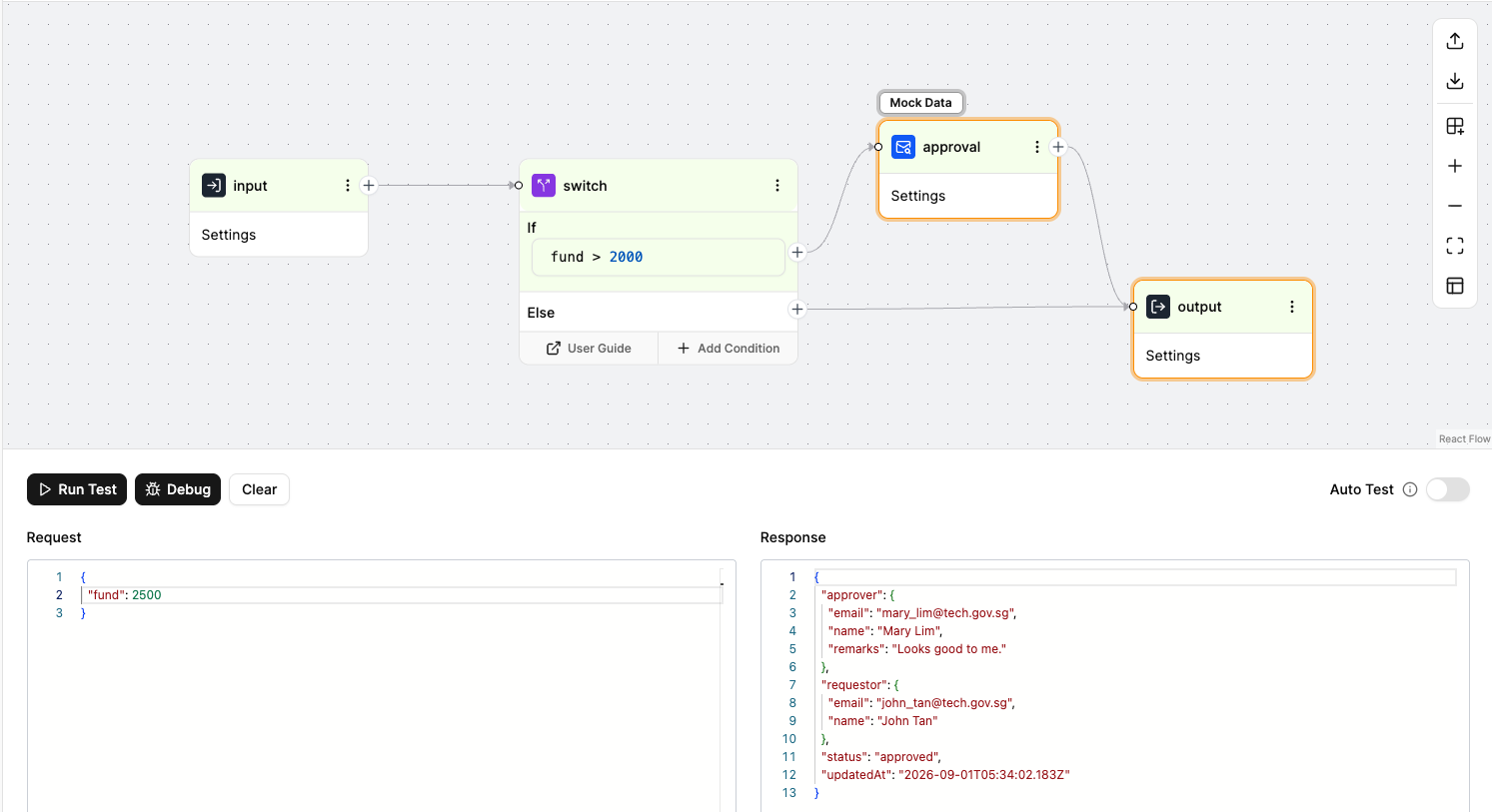
Routing Based on Funding Amount
In this example, the workflow calculates funding using the values from month1, month2, month3, and normcost.
The Switch Node checks if the total funding is greater than 10,000.
- If the condition is true, the workflow routes to the Approval Node.
- If the condition is false, it follows the Else path.
Routing with Multiple Conditions
You can combine multiple conditions in a single If or Else If statement using logical operators like or and and. This is useful when you want to match multiple possible values.
For example, to route based on approval status where the value could be either “Approve” or “Approved”:
input.status == "Approve" or input.status == "Approved"You can also combine and and or for more complex logic:
(input.status == "Approve" or input.status == "Approved") and input.amount > 1000For the complete list of logical operators and expression syntax, see the Boolean and Expression Syntax documentation.
When to Use It?
Use Switch Node when:
- You need to route the workflow based on different input values.
- You want to apply conditional logic without writing full code.
- You need to separate actions by thresholds, categories, or statuses.
- You want to make workflows more readable and maintainable.
Tip: Always define an Else path as a fallback—this ensures your workflow can handle unexpected or missing data gracefully.
