Function
The Function Node allows you to write JavaScript code for data manipulation such as parsing inputs, mapping fields, or applying custom logic. You can write code manually or use the built-in Coding Assistant to generate functions from natural language descriptions—perfect for users who are less familiar with JavaScript or need quick prototyping.
Functions are executed using rquickjs, Rust bindings for the QuickJS JavaScript engine. QuickJS is a small, embeddable engine that supports ES2020 specification, including the following modules:
Supported JavaScript Features (ES2020):
- Modern Syntax: Arrow functions, optional chaining (
?.), nullish coalescing (??) - Array Methods:
map(),filter(),reduce(),find(),some(),every(),flatMap(), etc. - Object Methods:
Object.keys(),Object.values(),Object.entries(), spread operator (...) - String Methods: Template literals,
split(),replace(),trim(),includes(), etc. - Math Operations: All standard Math functions (
Math.round(),Math.max(), etc.) - Date Handling:
Dateobject and all its methods - Console API:
console.log()for debugging (available during simulation only) - Libraries:
dayJSandbigJSlibraries are imported
Security Restrictions: Module imports and external API calls are not allowed due to security concerns.
Execution Limit: Each function has a maximum execution time of 5000ms (5 seconds).
How Does It Work?
Setup Steps:
- Build your workflow using Graph Edit Mode (minimum setup: input node → function node → output node, but you can add more nodes as needed)
- Click on the function node settings to open its configuration
- Configure the following data:
- Write your JavaScript function
- The system automatically provides an
inputobject containing data from previous nodes - Process the data using your custom logic
Output:
The Function Node executes the JavaScript code and returns the output object defined in the function. For example, using the Calculating a Sum example with an input of [1, 2, 3, 4]:
{
"sum": 10
}This output can be referenced by subsequent nodes in the workflow using the field names (e.g., sum).
Debugging Tip: Use console.log() within your function to troubleshoot logic during simulation. It supports all primitive data types that can be represented in JSON format.
Coding Assistant
The Coding Assistant is an AI-powered tool that helps you write JavaScript functions by generating code from natural language descriptions. Simply describe what you want your function to do, and the assistant will create the appropriate code for you.
The Coding Assistant runs against the GovTech Platform AI service. You must connect your personal Platform AI key before you can use it — see Connect Your Personal Platform AI Key for setup. Without a personal key, the assistant prompts you to add one and cannot generate code.
Note: The Coding Assistant is currently in experimental stage and is subjected to changes.
How to Use
Be specific about your input data structure and desired output format for best results. The Coding Assistant can read from your simulation panel to better understand the data context.
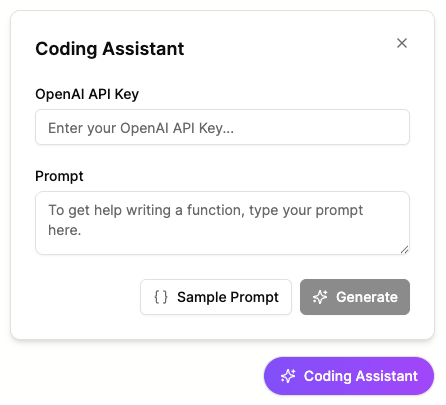
- Open Function Node: Click on your function node to access settings
- Launch Coding Assistant: Click the “Coding Assistant” button (purple button with sparkle icon)
- Add Input to Simulation Panel (Optional): Provide sample input data for better context
- Write Prompt: Describe what you want the function to do in plain English or click “Sample Prompt” for an example
- Generate Code: Click “Generate” to create the function code
- Test & Use: Review the generated code and test it using simulation
Example to try: Use the Sample Prompt button with this input in your simulation panel:
{
"response": [
{ "key": "name", "value": "Alice" },
{ "key": "email", "value": "alice@tech.gov.sg" },
{ "key": "age", "value": 25 }
]
}Examples
Calculating a Sum
Let’s create a function that calculates the total of all numbers in an input array.
Sample input:
{
"numbers": [1, 2, 3, 4]
}Function code:
/** @type {Handler} **/
export const handler = async (input) => {
const sum = input.numbers.reduce((acc, curr) => acc + curr, 0);
return { sum };
};Output:
{
"sum": 10
}When to Use It?
Use Function Node when:
- You need to combine or transform data (e.g., sum, average, format).
- You want to add custom logic that is too complex for Expression, Decision Table, or Switch nodes.
- You need to parse or restructure complex data objects.
- You want to perform advanced array or object manipulations.
