Slack
The Slack Node allows your workflow to send automated messages directly to a designated Slack channel or to an individual user as a direct message (DM). It is ideal for notifying teams or specific people about important events such as approvals, escalations, or status changes without requiring manual intervention. Think of it as a virtual assistant that keeps your team informed in real time.
How Does It Work?
The Slack Node supports two authentication methods:
- API Token Method - Uses Slack Web API with a Bot Token for full API functionality
- Incoming Webhook Method - Uses a webhook URL for simpler, lightweight integration
Prerequisites: Depending on your chosen method, you’ll need either a Slack Bot Token or an Incoming Webhook URL. See setup instructions below for each method.
Setup Steps:
- Build your workflow using Graph Edit Mode (minimum setup: input node → slack node → output node, but you can add more nodes as needed)
- Click on the slack node settings to open its configuration
- Choose your authentication method and configure accordingly:
Option A: API Token Method
- Select API Token as the authentication type
- Provide your Slack Bot Token (see How to Get a Slack Bot Token)
- Under Send to, choose where the message should go:
- Channel — Enter the Slack channel you want to send messages to (e.g., ops-team, grant-alerts)
- User — Enter the user’s email address. The message is sent as a direct message (DM) to the Slack user who owns that email.
- Compose the message content, including any relevant dynamic variables (e.g., {{{input.name}}}, {{{output.status}}})
Sending to a User requires extra scopes. Direct messages by email need the users:read, users:read.email, and im:write scopes in addition to chat:write. See How to Get a Slack Bot Token.
Option B: Incoming Webhook Method
- Select Incoming Webhook as the authentication type
- Provide your Incoming Webhook URL (see How to Set Up an Incoming Webhook)
- Select the Slack channel you want to send messages to (e.g., ops-team, grant-alerts)
- Compose the message content, including any relevant dynamic variables (e.g., {{{input.name}}}, {{{output.status}}})
Output:
Both authentication methods return a standardized response containing:
status: “success” when the message is deliveredchannel: The Slack channel (or DM channel) where the message was sentts: Unix timestamp (in seconds) of when the message was senttext: The message content that was sent
When the API Token method sends a DM by email (Send to → User), the response additionally includes:
userId: The resolved Slack user IDemail: The email address used to look up the user
Note: API Token method provides full Slack API response data, while Incoming Webhook method returns a simplified response. Both are normalized to the same output structure for consistency across your workflow.
How to Get a Slack Bot Token
Follow these steps to create a Slack Bot and obtain the Bot Token:
- Go to Slack API Apps
- Click Create New App → From scratch
- Enter an app name and select your Slack workspace
- In the left sidebar, go to OAuth & Permissions
- Under Bot Token Scopes, click Add an OAuth Scope and add the scopes required for how you intend to use the node (see table below)
- At the top, click Install to Workspace
- Authorise the app and copy the Bot Token (it starts with
xoxb-) - Paste the token into your Slack Node configuration
Required Bot Token Scopes
Add only the scopes you need based on the Send to option you configure:
| Send to | Required scopes | Why |
|---|---|---|
| Channel | chat:write |
Posts the message to the channel. |
| User (DM by email) | chat:write, users:read, users:read.email, im:write |
users:read + users:read.email look up the Slack user from their email address, im:write opens the direct-message conversation, and chat:write posts the message. |
Channel membership: When sending to a channel, the bot must be a member of that channel (or the channel must be public and the app installed). Invite the bot with /invite @your-app-name in the target channel if messages fail to send.
Adding scopes later: If you add scopes after installing the app, you must reinstall the app to the workspace for the new scopes to take effect. A missing_scope error means the required scope above has not been granted.
How to Set Up an Incoming Webhook
Incoming Webhooks provide a simpler way to send messages to Slack without managing OAuth tokens. Follow these steps:
- Go to Slack API Apps
- Click Create New App → From scratch (or select an existing app)
- Enter an app name and select your Slack workspace
- In the left sidebar, go to Incoming Webhooks
- Toggle Activate Incoming Webhooks to On
- Click Add New Webhook to Workspace
- Select the default channel where messages will be posted
- Click Allow to authorize the webhook
- Copy the Webhook URL (it starts with
https://hooks.slack.com/services/) - Paste the webhook URL into your Slack Node configuration
Note: With Incoming Webhooks, you can still override the default channel by specifying a different channel in your Slack Node configuration. For more details, refer to the official Slack documentation on Incoming Webhooks.
Examples
Notify Team About Grant Approval
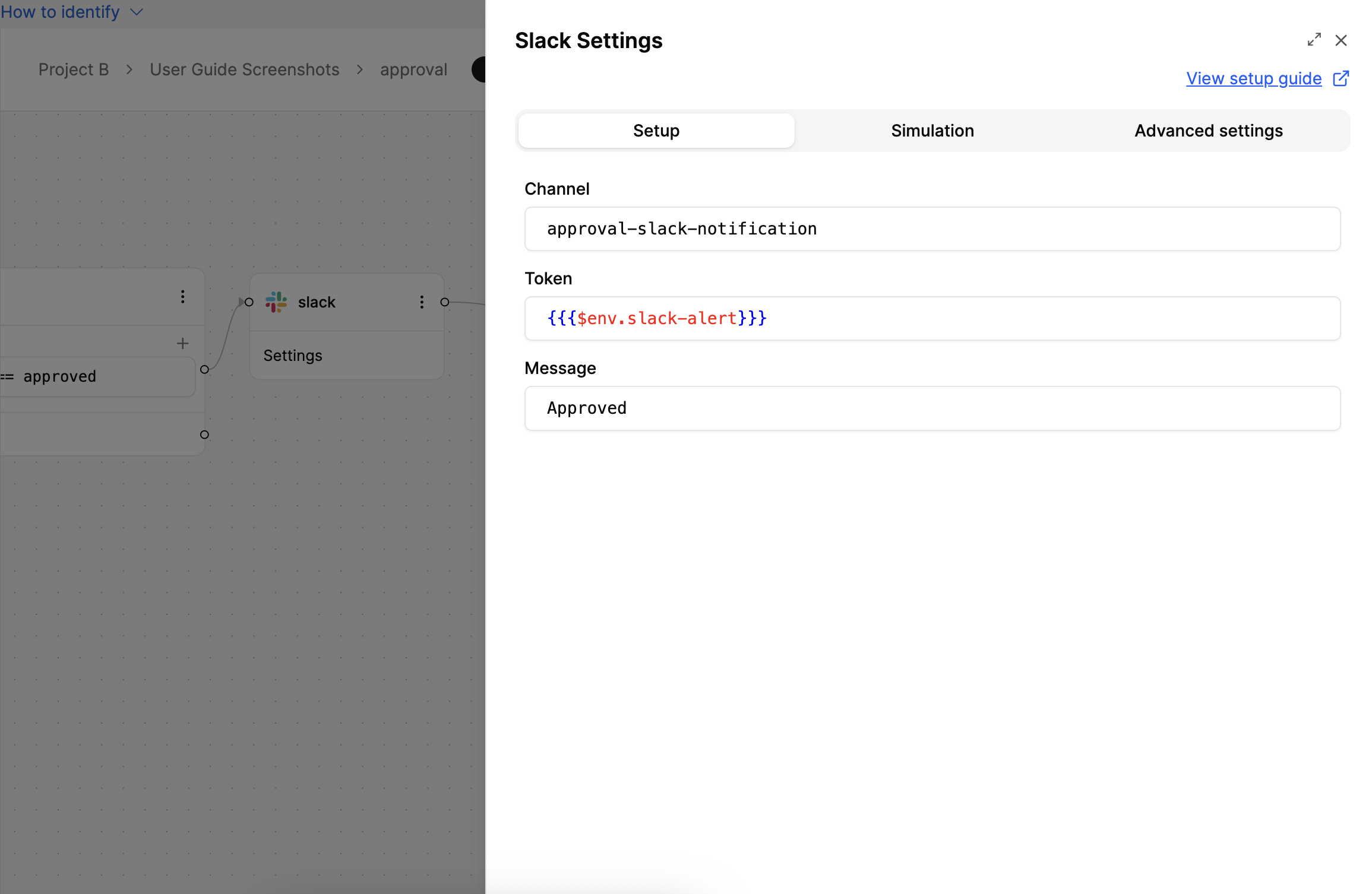
When to Use It?
Use Slack Node when:
- You want to notify your team of workflow events (e.g. approvals, errors, submissions).
- You are automating internal operations and want real-time visibility.
- You want to streamline communication and reduce reliance on email for internal alerts.
Tip: Use dynamic variables in your message (e.g. {{{input.name}}}, {{{output.status}}}) to personalise and contextualise Slack updates.
