Email (Trigger)
Beta Feature: This node is currently in beta. Features and functionality may be subject to changes.
Auto-Forward Inbox Rules: If you set up an auto-forward inbox rule (e.g. Exchange or Gmail) to forward emails to the provisioned email address, please ensure:
1. The provisioned email address is correct — an incorrect address will cause every forwarded email to fail, triggering error notifications back to your mailbox.
2. The rule has specific conditions (e.g. filter by sender, subject, or folder) — a rule without conditions will forward every email in your mailbox, including error notifications sent back by the system, which may cause unintended behaviour.
The Email Trigger Node enables your workflow to start automatically when an email is received at a provisioned email address. When someone sends an email to the trigger address, the workflow is invoked with the email content — including subject, body, recipients, and any attachments — as the workflow input.
How Does It Work?
The Email Trigger Node provisions a unique email address for your workflow. When an email is sent to this address, the system parses the email and starts a new workflow execution with the parsed email data as input.
Setup Steps:
- Click on Select Input
- Choose Email as the trigger node
- Open the trigger node Settings to view the provisioned email addresses
- Copy the Staging Email Address or Production Email Address depending on your environment
- Use this email address as the recipient (“To” field) in the system or process that should trigger your workflow
- Publish your workflow in OPUS to activate the email trigger
- Each email sent to the provisioned address will now trigger the workflow automatically
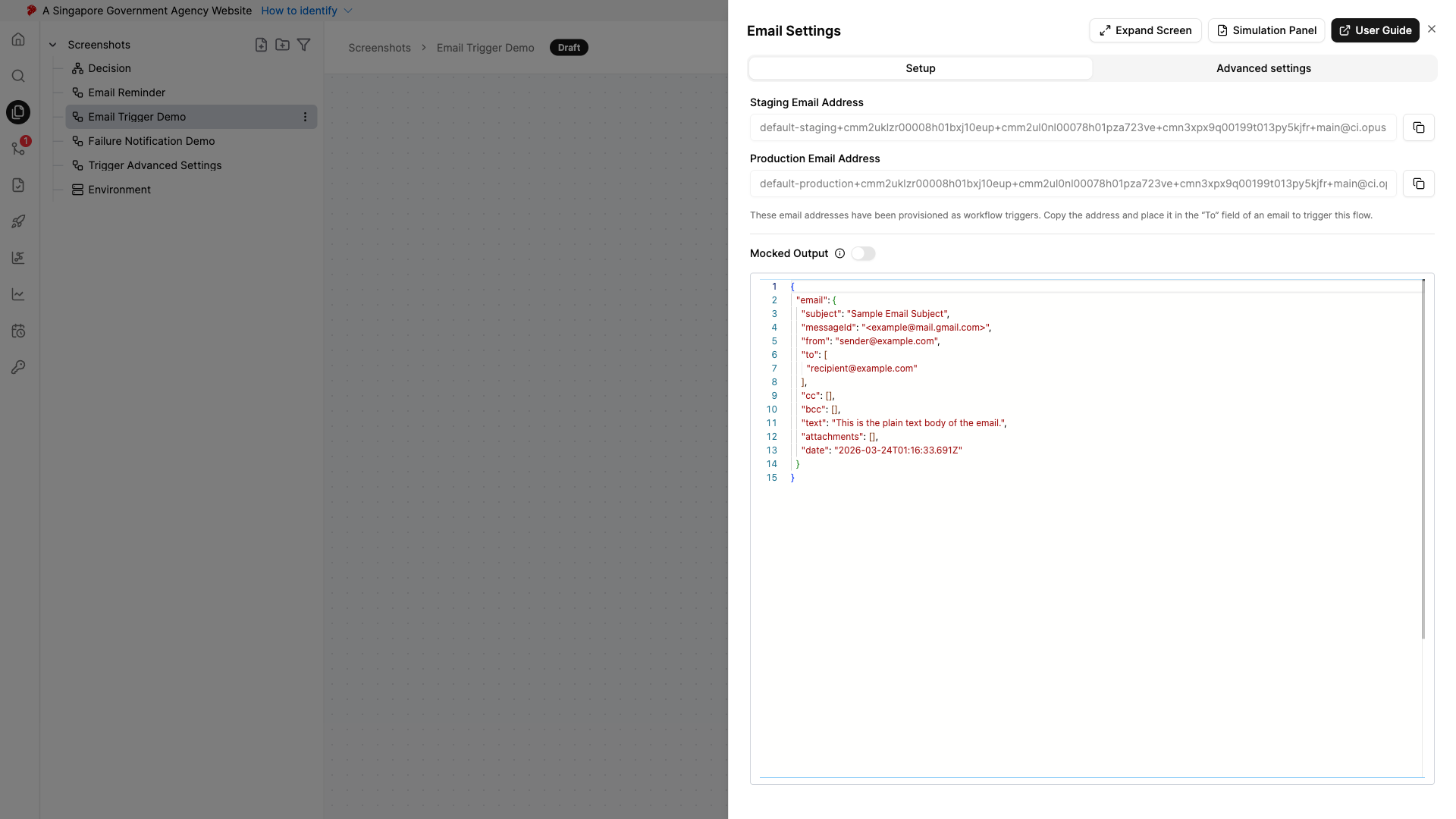
Email Addresses
The trigger node provisions unique email addresses for each environment:
- Staging Email Address: Used for testing in the staging environment
- Production Email Address: Used for live production workflows
Copy the email address and place it in the “To” field of an email to trigger the workflow.
Email Address Format:
{prefix}+{namespace}+{project}+{workflow-id}+{branch}@{domain}Each segment is sanitised (lowercased, special characters replaced with hyphens) to form a valid email address.
Output
When an email is received, the Email Trigger Node outputs the parsed email data in the following structure:
{
"email": {
"subject": "Sample Email Subject",
"messageId": "<example@mail.gmail.com>",
"from": "sender@example.com",
"to": ["recipient@example.com"],
"cc": [],
"bcc": [],
"text": "This is the plain text body of the email.",
"attachments": [
{
"filename": "photo.jpeg",
"contentType": "image/jpeg",
"size": 179761,
"base64Content": "dGhpcyBpcyBhbiBpbWFnZSBmaWxl"
},
{
"filename": "letter.pdf",
"contentType": "application/pdf",
"size": 73927,
"base64Content": "dGhpcyBpcyBhbiBwZGYgZmlsZQ=="
}
],
"date": "2026-03-20T10:30:00.000Z"
}
}Output Fields:
| Field | Type | Description |
|---|---|---|
email.subject |
String | The email subject line |
email.messageId |
String | The unique message ID assigned by the email server |
email.from |
String | The sender’s email address |
email.to |
Array | List of recipient email addresses |
email.cc |
Array | List of CC recipient email addresses |
email.bcc |
Array | List of BCC recipient email addresses |
email.text |
String | The plain text body of the email |
email.attachments |
Array | List of file attachments (see below) |
email.date |
String | ISO 8601 timestamp of when the email was sent |
Attachment Fields:
| Field | Type | Description |
|---|---|---|
filename |
String | The name of the attached file |
contentType |
String | The MIME type of the file (e.g., image/jpeg, application/pdf) |
size |
Number | The file size in bytes |
base64Content |
String | The file content as a base64-encoded string |
Downstream nodes can access the email data using template expressions (e.g., {{{ data.email.subject }}}, {{{ data.email.from }}}, {{{ data.email.attachments.[0].filename }}}).
Mock Output
The Email Trigger Node supports mock output for simulation. When mock output is enabled, the node uses the configured mock data instead of waiting for an actual email. This allows you to test your workflow without sending real emails.
The default mock output includes sample email data with subject, body, recipients, and example attachments. You can customise the mock data to match your expected email format.
When to Use It?
Use Email Trigger Node when:
- You need to start a workflow based on incoming emails (e.g., support requests, notifications, approvals).
- You want to process email attachments automatically (e.g., extracting data from attached documents).
- You are integrating with systems that send notifications via email and want to automate downstream actions.
- You need a simple trigger mechanism that doesn’t require webhook configuration — just send an email.
Tip: Combine with Function Nodes to parse email body content, or use the AiSay Node to extract structured data from email attachments.
