Decision Table
The Decision Table Node provides a user-friendly, spreadsheet-like interface for managing decision logic. It structures rules into rows and columns, where each row represents a rule combining input conditions and output actions. This visual approach allows business users to author and maintain decision logic without writing code.
How Does It Work?
Setup Steps:
- Build your workflow using Graph Edit Mode (minimum setup: input node → decision table node → output node, but you can add more nodes as needed)
- Click on the decision table node settings to open its configuration
- Configure the following data:
- Define the table schema (see Decision Table Editor section for details on the schema editor):
- Select the Hit Policy (top-right corner):
- First: Returns a single result—the first matching rule’s output
- Collect: Returns an array of outputs from all matching rules
Output:
The Decision Table Node returns results based on the configured hit policy.
- First policy: Returns a single object containing the output from the first matching rule, or null/undefined if no rules match. For example (see Income Tax Computation).
- Collect policy: Returns an array of output objects from all matching rules, or an empty array if no rules match. Using the Income Tax Computation example, if we select Collect policy with an input of
income: 10000, the decision table evaluates the rules and returns:
{
"results": [
{
"tax": 200
},
{
"tax": 350
},
{
"tax": 2800
},
{
"tax": 2300
},
{
"tax": 0
}
]
}These results can be referenced in subsequent nodes for further processing or decision-making using the field names (e.g. results, etc.)
Decision Table Editor
The editor is organised into three main areas: Inputs (condition columns), Outputs (result columns), and Rules (data rows). Together, these components form a complete decision table that evaluates input data against defined rules and returns corresponding outputs.
Editor Tools
Basic
- Insert Left or Right: Click on any cell and a new column will be added to the left or right of the selected cell
- Remove column: Click on any cell and the column containing the selected cell will be deleted
- Insert Above or Below: Click on any cell and a new row will be added above or below the selected cell
- Remove row: Click on any cell and the row containing the selected cell will be deleted
Excel Support
- Export to Excel: Use the table menu to download the decision table as a Excel file that can be opened and edited in Microsoft Excel
- Import from Excel: Use the table menu to upload a Excel file, select your file, and import it to update the decision table
Notes:
- CSV files follow a specific format with metadata in the headers. Avoid modifying headers unless you are familiar with the structure.
Authoring Schema
Inputs:
Use Expression Syntax to define business logic, supporting conditions like comparisons, booleans, dates, and array evaluations.
Each row represents a potential rule, evaluated from top to bottom, following a specified hit policy. Within a row, input conditions are processed from left to right, with each column acting as an AND condition. If any cell within a row throws an error or fails during evaluation, that entire row is skipped.
If any cell within a row throws an error or fails during evaluation, that entire row is skipped.
Outputs:
Define the structure and values that should be returned when a rule is triggered.
Notes:
- Deleting a column will erase its data from all rows. You can recover from version history if needed.
- It is a good practice to leave the last row with empty inputs, which acts as a default value.
Hit Policy
Decision Tables support two hit policies:
First (F):
- Returns the output of the first matching rule
- Evaluation stops after the first match
- Use when you want a single, definitive result
Collect (C):
- Returns outputs from all matching rules
- Evaluates all rules even after finding matches
- Results are collected in an array
- Use when you need to apply multiple rules
Rules are evaluated top to bottom, and the conditions within a rule are evaluated from left to right with an (AND logic).
Examples
Income Tax Computation
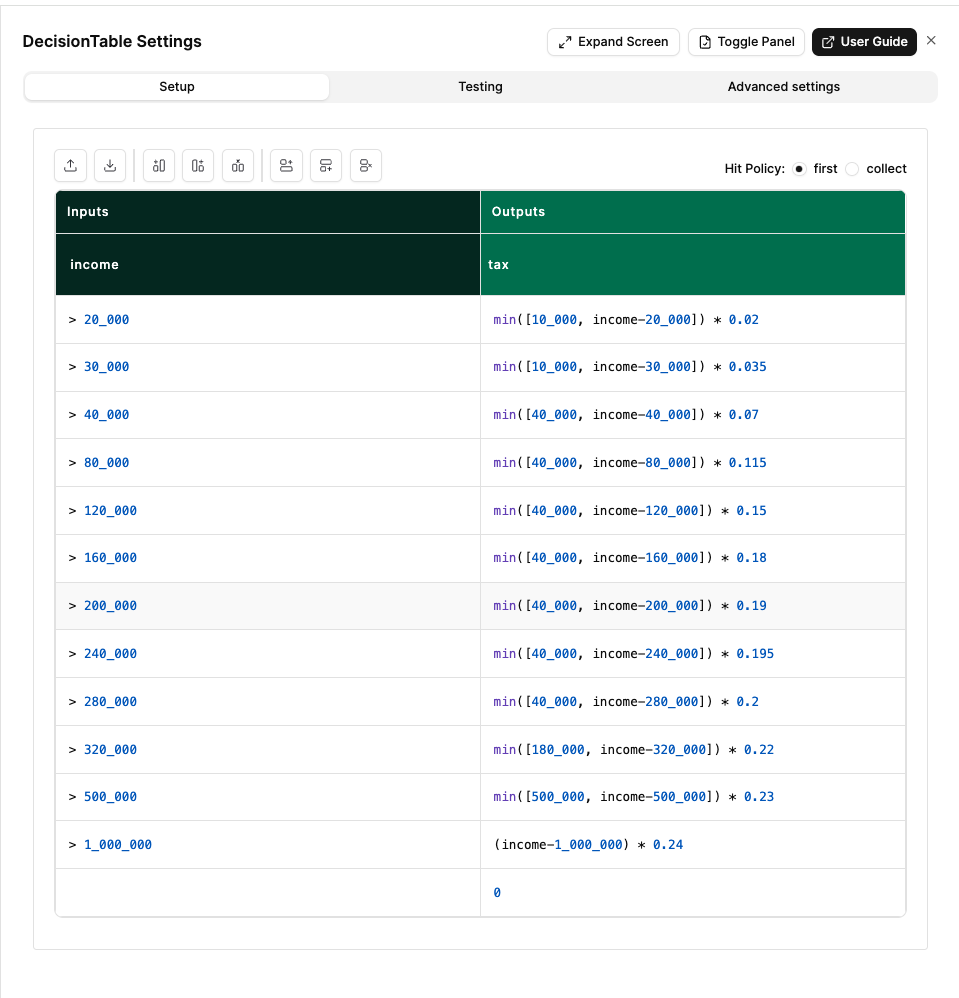
This example demonstrates how to use a Decision Table to calculate income tax based on income thresholds. The table uses the input field income to evaluate multiple tax bracket rules and returns the computed tax as output.
How it works:
- Input: The decision table receives an
incomevalue - Rules: Each row defines a tax bracket with conditions and corresponding tax amounts
- Output: Returns the calculated
taxbased on which rule matches the income
For an input of income: 10000:
{
"income": 10000
}The decision table evaluates the rules and returns:
{
"results": {
"tax": 200
}
}Note: The tax rates and brackets shown in this example are for illustration purposes only and do not represent actual tax calculations.
When to Use It?
Use Decision Table Node when:
- You need to define clear, repeatable decisions based on multiple conditions.
- You want to separate business logic from code and workflow.
- Your rules are data-driven and follow an if-then pattern.
- You want non-technical users (e.g. policy officers) to view or maintain the rules.
- You aim to maintain a single source of truth across multiple systems.
- You need to process multiple items through the same decision logic using loop mode.
