Access Token Management
Access tokens are used to authenticate and authorize API requests to OPUS workflow and decision automation endpoints. They enable external systems to trigger and interact with your published workflows and decisions programmatically.
Access tokens are required when:
- Calling workflow or decision APIs from external applications
- Integrating OPUS automation with third-party systems
- Triggering workflows programmatically via HTTP requests
- Accessing OPUS endpoints from scripts or applications
Token Types
OPUS provides two types of access tokens based on scope:
Workspace Tokens
Workspace tokens provide access to all projects within a workspace. These tokens can execute any workflow or decision across all projects in the specified environment.
Project Tokens
Project tokens are scoped to a specific project and can only execute workflows and decisions within that particular project. These tokens provide more granular access control and are recommended when integrations only need access to specific projects.
Environments
Both token types are available in two environments:
| Environment | Purpose | Usage |
|---|---|---|
| Staging | Testing and development | Use for testing workflows and decisions in the staging environment before production deployment |
| Production | Live operations | Use for production workflows and decisions after release management |
Security Note: Access tokens provide authentication to your automation endpoints. Keep them secure and rotate them regularly. Never commit tokens to version control or share them publicly.
Generating Access Tokens
Permissions: Only Administrators can generate Workspace tokens. Developers can generate project tokens for projects they have access to.
Generating Workspace Tokens
Workspace tokens provide access to all projects within your workspace:
- Navigate to Settings
- Choose Workspace Access Token
- Select either the Staging or Production tab
- Click Create Token
- Select Workspace Token as the token type
- Enter a Token Name to identify the token (required, up to 30 characters — e.g.,
payments-integration,nightly-batch) - Copy the generated token immediately (it will only be displayed once)
- Store the token securely in your application configuration
Generating Project Tokens
Project tokens are restricted to a specific project:
- Select the project from the project list
- Click Access Token from the sidebar
- Select either the Staging or Production tab
- Click Create Token
- Enter a Token Name to identify the token (required, up to 30 characters)
- Copy the generated token immediately (it will only be displayed once)
- Store the token securely in your application configuration
Important: Access tokens are valid for 180 days from the date of creation.
Note: Access tokens are only displayed once upon generation. If you lose a token, you must regenerate a new one.
Tip: Use a meaningful, distinct name for each token (e.g., the integration or system that will consume it). The name appears in the token list, in expiry reminder emails, and stays the same when you rotate the token — making it easy to track which integration owns which token over time.
Managing Access Tokens
Viewing Active Tokens
Viewing Workspace Tokens
- Navigate to Settings
- Choose Workspace Access Token
- Select either the Staging or Production tab
- View the list of active workspace tokens for the selected environment
- Each token displays:
- Token name
- Creation date
- Expiry date (180 days from creation)
- Created by
- An Expiring badge when the token is within 30 days of its expiry
Viewing Project Tokens
- Select the project from the project list
- Click Access Token from the sidebar
- Select either the Staging or Production tab
- View the list of active project tokens for the selected environment
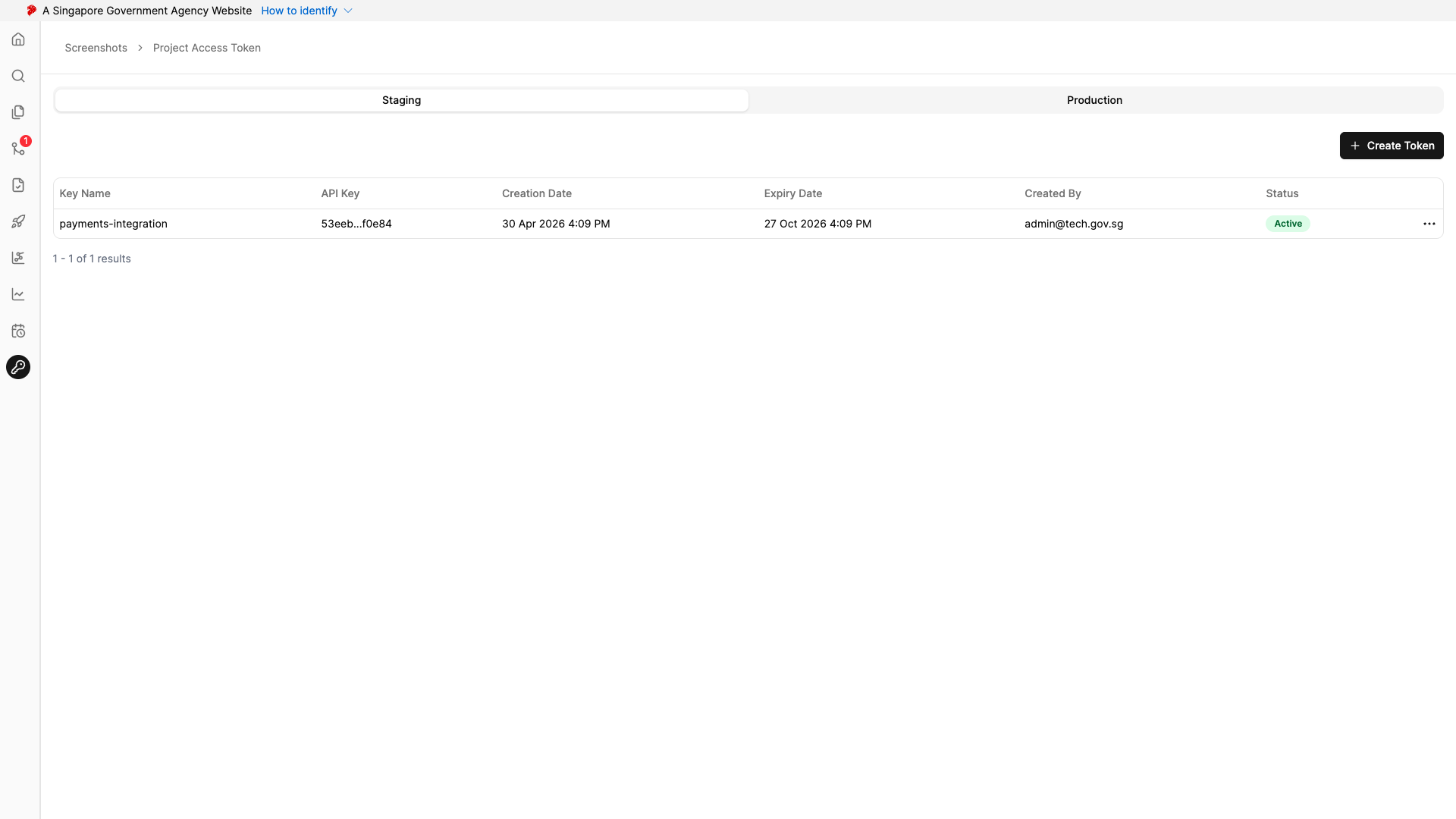
- Each token displays:
- Token name
- Token type (Project)
- Creation date
- Expiry date (180 days from creation)
- Created by
- An Expiring badge when the token is within 30 days of its expiry
Rotating Tokens
Rotation lets you generate a fresh token without immediately breaking integrations that still use the previous one. The old and new tokens share the same name and group together in the token list, so you can track them as one logical credential.
To rotate a token:
- Open the token list (workspace or project, depending on the token’s scope).
- Locate the token you want to rotate.
- Click Rotate next to the token.
- Confirm the action — a brand new token string is generated. Copy it immediately (it will only be displayed once) and update your integration to use it.
What happens during rotation:
- A new token is generated with a fresh 180-day expiry. It inherits the original token’s name.
- The old token remains valid for up to 7 days (or until its original expiry, whichever comes first), giving you a grace period to update your integrations.
- Once the grace period ends, the old token stops accepting requests.
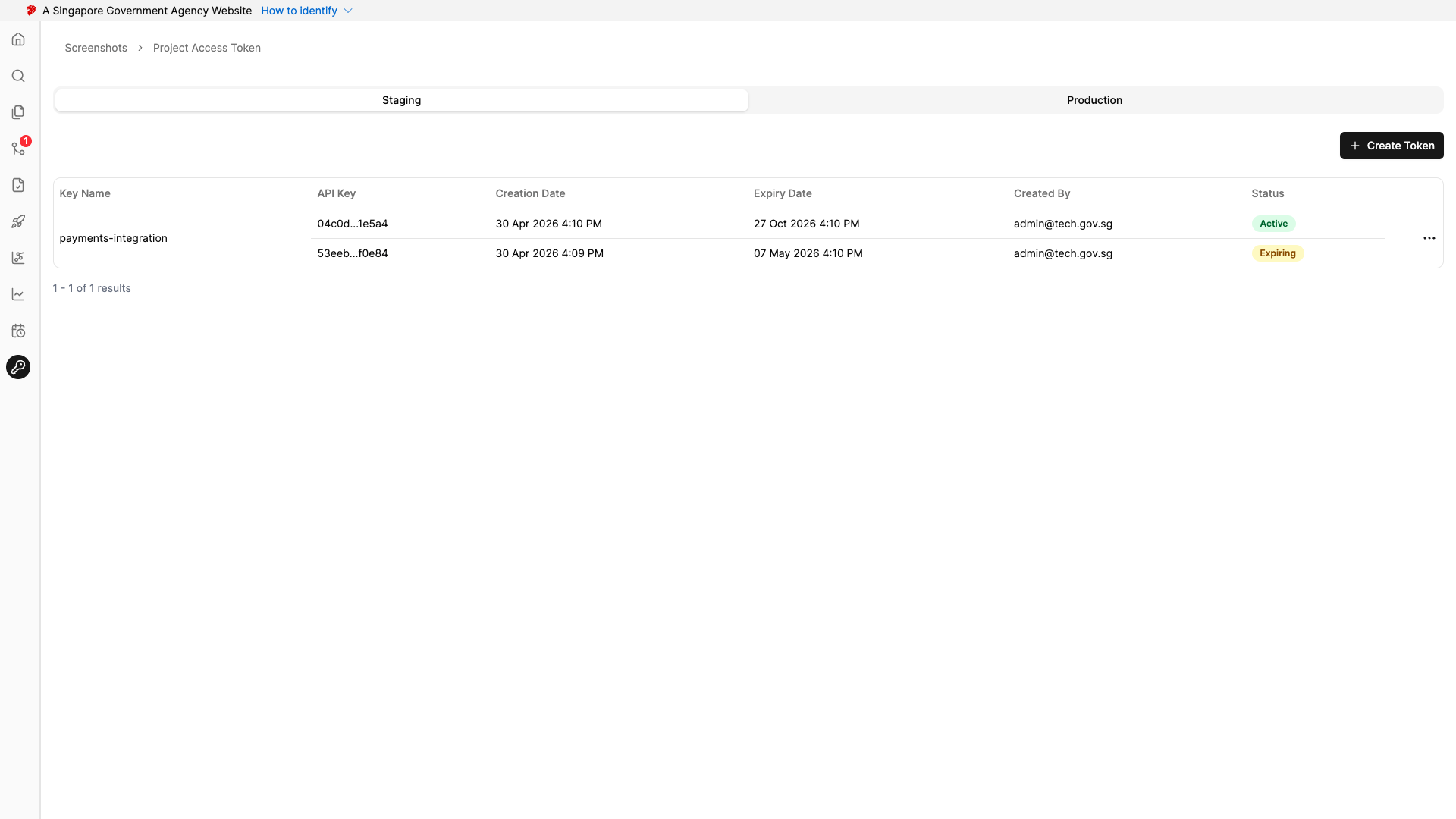
Important: The rotation grace period caps at 7 days but never extends past the old token’s original expiry. If the old token would have expired sooner, the grace period is shortened accordingly — rotate before a token reaches its final week to get a full 7-day overlap.
Tip: Rotate tokens regularly as part of your security hygiene, and immediately if you suspect a token has been exposed. Update consumers to the new token as soon as you rotate so they pick up the change well within the grace window.
Deleting Tokens
Deleting Workspace Tokens
- Navigate to Settings
- Choose Workspace Access Token
- Select either the Staging or Production tab
- Locate the token you want to delete
- Click Delete next to the token
- Confirm the deletion
Deleting Project Tokens
- Select the project from the project list
- Click Access Token from the sidebar
- Select either the Staging or Production tab
- Locate the token you want to delete
- Click Delete next to the token
- Confirm the deletion
Warning: Deleting a token will immediately block all API requests using that token. Ensure no active integrations depend on the token before deleting.
Note: To replace a token without an outage, prefer Rotation — it provides a 7-day grace period during which both the old and new tokens are valid. Use deletion only when you need to revoke access immediately.
Expiring Token Reminders
OPUS automatically sends reminder emails as your access tokens approach expiry, so you have time to rotate them before integrations break.
What you’ll receive:
- An email reminder once a token is within 30 days of expiry, with the subject
[Action Required] OPUS access token expiring soon in workspace: {workspace name}. - While a token remains in the 30-day window, reminders are sent weekly (rather than daily) to reduce inbox noise until you rotate or delete it.
- A summary table listing each expiring token’s name, type (Project or Workspace), project (if project-scoped), environment (Staging or Production), and expiry date.
Who is notified:
- The token creator receives the reminder.
- Workspace administrators are CC’d so they have visibility over expiring credentials across the workspace.
Note: Reminders are sent automatically and cannot be turned off. To avoid receiving them, rotate or delete tokens before they enter the 30-day window.
Using Access Tokens
Access tokens are used to authenticate API requests when executing workflows and decisions programmatically. Once you have generated a token, you can use it to trigger your automation endpoints.
Executing Workflows and Decisions
For detailed information on executing workflows and decisions via API, including:
- Complete API endpoint specifications
- Request/response formats
- Branch and version parameters
- OpenAPI documentation
See the Execution guide for comprehensive API usage instructions.
Best Practices
- Use Environment-Specific Tokens: Always use staging tokens for testing and production tokens for live operations
- Choose Appropriate Token Scope: Use project tokens when integrations only need access to specific projects to minimize security exposure
- Use Workspace Tokens Sparingly: Only use workspace tokens when you need access across multiple projects
- Rotate Regularly: Use Rotation periodically as part of your security practices — it issues a fresh token while keeping the old one valid for up to 7 days, so you can swap consumers over without an outage
- Secure Storage: Store tokens in secure configuration management systems or environment variables
- Monitor Usage: Regularly review token usage to identify unauthorized access
- Revoke Unused Tokens: Remove tokens that are no longer needed to minimize security risks
- Separate Tokens: Use different tokens for different integrations to maintain granular control
