Configure Workflow Nodes
Prerequisites:
- Configure Workflow Input: You must complete the workflow input configuration before adding and configuring workflow nodes. The input node serves as the entry point for your workflow.
After configuring your workflow input, build your workflow by adding and connecting nodes on the canvas. Each node performs a specific action. For the full list of available nodes, see Nodes.
Setup
Configure the node-specific fields. Refer to the individual node guides for field descriptions.
Referencing Data with the Field Selector
Templated fields (text and JSON inputs) let you insert references to data from upstream nodes and environment variables. Opening the field selector on one of these fields brings up a popup with two sections:
- Incoming Request — the fields and variables available from previous nodes, shown as an expandable tree.
- Environment Variables — the environment variables defined for the project.
Search: Use the Search fields & variables… box in the field selector to quickly find the field or variable you need. The search filters both sections at once — matching on field/variable names (and leaf values) — highlights the matches, and automatically expands branches that contain a match.
Tip: Run a simulation first so the field selector is populated with real fields discovered from your node outputs.
Advanced Settings
The Advanced Settings section allows you to control how data is received, processed, and validated within the node. These settings are optional — you do not need to configure them for the node to function.
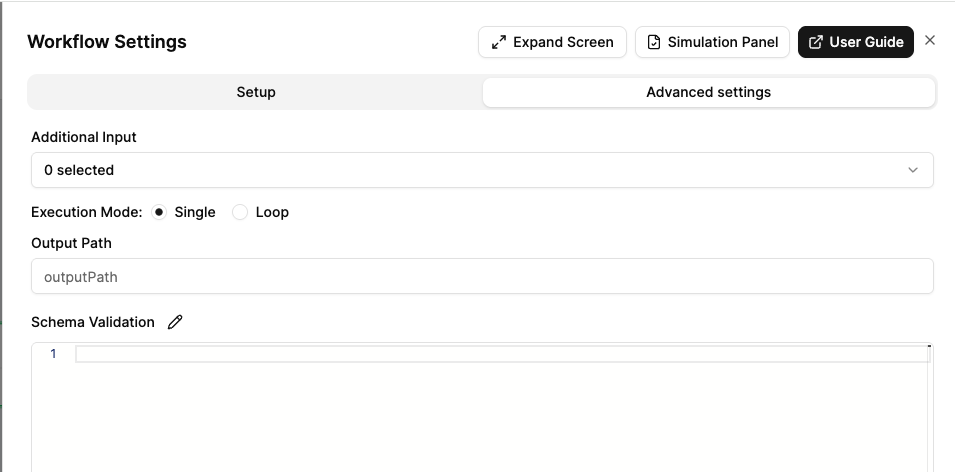
Additional Input
Use this option to bring in values from upstream nodes that aren’t directly linked.
- When nodes are connected, inputs are passed automatically.
- When not connected directly on the graph, you can manually specify which node to reference data from.
- This allows flexibility in referencing values across conditional branches or parallel flows.
Note: Additional Input is available for all non-trigger nodes in workflows.
Execution Mode (Loop)
This setting only applies to nodes that support looping. You can choose between:
- Single (default): Execute the node once with the full input data.
- Loop: Execute the node multiple times, once for each item in an array.
When Loop mode is enabled:
- Input Path: Specify the path to the array in the input data (e.g.,
orders). - Output Path: Specify where to store the collected results (e.g.,
results.processed).
Each array item is processed individually, and results are aggregated back into the output path.
Output Path
Customise where the output values are stored in the data context:
- Define the path where this node’s output should be placed eg.
results. - Useful for organising data structure when multiple nodes produce outputs.
- These can then be referenced by downstream nodes (e.g.,
{{{results.apiResponse}}}).
Schema Validation
Define a JSON schema to validate the node’s output:
- Write a JSON schema that the output must conform to.
- If validation fails, the node execution will fail with a validation error.
- Useful for ensuring data integrity in critical workflow steps.
Next Steps
Once you’ve configured your workflow nodes:
- Test Your Workflow - Test your complete workflow with sample data before deploying to the staging environment.
