Quick Start for Developers
Prerequisite: Access to the platform requires a valid TechPass account. Ensure you have a valid email address associated with TechPass before proceeding.
This guide will help you get started with Opus as a developer. Follow these steps to onboard and start building workflows and decisions.
Step 1: Request Access
Contact your organization’s Opus administrator to invite you to their workspace and assign you to a project with the appropriate role (Editor or Viewer).
If your organization doesn’t have one, you can sign up for your own workspace. Refer to the administrator guide.
Step 2: Login to Opus
Important: Refer to the welcome email from the Opus team.
If you are invited to a workspace and have your TechPass account:
- Navigate to the Opus portal
- Log in via TechPass
- Dashboard would display projects that you have access to
- Click on a project to start working
Note: If you don’t see any projects after logging in, contact your Administrator to verify your project assignment.
Step 3: Start Building
Choose what you want to build based on your automation needs:
Workflow Overview - Create automated processes that connect multiple steps and integrate with external systems.
Decision Overview - Define business rules and logic for decision-making that can be applied consistently.
Optional: Connect Your Personal Platform AI Key
To use the Function node’s Coding Assistant, you must connect your own Platform AI credential. The Coding Assistant calls Platform AI using your personal key — without one, the assistant cannot generate code and will prompt you to add a credential.
Scope: The Personal Platform AI Key is per-user — it is stored against your account and is not shared with your workspace, project, or teammates.
Setup Steps:
- From the dashboard, open Personal → Settings → My Credentials.
- Click to add a credential and select Platform AI as the credential type.
- Paste your Platform AI API key and save.
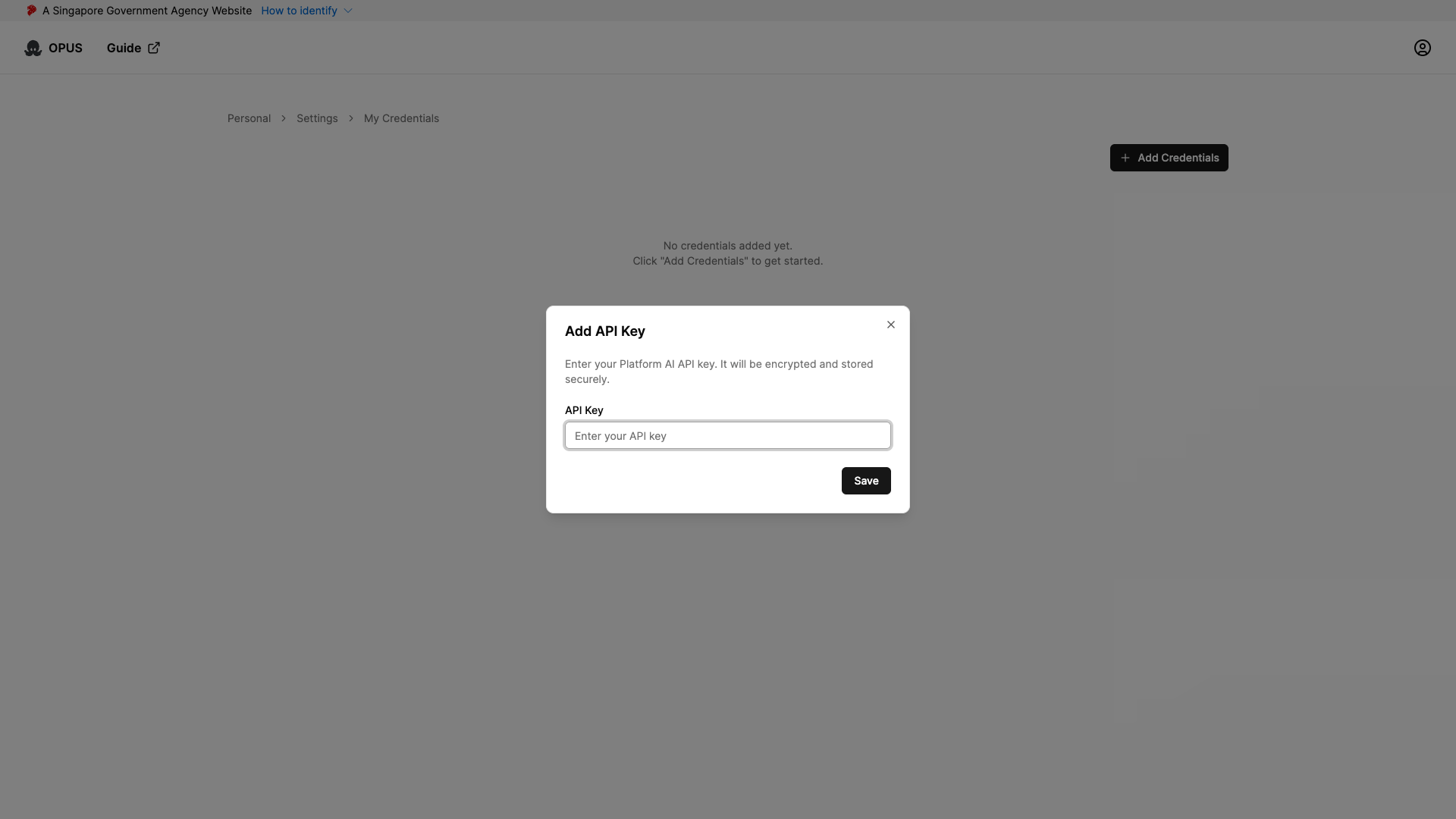
Note: Ensure the Platform AI API key you generate has access to all available models. Keys scoped to a subset of models may cause the Coding Assistant to fail when it routes requests to a model your key cannot access.
- Once saved, the key is stored encrypted; only a truncated preview is shown in the UI.
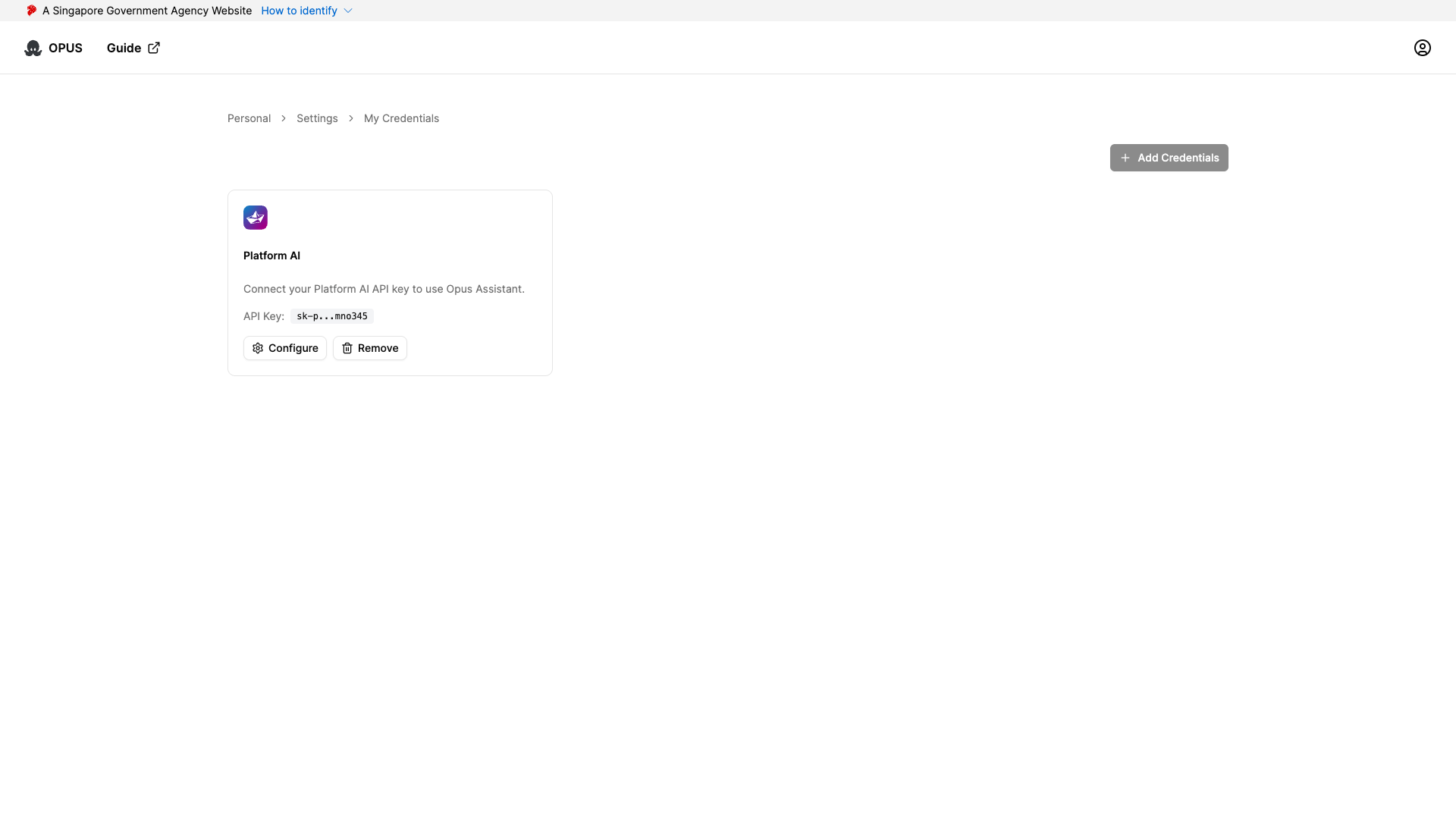
To update or remove the key, return to My Credentials and edit or delete the entry.
Note: This personal key powers the Function node Coding Assistant. The AI Models Node takes its own API key per node instance, so connecting a personal key here does not configure that node automatically.
Next Steps
Once you’ve built your workflows and decisions:
- Testing: Learn how to test in staging before production deployment
- API Execution: Learn how to execute workflows and decisions via API endpoints
- Monitoring: Learn how to monitor and debug your automations
