Creating the excel template for generating the sidecar file.
Once you have successfully created and saved your template, you will need to update the excel template in order to use the template for document issuance.
Step 1
Copy the template ID for the selected template that you want to use.

Step 2
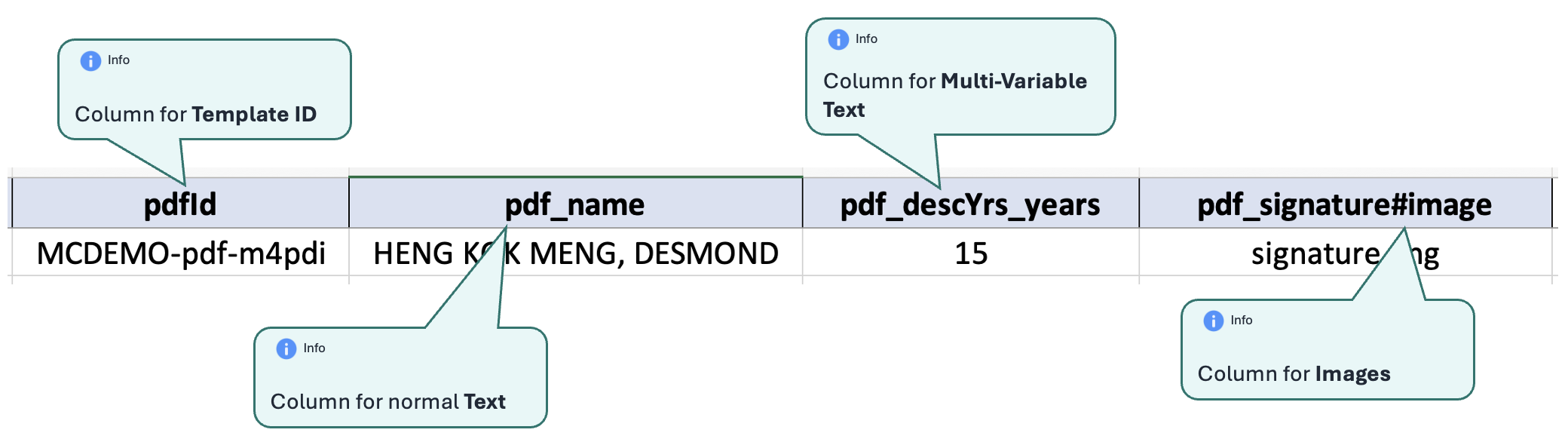
There are generally 4 types of columns that you will need to update into the excel template (depending on the type and number of components that you added when creating your template).
- pdfId : This is used to hold the TEMLPATE ID that you want to use
- pdf_name of TEXT component : Prefix the name of the TEXT components in your template with pdf_ and add 1 column for each TEXT component.
- e.g. if your text component is called name, then the column name will be pdf_name
- pdf_name of MULTI-VARIABLE TEXT component_VARIABLE_NAME : Prefix the name of the TEXT components in your template with pdf_ and add 1 column for each MULTI-VARIABLE TEXT component and each VARIABLE in the multi-variable text.
- e.g. if your multi-variable text component is called descYrs and the variable within is called years, then the column name will be pdf_descYrs_years
- pdf_name of IMAGE component#image : Prefix the name of the IMAGE components in your template with pdf_ and add a suffix of #image to it, and add 1 column for each IMAGE component
- e.g. if your image component is called signature, then the column name will be pdf_signature#image.