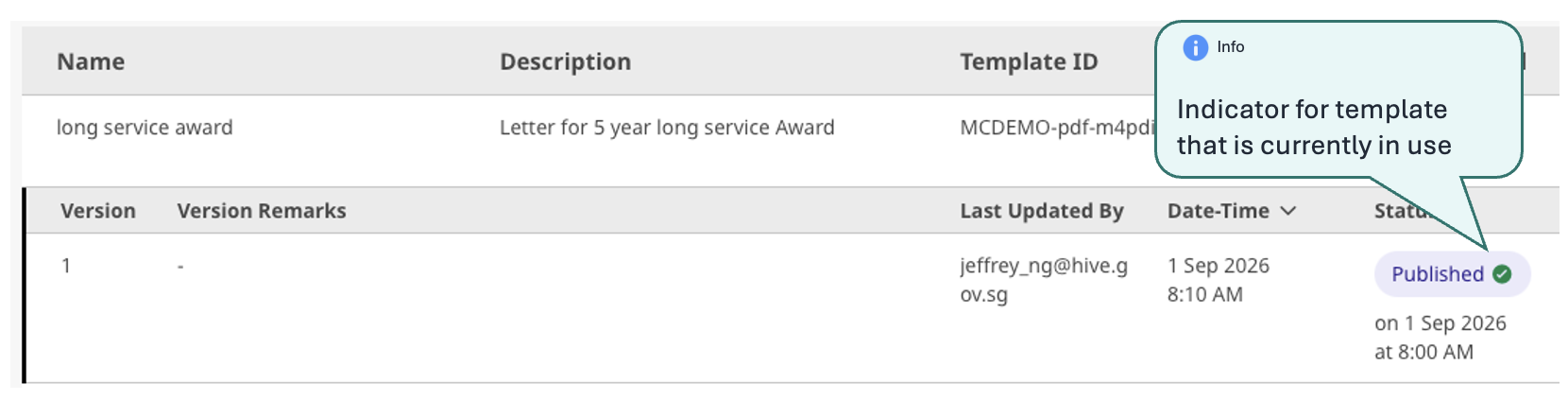
Creating your first template.
The PDF Designer enables you easily create documents such as certificates, letters and digital passes.
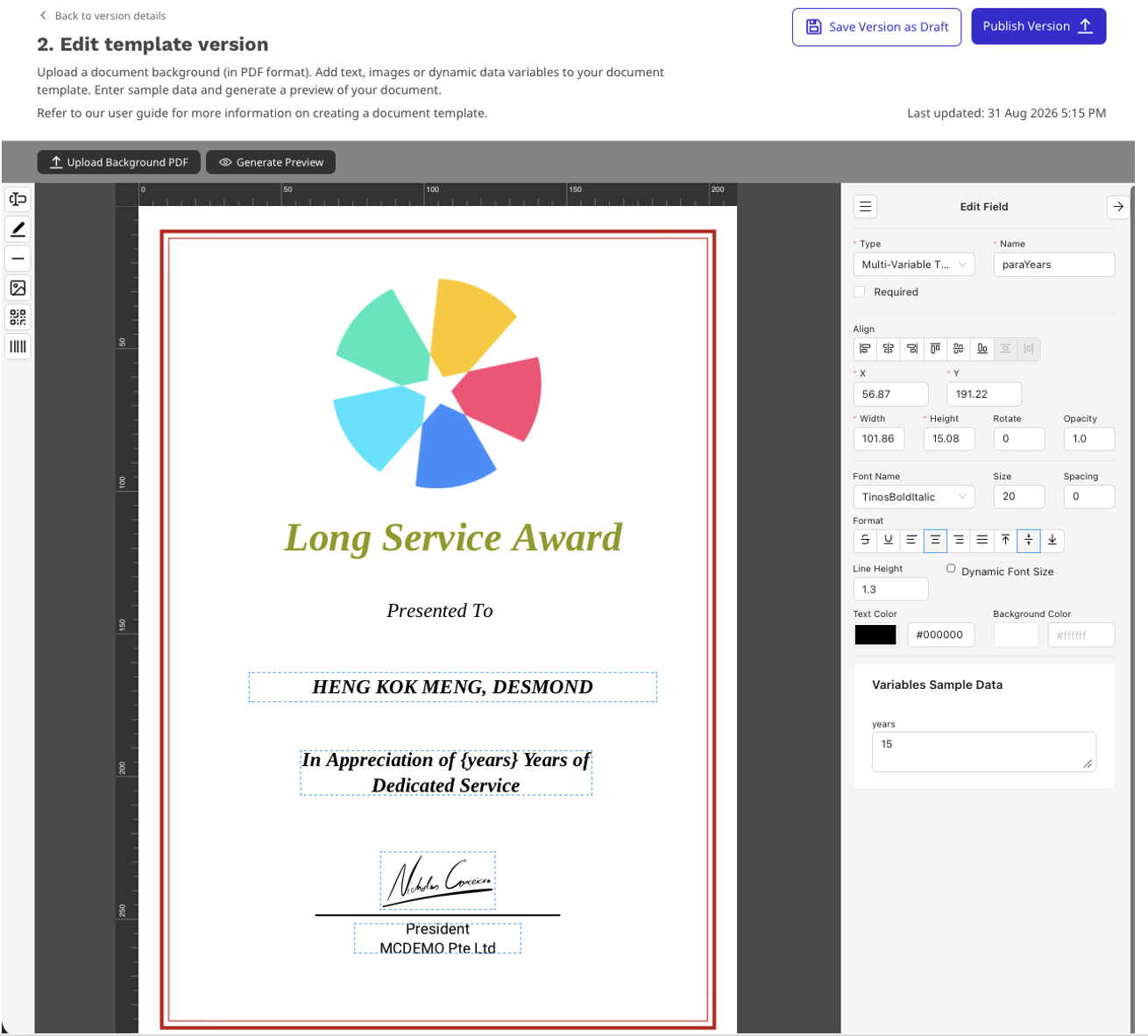
Step 1
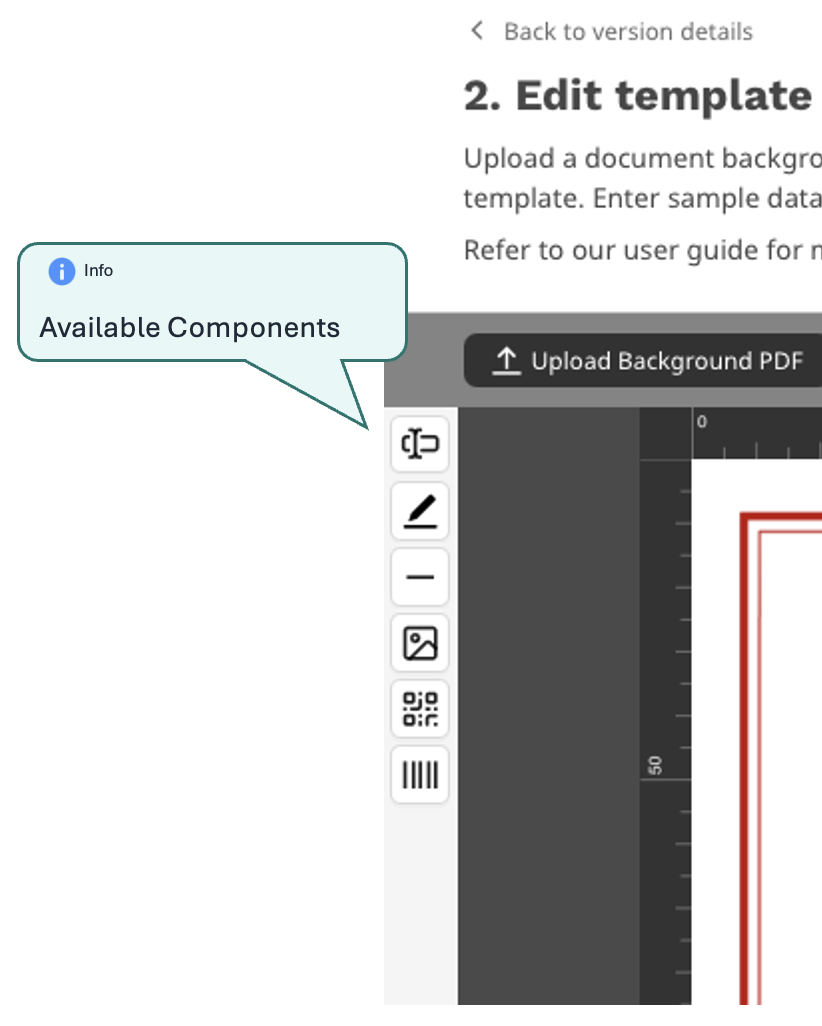
Upload a base PDF for use with your document. Once done, you can start to add the text/image components onto the template. A list of available components is as follows:
- Text
- Multi-Variable Text
- Horizontal Line
- Image
- QR Code
- Barcode
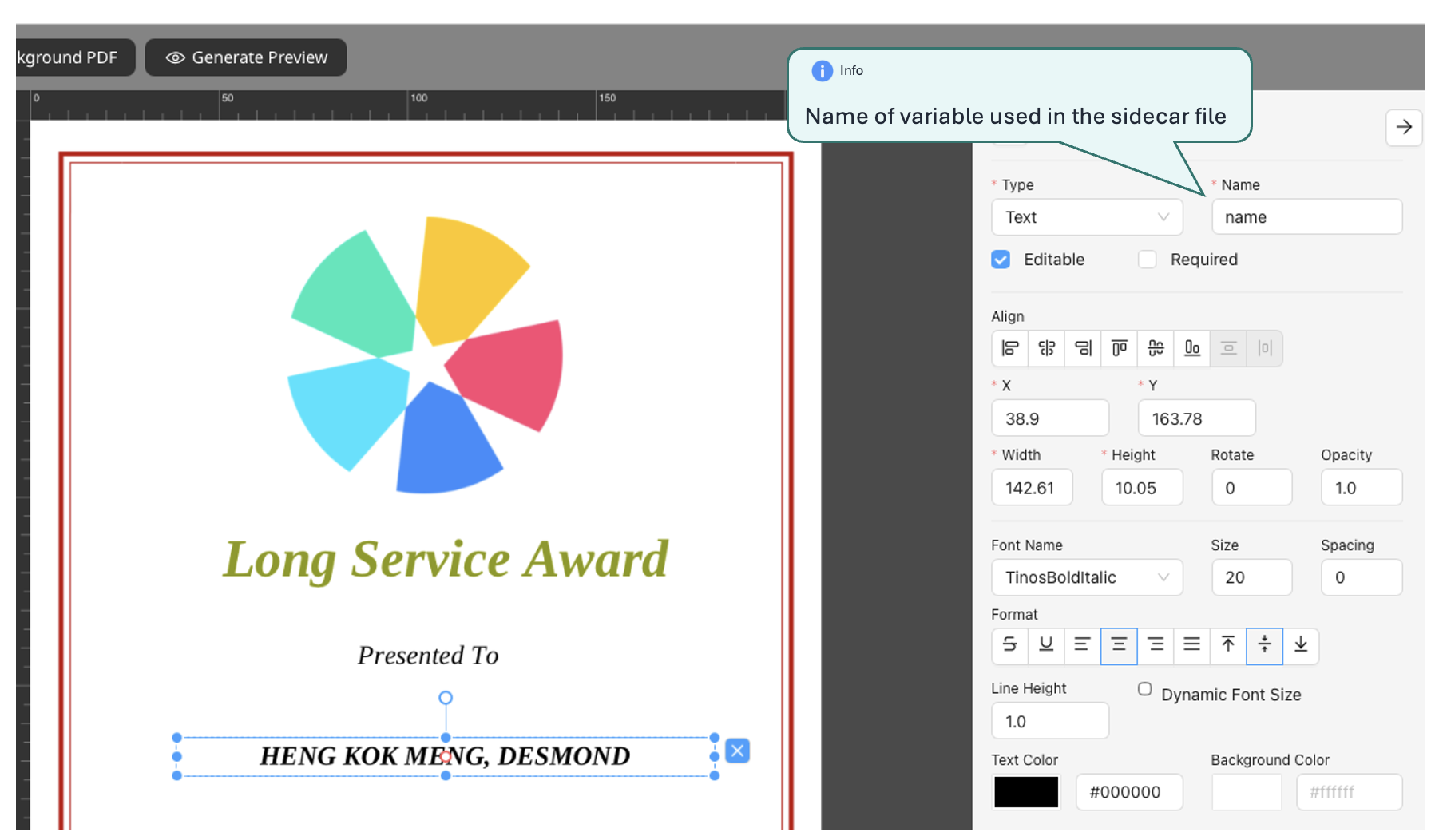
Step 2
Adding a text variable. Text can be either static or dynamic.
Step 3
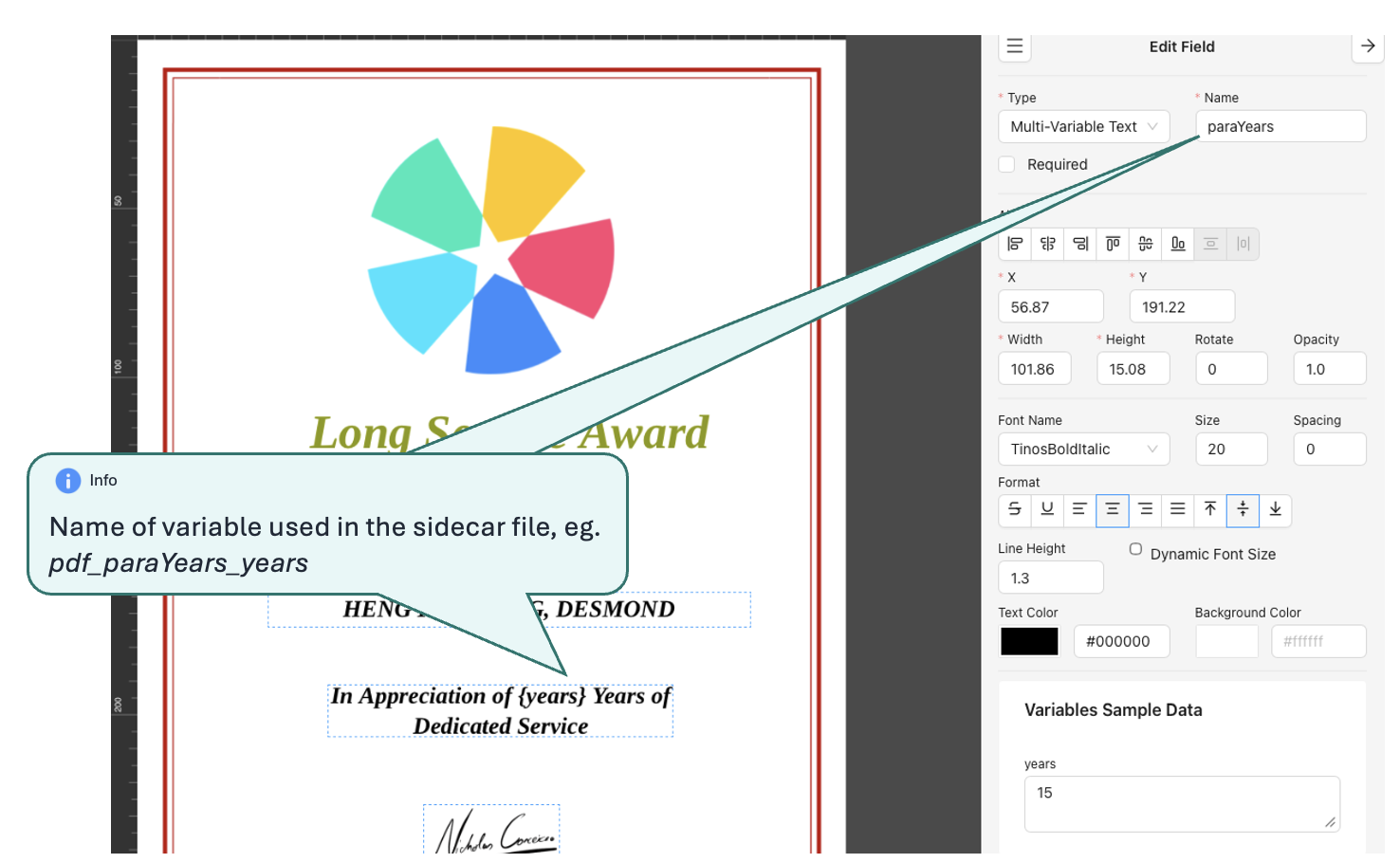
Adding a dynamic text variable as part of a paragraph.
Step 4
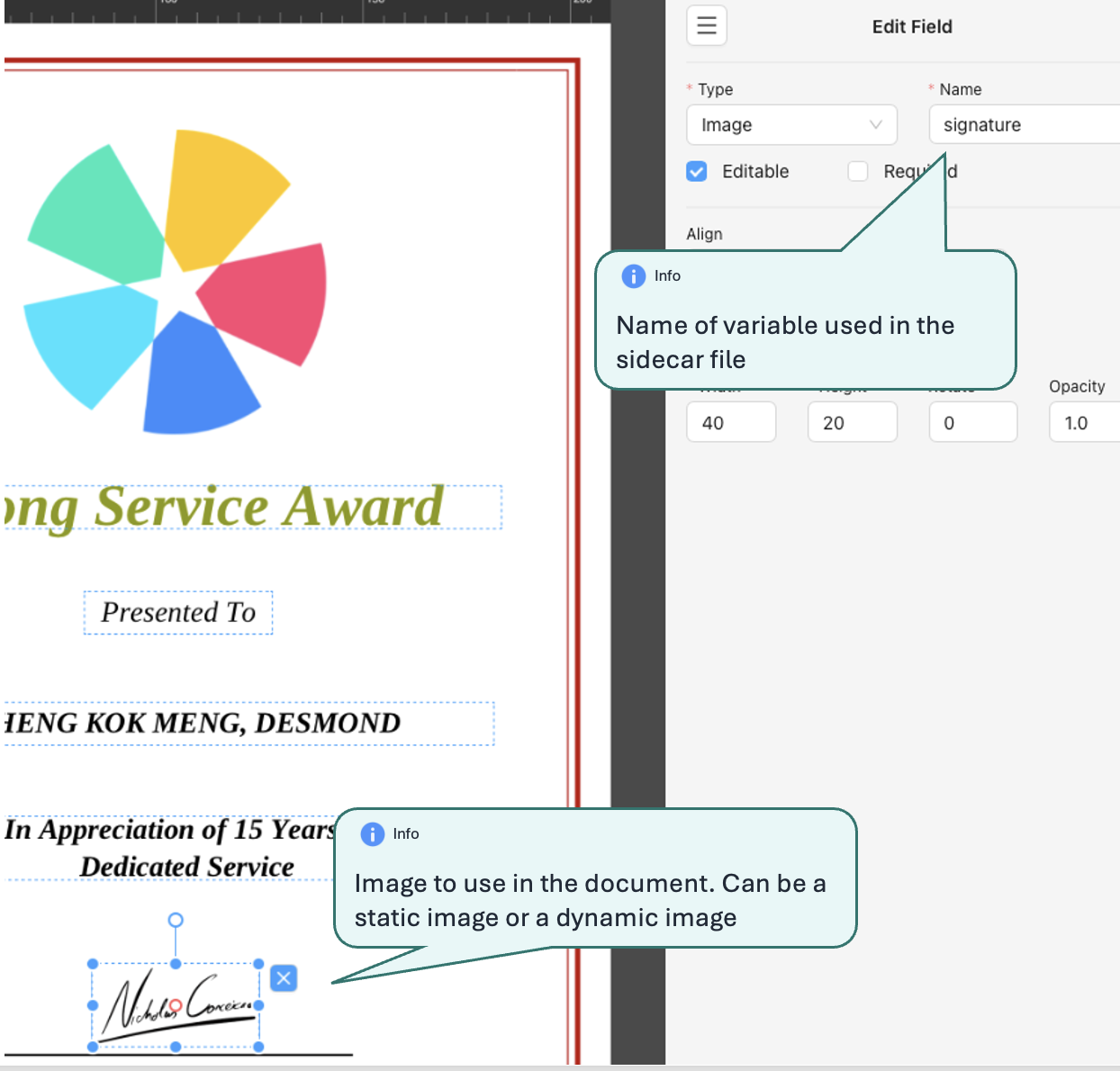
Adding an image to the document. Images can be either static or dynamic.
Step 5
Should you want to continue working on it later and not allow it to be used yet, select Save Version as Draft.
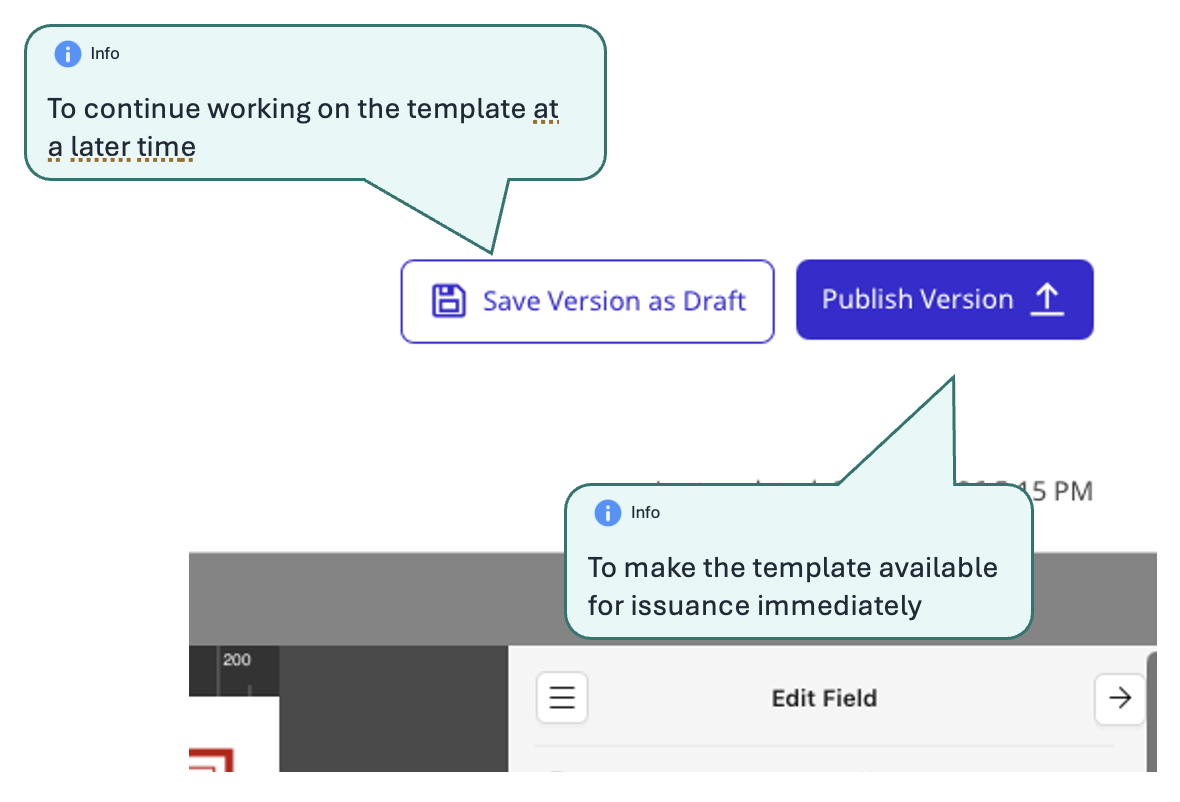
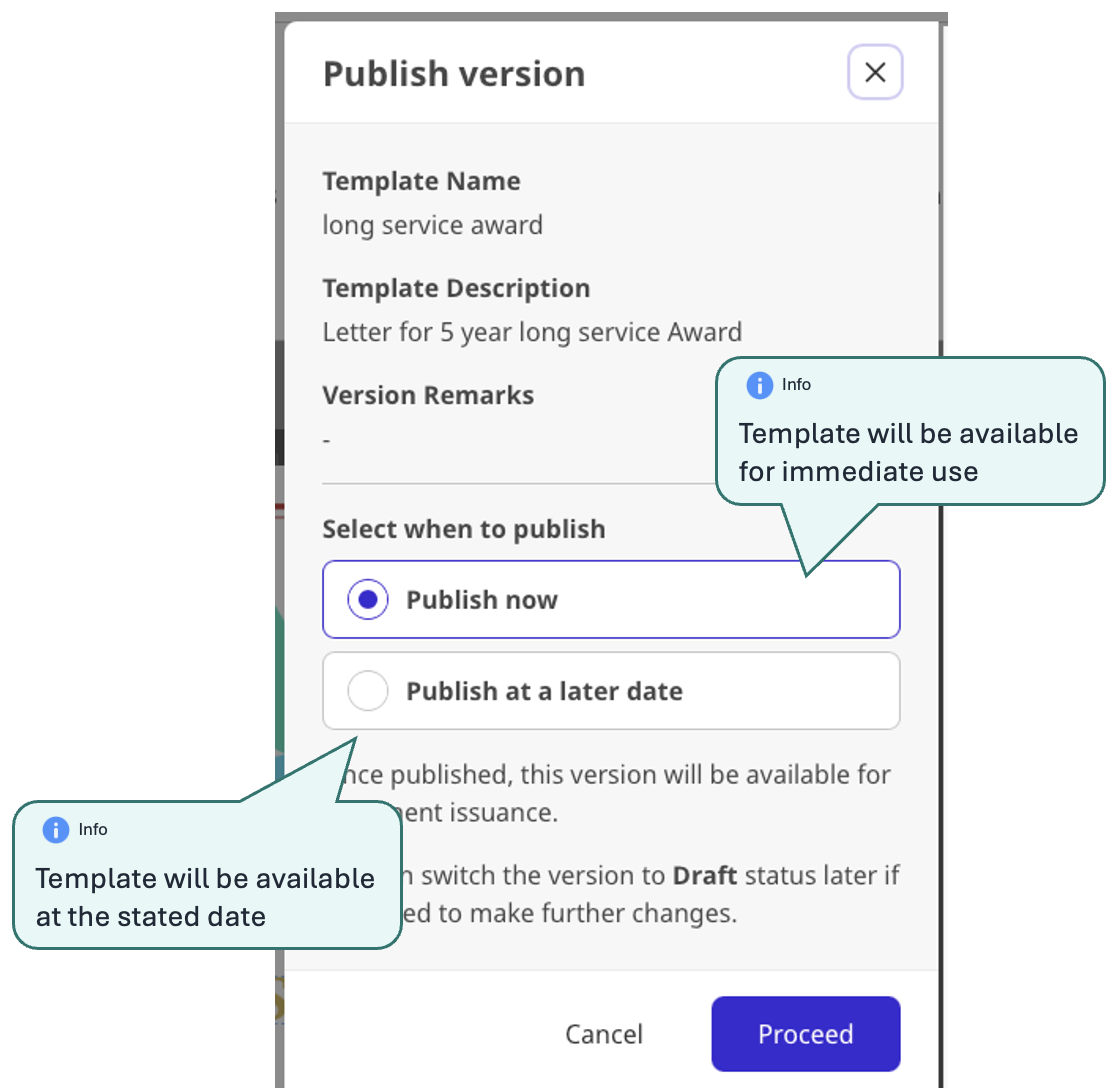
If you are happy with your template, you can make it available for use during document issuance by clicking Publish Version.
You can either set the template to be available for use immediately on the current day, or only make it available at the stated date (useful if you already have an existing version of the template in use, and only need to switch to the newer version at a later date, such as to align with changes in policies or signee)
Upon sucessful publishing, you will be returned to the template listing. The template that you have just published will be displayed with a green ticket.