How to Update a Notification Template
Notification templates allow you to create reusable messages for recipients of FileSG notifications.
You can personalise the message using dynamic variables, preview how the message will look, and publish the updated template when it is ready for use.
Important: Email, SMS and Portal notifications are separate templates. You must create and maintain a Portal notification separately from an Email or SMS notification.
Before you begin
Make sure you know:
- Which notification template you want to update.
- The notification channel:
- SMS
- Portal
- The notification type:
- Issuance
- Expiry
- Deletion
- Deletion Adhoc
Notification types
| Notification type | Used for |
|---|---|
| Issuance | Notifications sent when documents are issued. |
| Expiry | Notifications sent when PDF (OA) documents expire. |
| Deletion | Notifications sent when documents are removed based on the deleteAt date provided during issuance. |
| Deletion Adhoc | Notifications sent when documents are removed through an ad-hoc deletion. |
Portal notifications are mandatory. Your agency must always have a Portal notification. If you also want to send an Email or SMS notification, create the corresponding Email or SMS template separately.
Step 1: Open Notification Templates
- Log in to FileSG.
- From the navigation menu, select Templates.
- Select Notification.
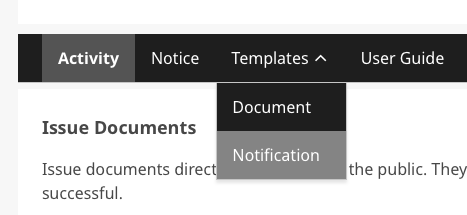
The Notification Templates page displays the notification templates created by your agency.
Step 2: Select the notification template
Find the template that you want to update.
The listing shows information such as:
- Template type
- Notification channel
- Template name
- Description
- Template ID
- Status
- Last updated date and time
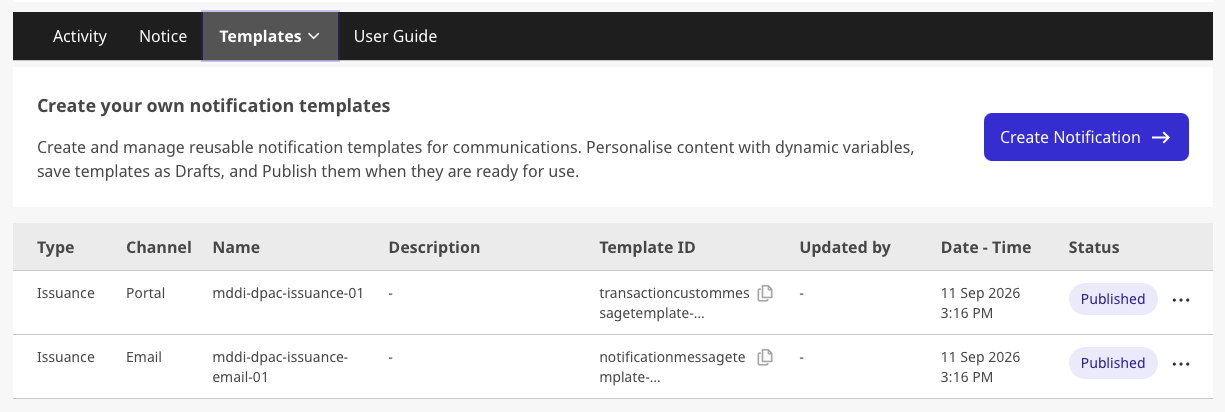
Open the template that you want to update.
Tip: Check the Channel and Type columns carefully. For example, an Issuance / Email template is separate from an Issuance / Portal template.
Step 3: Review the template details
The template details identify the notification template you are editing.
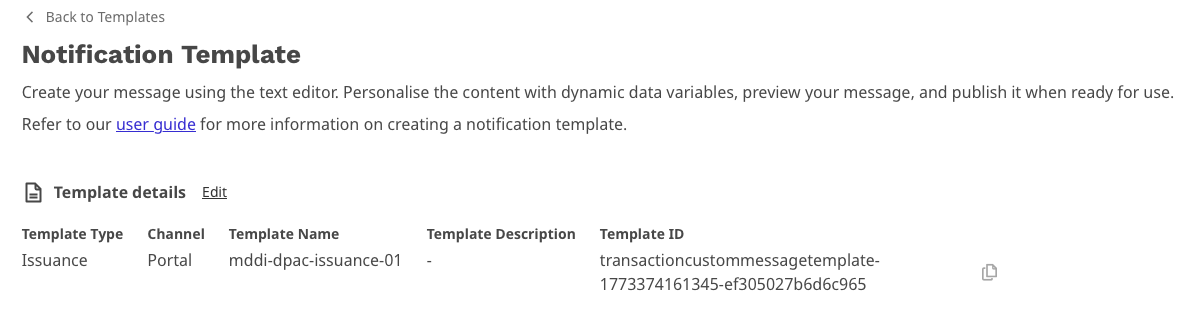
The template has the following details:
| Field | Description |
|---|---|
| Template Type | Determines when the notification is used, such as Issuance, Expiry, Deletion or Deletion Adhoc. |
| Channel | Determines where the notification is delivered: Email, SMS or Portal. |
| Template Name | The name used to identify the template. |
| Template Description | A description of what the template is used for. |
| Template ID | The unique identifier for the notification template. |
Template ID
A Template ID is automatically provided when you create a new notification template.
You do not need to request a Template ID from the FileSG team.
This is similar to the way Template IDs are provided for PDF document templates.
Step 4: Edit the notification message
The notification template editor allows you to update the message content.
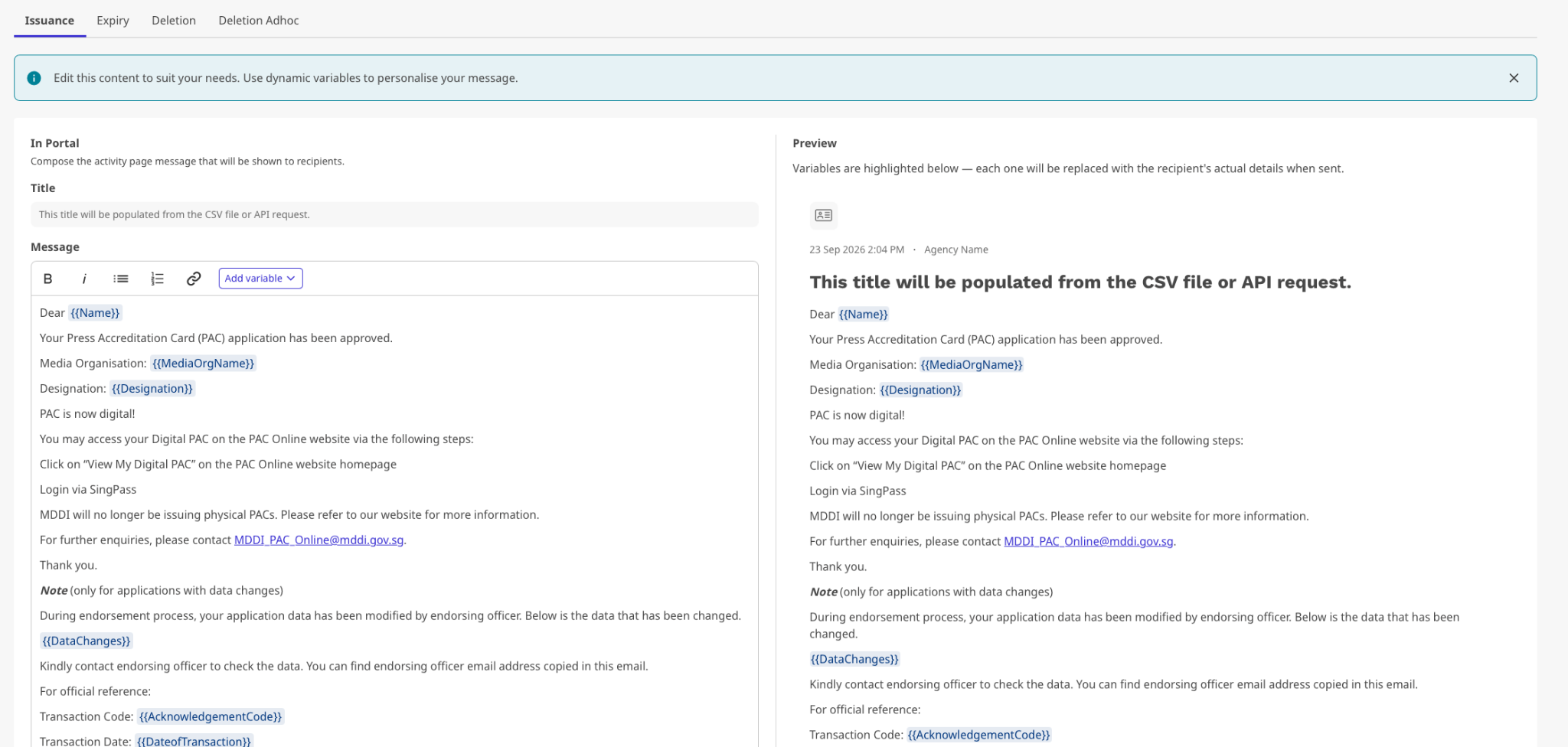
The editor provides:
- Text formatting
- Bulleted and numbered lists
- Links
- Dynamic variables
- A real-time preview of the notification
Update the message content as required.
Step 5: Use dynamic variables
Dynamic variables allow you to personalise the notification with information that is specific to the recipient or transaction.
Dynamic variables use the following format:
{{name}}For example:
Dear {{Name}}
Your application has been approved.When the notification is sent, the variable is replaced with the relevant value.
Predefined variables
Some dynamic variables are predefined by FileSG and can be selected from the Add variable dropdown.
For example:
{{Name}}Predefined variables do not need to be provided in the sidecar file.
You do not need to create a corresponding dynamic parameter column in the sidecar file for these predefined variables.
Important: Do not add predefined variables to the sidecar file just because they appear in the notification template. FileSG will populate these variables automatically.
Dynamic variables provided by your issuance data
If your template uses variables that are not predefined by FileSG, the corresponding values need to be supplied as part of your issuance request.
For manual issuance, these are represented by the relevant dynamic parameter fields in the sidecar file.
For example, the sidecar documentation uses fields such as:
notification_email_<parameter>The number and names of these fields depend on the dynamic parameters used by the notification template.
Step 6: Check the real-time preview
The Preview panel appears to the right of the message editor.
It shows how the notification will appear to the recipient, with dynamic variables highlighted.
Review the preview carefully to check:
- The message wording
- Formatting
- Links
- Dynamic variables
- The overall layout of the notification
Make any required changes in the editor and check the preview again.
Step 7: Save or publish the template
After editing the notification template, you have two options:

Save as Draft
Select Save as Draft if you want to save your changes and continue editing the template later.
The template will remain as a draft and is not published for immediate use.
Use this option when:
- You are still working on the notification message.
- You need to review the content before it is used.
- You want to continue editing the template at a later time.
Publish Template
Select Publish Template when the notification template is ready for immediate use.
Before publishing, review the message, dynamic variables and real-time preview carefully.
Important: Publishing makes the updated template available for use. If you are not ready for the updated message to be used, select Save as Draft instead.
Understanding Notification Channels and Types
A notification template is defined by both a channel and a notification type.
For example:
| Channel | Type | Example use |
|---|---|---|
| Portal | Issuance | Show a message in the recipient’s FileSG activity/inbox when a document is issued |
| Issuance | Send an email when a document is issued | |
| SMS | Issuance | Send an SMS when a document is issued |
| Portal | Expiry | Notify the recipient when an OA document expires |
| Expiry | Send an email when an OA document expires | |
| SMS | Expiry | Send an SMS when an OA document expires |
| Portal | Deletion | Notify the recipient when a document is removed based on deleteAt |
| Deletion | Send an email when a document is removed based on deleteAt |
|
| SMS | Deletion | Send an SMS when a document is removed based on deleteAt |
| Portal | Deletion Adhoc | Notify the recipient when a document is removed through an ad-hoc deletion |
| Deletion Adhoc | Send an email when a document is removed through an ad-hoc deletion | |
| SMS | Deletion Adhoc | Send an SMS when a document is removed through an ad-hoc deletion |
Remember: Each combination is a separate notification template. Updating an Email template does not update the corresponding Portal or SMS template.
Updating a template used for document issuance
For document issuance, the notification template is referenced by the issuance configuration.
For manual issuance, the sidecar file contains the notification template ID and any required dynamic parameters. The current sidecar documentation identifies:
notificationId_email— the notification template IDnotification_email_<para1 ... paraX>— dynamic parameters used by the notification template fileciteturn2file1
When updating an existing template, keep the template’s identity and intended use in mind.
Note: Predefined FileSG variables do not need corresponding dynamic parameter fields in the sidecar file.
Checklist before publishing
Use this checklist before publishing your updated template:
