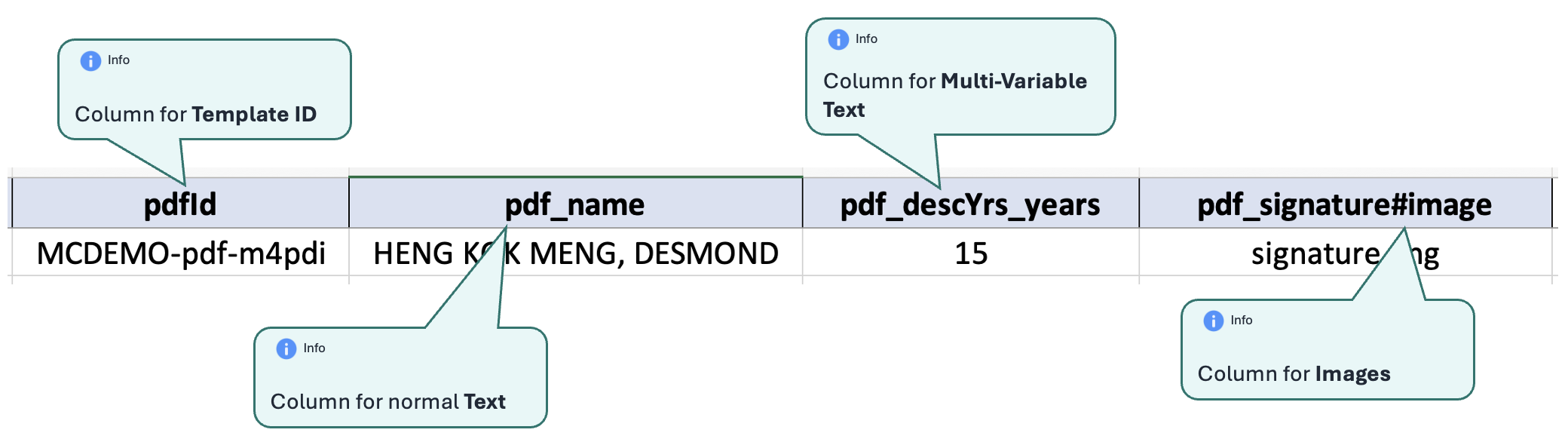
Create the Excel template for a PDF template
After creating and publishing a PDF template, update your Excel sidecar template so FileSG knows which template and values to use.
Step 1 — Copy the template ID
Copy the template ID for the selected PDF template.

Step 2 — Add the PDF fields
The columns you add depend on the components in your PDF template.
pdfId
Contains the template ID.
Text components
Prefix the component name with pdf_.
For a text component named name, use:
pdf_name
Multi-Variable Text components
Prefix the component name with pdf_ and add each variable name.
For a component named descYrs with a variable named years, use:
pdf_descYrs_years
Image components
Prefix the component name with pdf_ and add #image.
For an image component named signature, use:
pdf_signature#image
Example
If your template contains:
- Text:
name - Multi-Variable Text:
descYrswith variableyears - Image:
signature
your Excel template would contain:
pdfId
pdf_name
pdf_descYrs_years
pdf_signature#imageUse the completed Excel template when preparing your sidecar file.