Issue documents manually
Use this guide when you want to issue one or more documents manually through the FileSG Agency Portal.
Before you begin
Prepare:
- The document(s) you want to issue, such as PDF or ZIP files.
- Recipient information.
- The FileSG sidecar file.
- Notification template information.
- PDF template information, if you are generating documents using a FileSG PDF template.
- Access to the FileSG Agency Portal.
Choose your recipient
Individual with Singpass
Use this when the recipient can retrieve the document through Singpass.
In the sidecar file:
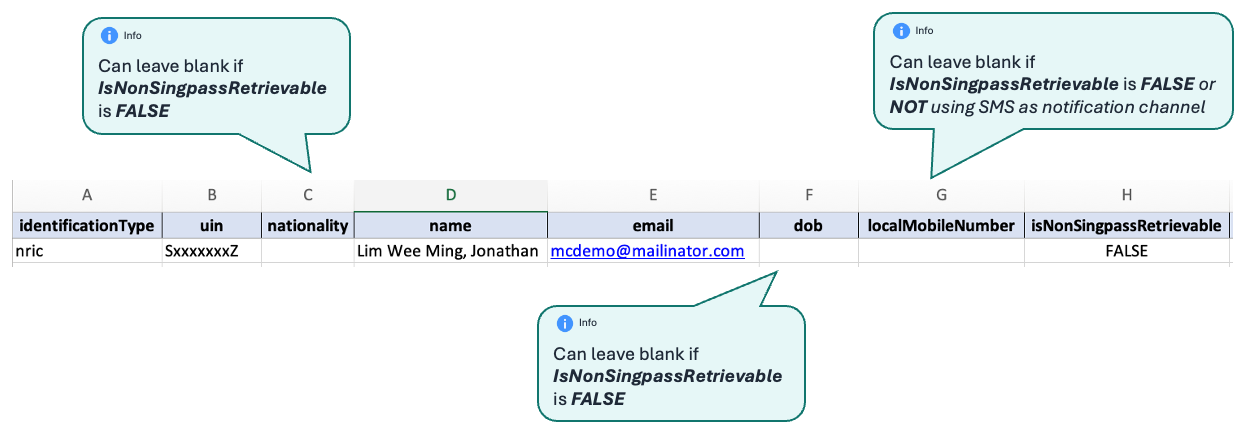
- Set
identificationTypetoNRIC,FIN, orPassport. - Set
isNonSingpassRetrievabletoFALSE. dobis not required for Singpass-only retrieval.
Individual without Singpass
Use this when the recipient also needs a non-Singpass retrieval option.
In the sidecar file:
- Set
identificationTypetoNRIC,FIN, orPassport. - Set
isNonSingpassRetrievabletoTRUE. - Provide
dobinyyyy-mm-ddformat. - The recipient retrieves the document using the Transaction ID and an OTP/2FA challenge.
Business via UEN
Use this when issuing a document to a business entity.
In the sidecar file:
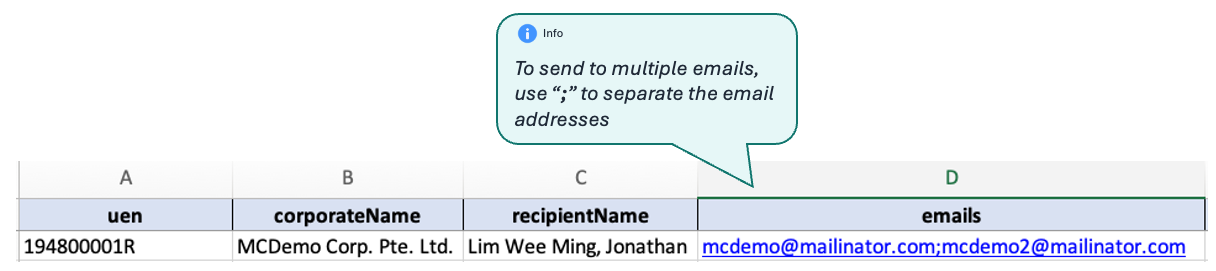
- Provide the
uen. - Provide
corporateName. - Provide one or more recipient email addresses.
- Use the corporate sidecar filename when exporting the CSV.
The issuance journey
Complete these steps in order:
What happens after submission?
FileSG processes the request and sends an acknowledgement email containing the status of the issuances in the sidecar file. (note: You can also view the issuance report in the Agency Portal in future.)
