Create SonarQube applications
Subscription Admins (SAs) and Project Admins (PAs) can create and manage SonarQube applications.
Prerequisites
Ensure the following:
- You are a Subscription Admin (SA) for the subscription, or a Project Admin (PA) for a SHIP-HATS project within the subscription.
- Your subscription includes SonarQube (Community or Enterprise edition). To verify this, follow the steps in View tools included in a SHIP-HATS subscription.
- At least one SHIP-HATS project exists in the subscription. For steps to confirm this, see View SHIP-HATS projects.
Steps
In Console, go to Products > SHIP-HATS, and select the required subscription to open the Workspace.
For detailed steps, see Access Workspace.
Click Tools > SonarQube.
Select the SHIP-HATS project for which you want to create the SonarQube application.
Existing SonarQube applications for the project are displayed.
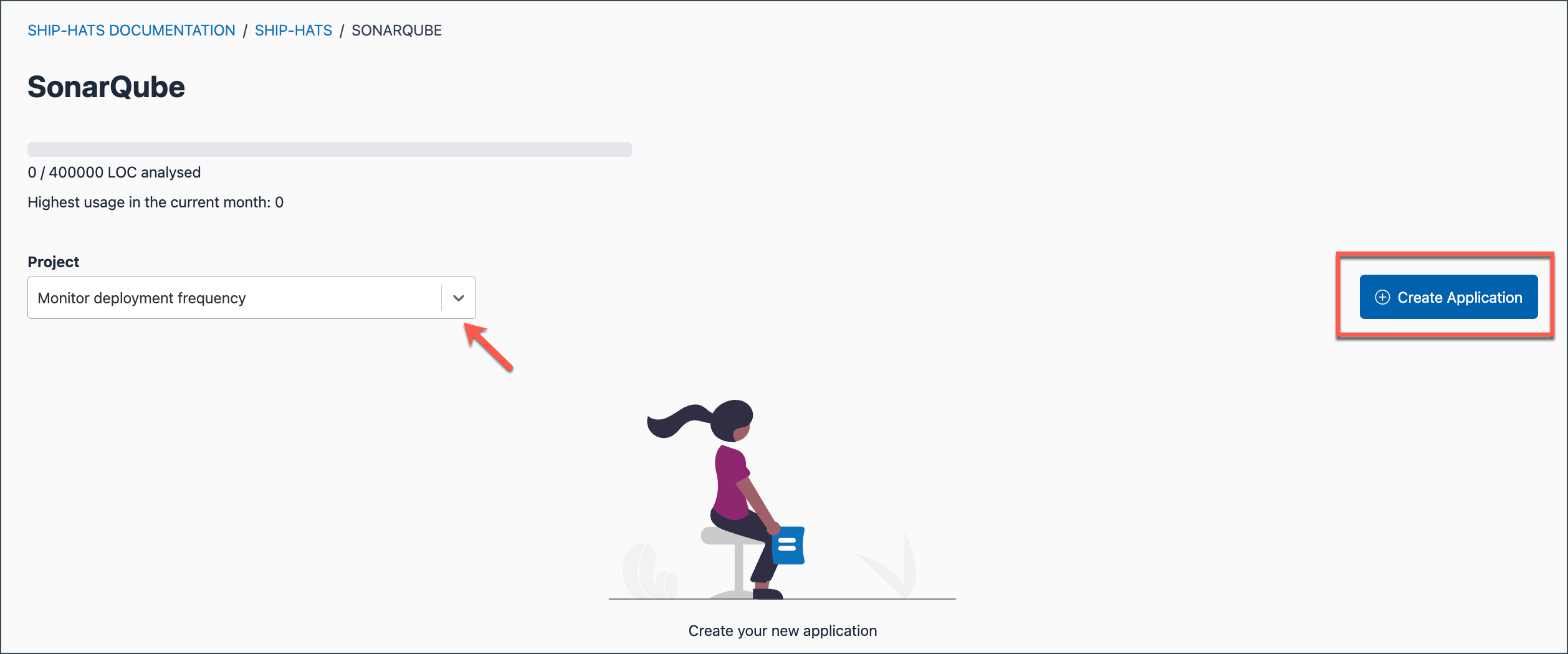
Click Create Application.
Enter the required details.
| Field | Description |
|---|---|
| Edition | Select the SonarQube edition for the application. Editions that are not included in your subscription will be disabled. |
| Application name | Enter a unique name for the application. Validation requirements: - Must be between 1 and 50 characters. - Must contain at least one letter (cannot be numbers only). - Allowed characters: a–z, A–Z, 0–9, -, ., _, :.Examples: CodeScan-App, SHIPHATS_SonarQube. |
- Click Submit.
The application is created successfully and listed under the selected SHIP-HATS project.
- The application appears in the Console under the selected SHIP-HATS project.
- A token is created automatically for the application. For details, see Manage SonarQube token.
- When you log in to SonarQube, the application is displayed as a project.
