View LOC consumption details
Subscription Admins (SAs) and Project Admins (PAs) can view the number of lines of code (LOC) scanned for SonarQube applications at different levels within a SHIP-HATS subscription.
LOC consumption can be viewed at:
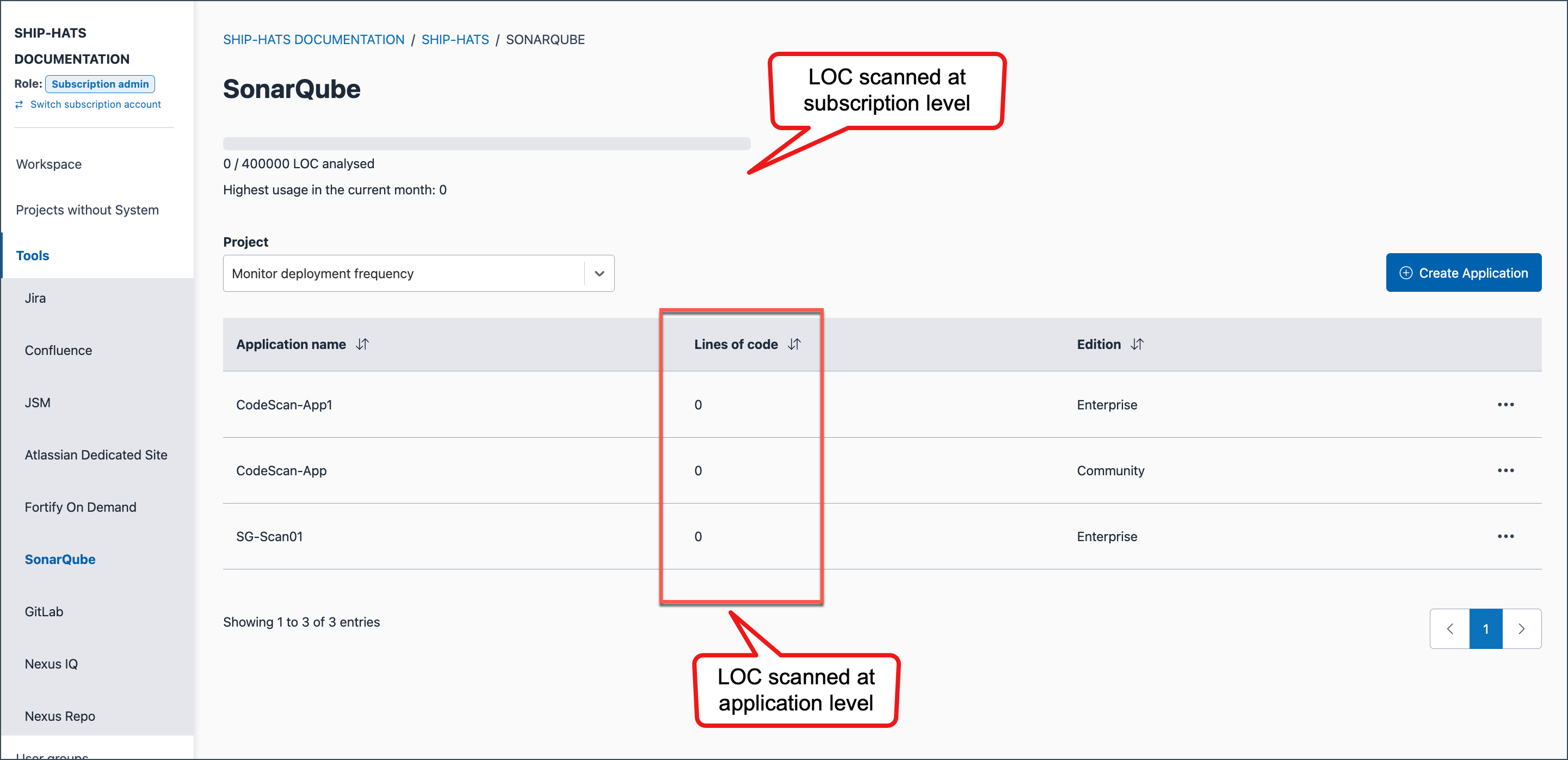
- Subscription level — total LOC scanned across all applications
- Application level — LOC scanned for each SonarQube application
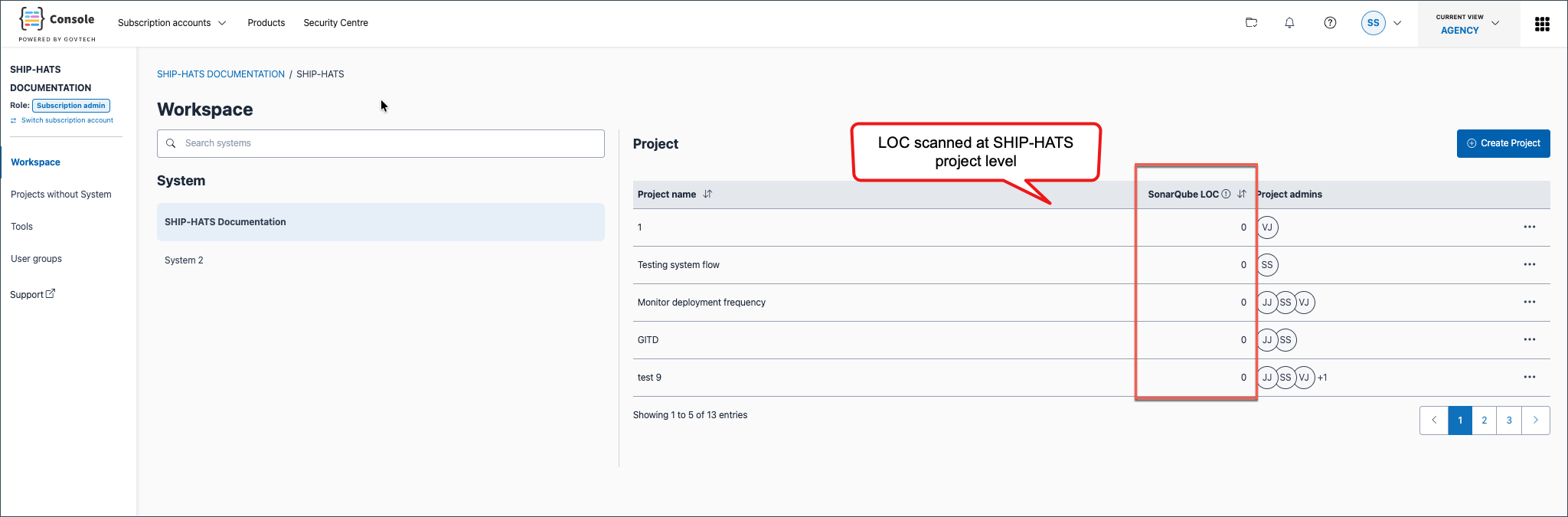
- SHIP-HATS project level — aggregated LOC for applications within a project
Prerequisites
Ensure the following:
- You are a Subscription Admin (SA) for the subscription, or a Project Admin (PA) for a SHIP-HATS project within the subscription.
- Your subscription includes SonarQube Enterprise Edition. To verify this, see View tools included in a SHIP-HATS subscription.
If you had subscribed to the Developer Edition, it has been replaced by the Enterprise Edition since 16 December 2023.
Steps
In Console, go to Products > SHIP-HATS, and select the required subscription to open the Workspace.
For detailed steps, see Access Workspace.
Click Tools > SonarQube.
Select the required SHIP-HATS project.
The SonarQube page displays:
- Total LOC scanned for the subscription
- LOC per application in the table
Go to the Workspace.
Select the required System.
In the Project table, view the SonarQube LOC column.
This shows the total LOC scanned for each SHIP-HATS project.
Things to note
- LOC values are not real-time and are updated once daily through a scheduled job.
- When an application or project is deleted, the LOC total is updated during the next scheduled update.
- LOC consumption helps track usage against the subscribed SonarQube capacity.
For more details, see SonarQube Policies.
