Assign backup SonarQube quality profile
Quality Profiles are sets of rules used by SonarQube to analyse code during scans.
These profiles may be updated during SonarQube version upgrades. As a result, new or modified rules may introduce additional findings during subsequent scans.
Even if your Quality Gate conditions remain unchanged, new rule violations introduced in the updated Quality Profile may cause scans to fail.
Backup quality profiles
During SonarQube upgrades, SHIP-HATS creates backup copies of the previously supported Quality Profiles.
These backups allow projects to temporarily switch back to the earlier rule set while addressing new findings introduced by updated rules.
⚠️ Backup quality profiles are temporary and will be removed during the next SonarQube upgrade.
Stay informed about upcoming upgrades by following
Upcoming maintenance advisories.
Assign backup quality profile
By default, Project Admins (PA) have permission to assign quality profiles because they are granted the Administer permission in SonarQube.
Steps
Open the required project.
Go to Project Settings.
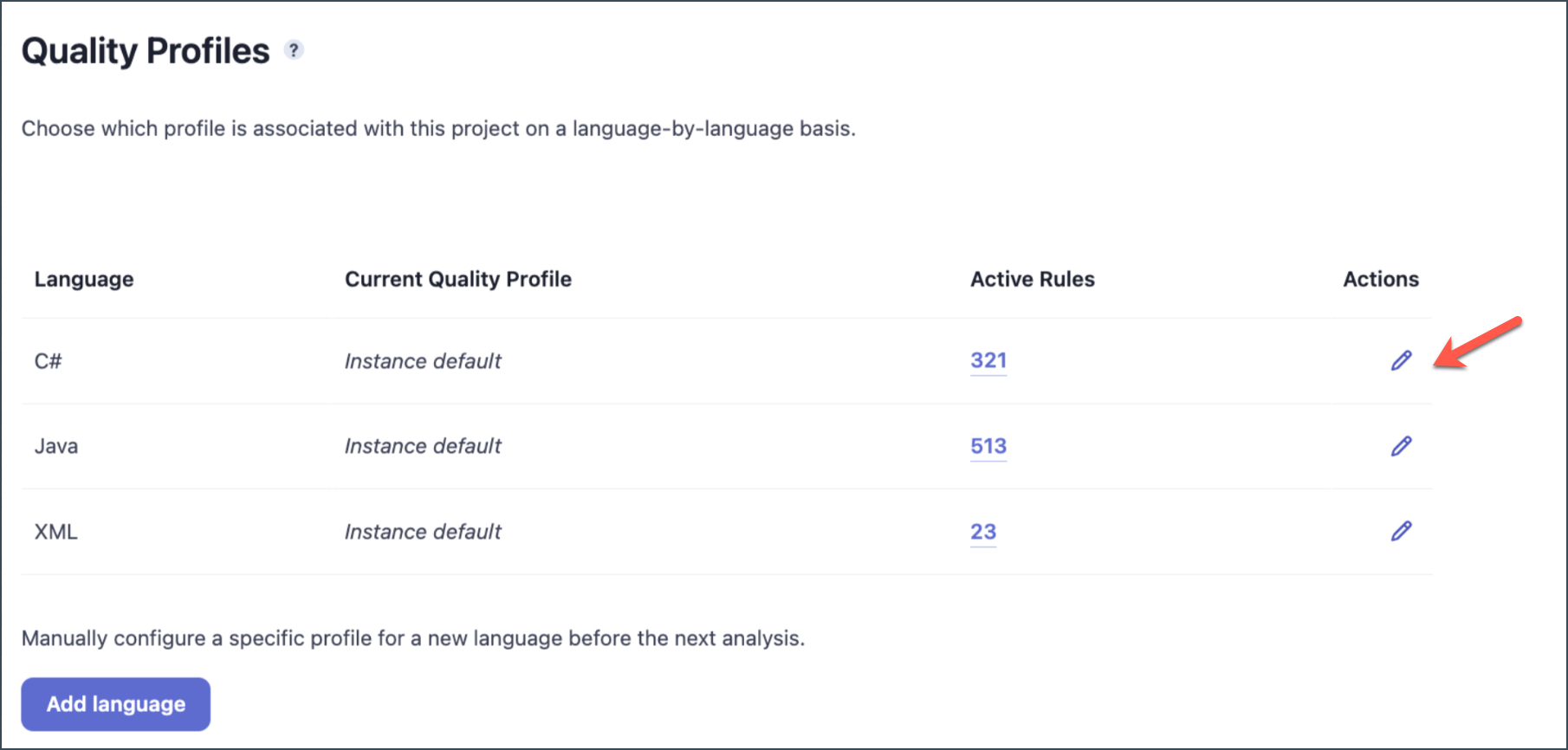
Click Quality Profiles.

Locate the programming language for which you want to change the profile.
If the required language is not listed, click Add language.
Click the Edit (pencil) icon next to the language.
In Always use a specific Quality Profile, select the backup profile.
Example:
SHIPHATS-Backup-VXX.X.XExample version:
SHIPHATS-Backup-V25.2.0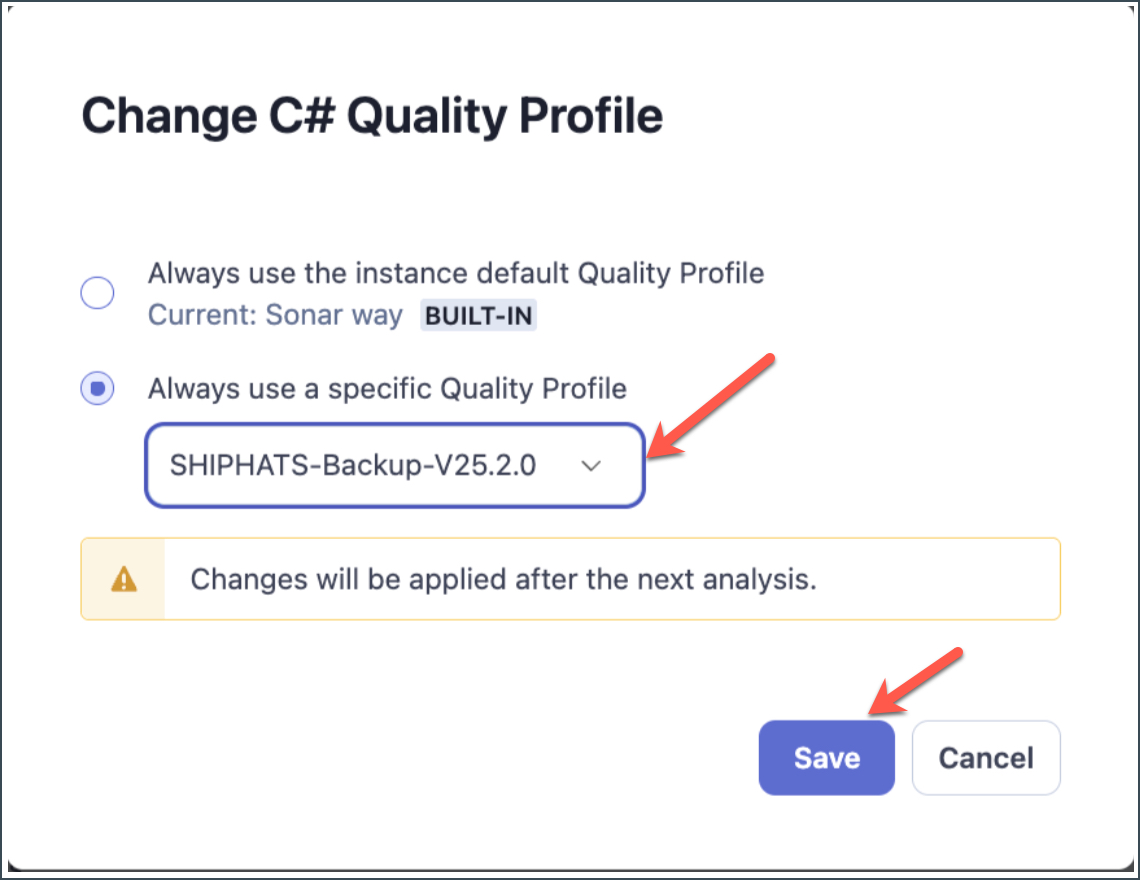
Click Save.
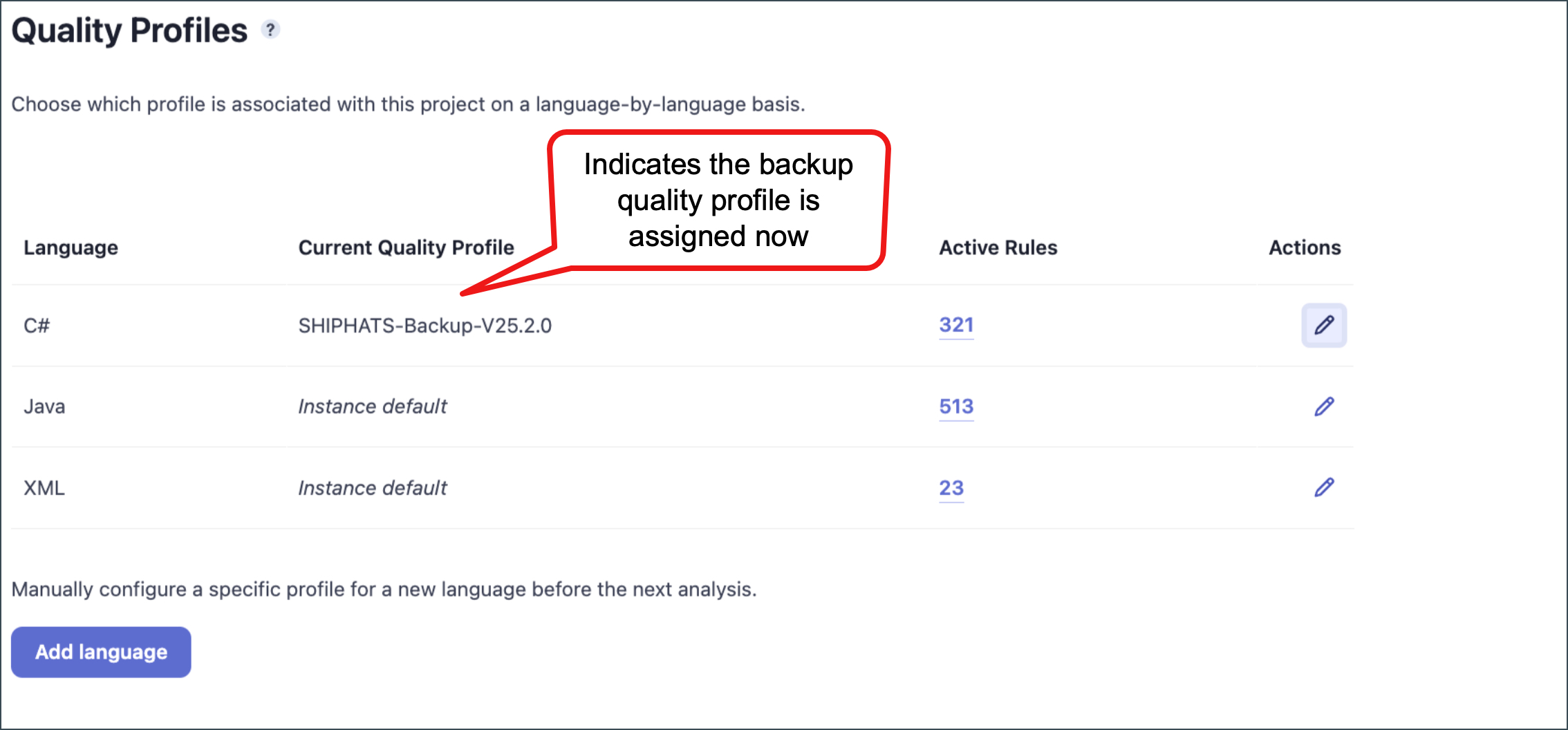
The backup profile is now applied to the selected language in your project.
What happens if a backup quality profile is deleted?
If a project is using a backup profile and the profile is removed during a future SonarQube upgrade, the project automatically reverts to the default quality profile.
This behaviour applies to both extended and copied profiles.
Recommendation
Backup profiles should only be used as a temporary workaround.
Projects should review and resolve new findings introduced by updated rules rather than relying on backup profiles long term.
