Create your product
To onboard as a tenant of Console, you must create a product. This product will be linked to a unique TechPass namespace and allows you to manage configurations and integrations.
You may create a product in Console’s staging environment to try out the features and functionality before creating the product officially in Console’s production environment.
Staging Environment Prerequisites
Console Link: https://console.stg.developer.tech.gov.sg/
- You must use a Staging TechPass account to access Console
- Contact the Console Team to request access to Console and to request access to create products in Console for your TechPass account.
ⓘ In staging environment, you need to request access to Console for security reasons.
Production Environment Prerequisites
Console Link: https://console.developer.tech.gov.sg/
- You must use a TechPass account to access Console
- Your TechPass account should have a
tech.gov.sgemail address.
Step 1: Log in to Console
Go to Console
Switch to Product view from the sidebar If you do not see Product view, contact the Console team.

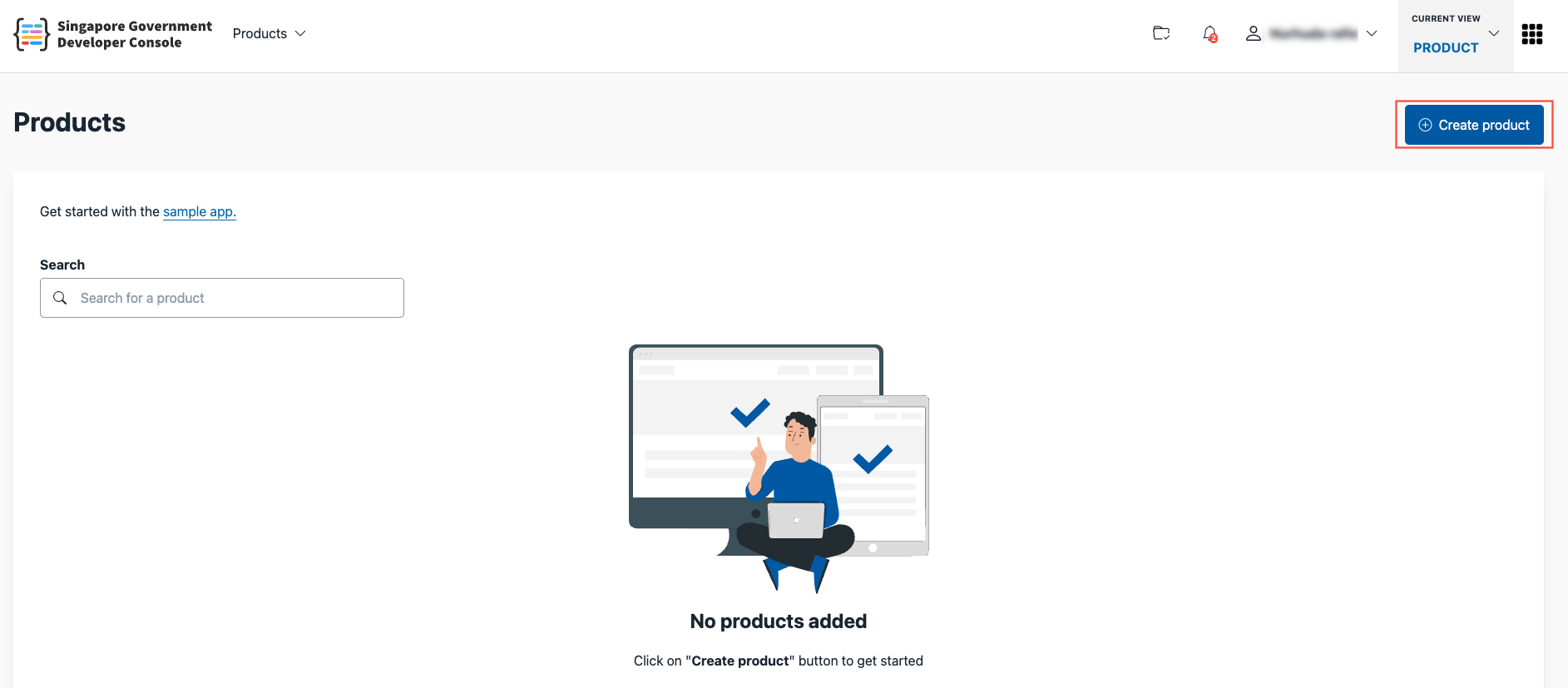
Visit the Products page
Click Create product
Step 2: Fill in product details
The product you create will be linked to a TechPass namespace and application. You may choose to use existing TechPass resources, or create new ones.
⚠️ It is recommended that each Console product has its own TechPass namespace and does not share it with other products. For the same product in different environments, it is recommended to setup separate TechPass namespaces for each environment. Using the same TechPass namespace for different environments may result in certain resources in Console being shared across your product environments.
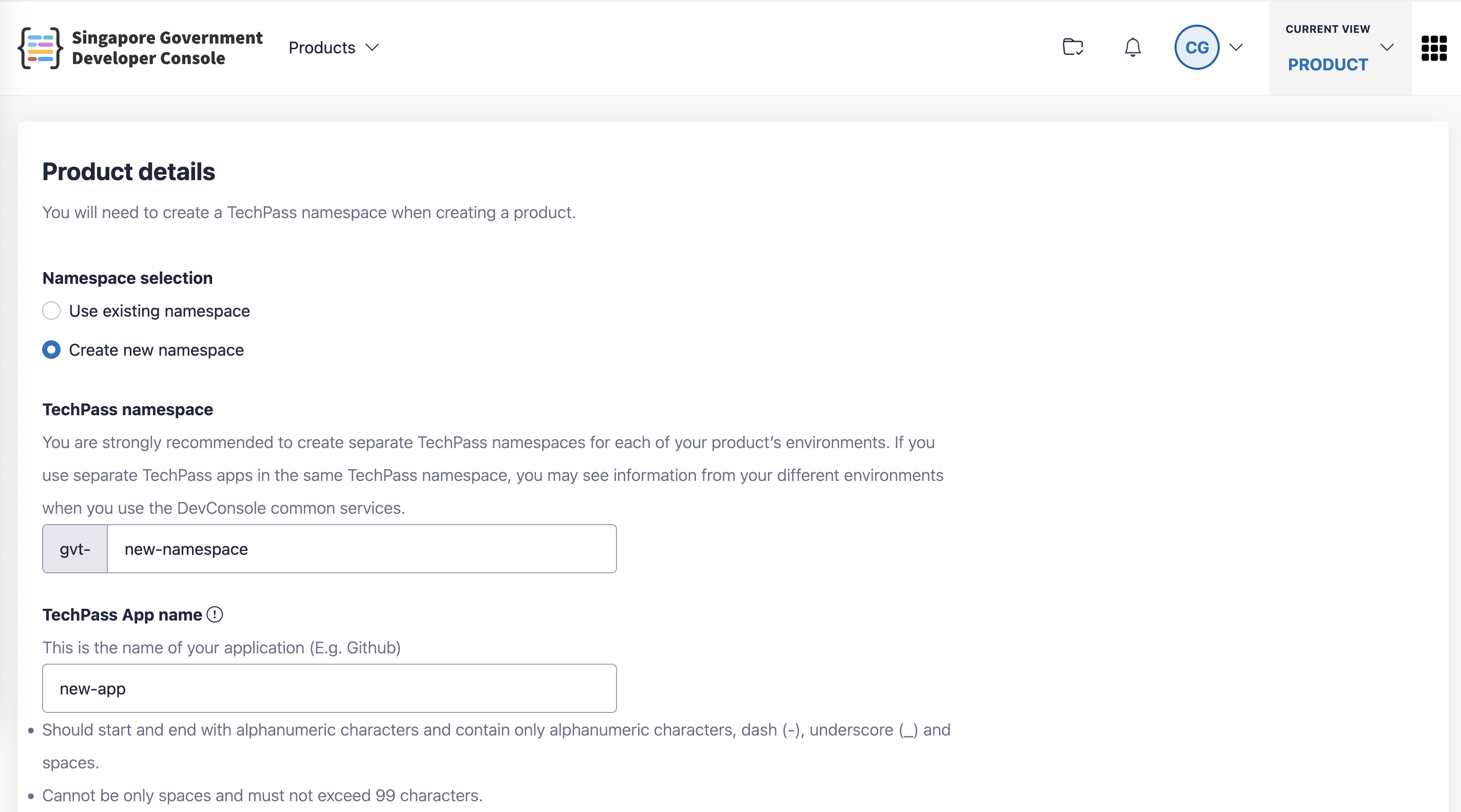
Fill in the remaining fields in the form:
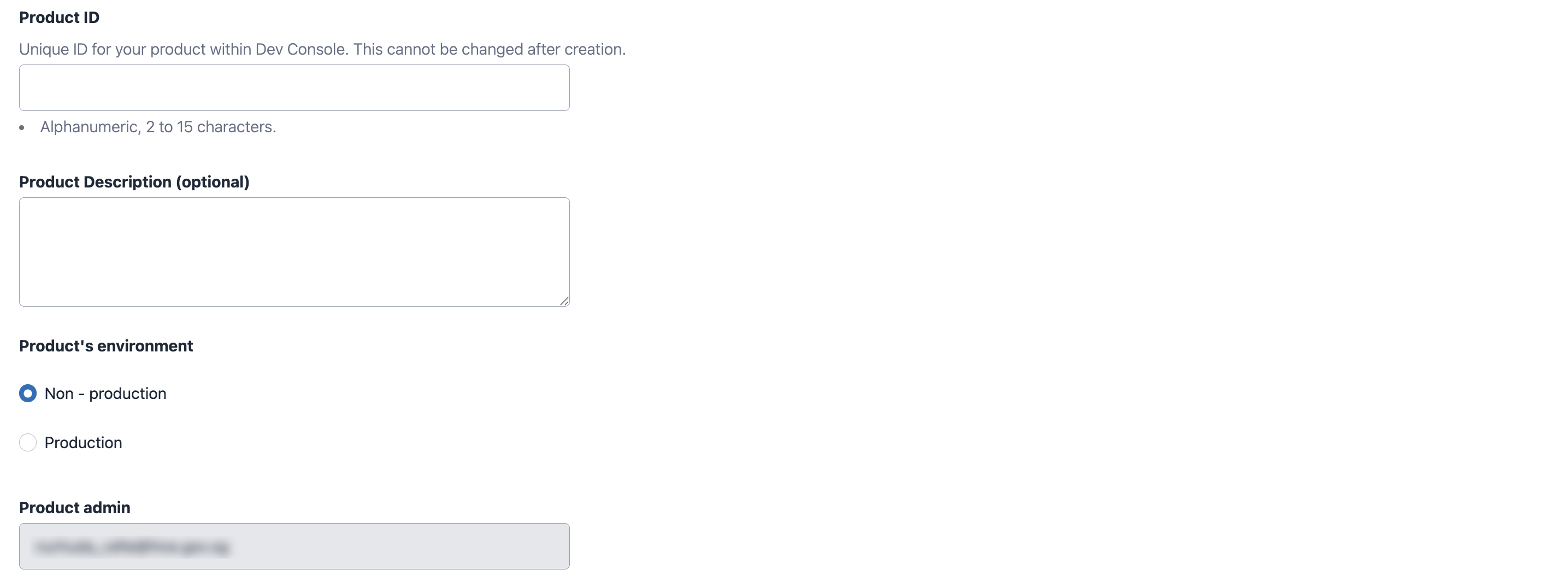
Product display name: Shown in the Console portal
Product ID: A unique identifier; cannot be changed after creation.
⚠️ Pick your product ID properly. This identifier will be used in numerous places (e.g API requests, URLs, configurations etc)
Product’s environment: Indicates whether the product is for production, staging, or UAT. Note that this doesn’t impact your product in anyway, it is only used internally for tagging and tracking. You may create separate products for different environments. See Product service for more details.
Step 3: Submit
Click Submit. A confirmation message will appear once the product is successfully created.
What happens next
After your product is created:
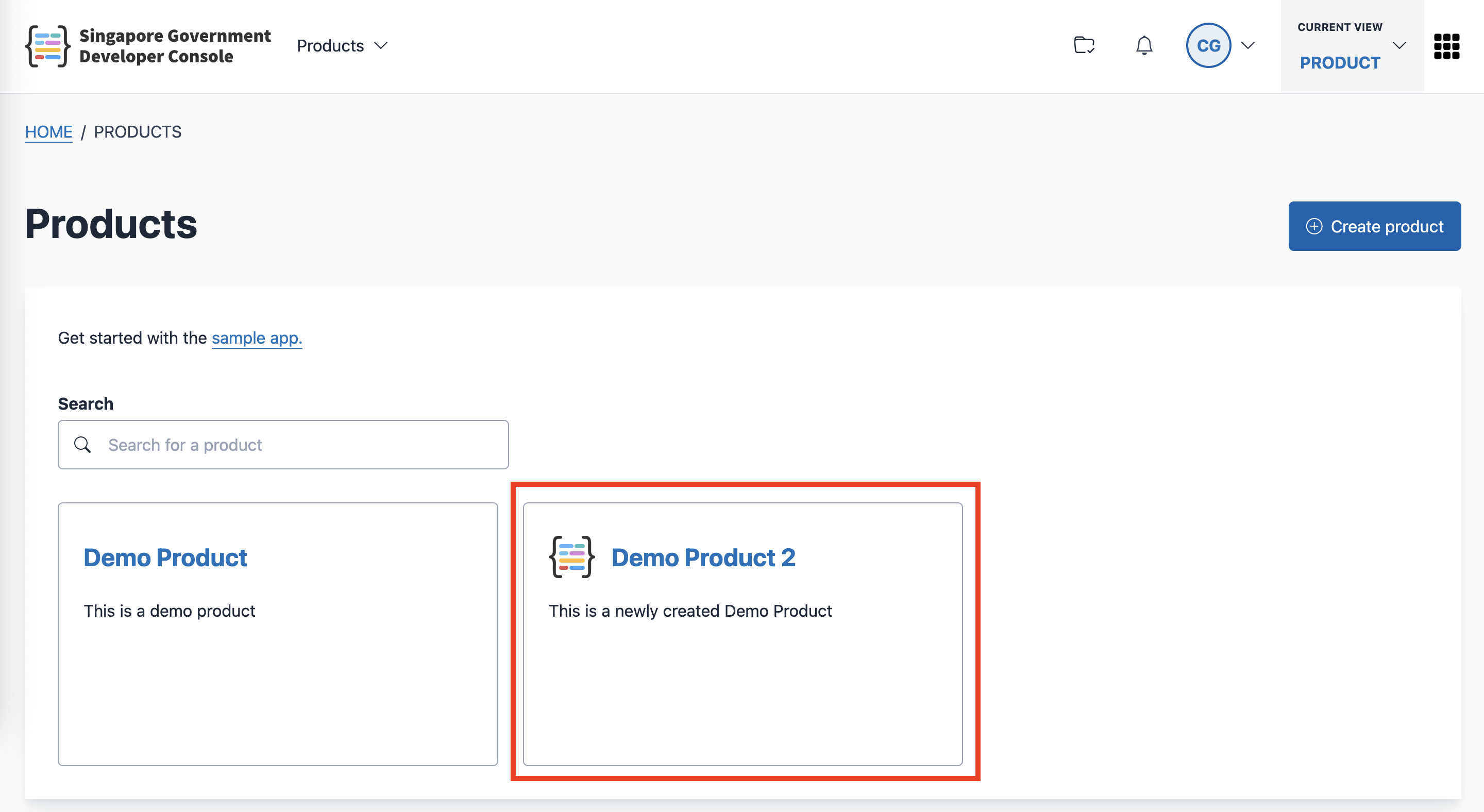
It will appear on the Products page
You can click the product card to: