Manage subscription account
Overview
This section guides how subscription admins can edit, manage approved TechBiz account(s), and view approver details and submitted attachments when required.
Audience
- Primary and secondary subscription admins of a TechBiz account.
- Billing admin of a TechBiz account.
Note: The Billing admin of a TechBiz account can view the account and subscription details but can’t edit the details.
Prerequisites
- You need a non-SE GSIB or Comet device or GMD.
- You need to be logged in to TechBiz portal.
- An approved TechBiz account.
Change subscription admins and billing information
Subscription admins can remove and add a new subscription admin or update the billing information.
From the left navigation menu, click Subscription Accounts.
Select APPROVED from the Status dropdown list to view all the approved accounts.
Select the required account.
In the top navigation bar, click ACCOUNT DETAILS.
Click Edit.
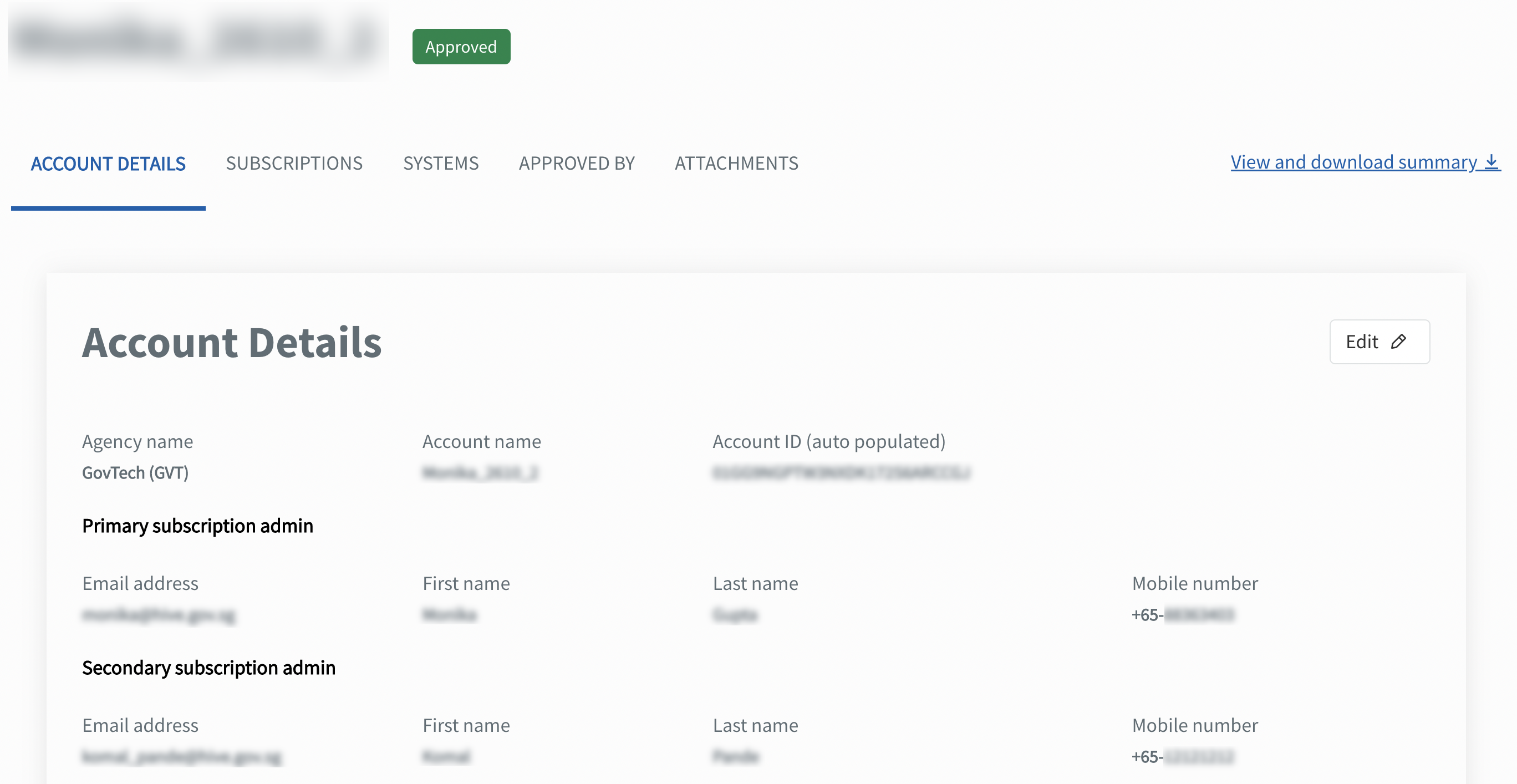
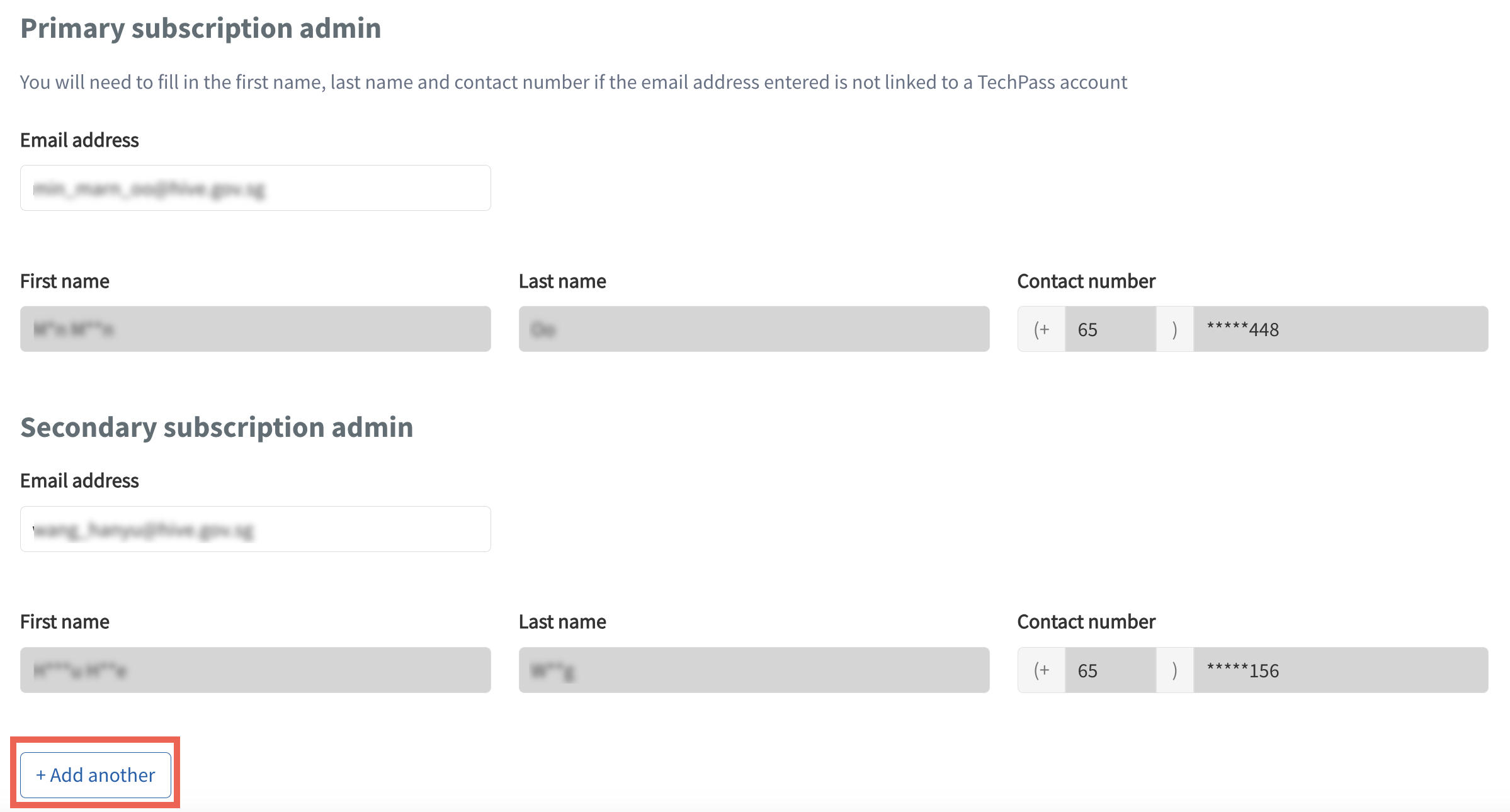
To change the primary or secondary subscription admin, enter the organisational email address of the new subscription admin.
Click Add another to add more secondary subscription admins. You can have up to four secondary subscription admins.
To change the billing admin, go to the Billing admin section, and enter the organisational email address of the new billing admin.
Note:
- To edit other details of a subscription or billing admin, the respective administrators must update their TechPass profile from the TechPass portal. For more information, see TechPass user guide.
- If an admin is removed, they will no longer have access to the account.
- To change the SBU code, go to the Billing information section and select the required SBU code from the dropdown list.
- Click Submit.
A confirmation message is displayed.
View attachments
- From the left navigation menu, click Subscription Accounts.
- Select the required account.
- In the top navigation bar, click ACCOUNT DETAILS.
- Scroll to the Attachments section.
The following details are displayed:
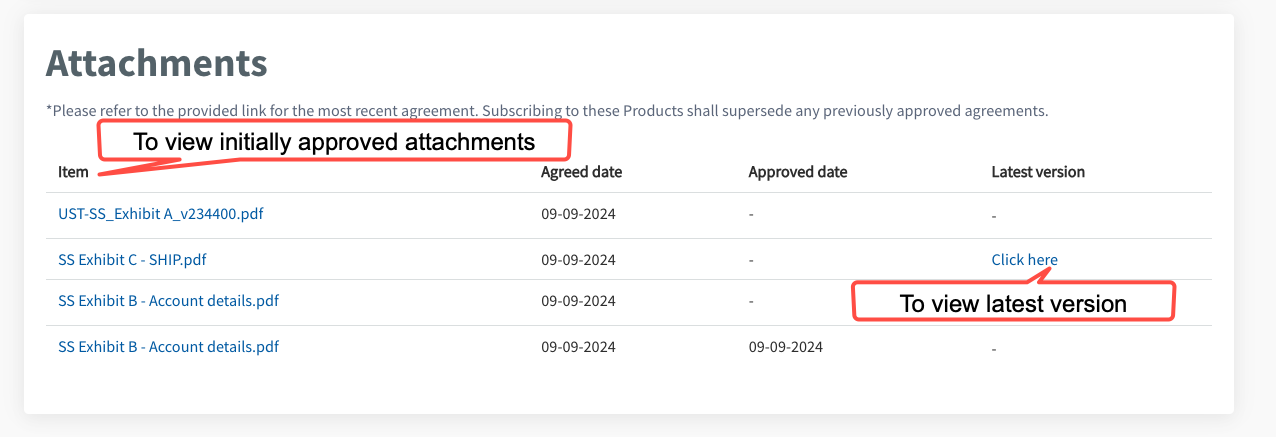
The attachments listed under the Item section are the initially approved versions.
- To download these initially approved attachments, click the attachment link under the Item section.
To view or download the latest version of the attachments, go to the Latest version section.
- The attachments listed here are the most up-to-date versions available for download.
