Create TechPass accounts
Public officers can now use TechBiz portal to invite and create TechPass account for other public officers and vendors, and invite them to SEED.
There are two ways a public officer can create TechPass account for other users:
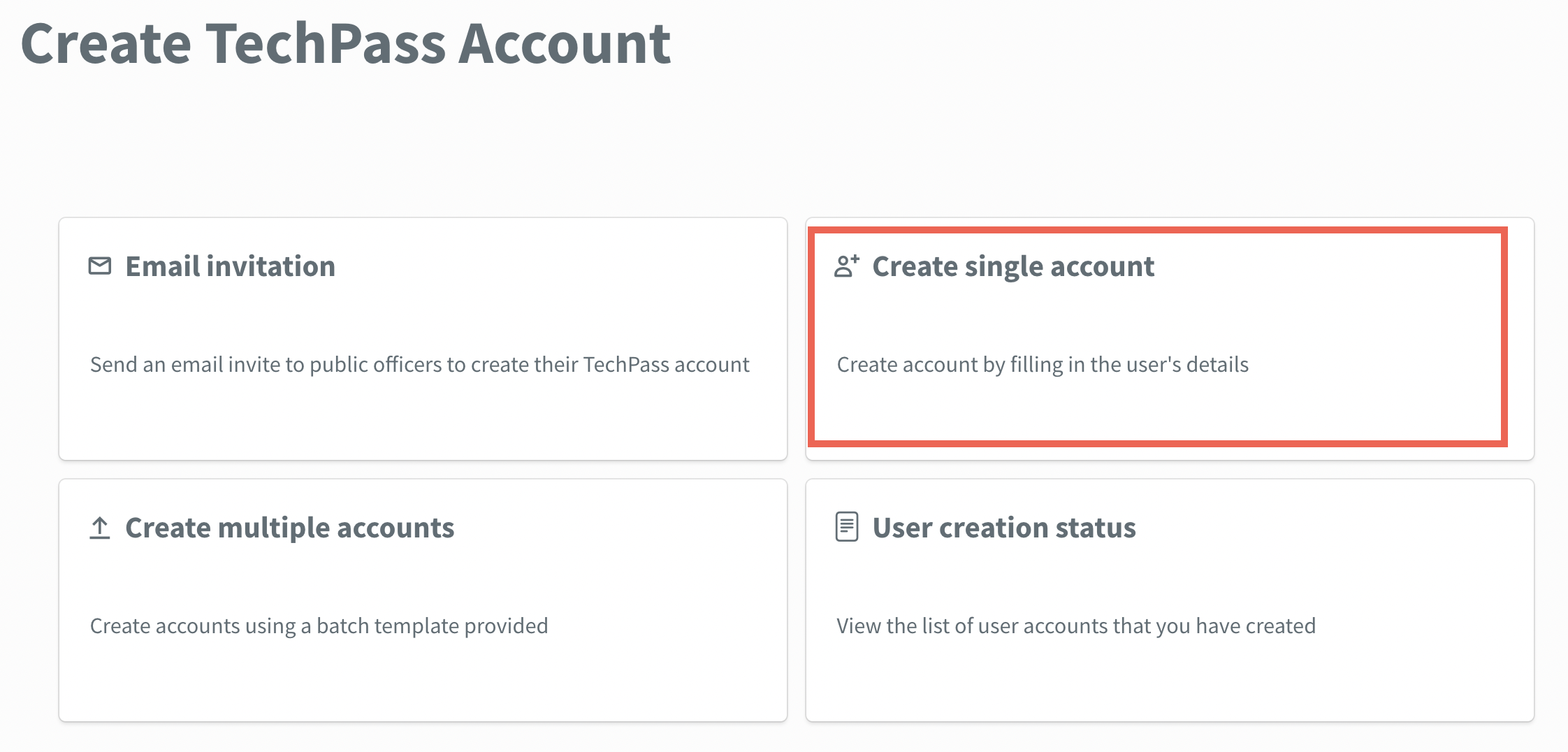
- Create single account - Use this option to invite public officers and vendors.
- Create multiple accounts - Use this option to invite multiple public officers and vendors.
Prerequisites
- You should be a public officer with a non-SE GSIB or Comet device or GMD.
Have the following details of the invitee before proceeding:
- Organisational email address of the invitee.
- For public officers, it is the Whole of Government email address of the public officer.
- For vendors, it should be the email address of the invitee provided by the vendor organisation.
- First name and Last name of the invitee. While inviting a vendor, enter the vendor’s full name as the TechPass username.
- Contact number
- Organisation name and TechPass username (only for vendors)
Create single account
To invite public officers and vendors
From the left navigation menu, click Invite users to TechPass.
Select Create single account.
Enter the required details and click Submit.

Refer to the following for more information on the required details.
| Field Name | Description |
|---|---|
| Email address | Enter the organisational email address of the vendor who requires a TechPass account. Note: The email address must be the email address provided by the vendor. |
| TechPass username | Enter the required username for the TechPass account. Note: TechPass username is not required for a public officer. |
| First name, Last name, Contact number, Organisation, and Department | Enter the required details. Note: Department is optional. |
| Is onboarding to SEED required? | Indicate Yes if the vendor needs SEED provisioning. Note: SEED provisioning is needed to access SGTS Products from the Internet device. |
| Reason | Enter the Reason why the vendor needs a TechPass account. |
Create multiple accounts
To invite multiple public officers or vendors
From the left navigation menu, click Invite users to TechPass.
Select Create multiple accounts.
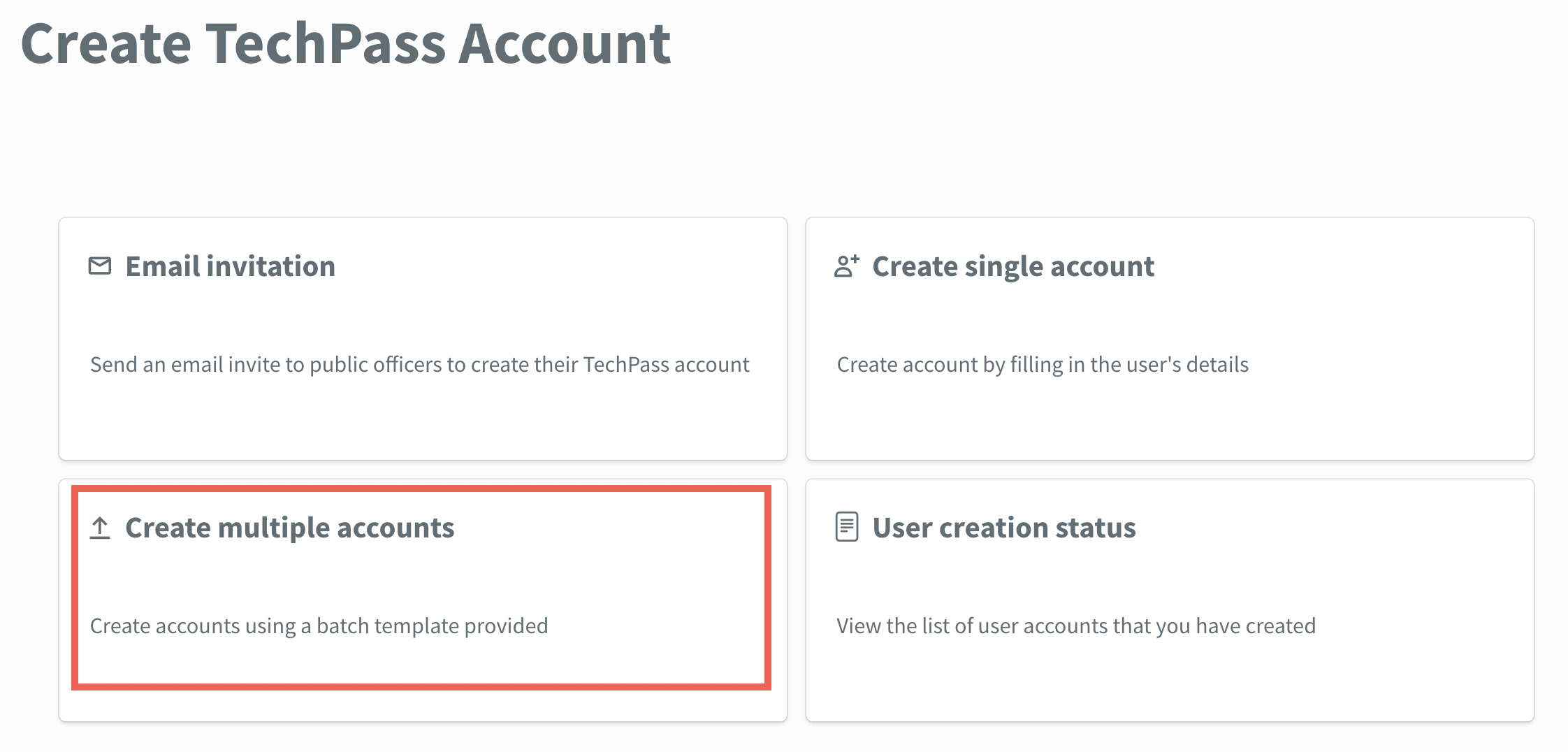
Click Download excel template link.

Open the downloaded .xlsx file extension, specify the required details and save the file.
In Upload user list section, select Choose a file.
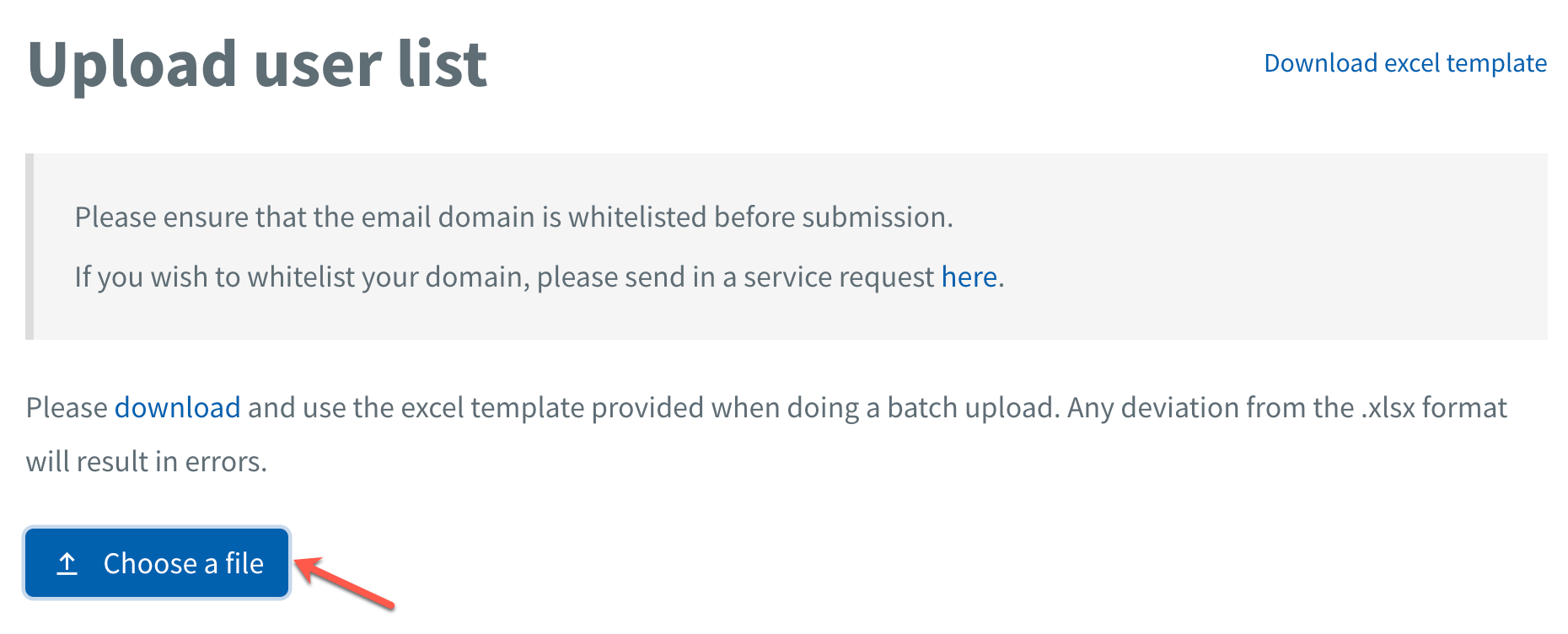
Select the saved file and upload it.
Click Submit > Confirm.
Note: Users with an existing TechPass account is flagged as a duplicate entry.
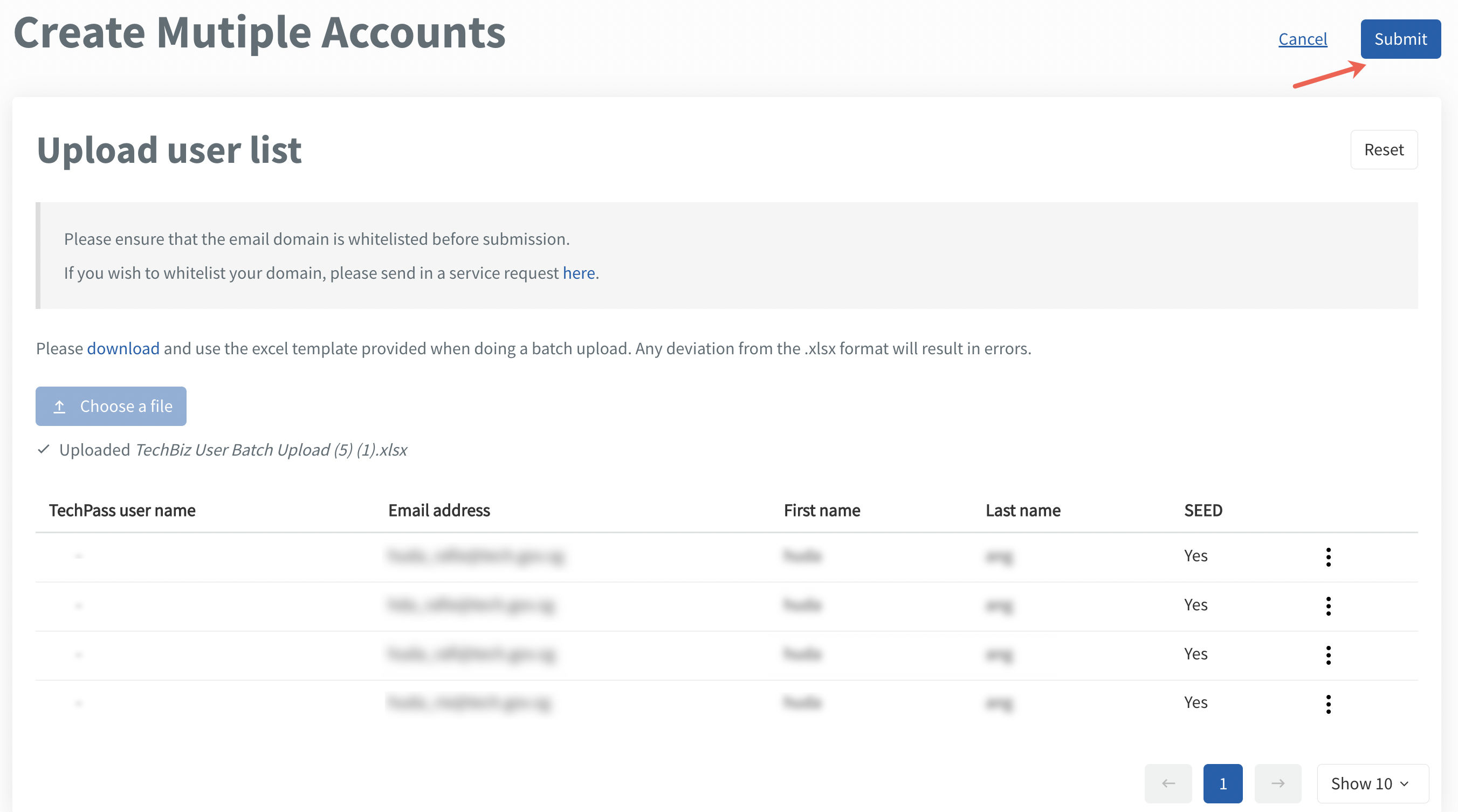
A confirmation message is displayed.
To view or edit user details, click the ellipsis > View details.

To delete a single user, click Remove.

To delete all users, click Reset > Confirm.

User creation status
Public officers can view the status of the users they have invited using TechBiz portal. User creation status displays the TechPass and SEED onboarding status of the invited users.
To view the status of invited users
From the left navigation menu, click Invite users to TechPass.
Select User creation status.
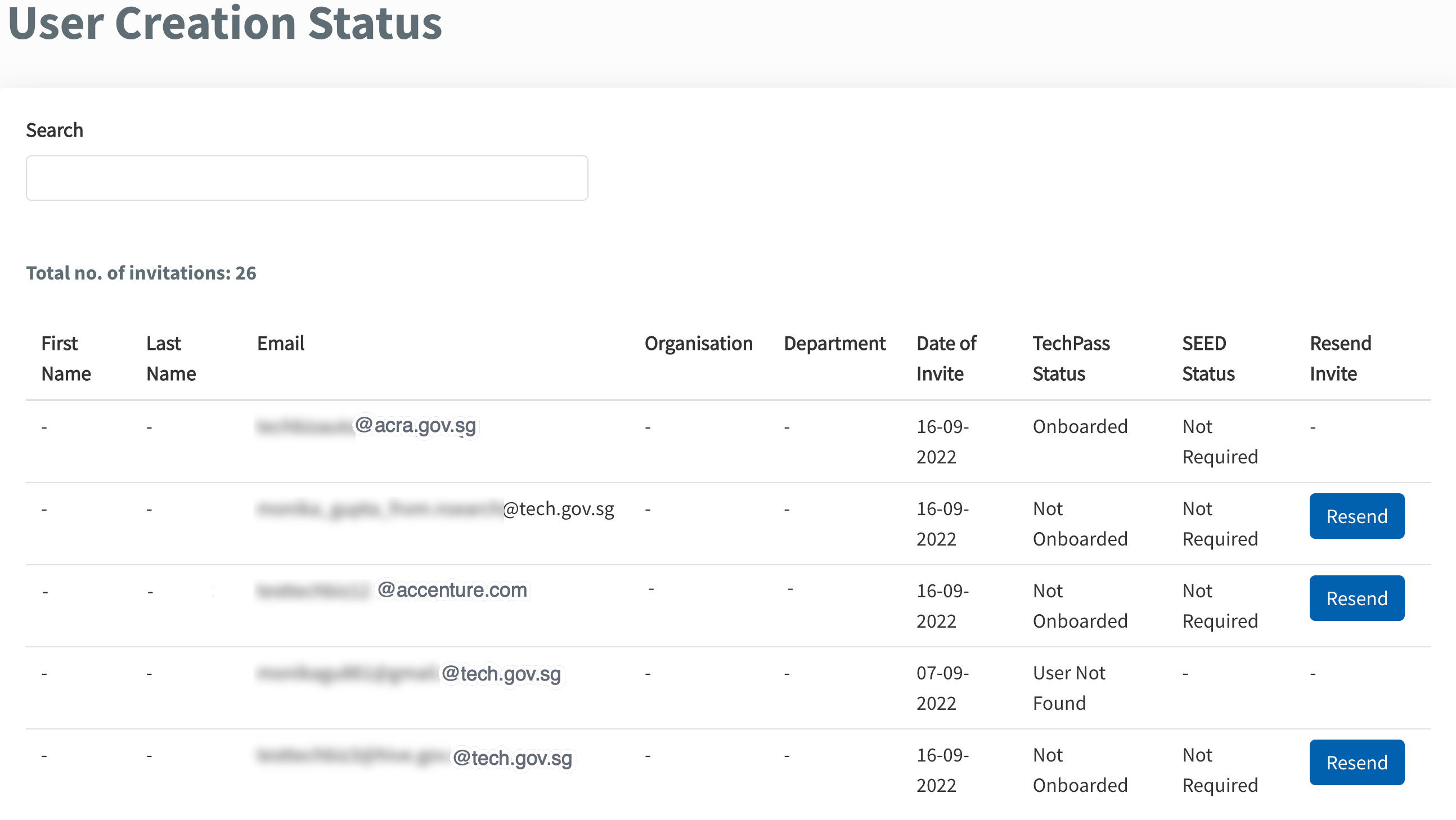
Click Resend invite to re-invite users. Invitations can be resubmitted once a day.
Notes:
- Only users invited via TechBiz portal will be displayed on this list.
- First name and last name are displayed if the user signed up for TechPass via the TechPass portal or if the TechPass account was created through create single account or create multiple account.
