Manage user groups for Jira projects
Subscription Admins (SAs) and Project Admins (PAs) can manage user access and roles for Jira projects using User groups.
Prerequisites
Ensure the following:
- You are a Subscription Admin (SA) for the subscription, or a Project Admin (PA) for a SHIP-HATS project within the subscription.
- You have identified the user groups to add or remove. See View user groups.
- Users in the group have been provisioned with an Atlassian - Jira licence under a SHIP-HATS subscription. See Provision Atlassian - Jira licence.
Steps
In Console, go to Products > SHIP-HATS, and select the required subscription to open the Workspace.
For detailed steps, see Access Workspace.
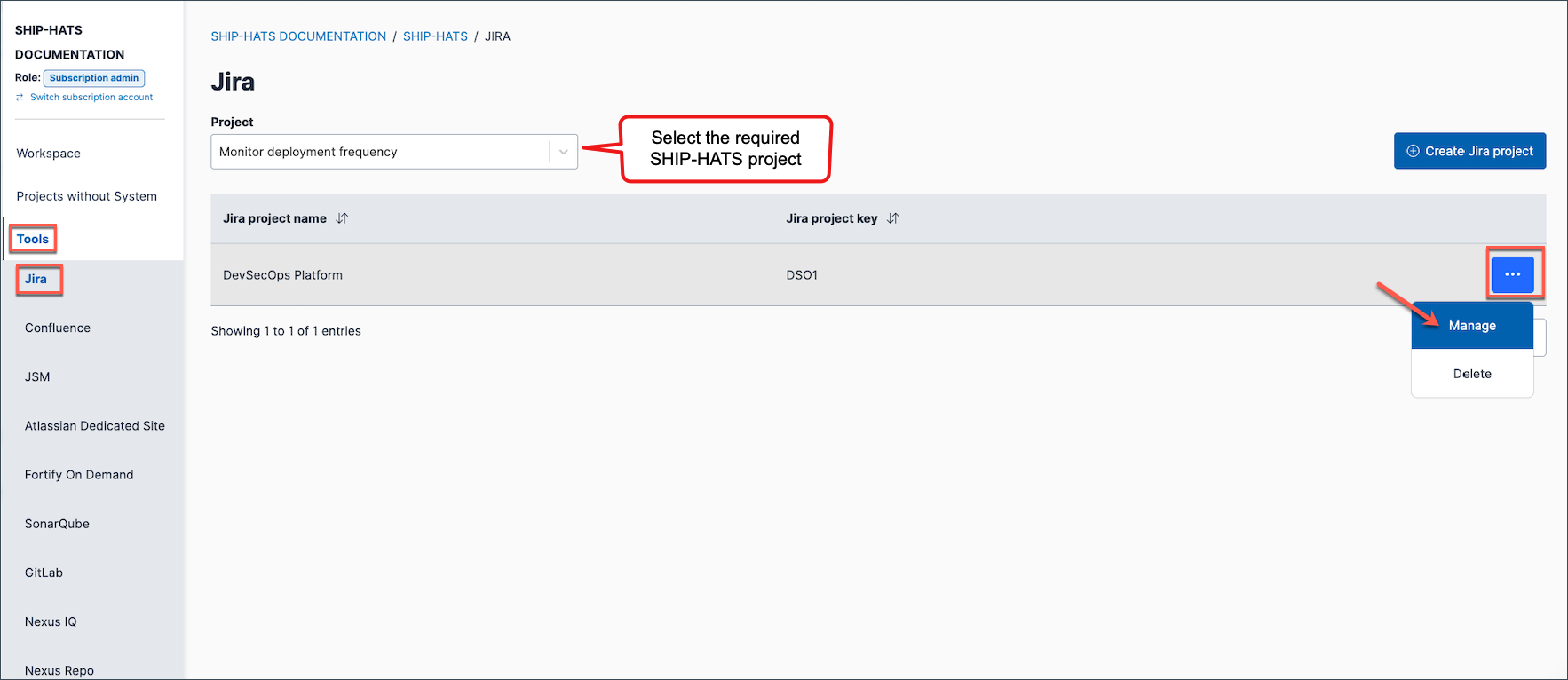
Click Tools > Jira.
Select the required SHIP-HATS project.
Existing Jira projects are listed. For detailed steps, see View Jira projects.
Locate the required Jira project. Select the ellipsis (…) next to the Jira project name, then select Manage.
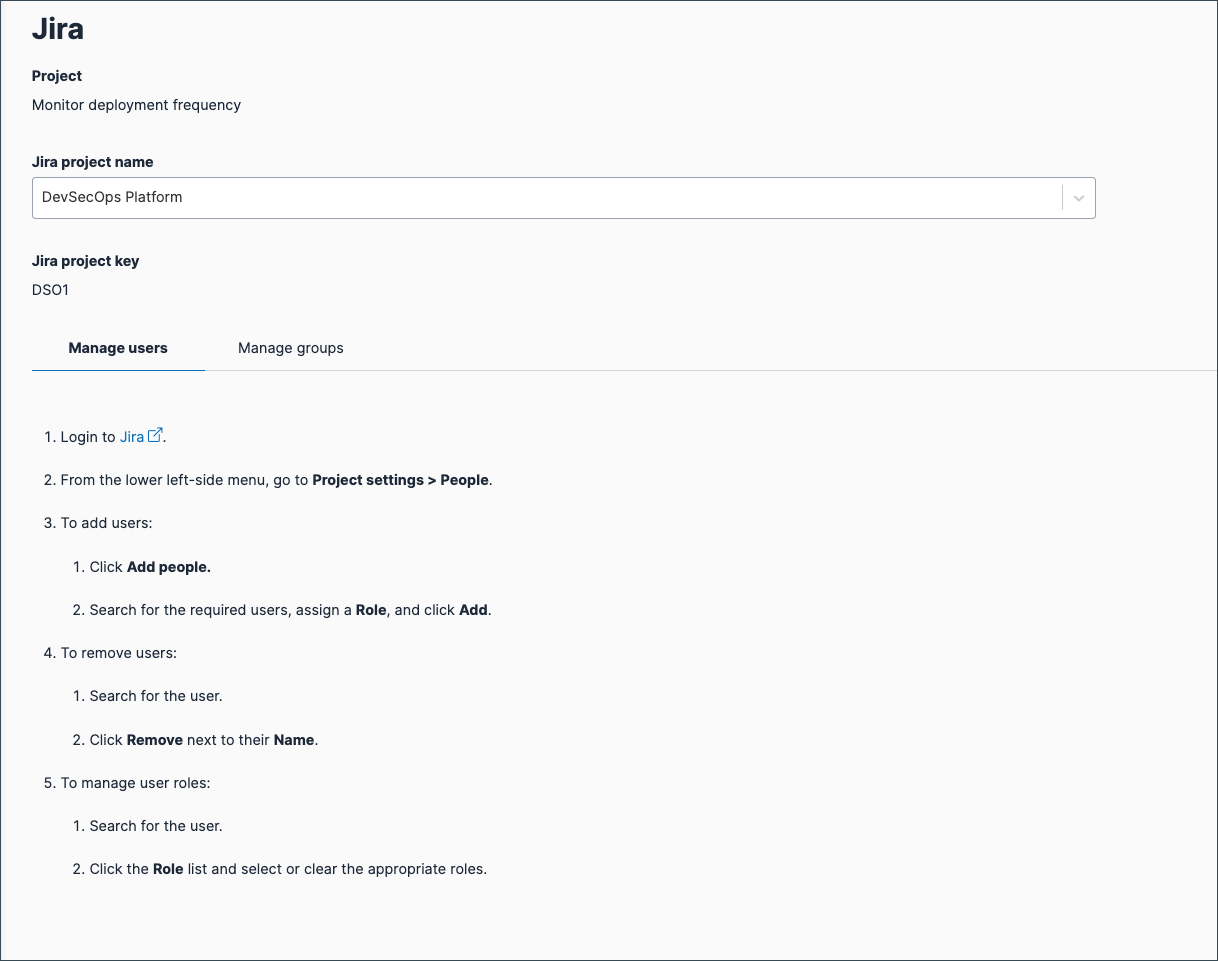
Go to the Manage groups tab to assign user groups, update roles for existing groups, or remove groups.
Select the User group you want to assign.
Assign the required role(s) to this user group.
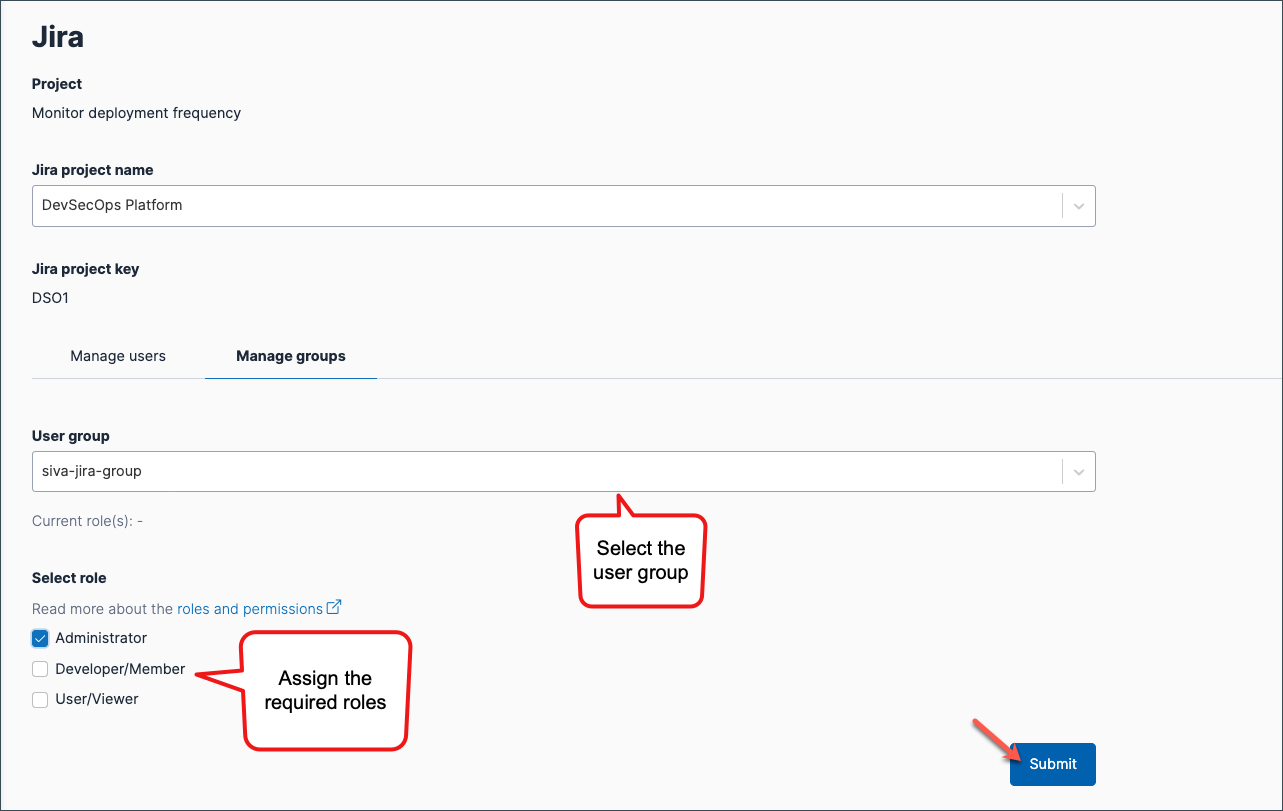
Click Submit.
Select the user group assigned to this project.
Displays the existing roles provisioned to this user group.
Update the roles as required.
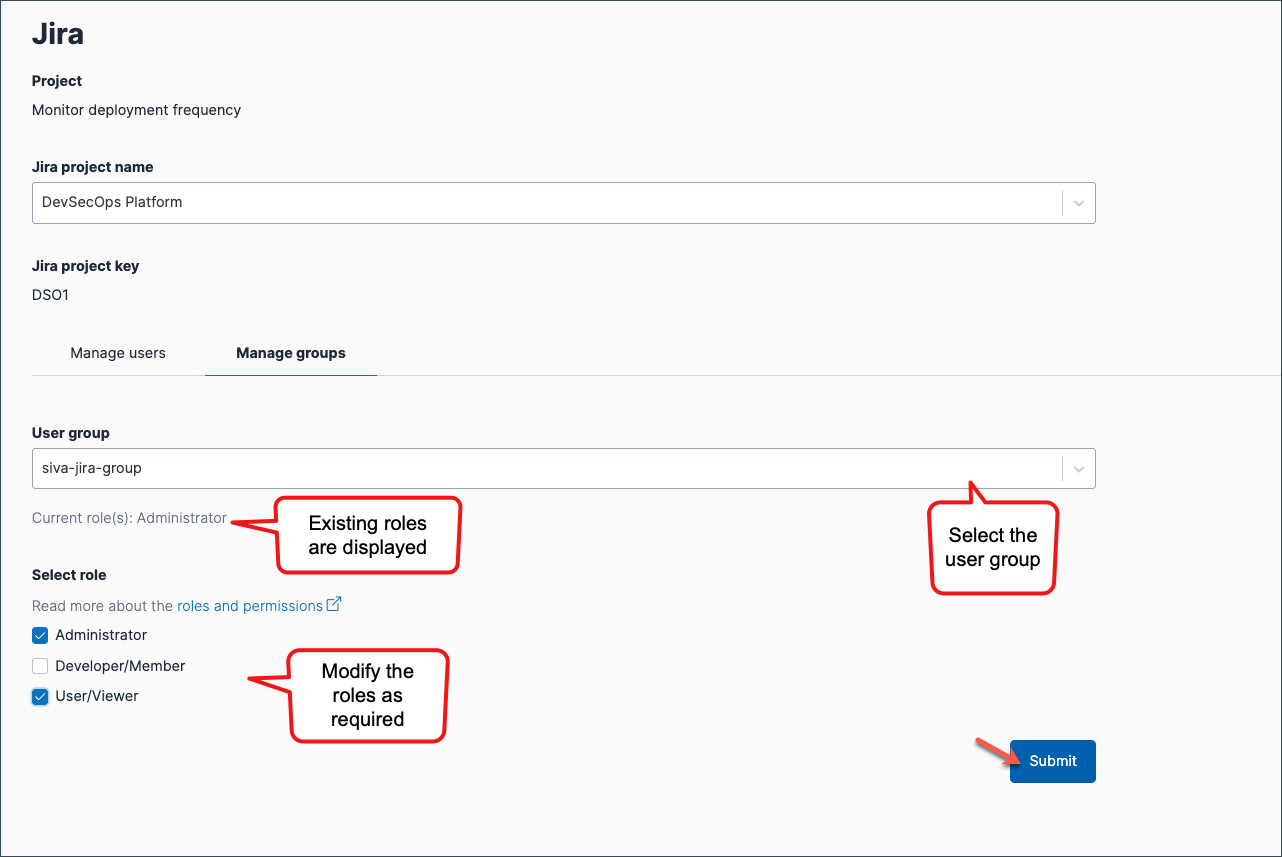
Click Submit.
Remove a user group if it no longer requires access to this project. You can either remove its roles from this project only, or delete the group entirely.
If you are not sure whether the group is used elsewhere, remove the roles assigned to this group for this Jira project.
Select the user group assigned to this project.
This displays the existing roles provisioned to the group.Remove all roles assigned to the group.
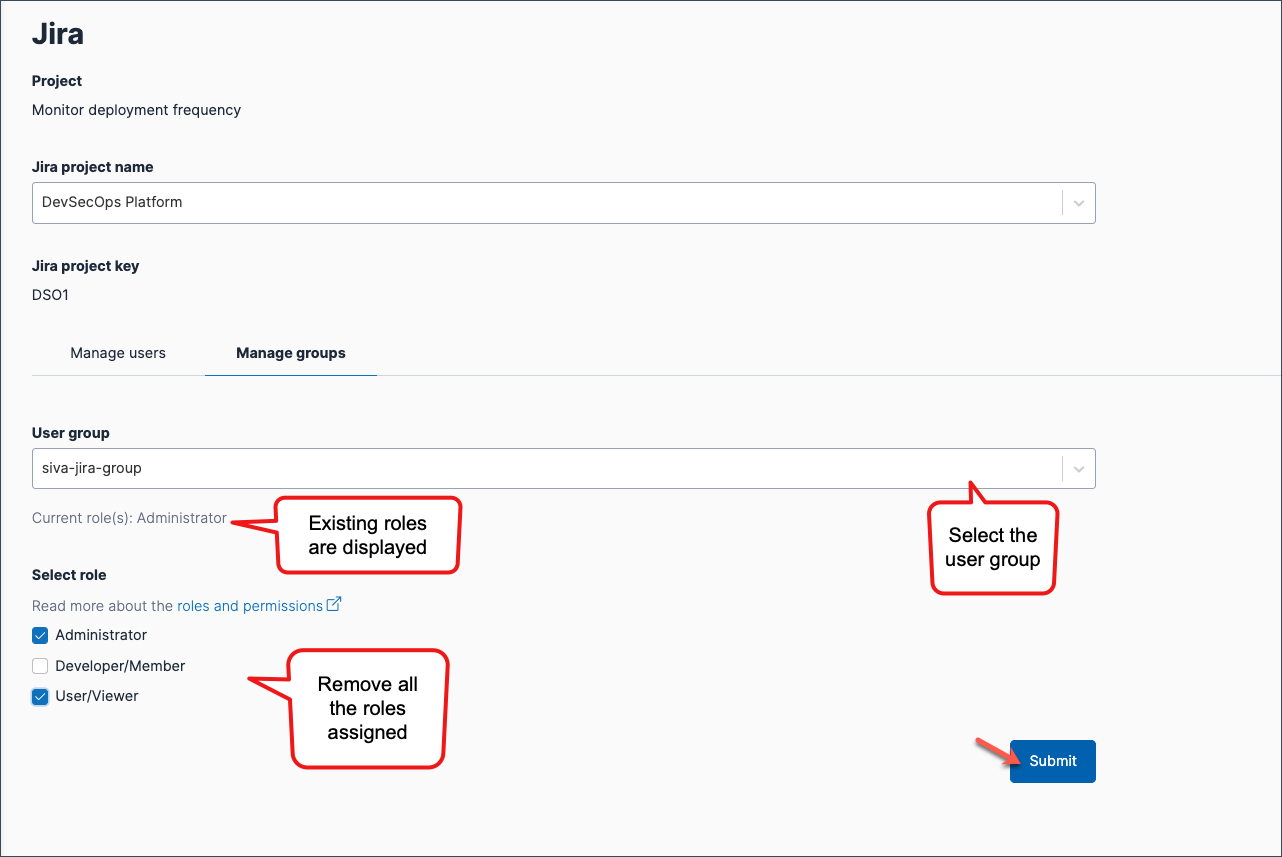
Click Submit.
If you are sure this group is not used elsewhere, you can Delete user groups.
Things to note
- All users in a group automatically inherit the roles assigned to the group for the project.
- Assigning a group grants users access to the Jira project. It does not provision any licences.
- To revoke access, remove users from the group or update the group’s roles.
- Removing roles from a group revokes access only for this Jira project.
- If users still hold an Atlassian licence under SHIP-HATS, they may continue accessing other Jira or Confluence spaces within the SHIP-HATS environment.
