User Management
Access to Workflow is limited to TechPass users. During onboarding, Administrator are required to use their TechPass associated email addresses for access.
The following actions can only be performed by Administrators.
To Invite New User
- Navigate to the User Management page.
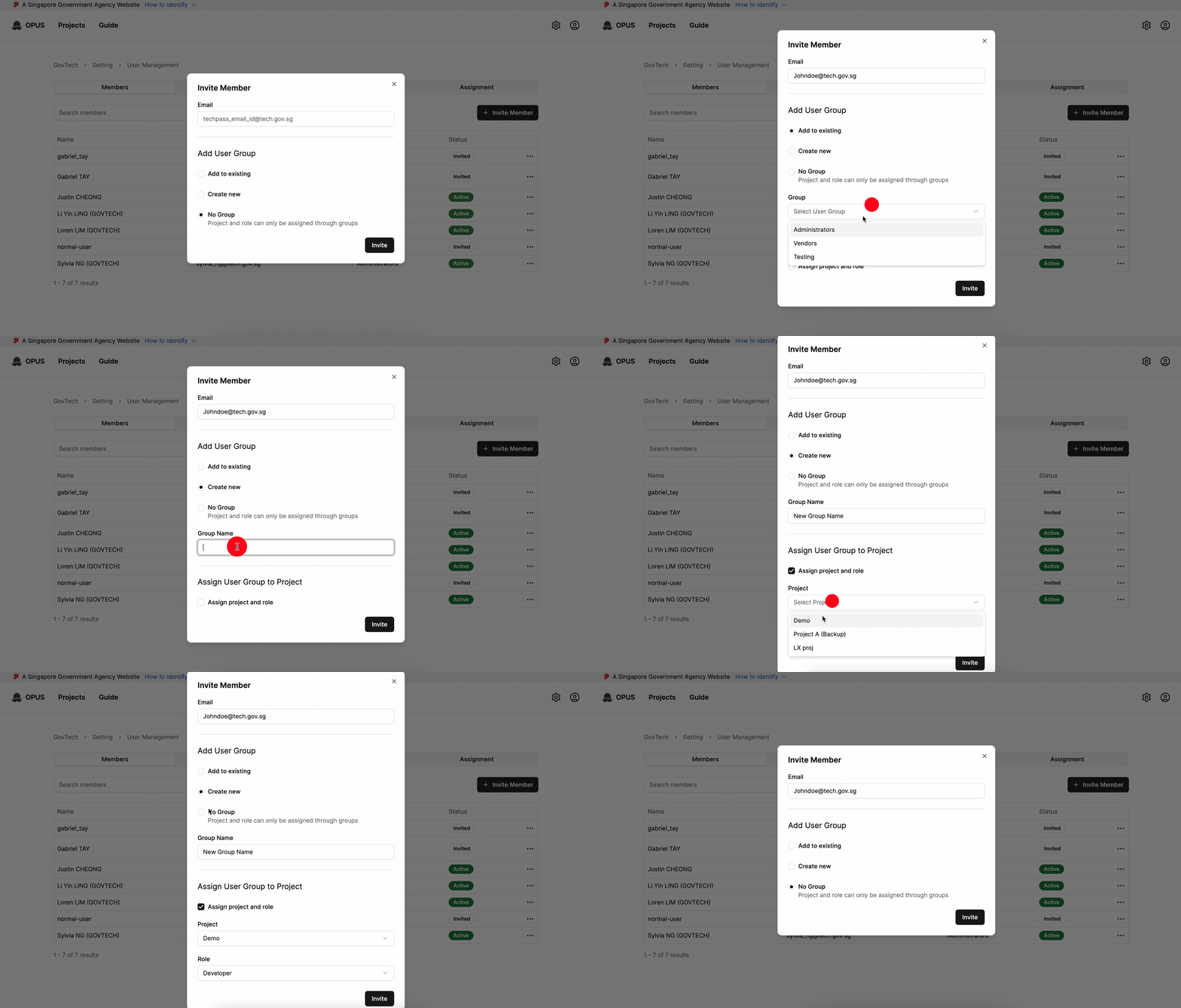
- In the Members tab, click Invite Member.
- In the Email field, add one or more TechPass associated email addresses (see Adding Email Addresses below).
- (Optional) Assign the invitees to a group and role (see Add User Group and Assign Role).
- Click Invite.
- The newly invited users will have an
Invitedstatus.
If an user has logged into Workflow at least once, the status of the user will be updated to Active.
Adding Email Addresses
You can invite multiple people at once. There are several ways to add email addresses to the invite:
- Type and commit — Type an address and press Enter, comma (
,), or Tab to add it as a chip. Repeat for each person. - Search and select — Start typing (at least 3 characters) to search your organisation’s TechPass directory. Pick a colleague from the autocomplete dropdown — it shows each match’s name and email — to add them without typing the full address.
- Paste a list — Paste a list of addresses separated by commas, spaces, or new lines. Each is added as a separate chip.
Each address appears as a removable chip; duplicates are ignored automatically and all addresses are lowercased.
Maximum 20 emails per invite. To invite more people, or to give different people different groups/roles, send more than one invite.
TechPass validation: When you click Invite, every address is checked against TechPass first. If any address is not a valid TechPass user, the invite is rejected as a whole (no accounts are created) and the invalid addresses are listed in an error message. Remove or correct them and try again. You can only invite people who already exist in TechPass.
Add User Group and Assign Role
Assign the invitees to a group and give them a project role during invitation:
- Select an existing group from the Group dropdown, or create a new one.
- To assign a project and role, check the
Assign project and rolecheckbox. - Choose a project from the Project dropdown.
- Choose a role from the Role dropdown.
Note: The group and role you choose apply to everyone in the invite. To assign different groups or roles to different people, send them in separate invites.
To Remove User
- Navigate to the User Management page.
- In the Members tab, locate the user you wish to remove.
- Click the ellipsis menu (⋮) next to the user and select Remove.
- The user will be removed from the user management list.
If a user has been invited but has not yet logged in to the Workflow, the Administrator can remove the pending invitation.
CAM and IM8 Compliance
Workflow will deactivate and remove user accounts under the following conditions:
- The user has left the organisation (notified by TechPass).
- The user’s TechPass account has been revoked (notified by TechPass).
- The user account has been inactive in Workflow for 90 consecutive days.
- An Administrator has manually remove the user’s account.
Group Management
A Group represents a functional grouping of users for a specific project. A user can belong to one or more groups, and each group can be assigned different roles for different projects. For a detailed definition of designated roles, refer to Roles.
If a user belongs to multiple groups assigned to the same project, each with different roles, the user’s permissions for that project will be determined by the union of the permissions from all assigned roles.
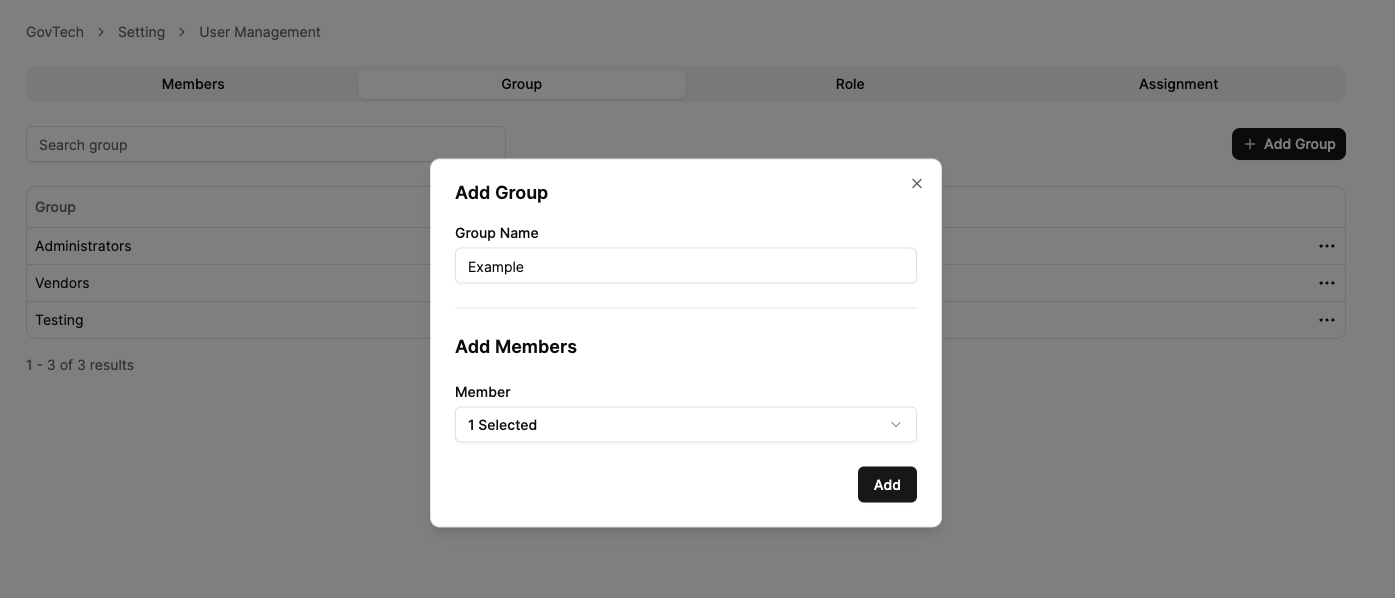
- Navigate to the User Management page.
- In the Group tab, click Add Group
- Enter the desired group name.
- Select the desired members from the Members dropdown list.
- Click Add.
Administrators group is created by default and is assigned the Administrator role.
Example: If a user belongs to Group A with the Editor role and Group B with the Viewer role, the user will have combined permissions equivalent to a Editor.
Roles
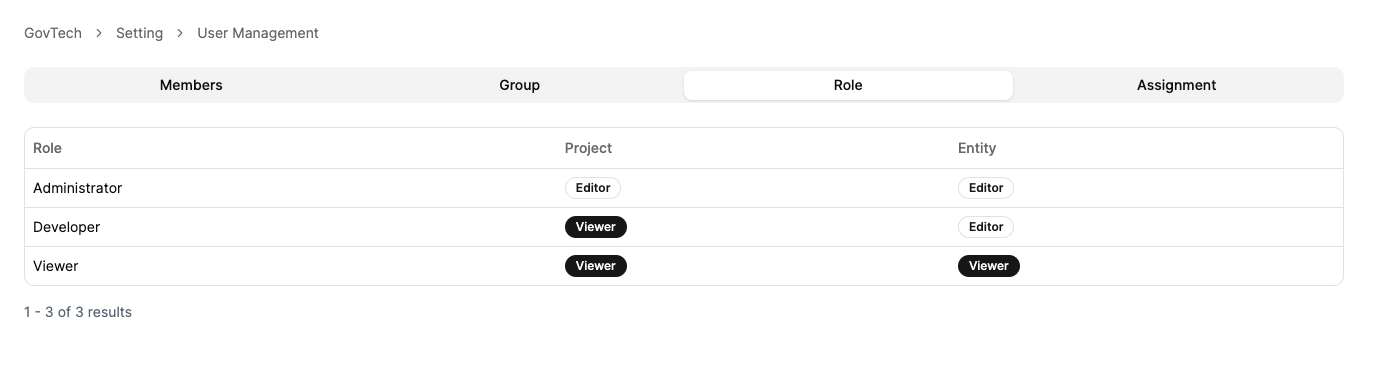
Roles in Workflow are clearly defined with either Editor or Viewer permissions for the following entities: Project and Entity.
Editor: Grants permission to perform CRUD (Create, Read, Update, Delete) operations on the specific entity.
Viewer: Grants Read-Only permission
Assignment
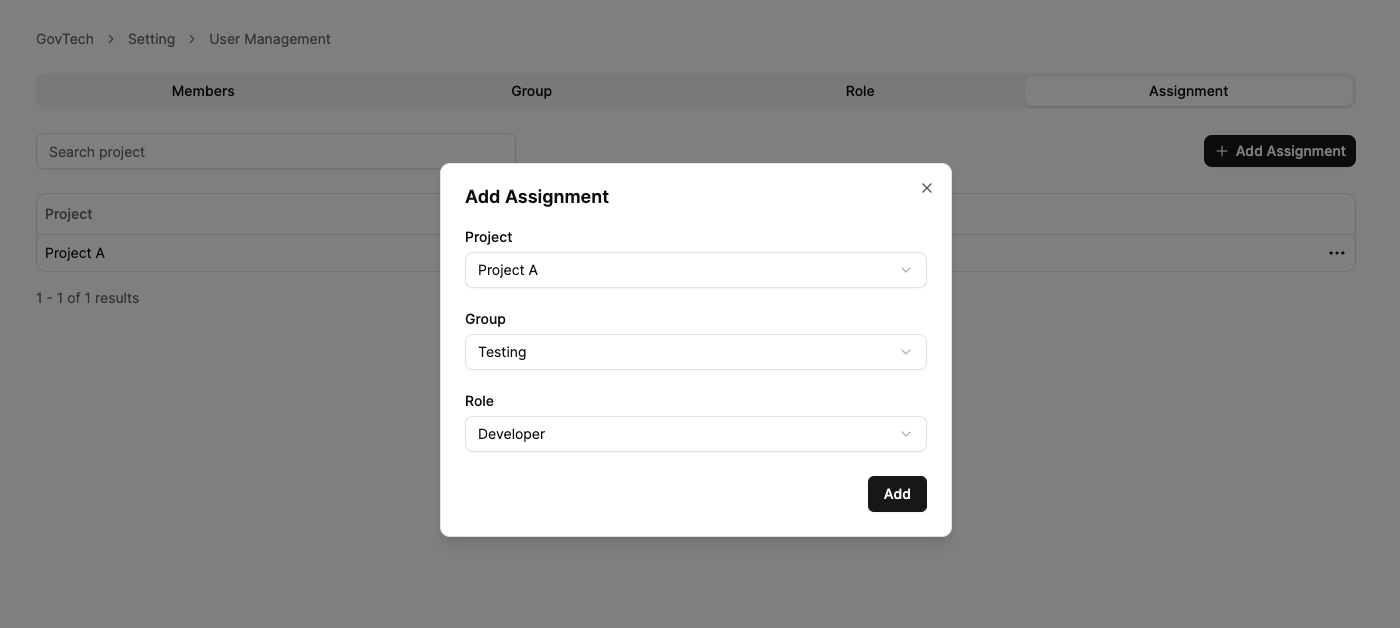
Administrators have the ability to grant permissions to one or more Groups for a specific Project. All members of the assigned Groups will automatically receive, at a minimum, Viewer access to the Projectand Editor entities.
- Navigate to the User Management page.
- In the Assignment tab, click Add Assignment.
- Select the desired project from the Project dropdown list.
- Select the desired group from the Group dropdown list.
- Choose the appropriate role from the Role dropdown list.
- Click Add.