APEX
Beta Feature: This node is currently in beta. Features and functionality may be subject to changes.
The APEX Node allows your workflow to interact with APEX Cloud, Singapore Government’s centralized API management platform. APEX Cloud enables you to manage APIs from registration to publication to retirement, including compliance and governance at every stage.
APEX Support: For any enquiries or issues related to APEX, please reach out to the APEX Cloud Service Desk via go.gov.sg/apex-support.
Prerequisites
Before using the APEX Node, ensure the following:
- APEX Account — You must have an APEX Cloud account.
- APEX Application — You must have an application created in APEX Cloud. See About Applications for more info.
- API Access — You must have access to the published API. See Subscribe to API from Application for setup instructions.
- APEX Credentials:
- You will need an internet API key. See Generate API Key.
- API is using JWT authentication? You will also need your private JWKS added to your application. See Add JWKS to Application.
- Bridging APIs to intranet with JWT authentication? You will also need an intranet API key, which must be generated from the APEX intranet portal.
Internet Only: Our platform can only access APEX Cloud via the internet gateway. Intranet APIs are not directly accessible from this platform. However, you can bridge your intranet API to the internet and access it from there. See Bridging APIs for instructions.
Need help? For assistance with APEX Cloud onboarding, API subscriptions, or configuration issues, visit go.gov.sg/apex-support.
How Does It Work?
Setup Steps:
- Build your workflow using Graph Edit Mode (minimum setup: input node → APEX node → output node, but you can add more nodes as needed)
- Click on the APEX node settings to open its configuration
- Select the HTTP method and environment (staging or production)
- Enter the API path for the APEX endpoint
- Configure the authentication method (API Key or JWT)
- Optionally configure headers and request body
Output:
The APEX Node sends the HTTP request to the APEX Cloud API gateway and returns the response in the following format:
{
"data": {
"status": "success",
"message": "Request processed"
},
"status": 200
}The response includes:
- data: The response body from the APEX API
- status: The HTTP status code (e.g., 200 for success, 404 for not found, 500 for server error)
Whether a given status code causes the node to succeed or fail (following the error path) is configurable — see Response Handling below.
Configuration
Connection Settings
HTTP Method
Select the appropriate HTTP method for your API call:
- GET – Retrieve data from the server
- POST – Send data to create a new resource
- PUT – Update an existing resource (replaces entire resource)
- PATCH – Partially update an existing resource
- DELETE – Remove a resource
Environment
Select the APEX Cloud environment to target:
| Environment | Base URL |
|---|---|
| Staging | https://public-stg.api.gov.sg |
| Production | https://public.api.gov.sg |
The environment determines the base URL prepended to your API path.
Path
The API endpoint path to call on APEX Cloud. This is appended to the environment base URL.
Format: Must start with / (e.g., /api/v1/resource)
Tip: You can use the field selector to dynamically reference the path from a previous node (e.g., {{{input.apiPath}}}).
Authentication
Our platform support two authentication methods for APEX Cloud:
API Key
Authenticates requests using an APEX API key.
| Parameter | Required | Description |
|---|---|---|
| API Key (Internet) | Yes | Your APEX Cloud internet API key |
JWT Auth
Authenticates requests using a signed JWT token.
| Parameter | Required | Description |
|---|---|---|
| API Key (Internet) | Yes | Your APEX Cloud internet API key |
| API Key (Intranet) | No | Your APEX Cloud intranet API key (for intranet requests) |
| Private JWKS | Yes | The private JSON Web Key Set used to sign the JWT token |
Private JWKS Format:
{
"kty": "EC",
"kid": "my-key-id-1",
"crv": "P-256",
"alg": "ES256",
"use": "sig",
"x": "<x-coordinate>",
"y": "<y-coordinate>",
"d": "<d-coordinate>"
}Tip: You can use environment variables to store sensitive credentials like API keys and private keys. Reference them using the field selector (e.g., {{{env.APEX_API_KEY}}}).
Headers
Add custom HTTP headers to the request. See the API Node - Headers for details on header configuration.
Body
Configure the request body for POST, PUT, PATCH, and DELETE requests. See the API Node - Body for details on supported body types.
Response Handling
Response Handling lets you decide which HTTP status codes returned by the APEX API count as a successful execution of the node. You list the status codes (or ranges) that should be treated as success — everything else is treated as an Error, including network failures and timeouts.
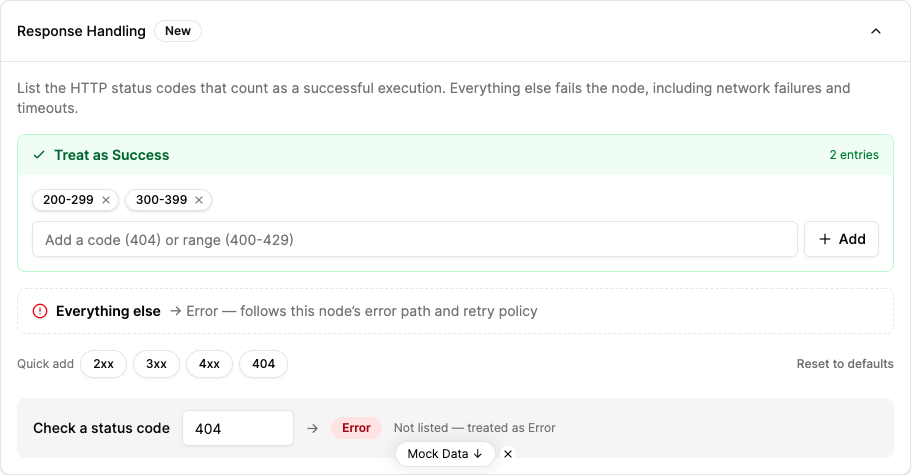
- Treat as Success — Add status codes or ranges (e.g.
200-299, or a single code like404); a matching response completes the node normally and passesdataandstatusto the next node. - Everything else → Error — Any status code not listed as success (plus network failures and timeouts) fails the node, which then follows its error path and retry policy.
- Quick add / tester — Use the
2xx,3xx,4xx,404chips to add common patterns, and the Check a status code tester to preview whether a code resolves to Success or Error.
New APEX nodes default to treating 200-299 and 300-399 as Success and everything else as Error. See API Node - Response Handling for the full explanation, defaults, and behaviour of nodes created before this feature.
When to Use It?
Use APEX Node when:
- You need to call APIs hosted on Singapore Government’s APEX Cloud platform
- Your workflow requires APEX-specific authentication (API Key or JWT signing)
- You want a simplified interface for APEX Cloud without manually constructing authentication headers
- You need to interact with government APIs available through the APEX gateway
Use the API Node instead when:
- You are calling external APIs not hosted on APEX Cloud
- You need features like Response as Base64 or CA Certificate configuration
- The target API uses standard authentication methods (Bearer token, Basic Auth, etc.)
